How to Post GIFs on LinkedIn
 By Olha Kersting, Head of MarketingUpdated
Short answer
In a LinkedIn article, upload the GIF as the header image or paste a hosted GIF URL into the text, and it animates. In posts, GIF support varies by account and app, so upload an MP4 video when the GIF doesn't animate. Profile and background photos can't be GIFs. Sirv can export any spin as a GIF or an MP4.
After reading this you will know
- Where GIFs work on LinkedIn and where they don't
- How to add a GIF to a LinkedIn article in two ways
- When to post an MP4 video instead
How to add animated GIFs to LinkedIn articles
Section titled “How to add animated GIFs to LinkedIn articles”
LinkedIn supports GIFs in some places, but how they behave depends on where you post, the app version and your account.
If a GIF doesn’t animate where you need it, convert it to an MP4 video instead.
Photography: Martini Studios
Where do GIFs work on LinkedIn?
Section titled “Where do GIFs work on LinkedIn?”LinkedIn’s own supported media file types include GIF on desktop, iOS and Android, with a 100 MB file size limit and a limit of 500 frames.
GIFs are not supported for profile photos or background photos.
- LinkedIn articles: upload a GIF as the header image or paste a hosted GIF URL in the article.
- LinkedIn posts: GIF support has changed over time. If the upload doesn’t animate in your account, upload an MP4 video instead.
- LinkedIn comments: some accounts show a GIF option in the comment tools.
- Profile and background photos: use JPEG or PNG, because GIFs don’t animate there.
- Company pages: test the post type before you publish. Image and video posts are more predictable than GIFs.
For important brand posts, MP4 is usually the most reliable option, because LinkedIn treats it as video and can autoplay it in the feed.
Two ways to add GIFs in LinkedIn articles
Section titled “Two ways to add GIFs in LinkedIn articles”- Upload a GIF as a header image: a GIF uploaded to your LinkedIn article as the header can display as an animated image, inside the article and in its preview.
- Add a link to a GIF: a hosted GIF pasted as a link animates inside your article. On other LinkedIn pages, the preview may be static.
Use both the methods above to get maximum impact.
Upload a GIF
Section titled “Upload a GIF”When you upload a GIF to a LinkedIn article, the article preview with an animated GIF looks like this:
Check the article preview before you publish. An animated header draws attention, so people are more likely to click through to your article.
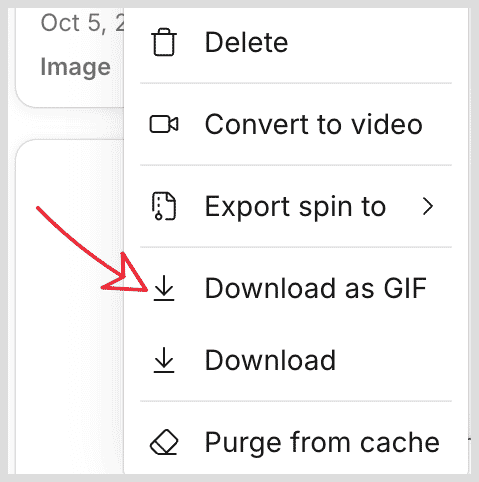
1. In your Sirv account, click … on your spin (or right-click it) and choose Download as GIF:
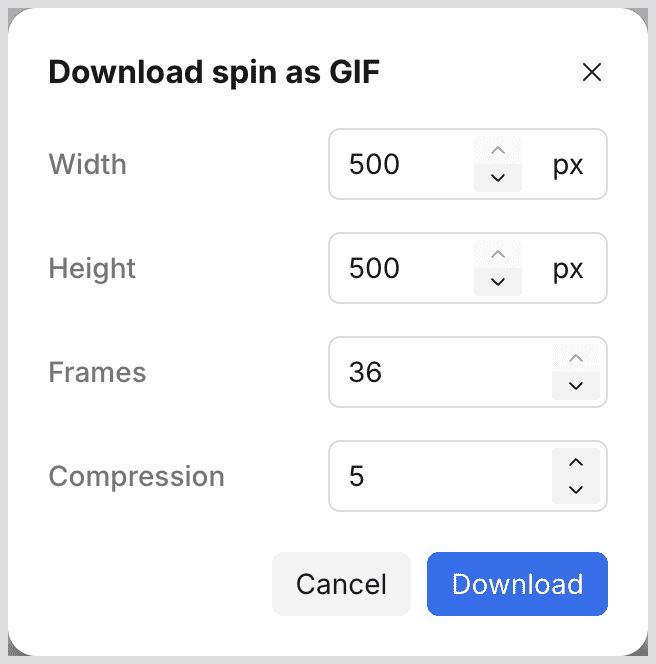
2. Set the width, height, number of frames and compression, then click Download:
3. Hit the

icon above the title:
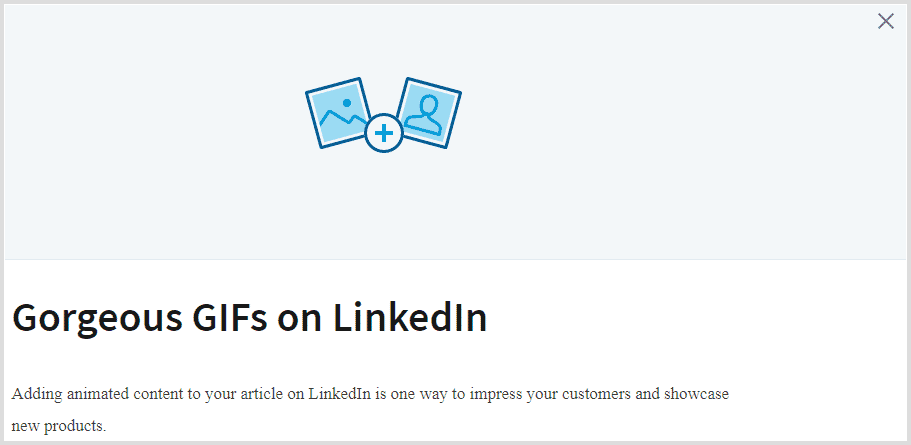
4. Choose the GIF you just downloaded. You’ll see it animate above your article. If it doesn’t upload or animate, download a smaller GIF from Sirv (less width or fewer frames) and try again.
Many frames, large pixel sizes and slow connections can all cause problems.
Add a link to a GIF
Section titled “Add a link to a GIF”To show an animated GIF inside your article, paste the URL of a hosted GIF. It looks like this:
1. In your Sirv account, click … on a spin (or right-click it) and choose Embed.
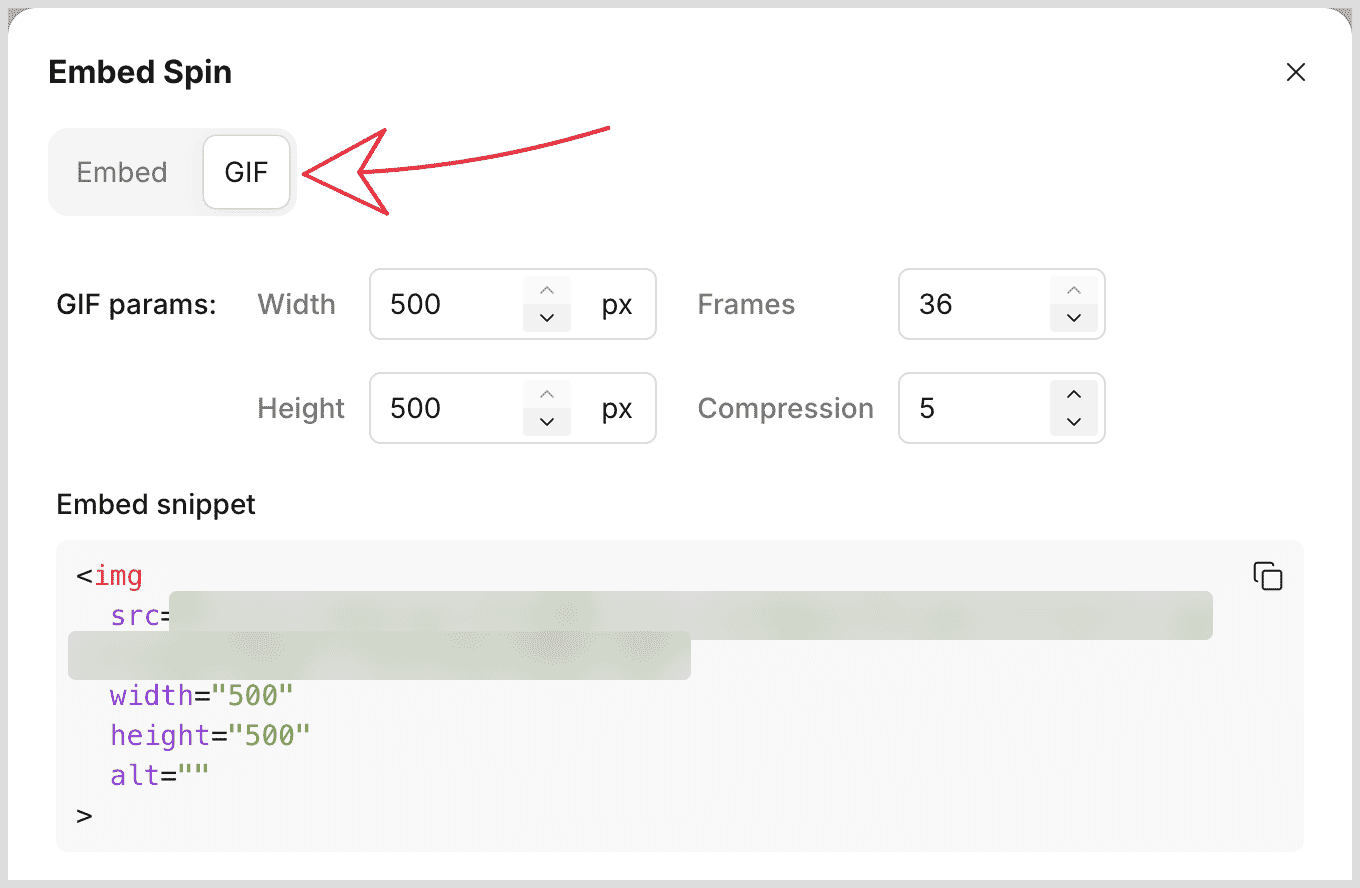
2. Open the GIF tab, set the size, frames and compression, then copy the src URL from the Embed snippet:
3. In your LinkedIn article, paste the URL.
4. Press Enter and your animated GIF appears within a couple of seconds. Before copying the GIF, you can add dynamic imaging options such as resizing, text overlays or watermarks.
Add videos to LinkedIn posts
Section titled “Add videos to LinkedIn posts”LinkedIn posts behave differently to LinkedIn articles. If your GIF doesn’t animate reliably in a post, convert it to MP4 and upload it as a video.
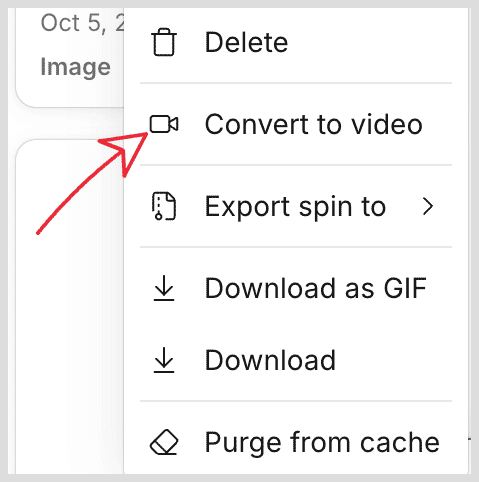
Video is also the best choice for 360 spins, product rotations and important campaign posts. On a Business 5 plan or higher, Sirv turns any spin into a video in a couple of clicks.
1. In your Sirv account, click … on your spin (or right-click it) and choose Convert to video:
2. Go to your LinkedIn feed and click the “Video” button to upload your video:

Your video can autoplay in the feed, depending on the viewer’s app, browser and autoplay settings.
Add images to LinkedIn company pages
Section titled “Add images to LinkedIn company pages”Company page features change over time and can differ from personal posts. If GIF playback matters, publish a test post first or use MP4 video.
For images, either paste an image URL or click the “Images” button under your company post:
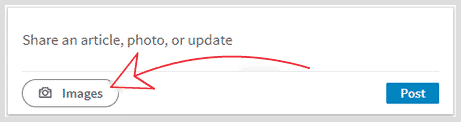
To attach multiple images, just Shift-click to select the images you want to share.
What GIF settings work best on LinkedIn?
Section titled “What GIF settings work best on LinkedIn?”- Keep GIFs under LinkedIn’s 100 MB limit and below 500 frames.
- Resize large GIFs before uploading. A GIF 600 to 1200px wide is enough for most posts and articles.
- Use MP4 for long animations, high-resolution product spins or anything with smooth motion.
- Keep the original on Sirv, so you can make smaller GIF, image and video versions without editing the source again. See GIF hosting.
Use Sirv to host your GIFs, videos and images. They’re instantly ready to use on LinkedIn, other social networks and your own websites and apps.
Create your account now, with 5 GB free space for 30 days, then choose your preferred hosting plan.