Sirv for make.com
 By Igor Varyvoda, Head of Sirv StudioUpdated
Short answer
In a Make scenario, click +, search for "Sirv" and pick a module, such as "Upload a file" or the "Watch new files" trigger. Connect your Sirv account once with its REST API Client ID and Client secret. Modules cover files, folders, search, metadata, conversions and stats, so Sirv can work with thousands of other apps.
After reading this you will know
- How to add Sirv to a Make scenario
- Which Sirv modules and triggers you can use
- How to make any Sirv API call from Make

Automate your image and video workflows with the official Sirv app for Make (formerly Integromat).
Make connects Sirv to thousands of other apps - online stores, spreadsheets, CRMs, messaging tools and more - with no coding.
Build visual scenarios that upload files to Sirv, organize folders, set metadata, convert videos to 360 spins, generate protected URLs and react to new uploads, all automatically.
The Sirv app provides 30 modules covering the Sirv REST API: 2 triggers, 27 actions and searches, plus a universal “Make an API call” module for any other endpoint.
It is an official app, built and supported by the team at Sirv.
Getting started
Section titled “Getting started”-
Log in to your Make account and create a new scenario.
-
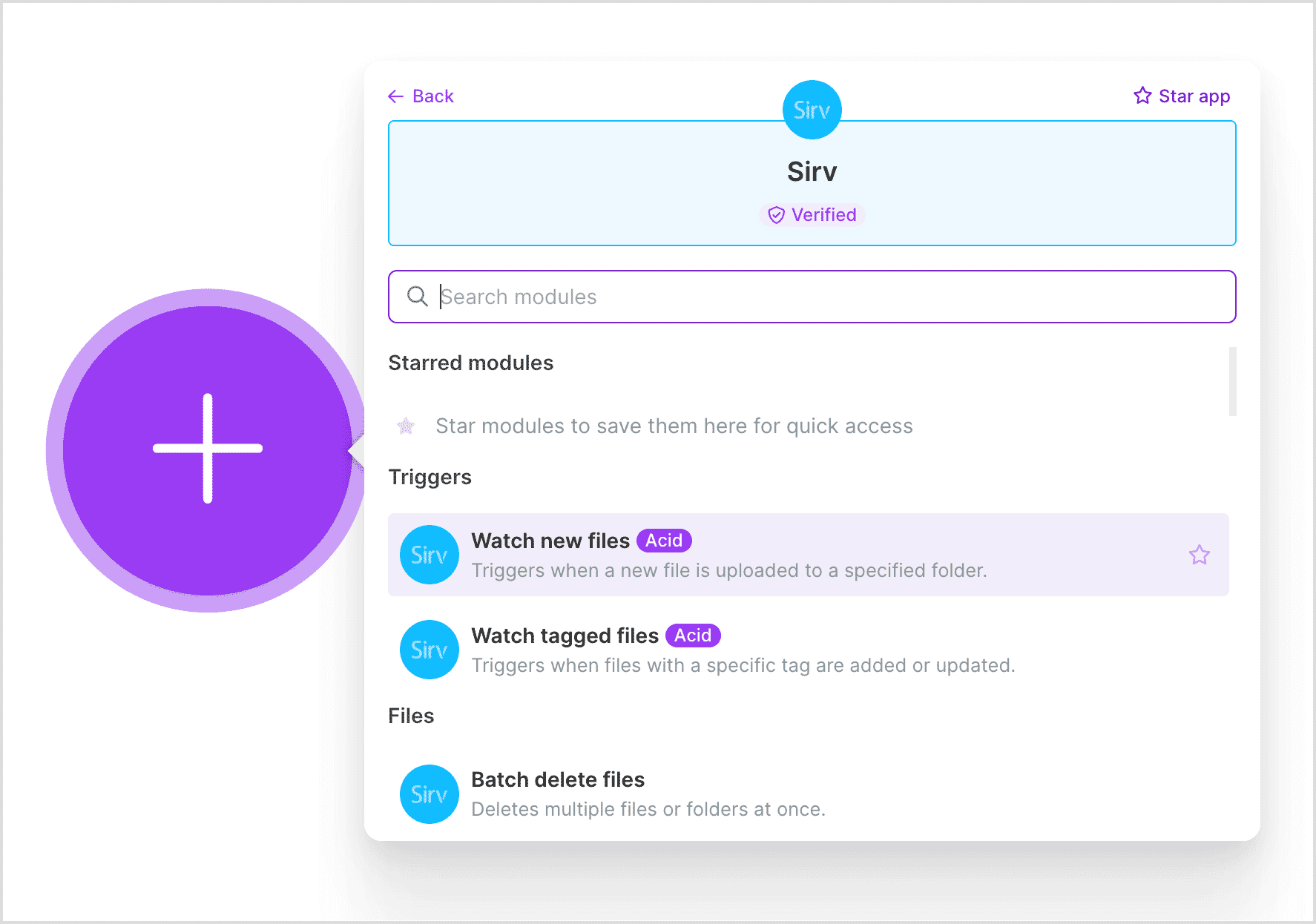
Click the + button and search for “Sirv”:
![Add a Sirv module to a Make scenario]()
-
Choose the module you need - for example “Upload a file” or the “Watch new files” trigger.
Create a connection
Section titled “Create a connection”The first time you add a Sirv module, create a connection to your Sirv account:
-
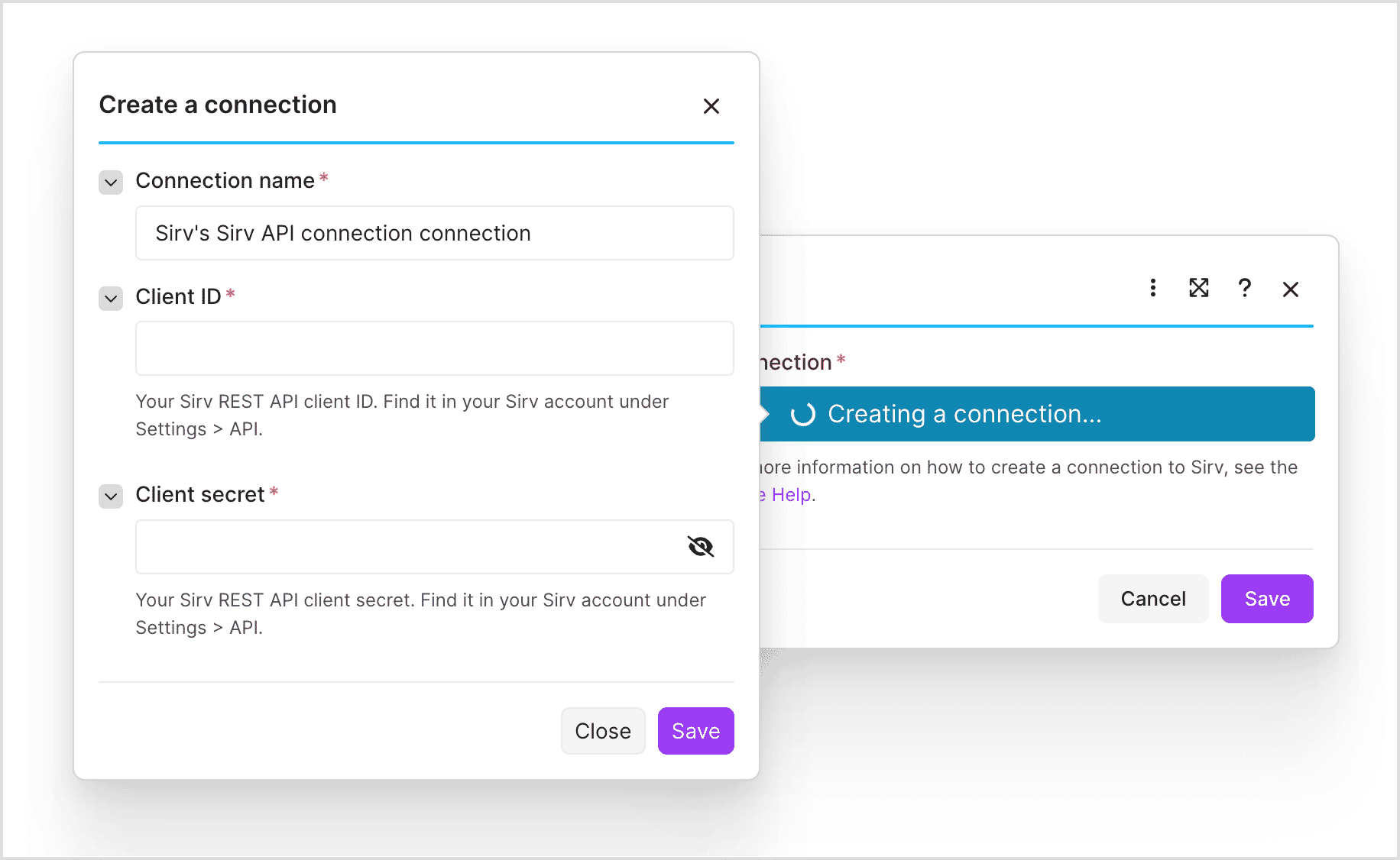
Click Add next to the Connection field.
-
Enter your Sirv REST API Client ID and Client secret. Find them (or create a new client) in your Sirv account under Settings > API access (click New API client to create one). If you don’t have a Sirv account yet, create one - it takes a minute.
![Create a Sirv connection in Make]()
-
Click Save. Make verifies the credentials immediately and the connection is ready.
The connection handles authentication for you: it exchanges your credentials for an access token and renews it automatically before it expires, so you never need to reauthorize.
Available modules
Section titled “Available modules”Triggers
Section titled “Triggers”- Watch new files - triggers when a new file is uploaded, optionally limited to a folder or file extension.
- Watch tagged files - triggers when files with a specific tag are added or updated.
- Upload a file - uploads a file to your Sirv account.
- Download a file - downloads a file from your Sirv account.
- Fetch a file from a URL - imports a file from an external URL.
- Copy a file - copies a file to a new location.
- Rename or move a file - renames a file or folder, or moves it.
- Delete a file - deletes a file or an empty folder.
- Batch delete files - deletes multiple files or folders at once.
- Get batch delete job results - gets the progress and results of a batch delete job.
- Zip files - creates a ZIP archive from multiple files or folders.
- Get ZIP job results - gets the finished archive’s download URL.
- Get file info - gets a file’s size, dimensions and content type.
- Get a CDN URL - gets the CDN URL of a file, optionally with automatic format optimization.
Folders
Section titled “Folders”- Create a folder - creates a new empty folder.
- List folder contents - lists the files and folders in a directory.
Search
Section titled “Search”- Search files - searches your account with filters for folder, extension and content type, using the Sirv search syntax.
Metadata
Section titled “Metadata”- Get file metadata - gets a file’s title, description, tags and product data.
- Set file metadata - sets a file’s title, description and tags.
- Get file tags - gets the tags of a file.
- Add tags to a file - adds tags to a file.
- Set product metadata - sets e-commerce product data (ID, name, brand, categories).
Conversions
Section titled “Conversions”- Convert a video to a spin - turns a video file into a 360 spin.
- Convert a spin to a video - renders a 360 spin as a video file.
Account and statistics
Section titled “Account and statistics”- Get account info - gets your account details, including your CDN URL.
- Get storage info - gets your storage plan and usage.
- Get API limits - gets your current API rate limits and usage.
- Get usage report - gets HTTP transfer statistics for your account.
- Get a protected URL - generates a JWT-protected URL for a file, with an expiry time.
- Make an API call - performs any authorized call to the Sirv REST API (see below).
Example scenarios
Section titled “Example scenarios”A few popular automations to give you ideas:
- Auto-import product images - when a row is added to a Google Sheet with an image URL, “Fetch a file from a URL” imports it into the right Sirv folder.
- New upload notifications - “Watch new files” triggers on uploads to a folder, then posts the file’s CDN URL to Slack or adds it to Airtable.
- Automatic 360 spins - when a new product video arrives, “Convert a video to a spin” creates a 360 spin, ready to embed with Sirv Media Viewer.
- Scheduled backups - “Zip files” archives a folder on a weekly schedule, then “Get ZIP job results” fetches the archive URL and emails it to you.
- Metadata at scale - “Search files” finds files matching a query, then “Set product metadata” applies product IDs and categories to each one.
Make an API call
Section titled “Make an API call”Every other Sirv REST API endpoint is available through the “Make an API call” module. Enter a path relative to https://api.sirv.com, for example:
/v2/accountChoose the HTTP method, and optionally add query string parameters, headers and a JSON body. You don’t have to add authorization headers - the module adds them for you.
The module returns the status code, response headers and response body for mapping into later modules.
Common questions
Section titled “Common questions”Do I need to reauthorize the connection when the token expires?
No. The connection exchanges your Client ID and Client secret for an access token and renews it automatically shortly before it expires. You only enter your credentials once.
How often do the triggers check for new files?
You choose the schedule in Make - each trigger polls your Sirv account on the interval set in the scenario's scheduling settings, 15 minutes by default. The Limit field controls how many files are processed per cycle.
Can I use a Sirv API endpoint that has no dedicated module?
Yes. Use the "Make an API call" module with any Sirv REST API path. Authorization headers are added automatically.
Why do "Zip files" and "Batch delete files" return only a job ID?
Those operations run as background jobs on Sirv. Pass the job ID to "Get ZIP job results" or "Get batch delete job results" to fetch the outcome, including the finished archive's URL.