CDN Cache Management
 By Jake Brumby, Customer Success DirectorUpdated
Short answer
You rarely need to purge anything: when you upload a new version of a file, Sirv clears the old one from its CDN within seconds. If an old version still shows, right-click the file in Sirv and choose Purge from cache. Browsers keep files for 7 days by default; change that in your Default profile.
After reading this you will know
- When Sirv clears the CDN cache for you
- How to purge one file by hand
- How to change the browser cache duration (TTL)
Sirv caches files on its CDN and in your users’ browsers so images, videos and other files load quickly. In most cases, you don’t need to clear the CDN cache yourself.
This article explains the default cache settings and how to change them.
Automatic cache purging
Section titled “Automatic cache purging”Sirv CDN automatically stays up to date. You don’t need to manually purge the CDN after you upload new versions of files to Sirv.
All cached versions of the old file are invalidated within a few seconds across Sirv’s CDN, whether it’s served from your Sirv subdomain or your custom domain, meaning the old file will never be served again.
There are two scenarios where the old file might still exist. It may have been cached in the users’ web browser or it might still be cached on a CDN server - very rare but possible.
Manual cache purging
Section titled “Manual cache purging”It is possible to manually clear a file from the Sirv CDN cache. This is very rarely needed because Sirv automatically clears the cache whenever you overwrite an image.
However, in rare scenarios, a cached version of a file might not be cleared from a CDN cache, for example if the cache clearing request was lost or timed out.
If you think an old image is being served, test it by requesting the image from another browser or device.
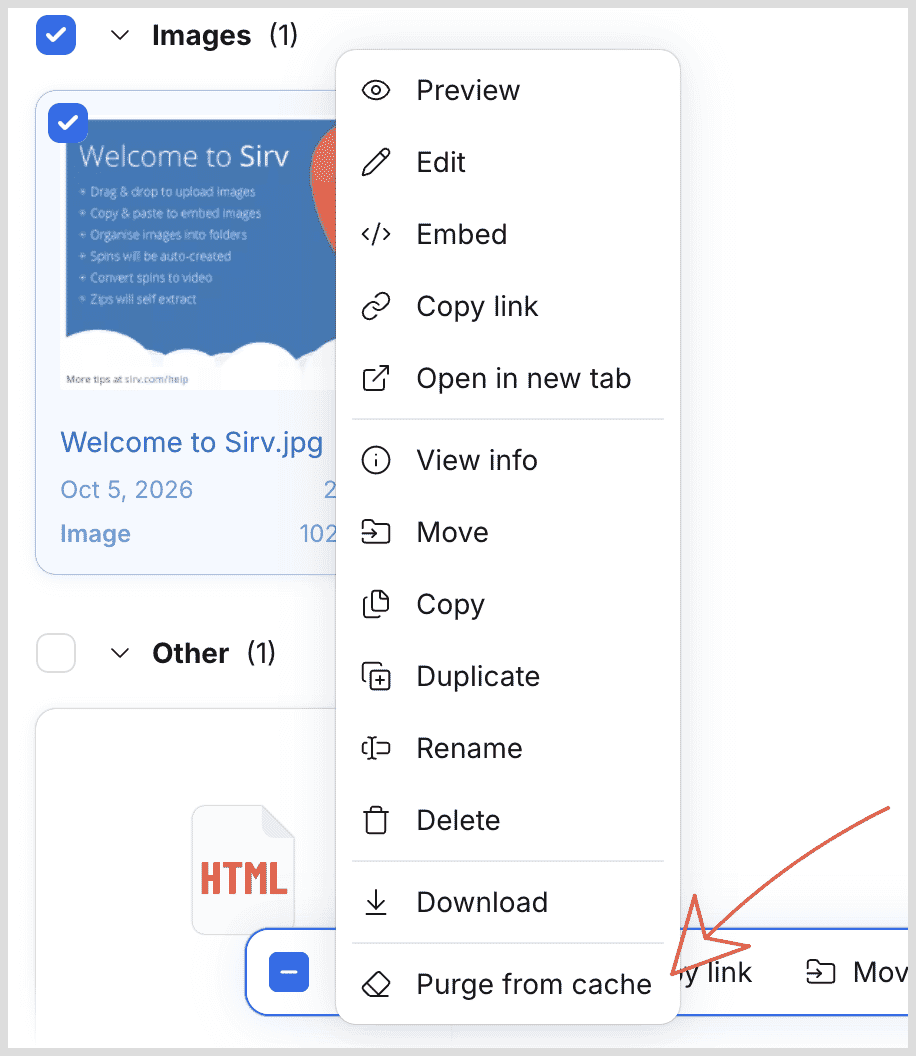
If you still see the old image, right-click the image in your Sirv account and choose “Purge from cache”:
Browser cache duration
Section titled “Browser cache duration”Browsers cache (save) files to load them quickly, rather than downloading the same files again.
Sirv sets an “expires” header of 7 days by default, meaning the file can stay in the browser cache for the next 7 days.
Known as the TTL (time to live), 7 days suits files that change fairly often. If your files change rarely, consider increasing the TTL to 1 year.
If they change frequently, consider reducing it to 1 day or less. Choose from any of the following browser cache durations:
- 1 hour
- 3 hours
- 12 hours
- 1 day
- 7 days
- 30 days
- 1 year
Change global cache duration
Section titled “Change global cache duration”This global setting applies to all files in your Sirv account and is set in your Default profile. It can be overridden with a profile, see below.
To change the default duration:
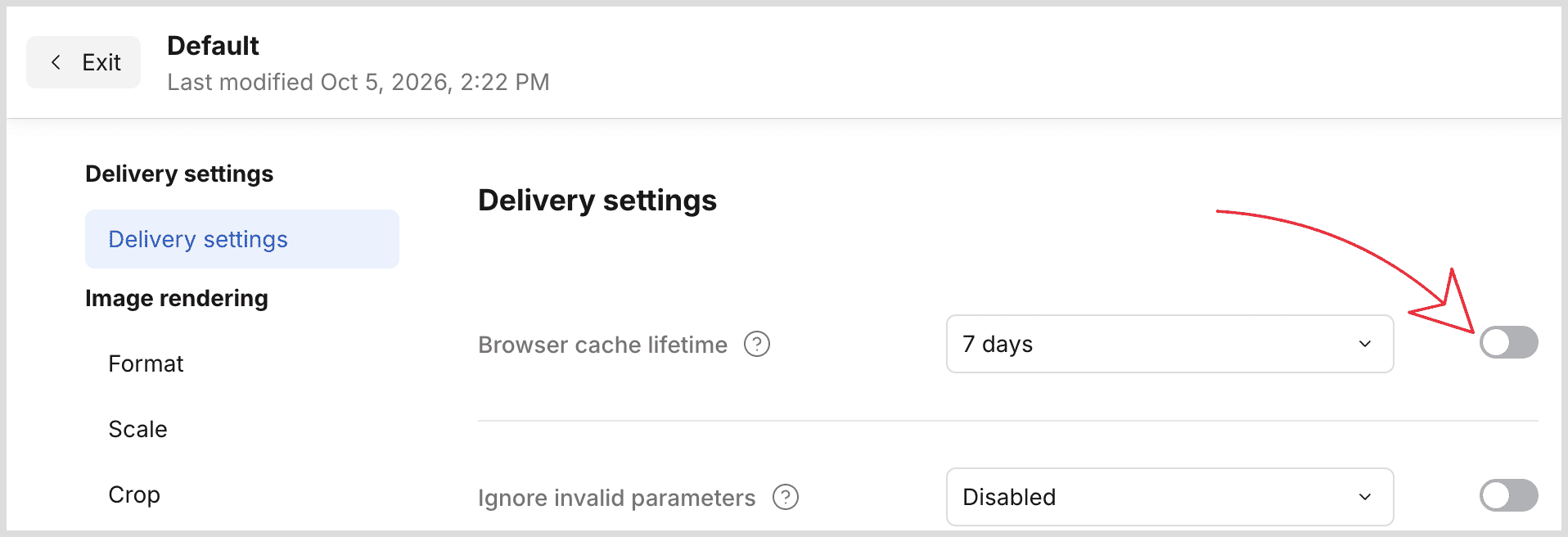
- Go to Profiles and click “Edit” on the Default profile. It opens on “Delivery settings”.
- Turn on the switch next to “Browser cache lifetime” and choose a duration.
- Click “Save changes” in the top right.
Change cache duration per-profile
Section titled “Change cache duration per-profile”You can also set a different cache expiry time for certain files. Create a profile, turn on “Browser cache lifetime” in its Delivery settings and choose a duration.
Apply the profile to whichever files you wish by appending its name in the URL, for example:
https://demo.sirv.com/example.jpg?profile=long-expiry
In that example, the profile is named “long-expiry”. Profiles can also apply repeated settings such as format, quality and resizing.
TTL for scripts and video streams
Section titled “TTL for scripts and video streams”Files delivered from scripts.sirv.com and video.sirv.com have a TTL of 7 days. This is a global default and cannot be altered.