How to setup 360 spin fullscreen buttons
 By Marc Bonne, Customer Success TeamUpdated
Short answer
The fullscreen button sits in the top-right corner of each 360 spin. To change its look, point a CSS rule on your page at a ready-made button sprite, or at your own PNG uploaded to Sirv. Move it with the .sirv-spin-button.fullscreen CSS rules, or remove it by adding ?fullscreen=false to the spin URL.
After reading this you will know
- How to change the fullscreen buttons on a 360 spin
- How to move them
- How to remove fullscreen
The fullscreen enlarge button for 360 spins is displayed in the top-right corner of Sirv spins. The design and size of buttons can be changed with CSS, as can the hint message and the loading bar.
The standard fullscreen buttons (enter and exit) exist as one single PNG image (a sprite). They look like this:

The larger images are shown on mobile devices, for easy tapping. The smaller images are shown on desktops.
Predesigned buttons
Section titled “Predesigned buttons”Choose your preferred button style below or create your own design (see below).
For white or light backgrounds:







For black or dark backgrounds:








Let’s say you want to use these round buttons:
Get the URL of that image sprite and specify it in some CSS on your page:
<style type="text/css"> .sirv-spin-button.fullscreen, .sirv-spin-button.fullscreen-exit { background-image: url("https://scripts.sirv.com/spin/graphics/buttons08.png"); }</style>The spin with round buttons will look like this:
Design your own buttons
Section titled “Design your own buttons”Alternatively, you can design your own buttons.
1. Either design your buttons as a single PNG sprite (recommended) or create them as individual open/close buttons.
2. Upload your PNG(s) to your Sirv account.
3. Add the following CSS rules to your HTML page to apply your new buttons:
<style type="text/css"> .sirv-spin-button.fullscreen { /* Here's the URL of your fullscreen open PNG button: */ background-image: url("https://youraccount.sirv.com/your-new-fullscreen-button.png"); /* If your button is a sprite, you may need to adjust its position: */ background-position: 0 0 !important; } .sirv-spin-button.fullscreen-exit { /* Here's the URL of your fullscreen close PNG button: */ background-image: url("https://youraccount.sirv.com/your-new-close-button.png"); /* If your button is a sprite, you may need to adjust its position: */ background-position: 0 0 !important; }</style>Generally, the only code you need to change is the location of your PNGs in your Sirv account. If you need help, email the Sirv support team.
Change the button location
Section titled “Change the button location”To move the buttons from the top right corner to another location, change the values of the .sirv-spin-button.fullscreen and .sirv-spin-button.fullscreen-exit CSS selectors.
For example, this CSS will move the button to the bottom left of the spin:
<style type="text/css"> .sirv-spin-button.fullscreen, .sirv-spin-button.fullscreen-exit { top: auto; bottom: 15px; left: 15px; }</style>Remove fullscreen button
Section titled “Remove fullscreen button”To hide the fullscreen button (and disable fullscreen), simply append ?fullscreen=false to the spin URL. For example:
https://demo.sirv.com/drill/drill.spin?fullscreen=false
Alternatively, you can disable it in a profile. 1. Click Edit on the profile your spins use, or click New profile.
2. Under Spin options, open Common. Turn on the switch next to “Fullscreen” and set it to “Disabled”:
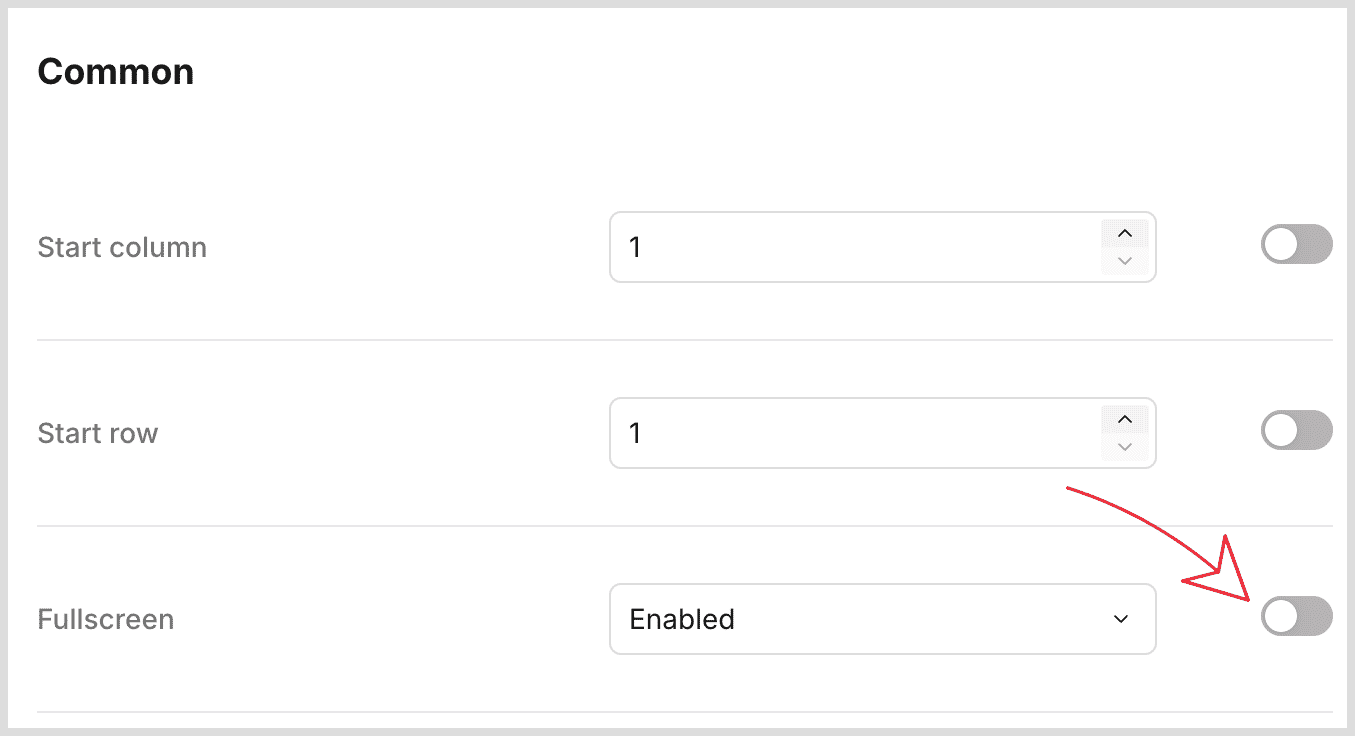
3. Click Save changes. Unless it’s your Default profile, add ?profile=name to the spin URL.