Add 360 Degree Spins to Squarespace
 By Anne-Marie Fletcher, Customer Success TeamUpdated
<script src="https://scripts.sirv.com/sirvjs/v3/sirv.js"></script>2. On your page, add a Code block.3. Paste the div code shown under your spin in your Sirv account, then click Apply. No account yet? Create one freeShort answer
Upload your spin images to Sirv, then paste Sirv's small script into Settings, Advanced, Code Injection, Header in Squarespace and save. After that, add each spin to a page with a Code block that holds its embed code. Product pages that use the default Squarespace gallery can show spins with an extra code snippet.
After reading this you will know
- How to add a 360 spin to a Squarespace page
- How to add spins to Squarespace product pages

Sirv makes it easy to add 360-degree spins to your Squarespace website, as it does on Wix, Facebook and, as a GIF, on LinkedIn.
Add spin to static page
Section titled “Add spin to static page”Follow these instructions to show beautiful spinning products with a stunning fullscreen option.
-
Upload your spin images to your Sirv account. If you don’t have an account yet, register here. Either upload images via the Sirv website or use FTP (Sirv FTP settings).
-
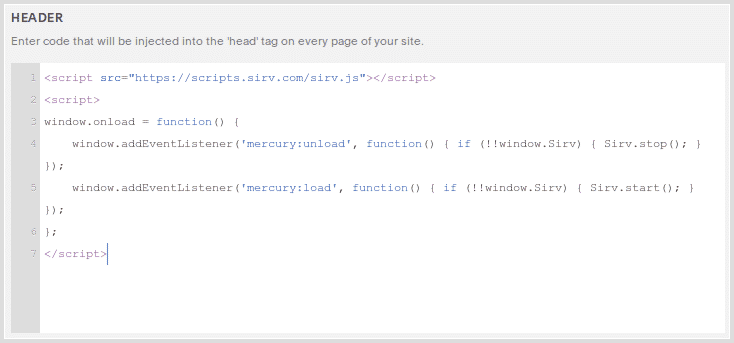
Copy the code below:
<script src="https://scripts.sirv.com/sirvjs/v3/sirv.js"></script><script>window.onload = function() {window.addEventListener('mercury:unload', function() { if (!!window.Sirv) { Sirv.stop(); } });window.addEventListener('mercury:load', function() { if (!!window.Sirv) { Sirv.start(); } });};</script> -
Paste it into the header section of your site, by going to Settings > Advanced > Code Injection > Header:
![Screenshot: Squarespace code injection]()
-
Click “Save” at the bottom of the Code Injection section. Now you can embed spins on any page of your Squarespace website.
-
Go to the Squarespace page where you want to add the 360 spin and click ”+” or “Add Block”:
![Squarespace add code block]()
-
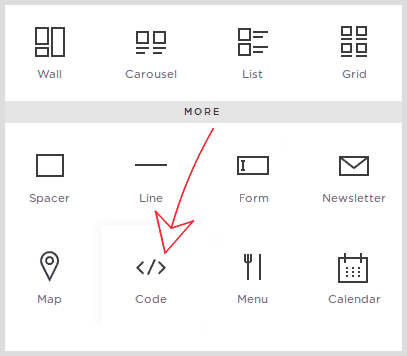
Click the “Code” option:
![Squarespace code block]()
-
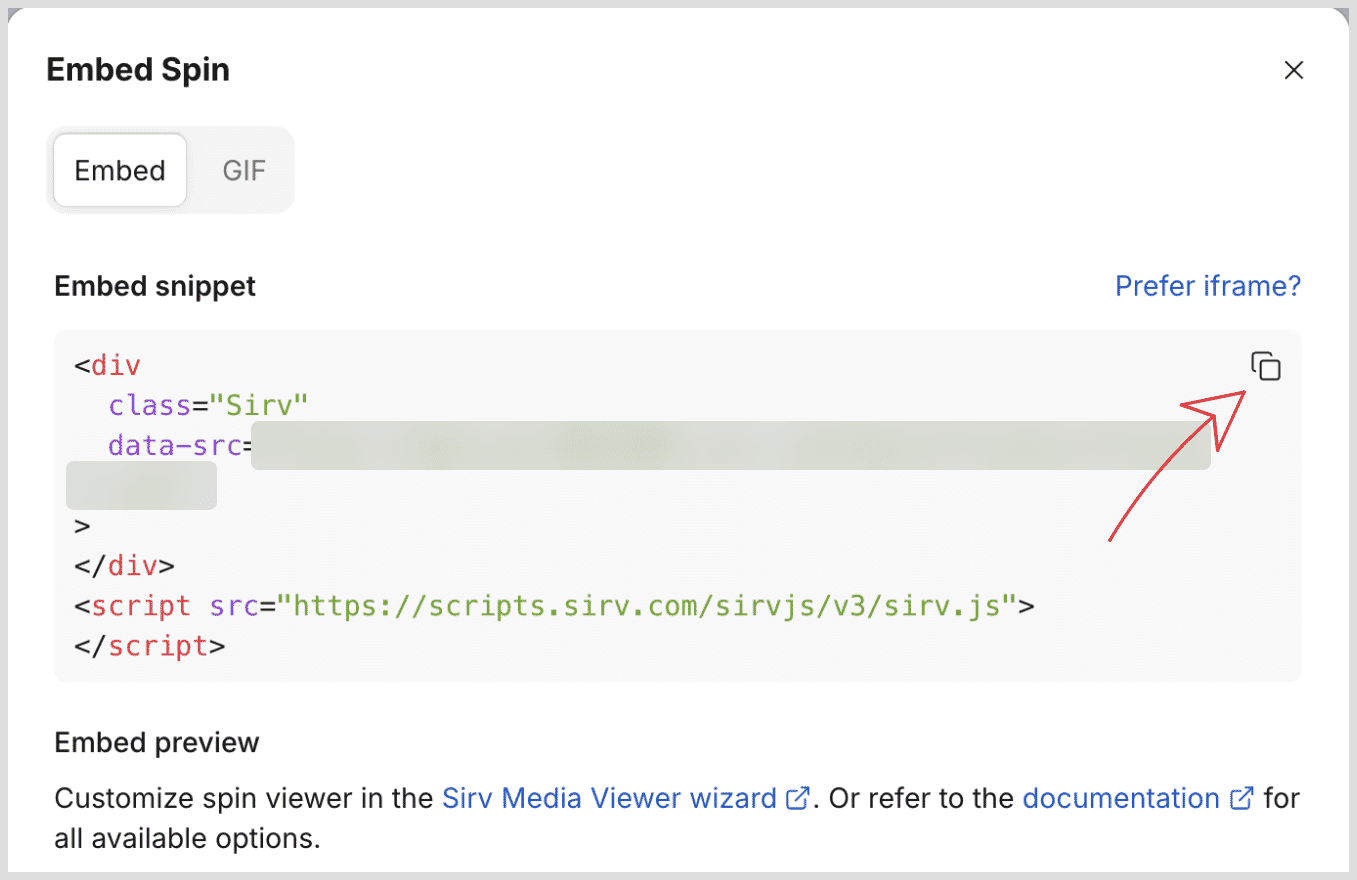
In your Sirv account, right-click the spin and choose Embed. Copy the div part of the snippet; the script is already in your header.
![Embed Spin dialog with the embed snippet]()
-
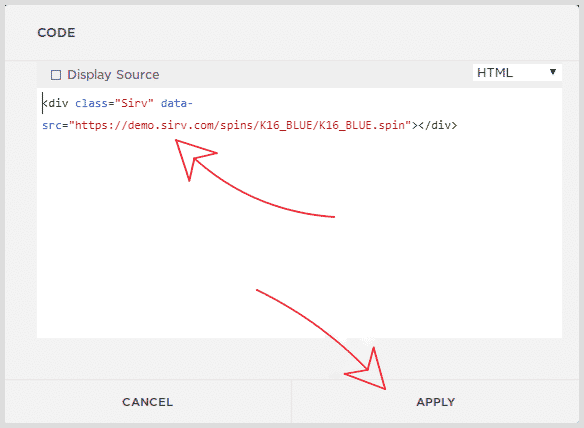
Paste it into the Code block and click “Apply”:
![Paste HTML code into code block]()
-
Preview to see your spin working:
![Screenshot of 360 spin Squarespace]()

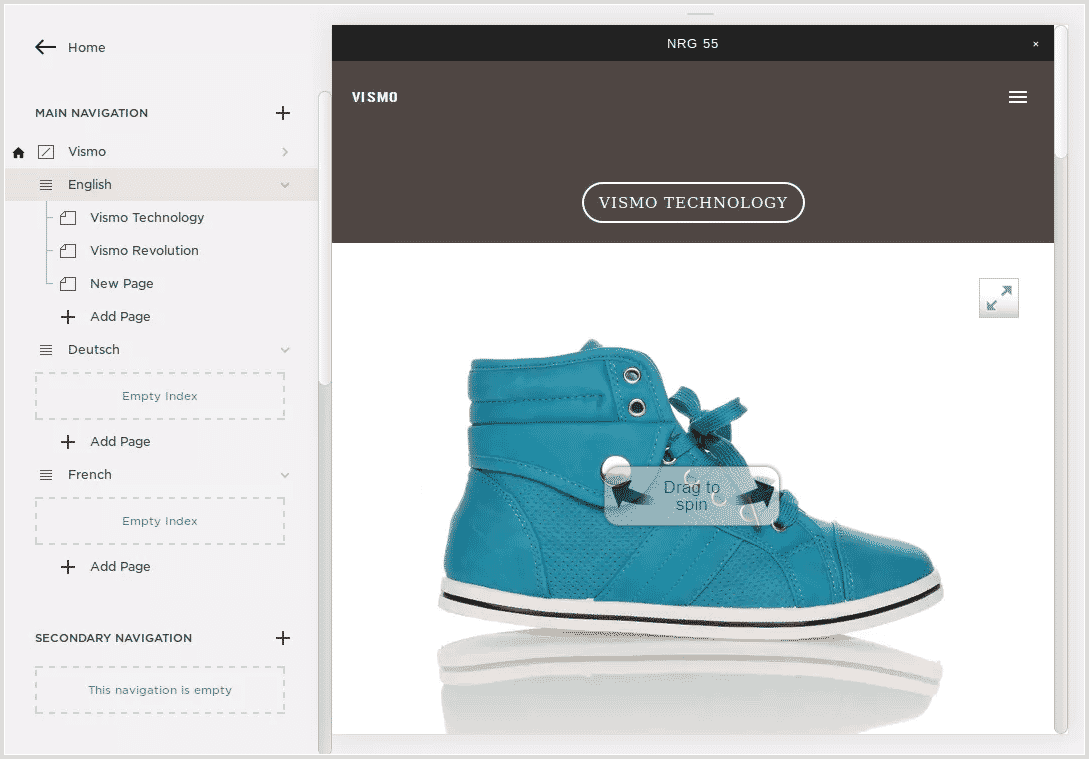
To move the location of your spin, drag the code block anywhere else on your page.
Visit the Squarespace documentation page for more information about using the Code Block.
Watch this guide to learn how simple it is to embed spins in Squarespace:
Add spin to ecommerce page
Section titled “Add spin to ecommerce page”It’s also possible to add 360 spins to your product pages, if your site uses the default Squarespace product image gallery (slider).
1. Add the following code to your Squarespace product page:
<script src="https://scripts.sirv.com/sirvjs/v3/sirv.js"></script><script src="https://code.jquery.com/jquery-3.4.1.min.js"></script>
<script type="text/javascript">var $SirvAccountID = 'support';var $SirvSpinPath = 'products/{product-sku}/{product-sku}.spin';var $SirvSpinIconURL = 'https://scripts.sirv.com/sirvjs/v3/graphics/icons/black/icon.spin.7.svg';
function Sirv_docReady(fn) {  if (document.readyState === "complete" || document.readyState === "interactive") {    setTimeout(fn, 1);  } else {    document.addEventListener("DOMContentLoaded", fn);  }}
Sirv_docReady(function() {  var $SKU = typeof Static.SQUARESPACE_CONTEXT.product.variants[0] != 'undefined' ? Static.SQUARESPACE_CONTEXT.product.variants[0].sku : '';  if ($SKU == '') {    return;  }  var request;  if (window.XMLHttpRequest) {    request = new XMLHttpRequest();  } else {    request = new ActiveXObject("Microsoft.XMLHTTP");  }  var $url = ('https://' + $SirvAccountID + '.sirv.com/' + $SirvSpinPath).replace(/\{product\-sku\}/gmi, $SKU) + '?info';  request.open('GET', $url, false);  request.send();  if (request.status === 404) {} else {    var $slider = jQuery('.ProductItem-gallery-slides');    $slider.append('<div class="ProductItem-gallery-slides-item" data-slide-index="' + (jQuery('.ProductItem-gallery-slides-item').length + 1) + '" data-product-gallery="slides-item"><div class="Sirv" data-src="' + $url.replace('?info', '') + '"></div>');    jQuery('.ProductItem-gallery-thumbnails').append('<button class="ProductItem-gallery-thumbnails-item sirv-spin-icon" data-product-gallery="thumbnails-item"><img class="ProductItem-gallery-thumbnails-item-image" style="max-width:100%;" src="' + $SirvSpinIconURL + '" alt="360 Spin" /></button>');    jQuery('.ProductItem-gallery-thumbnails-item.sirv-spin-icon').on('click', function(e) {
    })  }});</script>
2. In the code above, change the following 3 lines of code:
var $SirvAccountID = 'demo';var $SirvSpinPath = '/products/{product-sku}/{product-sku}.spin';var $SirvSpinIconURL = 'https://scripts.sirv.com/sirvjs/v3/graphics/icons/black/icon.spin.7.svg';Replace demo with your account name. Modify the SirvSpinPath to match the folder path of the spins in your Sirv account.
Change the URL of the spin icon, if you wish (there are 12 designs available 1.svg to 12.svg, or design your own).