Add Digimarc Watermarks to Images
 By Marc Bonne, Customer Success TeamUpdated
Short answer
Sirv can embed an invisible Digimarc watermark in your images as they are served, so you can prove who owns them wherever they appear. Enter your Digimarc creator ID and PIN on the content delivery page, then right-click a folder, choose "Folder settings" and enable "Digimarc protection". It works for JPEG, PNG and WebP, not GIF.
After reading this you will know
- How Sirv adds Digimarc watermarks to images
- How to turn Digimarc on for a folder
- Which formats support it

Prove image ownership and source with certainty, wherever your images are found on the web with Digimarc and Sirv.
Digimarc Watermarks for Digital Images lets rights holders add an invisible digital identity to their images.
They can then verify ownership of the Digimarc-integrated image wherever it’s found on the web.
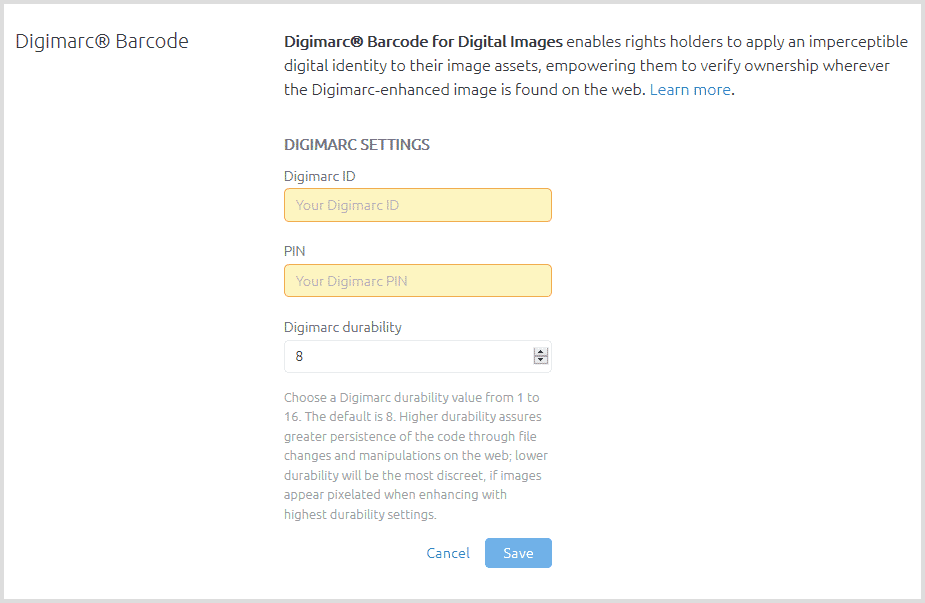
Digital identity is applicable to all images hosted in your Sirv account with the activated Digimarc® Watermarks for Digital Images feature.
Can you spot the difference? These two images look identical but one contains a Digimarc code.

Without Digimarc
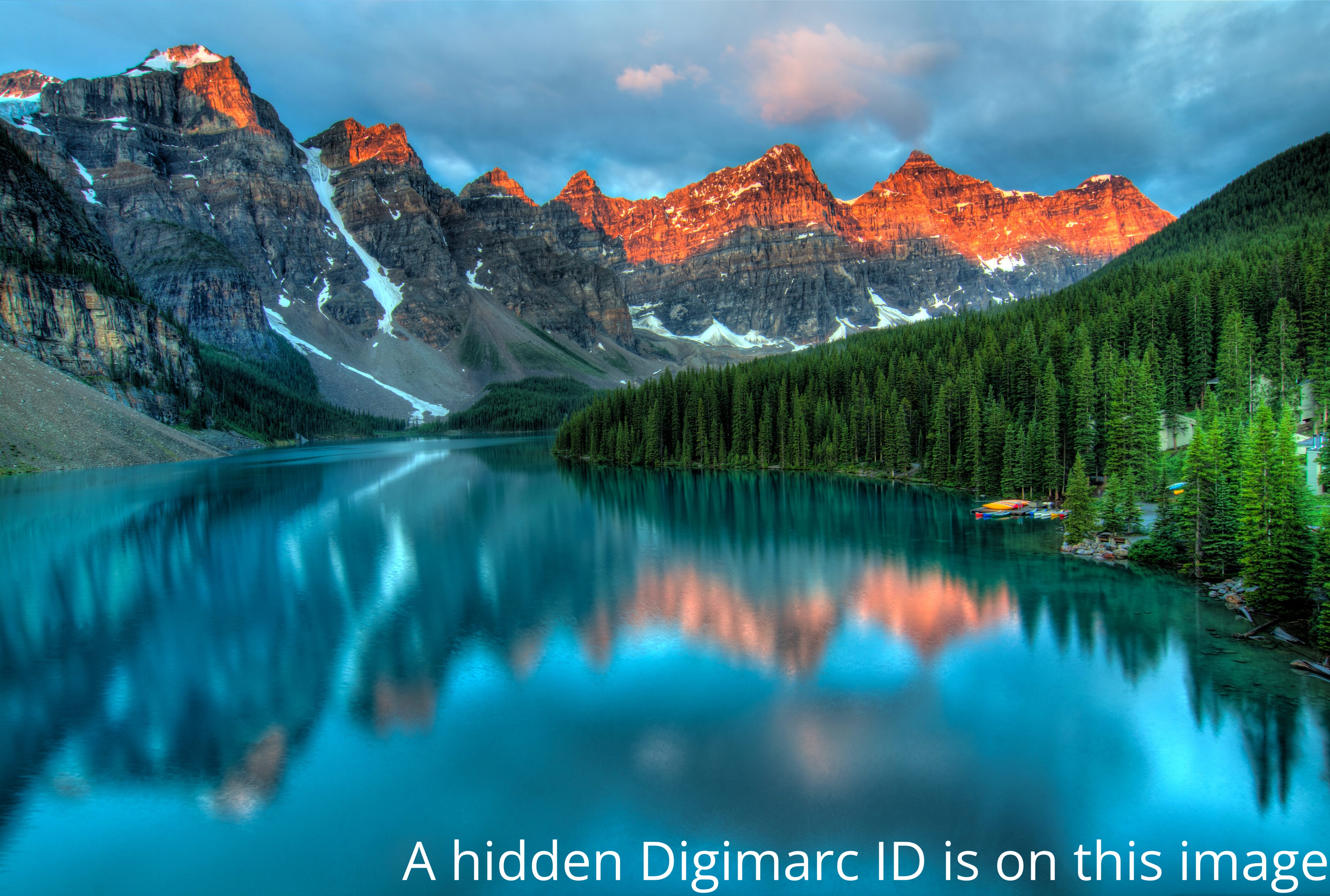
With Digimarc
Instant, automatic encoding
Section titled “Instant, automatic encoding”Sirv applies your Digimarc ID to your images instantly, on-the-fly. No special image preparation is needed.
Just upload any image and it can be immediately enhanced with Digimarc, resized, cropped or have any other of the Sirv dynamic imaging options applied.
Designed for Enterprise
Section titled “Designed for Enterprise”Digimarc is an enterprise technology serving medium to large organizations. Contact the Digimarc team to discuss your requirements.
Enabling Digimarc
Section titled “Enabling Digimarc”Once you have a Digimarc creator ID and PIN, enter the details on your Sirv content delivery page.
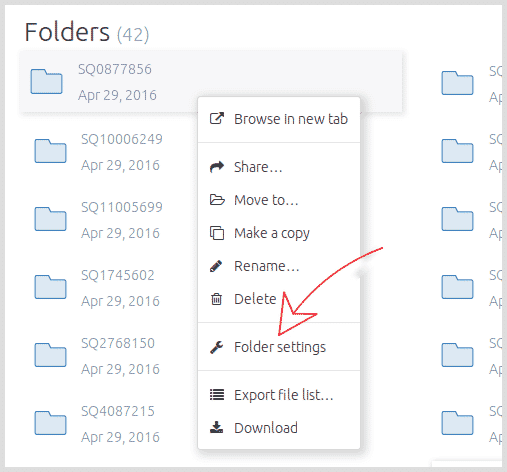
Open a folder in your Sirv account, click its name at the top (or right-click an empty space) and choose Folder settings:
Enable Digimarc on all images in that folder by setting “Digimarc protection” to “Enabled”:
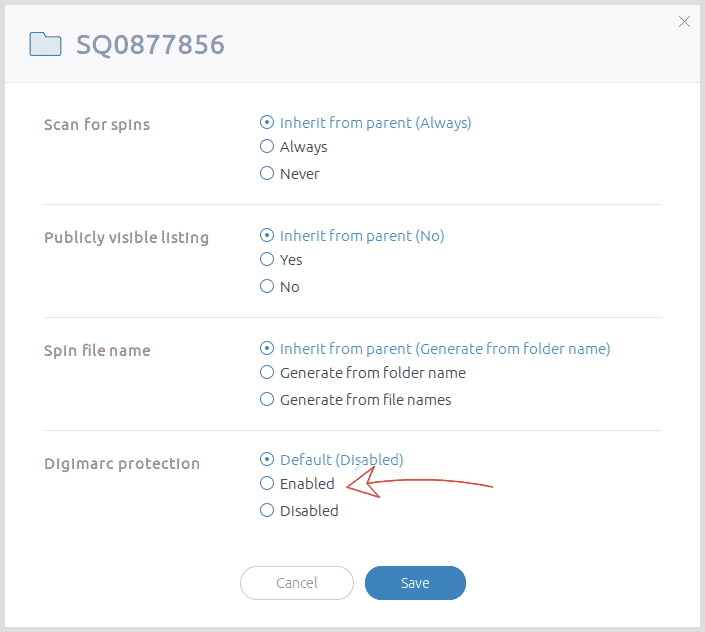
Enable or disable Digimarc per folder as you require. Images in your root folder cannot have a Digimarc watermark embedded.
It’s generally good practice to organize your images into folders and subfolders, to keep them structured and manageable.
Best practice tips
Section titled “Best practice tips”To apply Digimarc to images that have already been processed by Sirv before you enabled Digimarc, the previous image will have been cached for 7 days.
The image will be automatically recreated with the Digimarc within the next 7 days (the TTL used by Sirv).
If you wish to replace a non-Digimarc image sooner than that, simply add one of the many image parameters to the URL and a new image will be generated.
Alternatively, you can reupload the original image and all cached versions of the image will be immediately invalidated.
Any image uploaded to Sirv can be instantly and automatically identified with Digimarc® Watermarks for Digital Images and tracked online for unauthorized use.
Our Digimarc tutorial explains how.
Supported file formats
Section titled “Supported file formats”Sirv supports the export of all major image formats with Digimarc:
- JPEG images
- PNG images
- WebP images
There are some exceptions:
- GIF export is not supported.
- Progressive JPEG export is not supported.
- Digimarc supports 8-bit images only (not 16-bit images).
- Lossless compression will render the Digimarc unreadable.
- To apply a Digimarc, images must be larger than 256px width and 256px height.
- Digimarc is not applied to the small image tiles generated by Sirv Zoom.