Image Colortone
 By Jake Brumby, Customer Success DirectorUpdated
Short answer
Add colortone to the image URL to change its color scheme, for example ?colortone=sepia. There are presets such as sepia, warm, cold, sunset and coffee, or you can make your own with colortone.color, colortone.level and colortone.mode. You can stack up to 3 tones and combine them with other effects.
After reading this you will know
- How to apply a preset color tone
- How to create your own color tone
- How to combine tones with other effects
Give a photo a ready-made color look, like an Instagram filter, by adding colortone to its URL. Try the looks in the demo below.
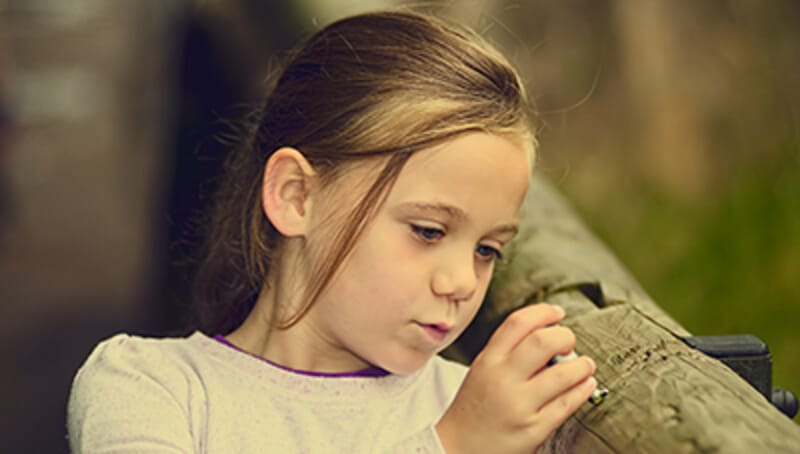
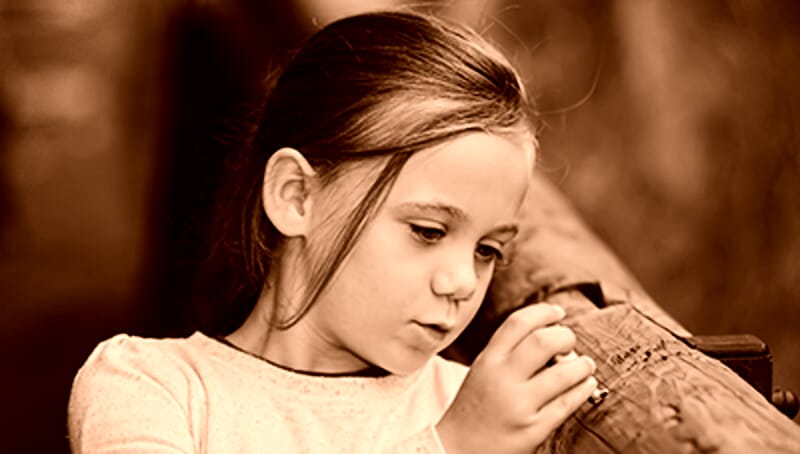
Create your own custom colortone or apply a preset colortone. Preset colortones are: sepia; warm; cold; sunset; purpletan; texas; aurora; blackberry; coffee; clearwater; dusk and stereo.
The default value is none.
Preset color tones
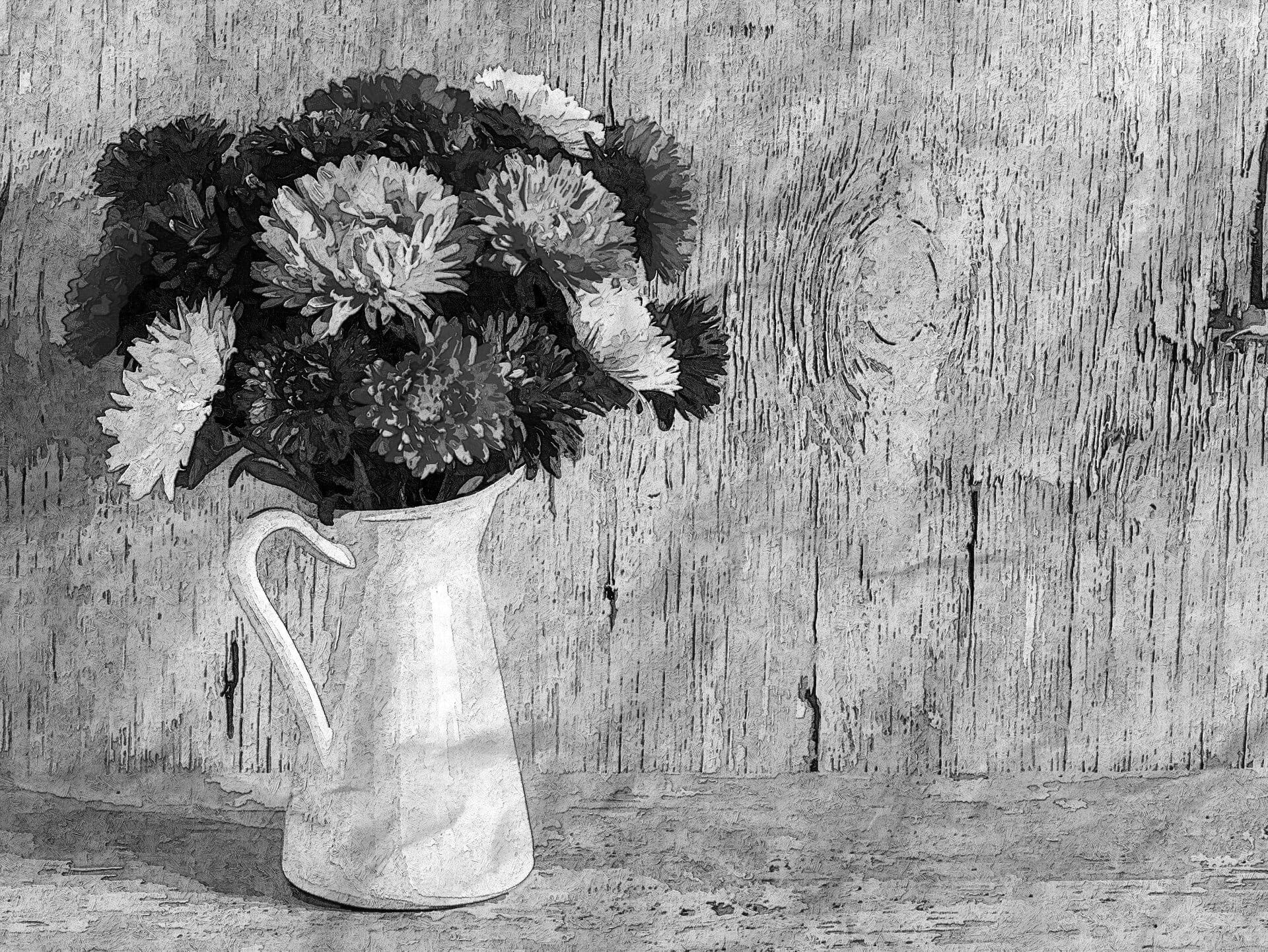
Section titled “Preset color tones”grayscale
https://demo.sirv.com/vase.jpg?colortone=grayscale
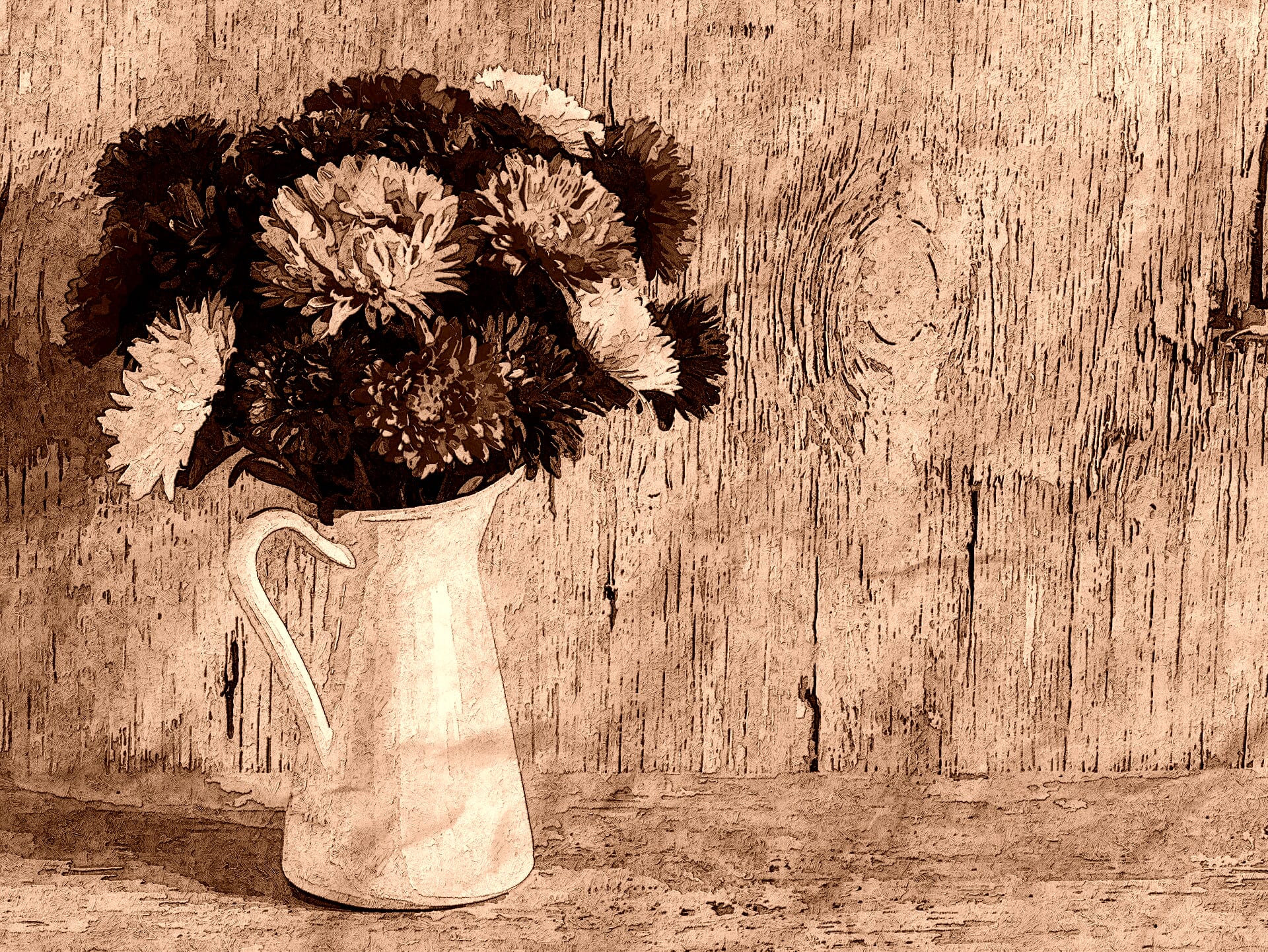
sepia
https://demo.sirv.com/vase.jpg?colortone=sepia
warm
https://demo.sirv.com/vase.jpg?colortone=warm
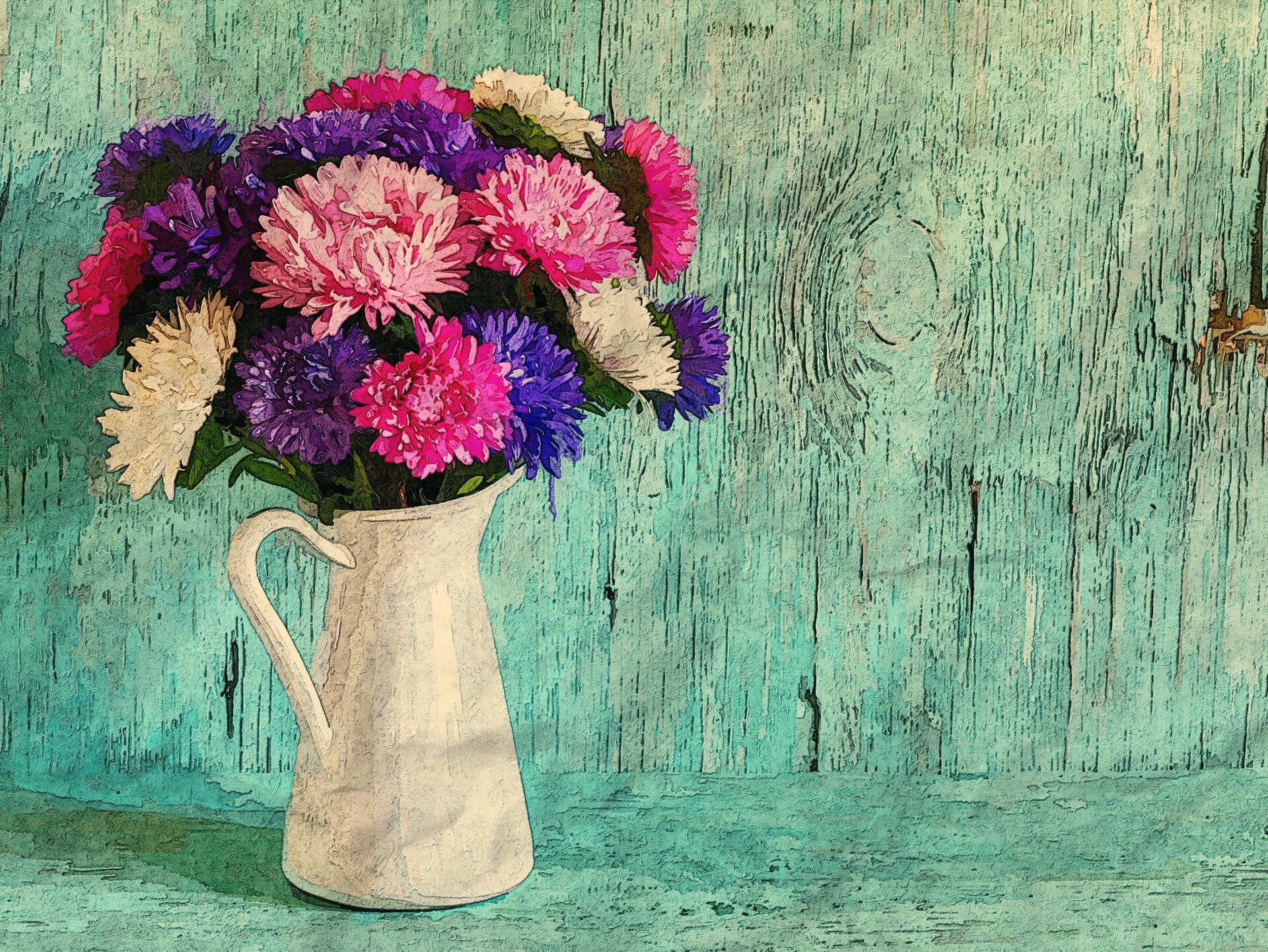
cold
https://demo.sirv.com/vase.jpg?colortone=cold
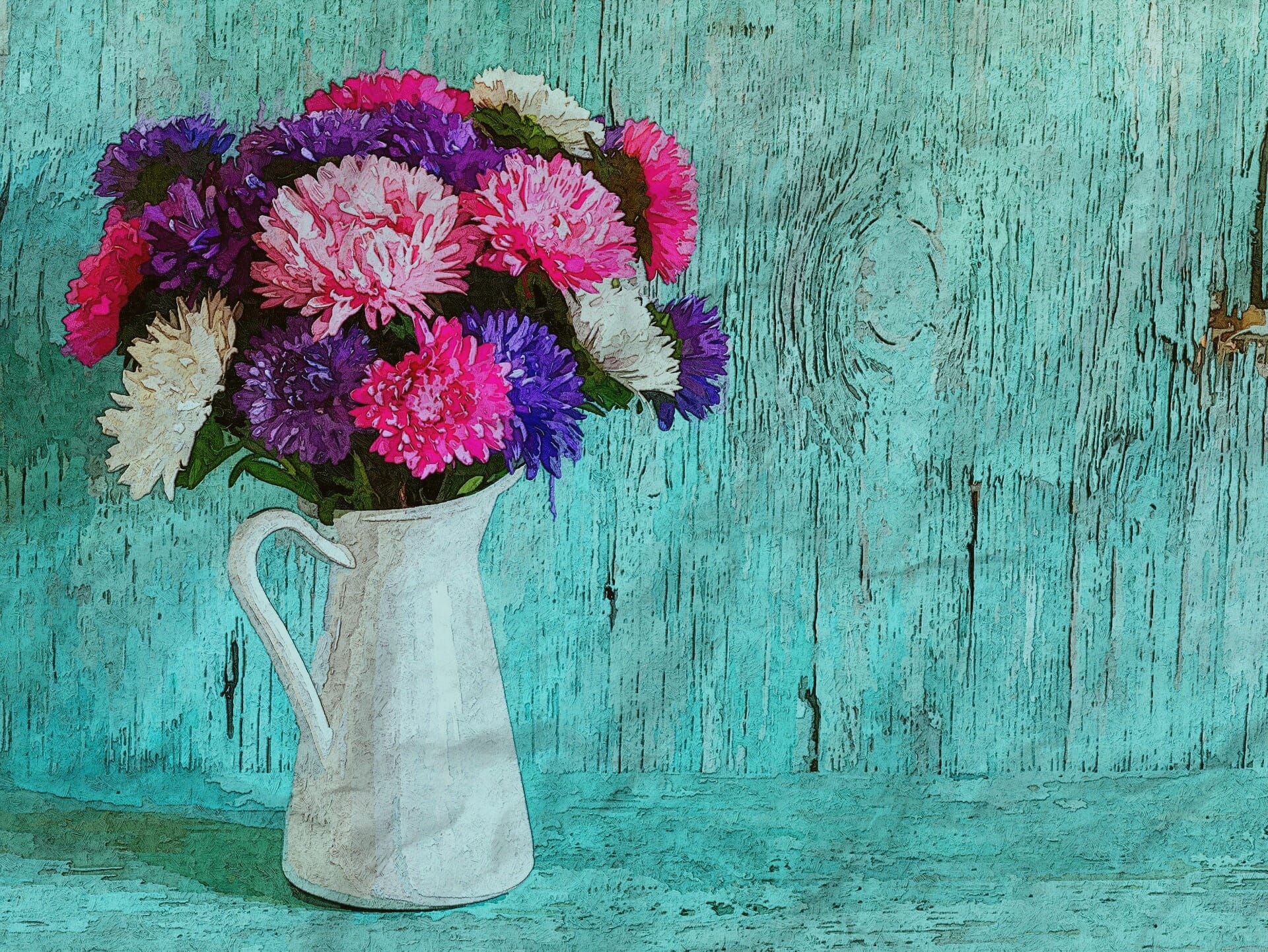
sunset
https://demo.sirv.com/vase.jpg?colortone=sunset
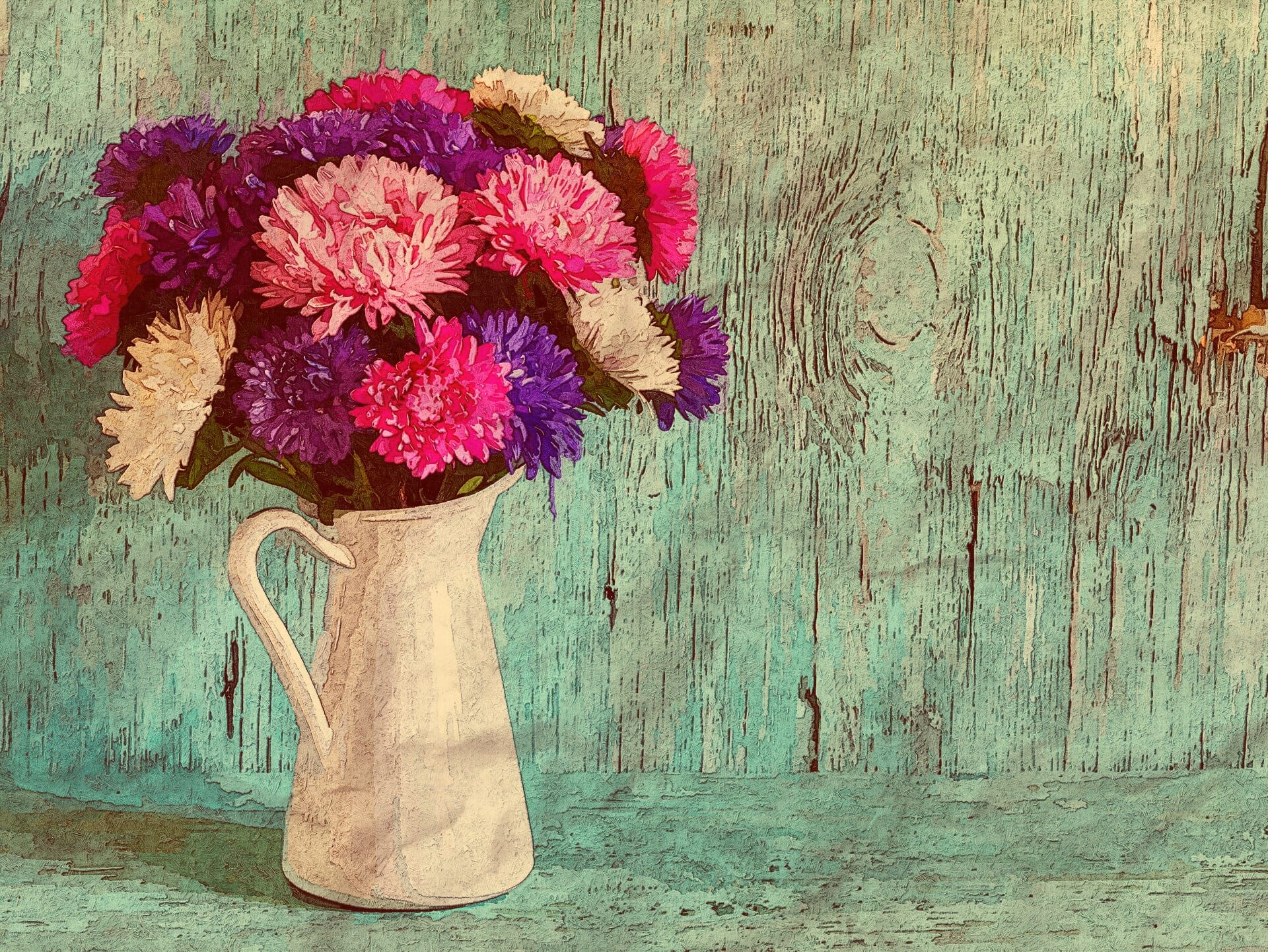
purpletan
https://demo.sirv.com/vase.jpg?colortone=purpletan
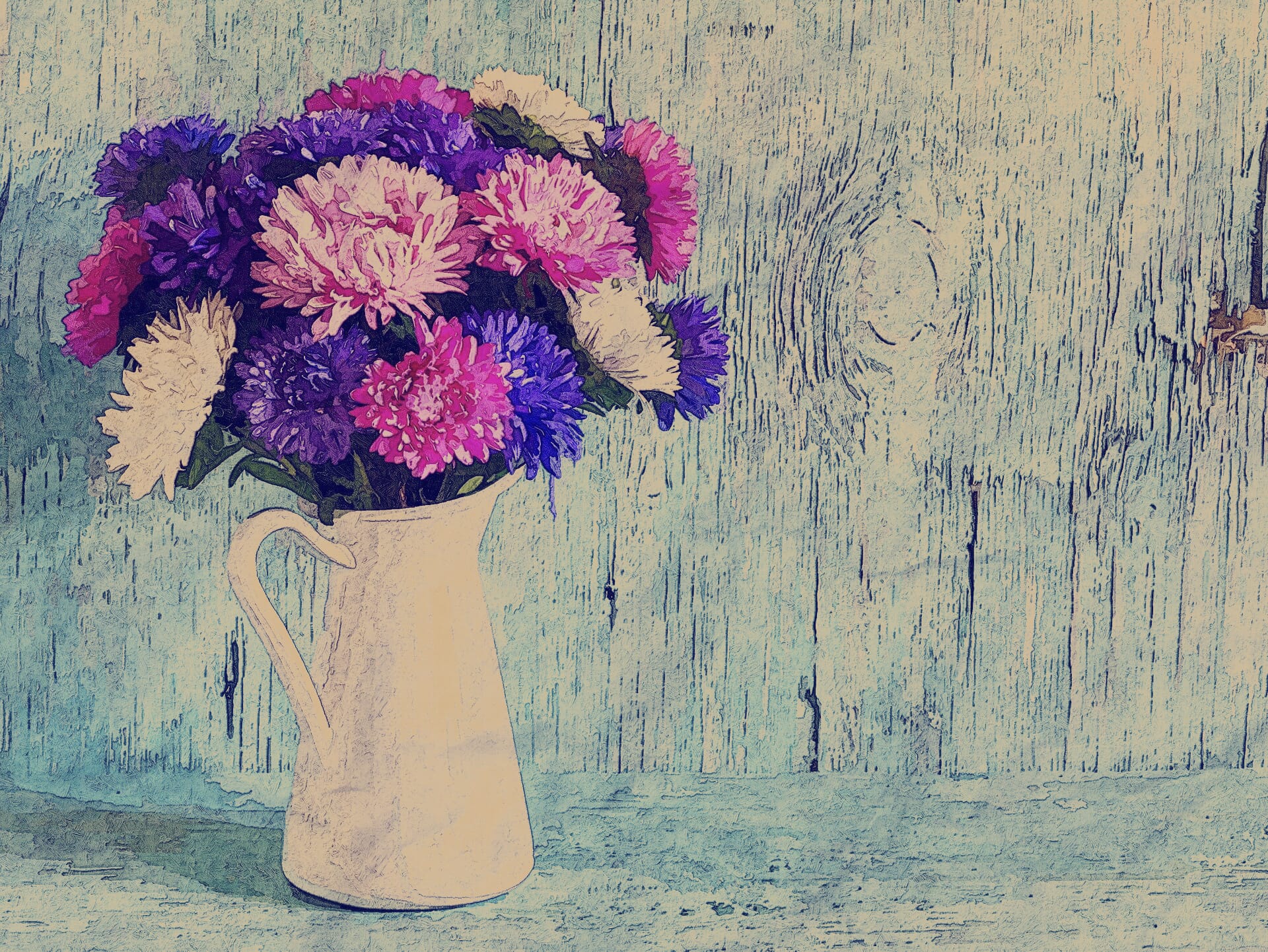
texas
https://demo.sirv.com/vase.jpg?colortone=texas
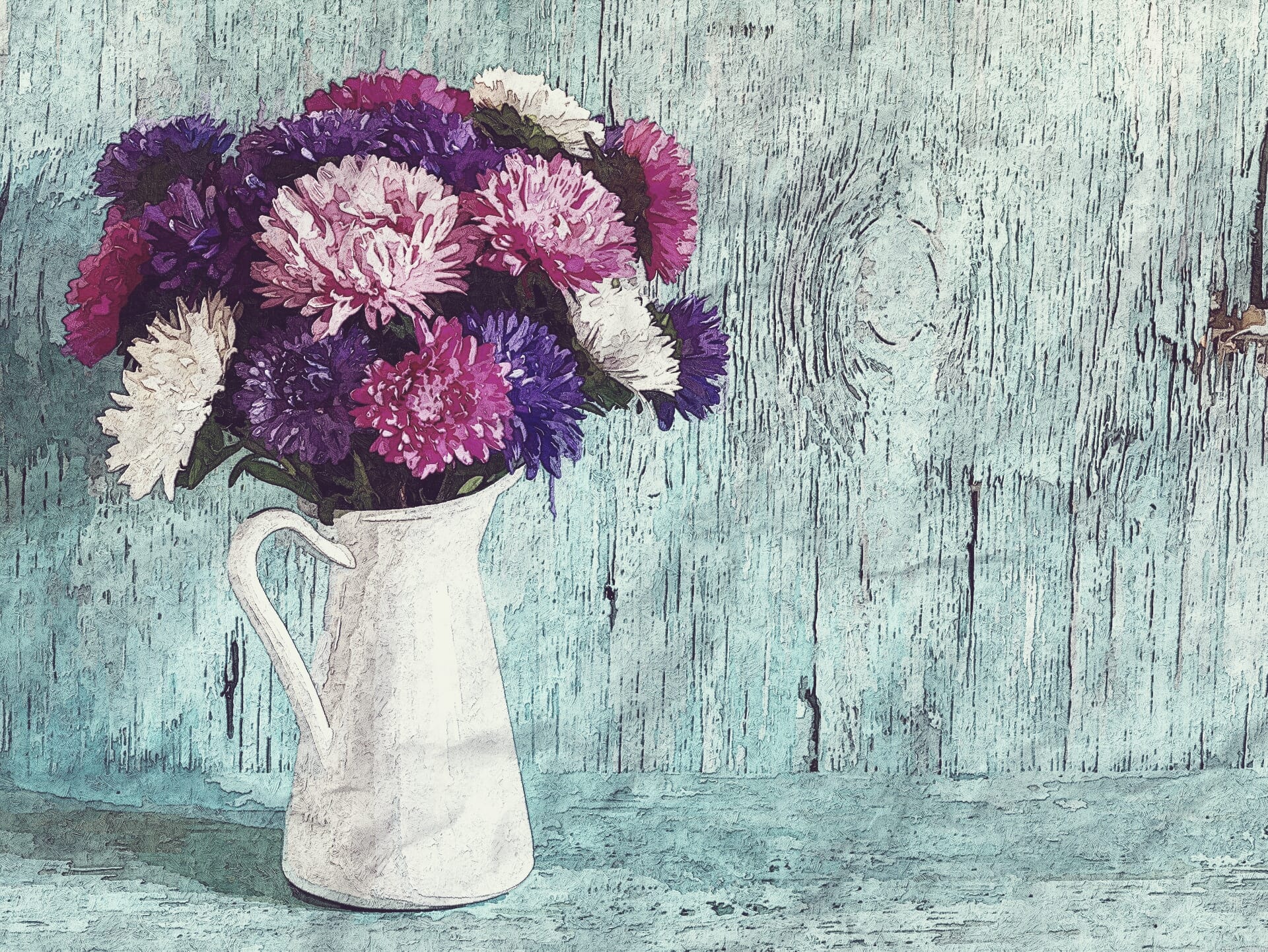
aurora
https://demo.sirv.com/vase.jpg?colortone=aurora
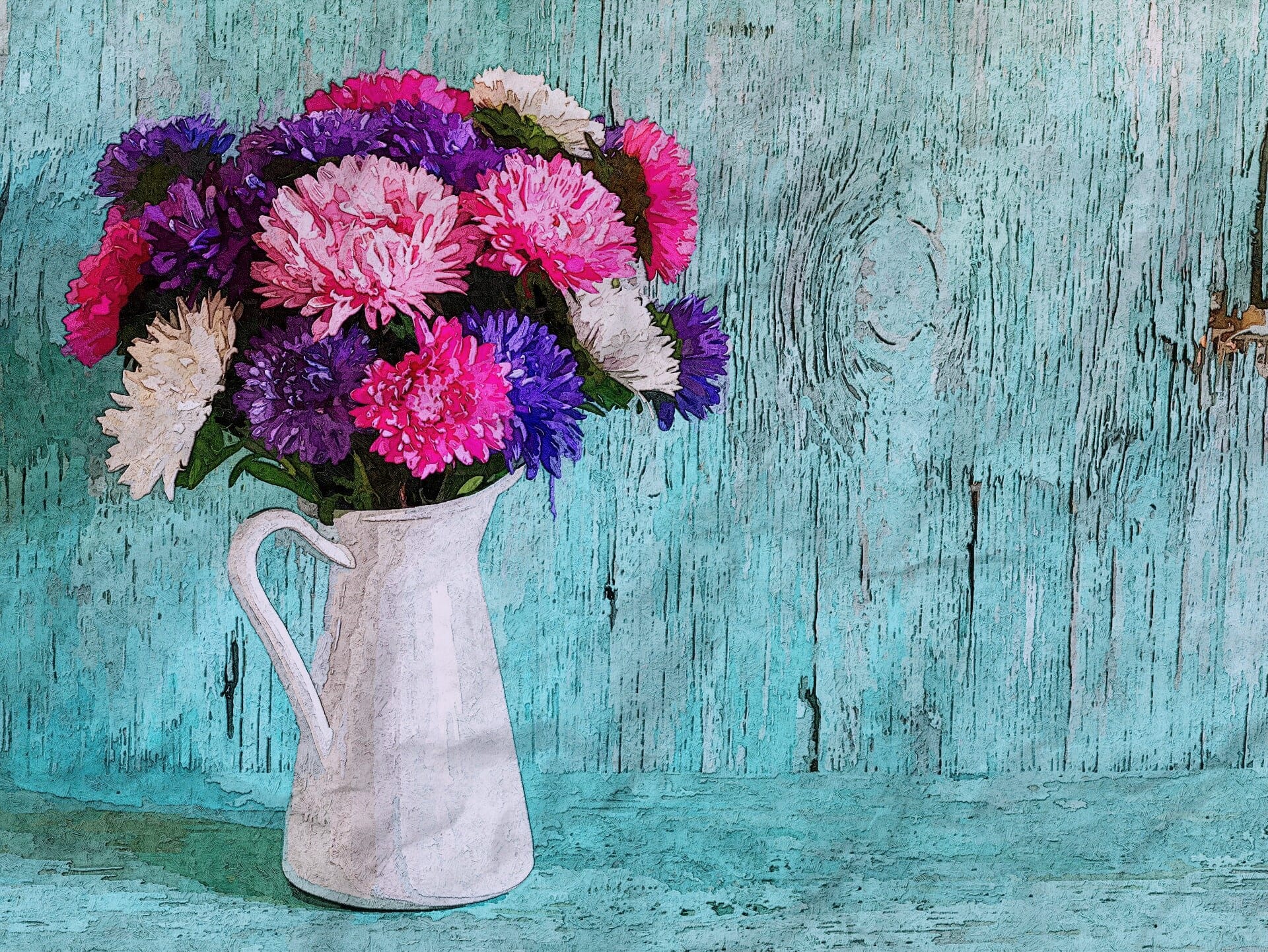
blackberry
https://demo.sirv.com/vase.jpg?colortone=blackberry
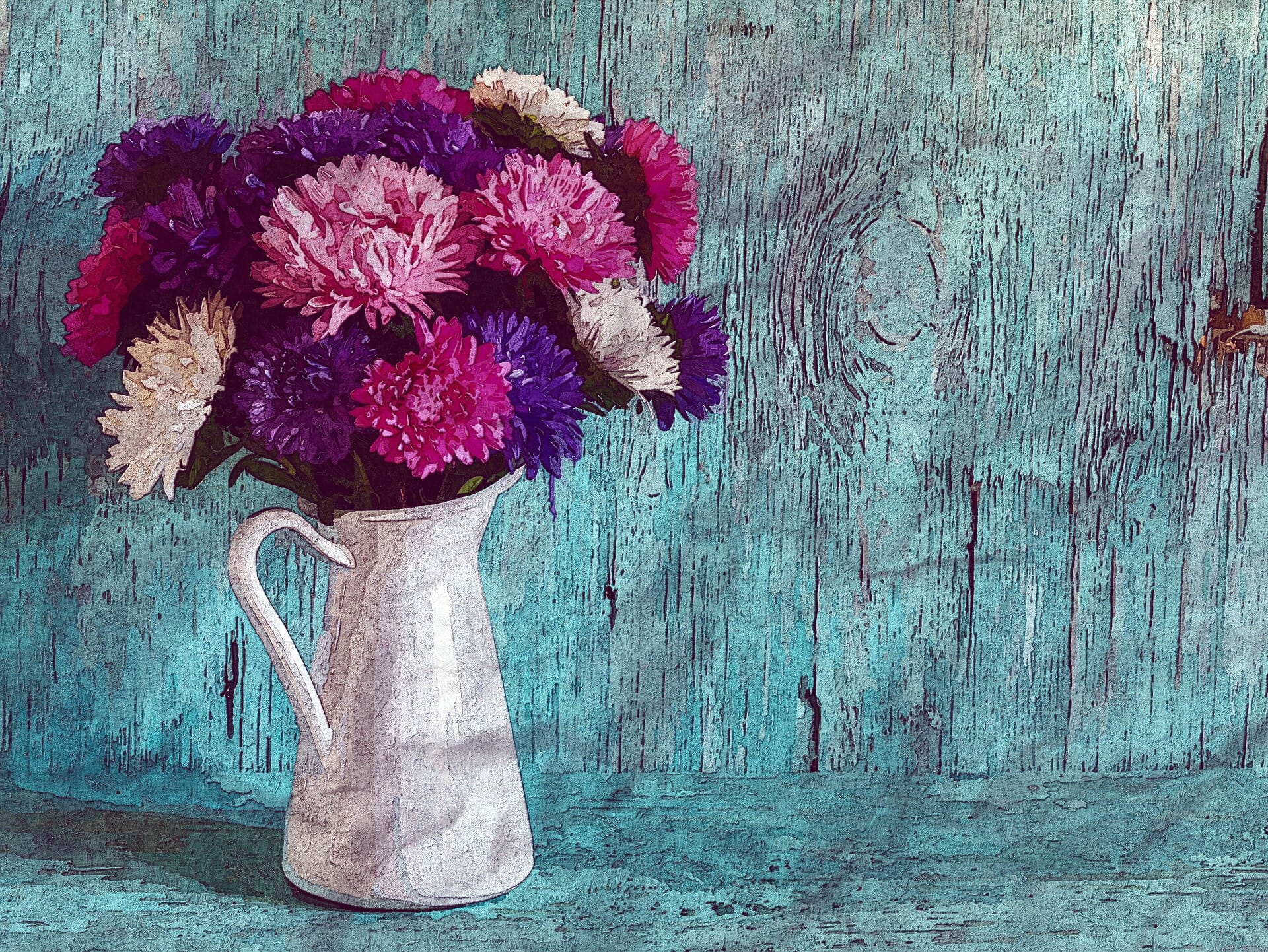
coffee
https://demo.sirv.com/vase.jpg?colortone=coffee
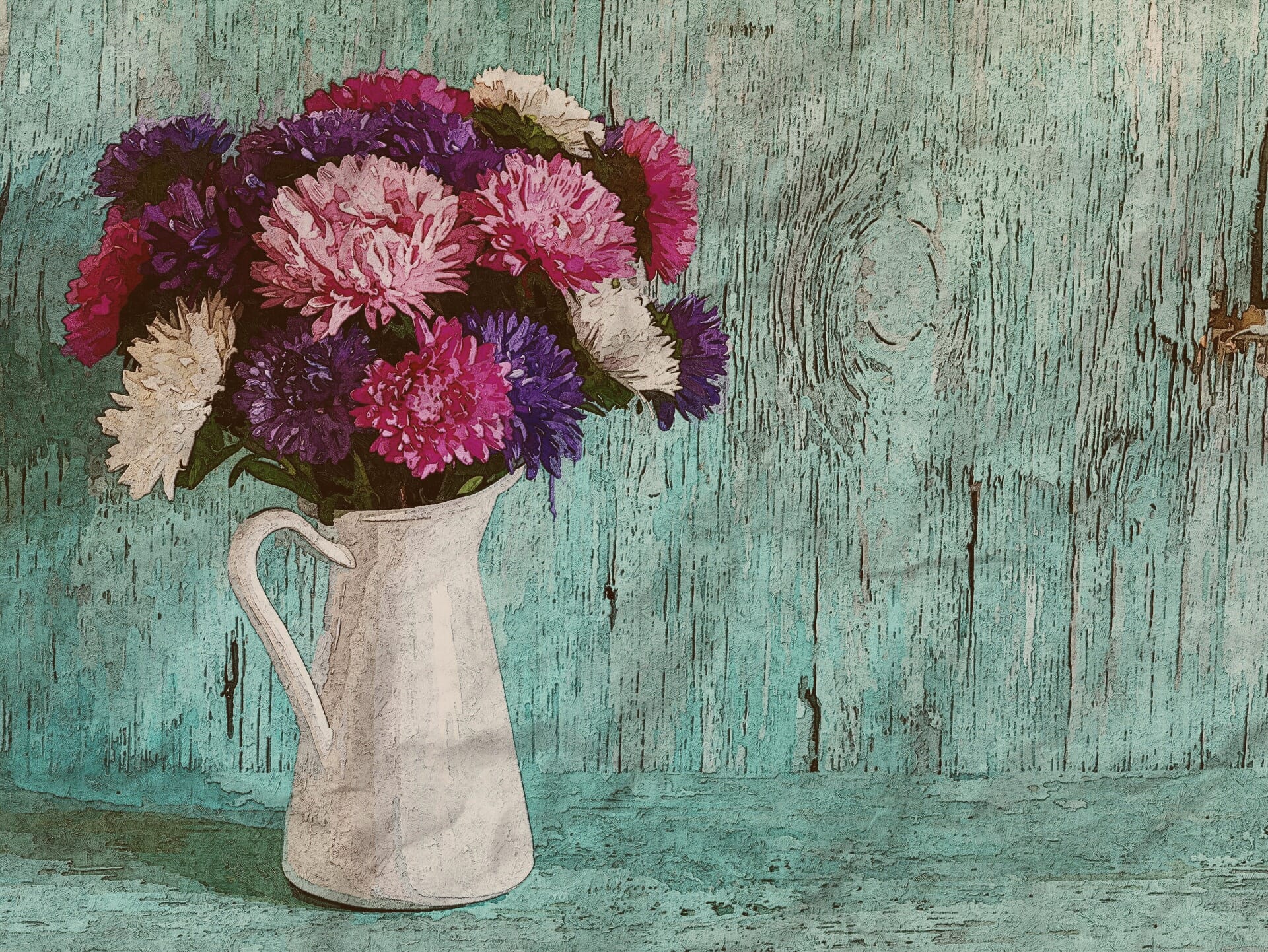
clearwater
https://demo.sirv.com/vase.jpg?colortone=clearwater
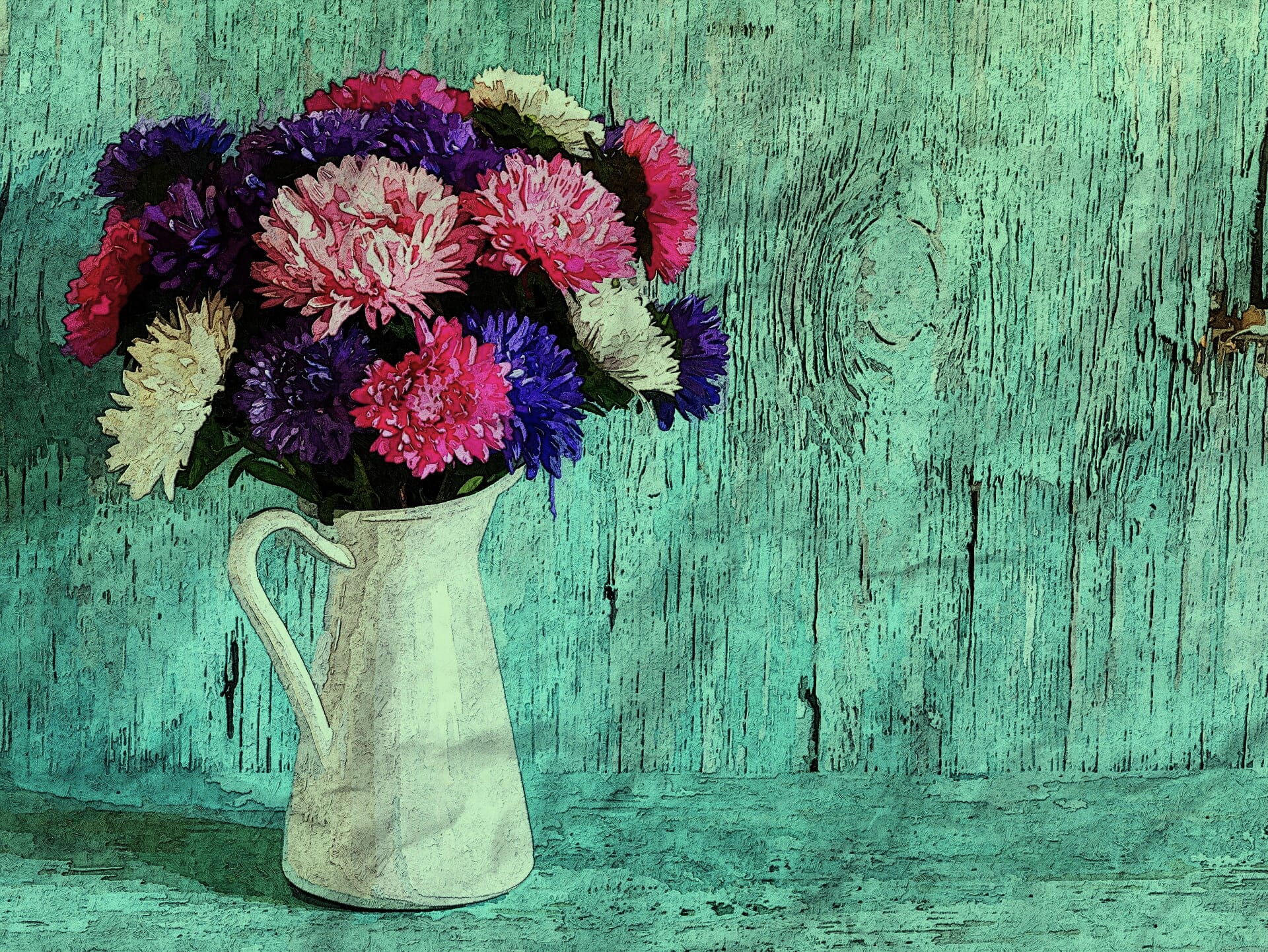
dusk
https://demo.sirv.com/vase.jpg?colortone=dusk
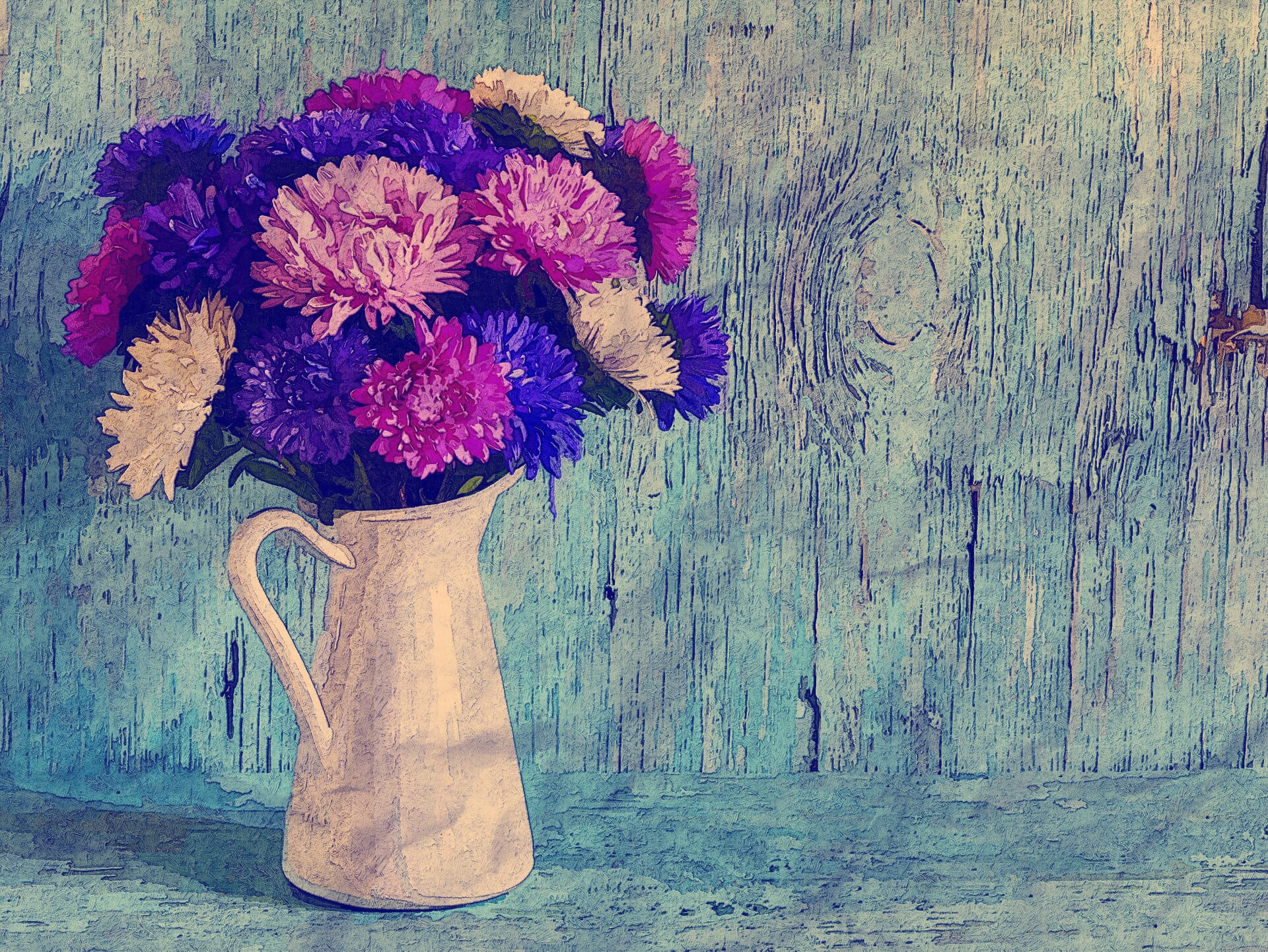
stereo
https://demo.sirv.com/vase.jpg?colortone=stereo
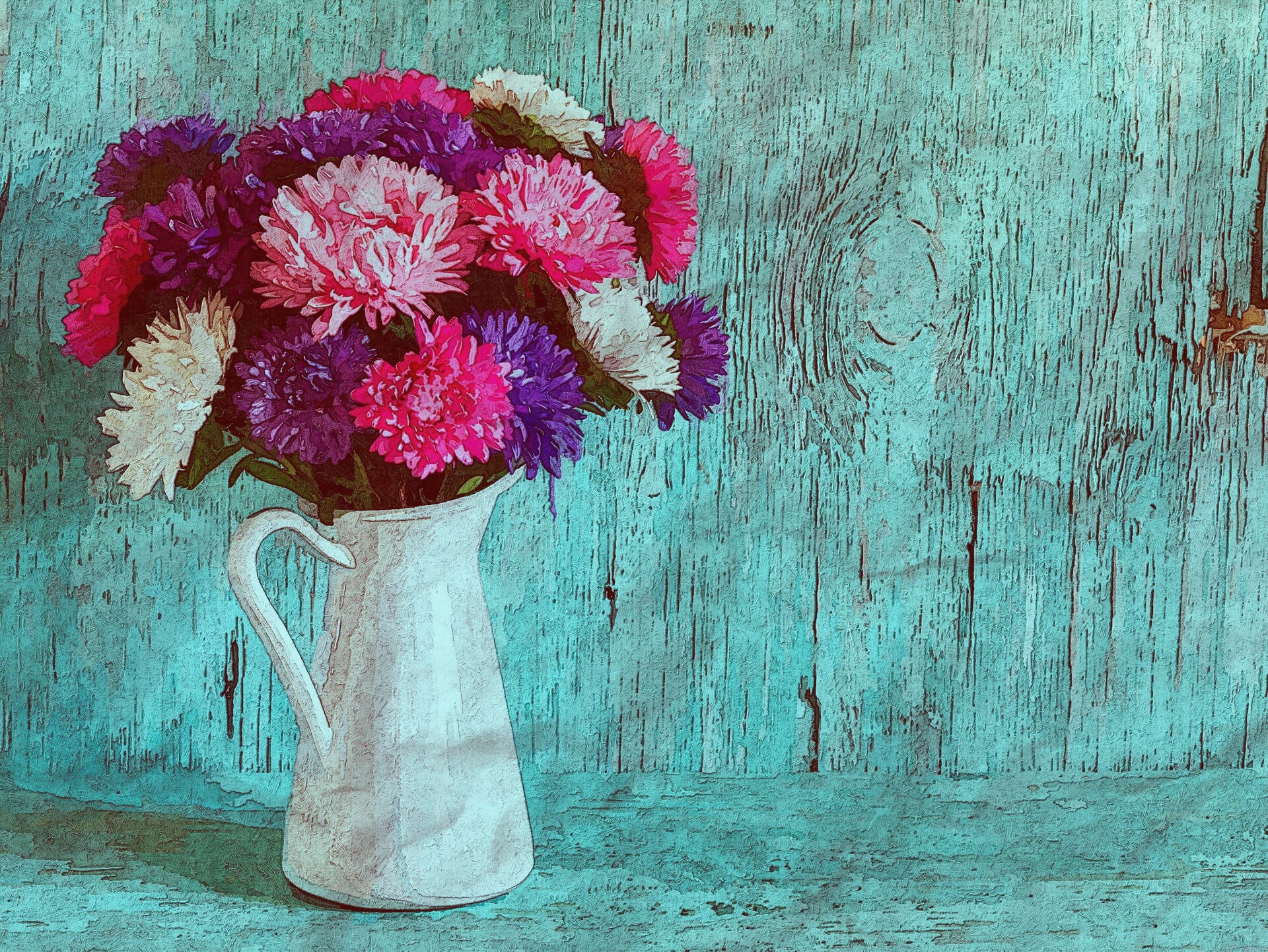
Custom color tones
Section titled “Custom color tones”Create your own style with 3 advanced colortone options: colortone color, colortone level and colortone mode. ‘colortone.color’ sets the color applied to an image.
Apply the color with hex RGB or an HTML color name, like so:
https://demo.sirv.com/vase.jpg?colortone.color=orange
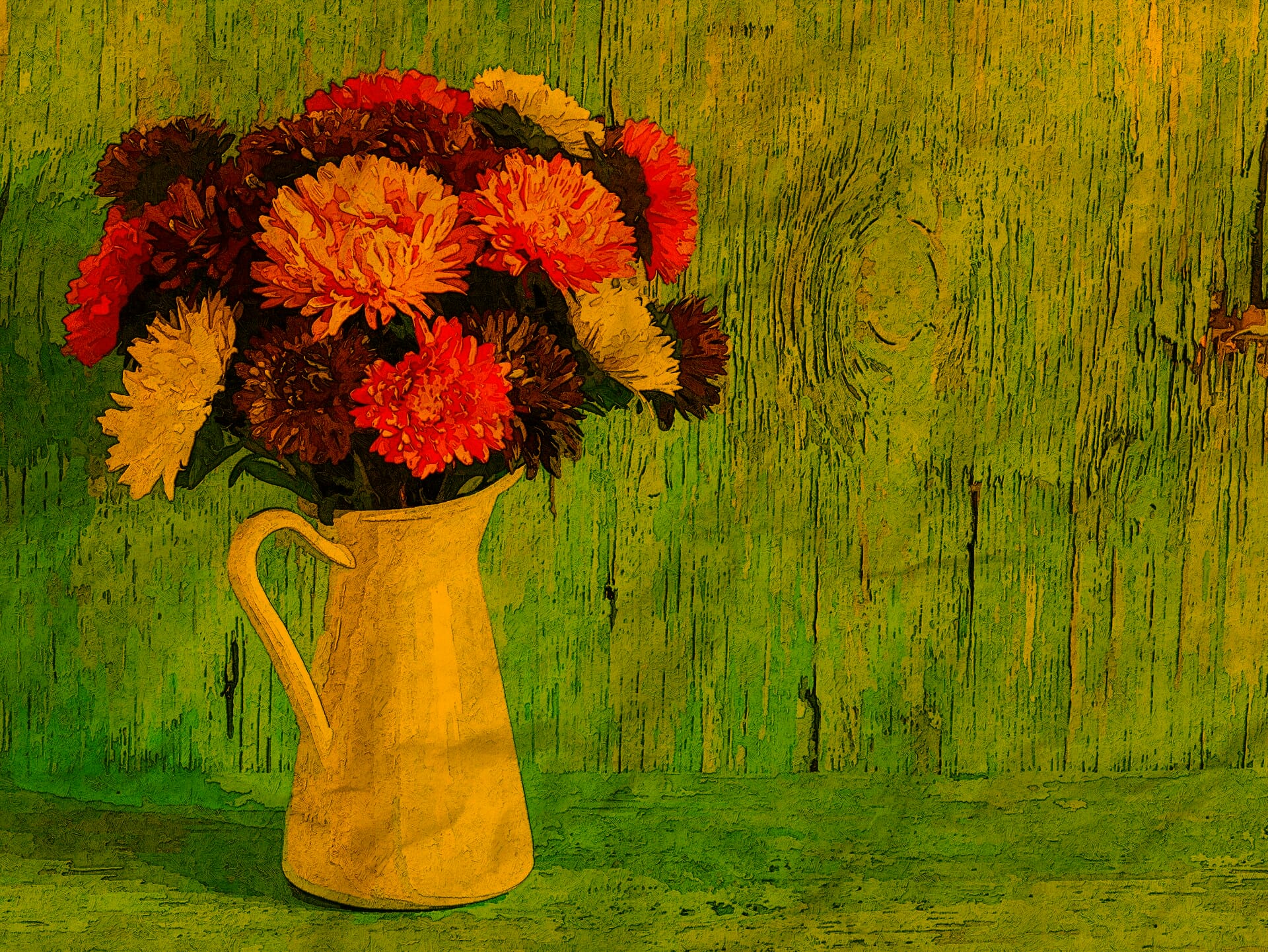
Apply a hex RGB color like so:
https://demo.sirv.com/vase.jpg?colortone.color=009acf
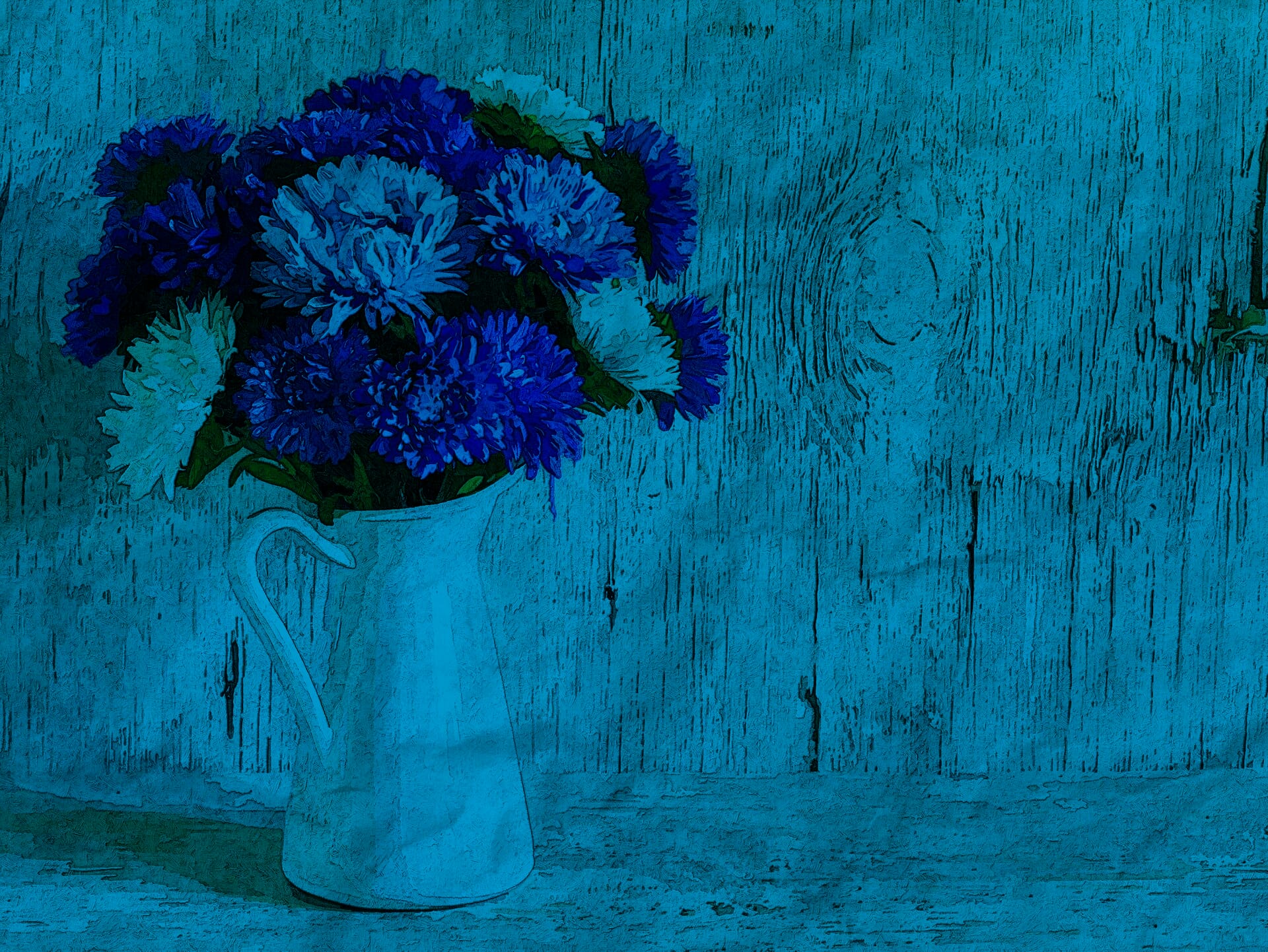
‘colortone.level’ sets the amount color tone that is applied, with 0 being no tone and 100 being maximum tone (the default).
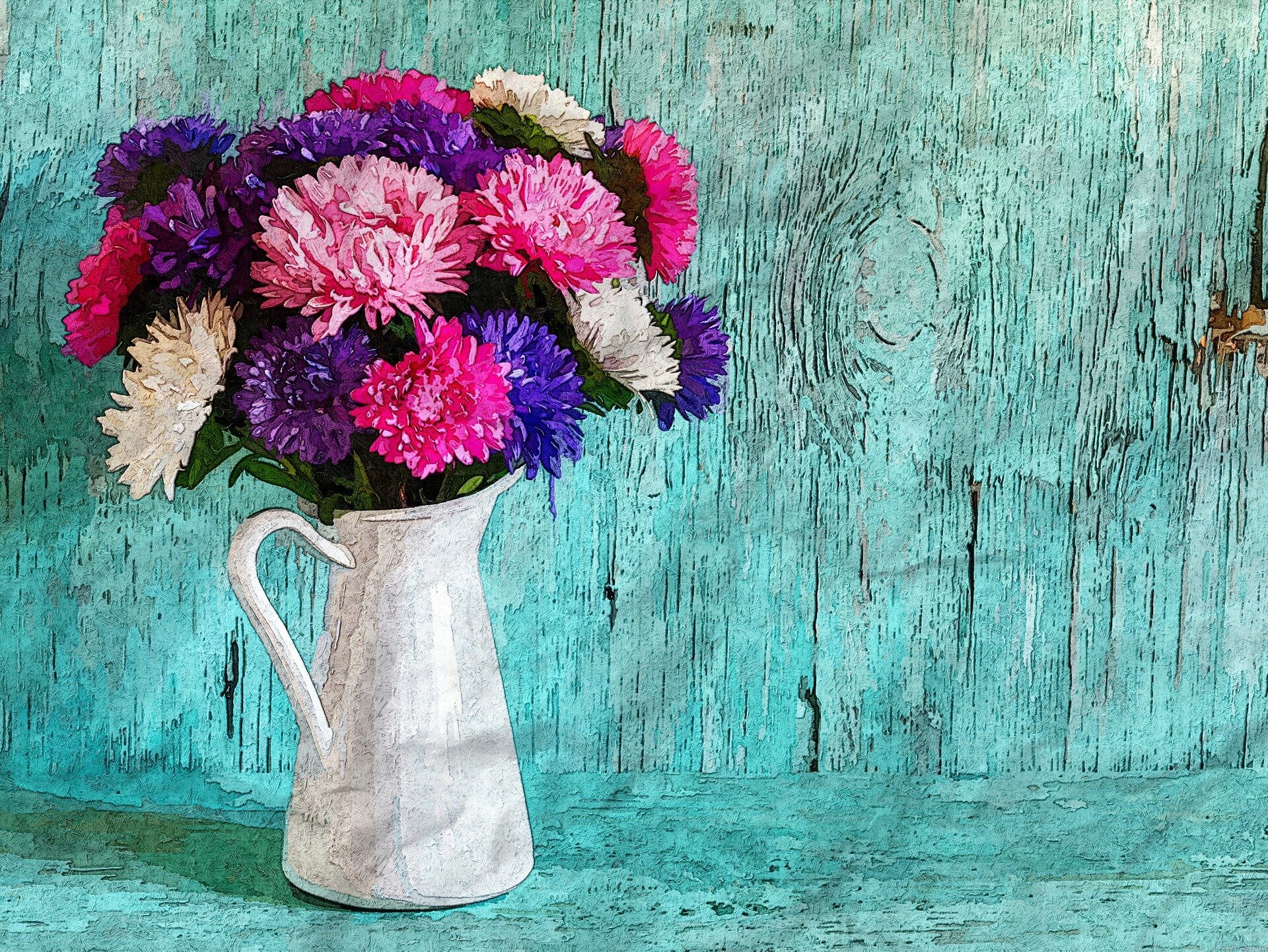
Original
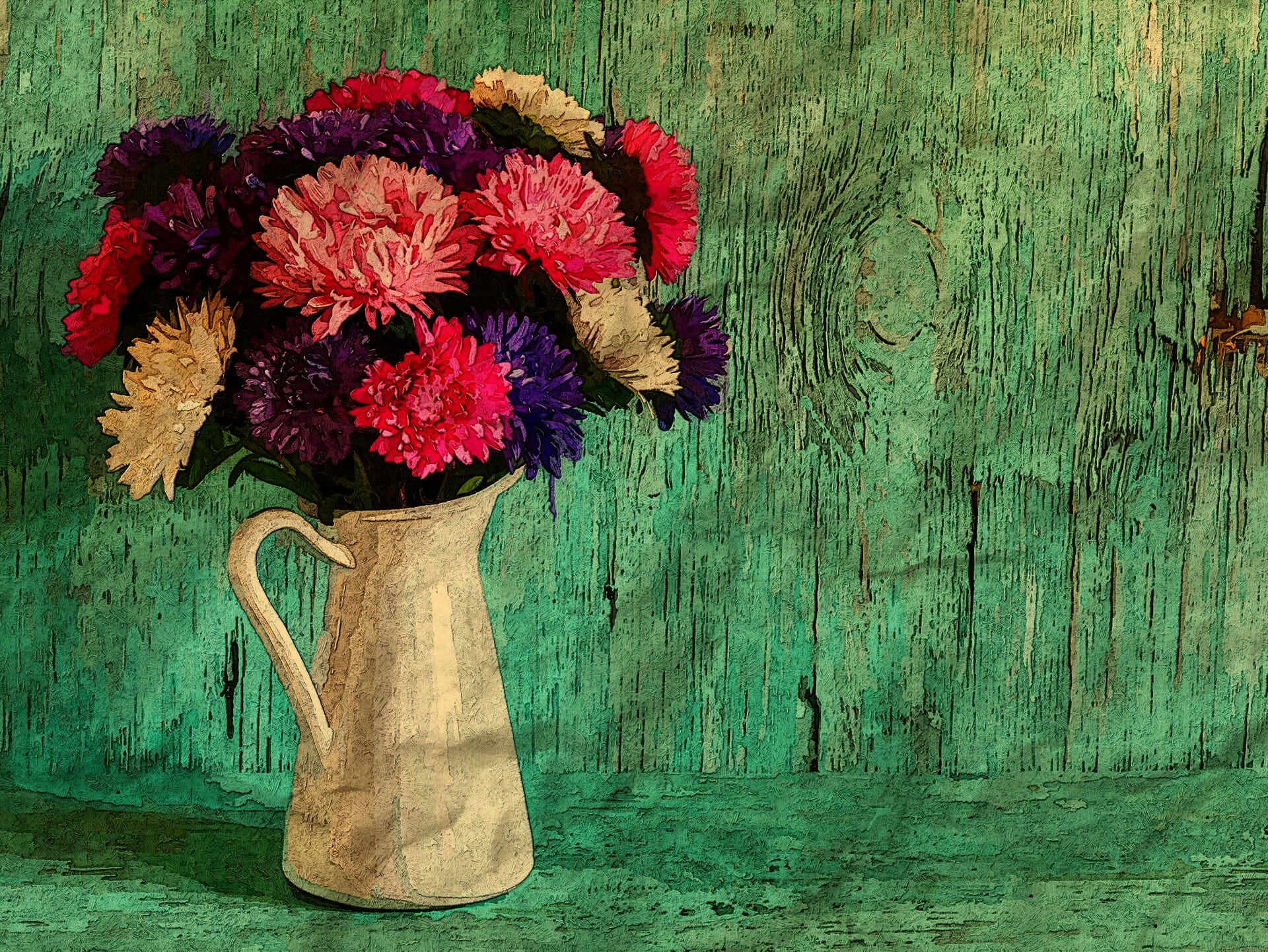
Colortone level 40
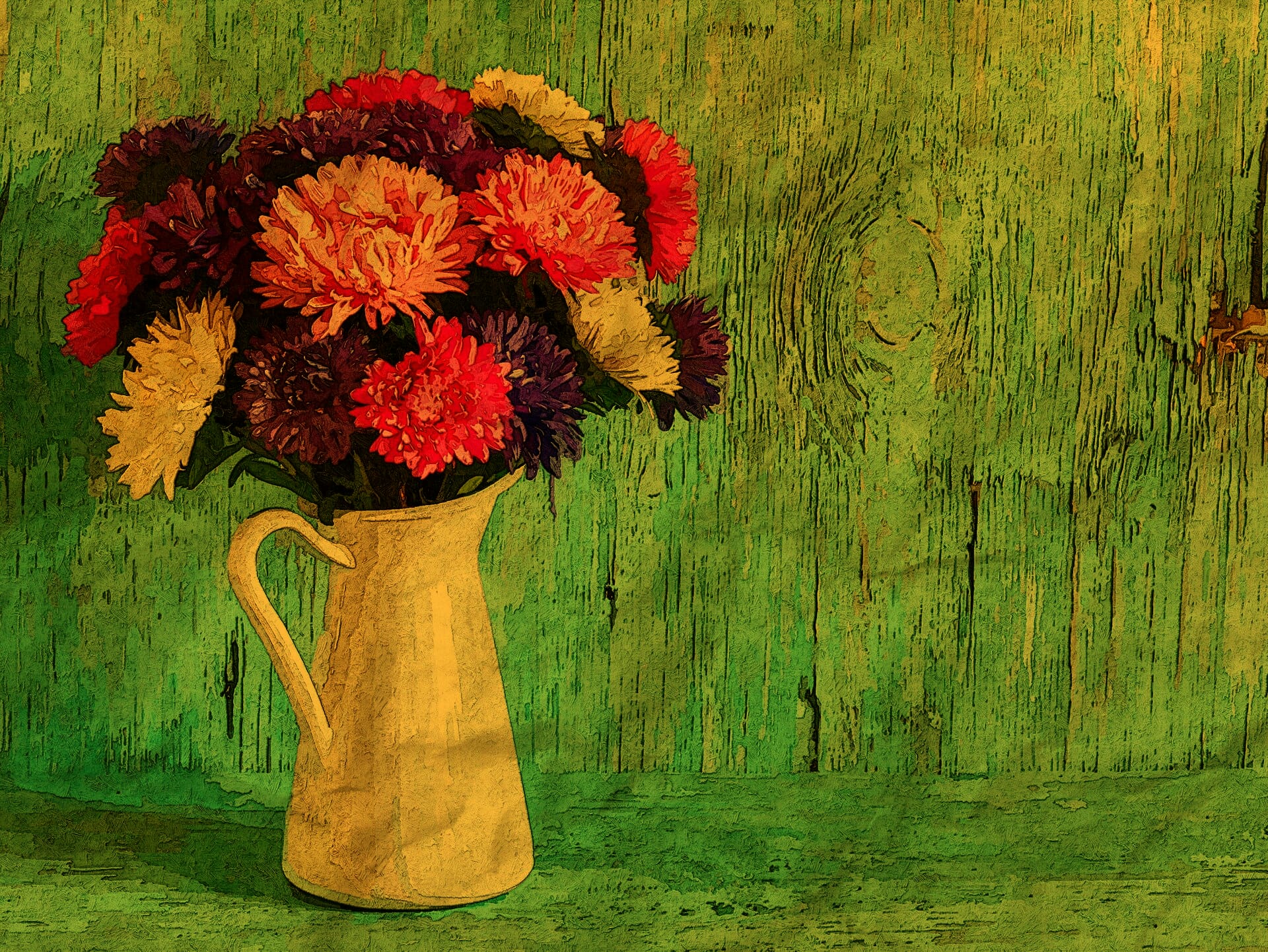
Colortone level 80
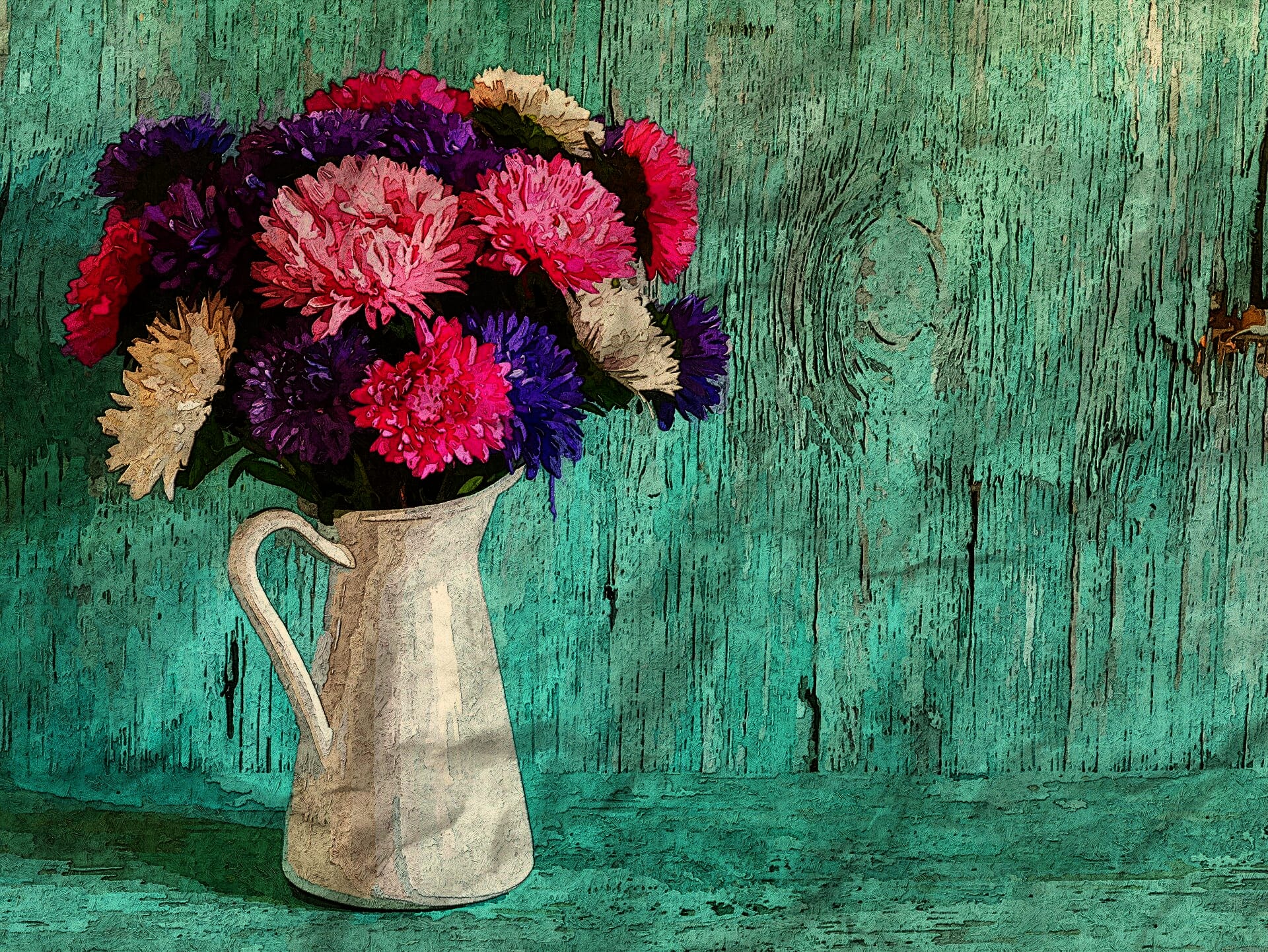
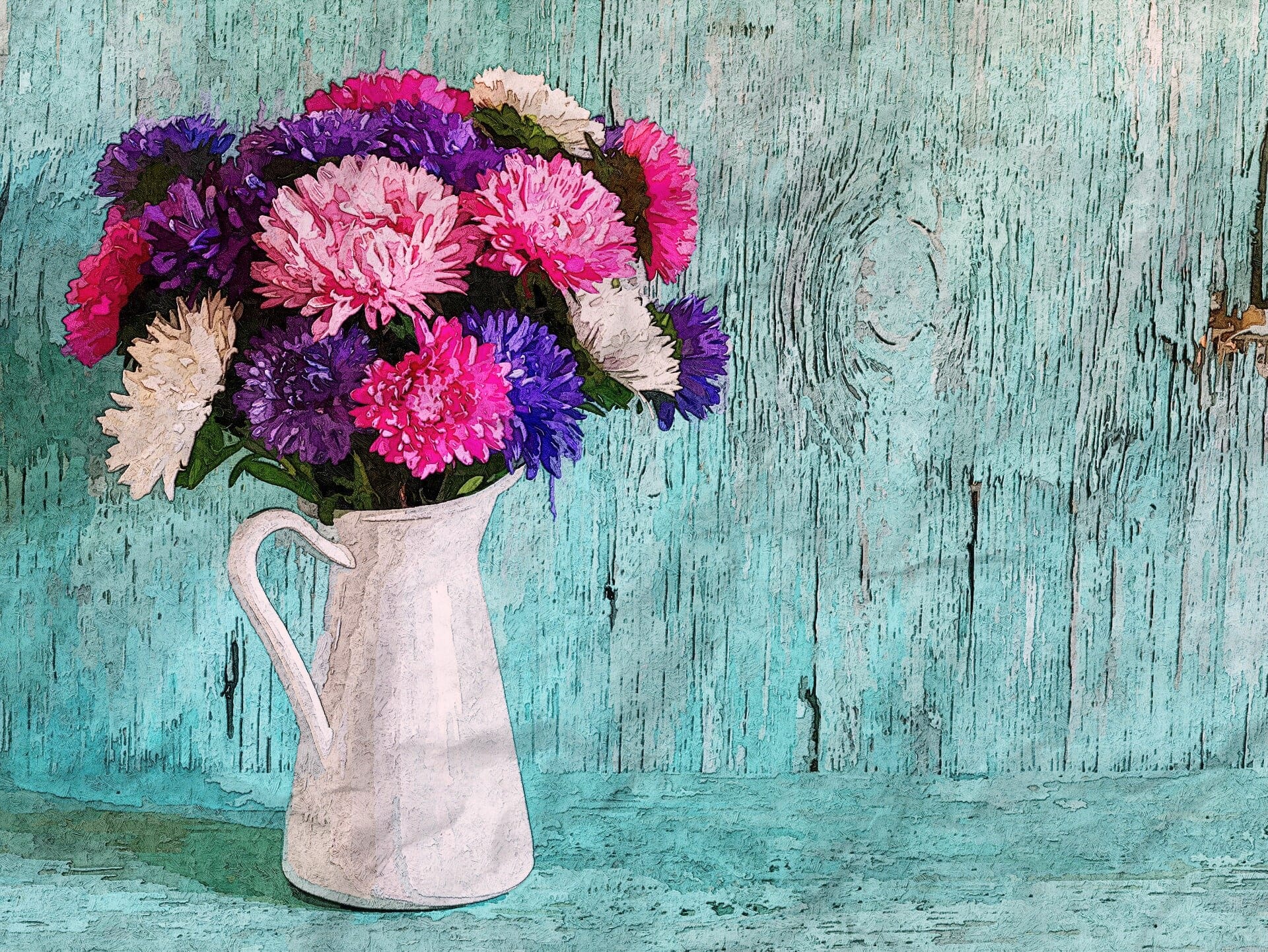
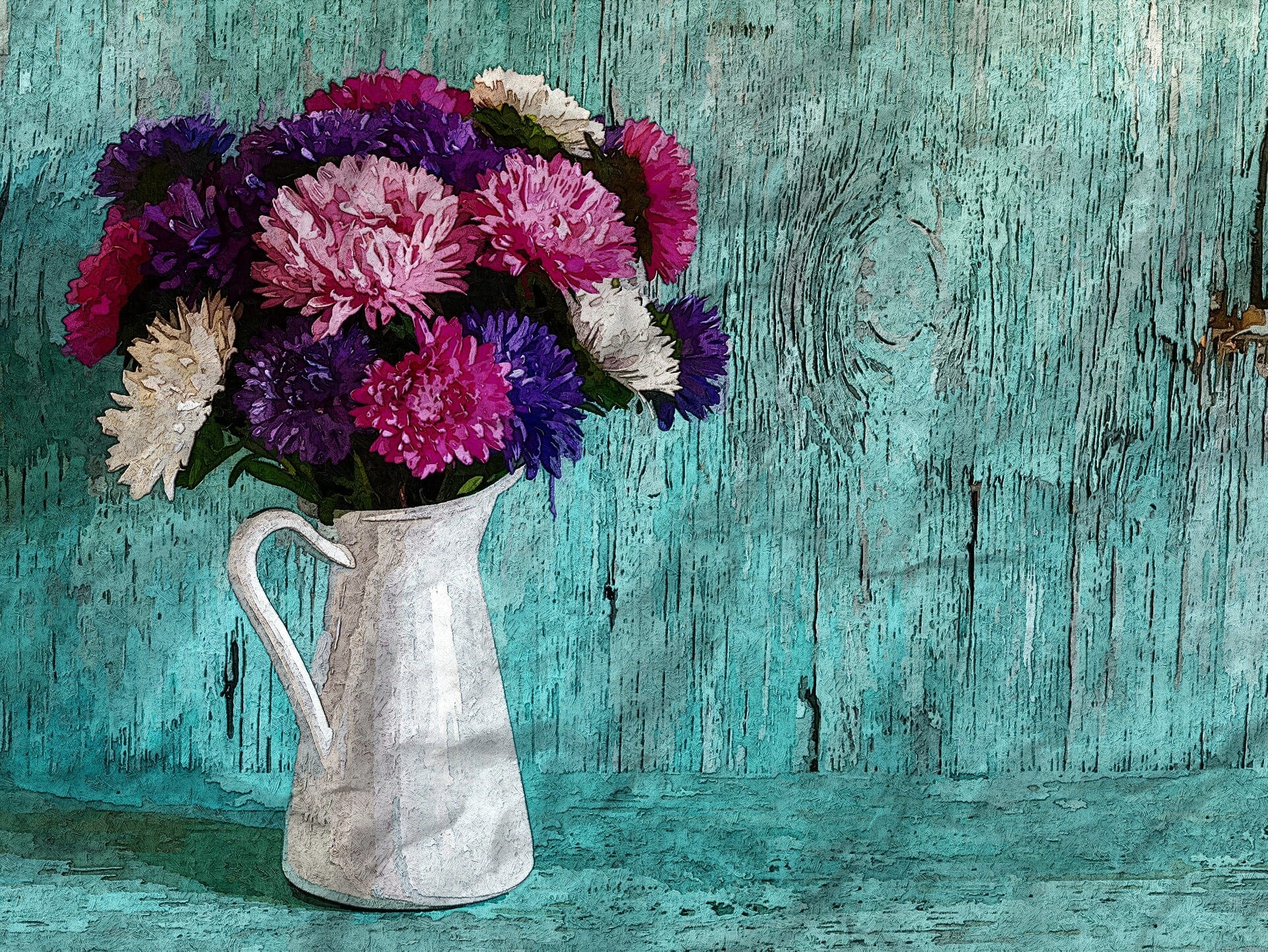
‘colortone.mode’ applies tone to either shadows, highlights or, by default, to the entire image (solid). solid
https://demo.sirv.com/vase.jpg
highlights
https://demo.sirv.com/vase.jpg
shadows
https://demo.sirv.com/vase.jpg
Multiple color tones
Section titled “Multiple color tones”For more advanced effects, you can apply up to 3 color tones to an image. Apply the first tone with colortone.0.color, colortone.0.level and colortone.0.mode.
Apply the 2nd tone with colortone.1.color, colortone.1.level and colortone.1.mode. Apply an optional 3rd tone with colortone.2.color, colortone.2.level and colortone.2.mode.
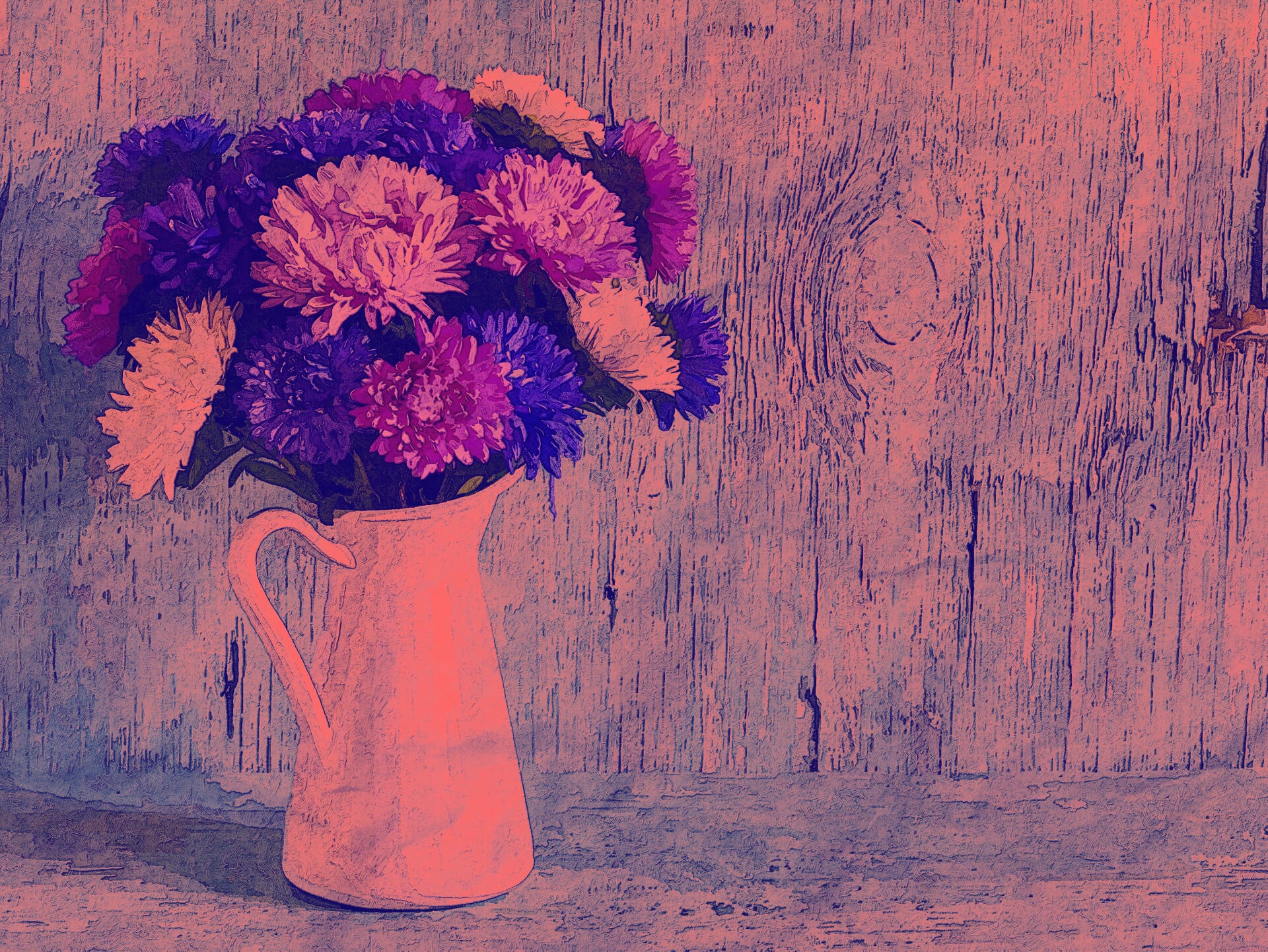
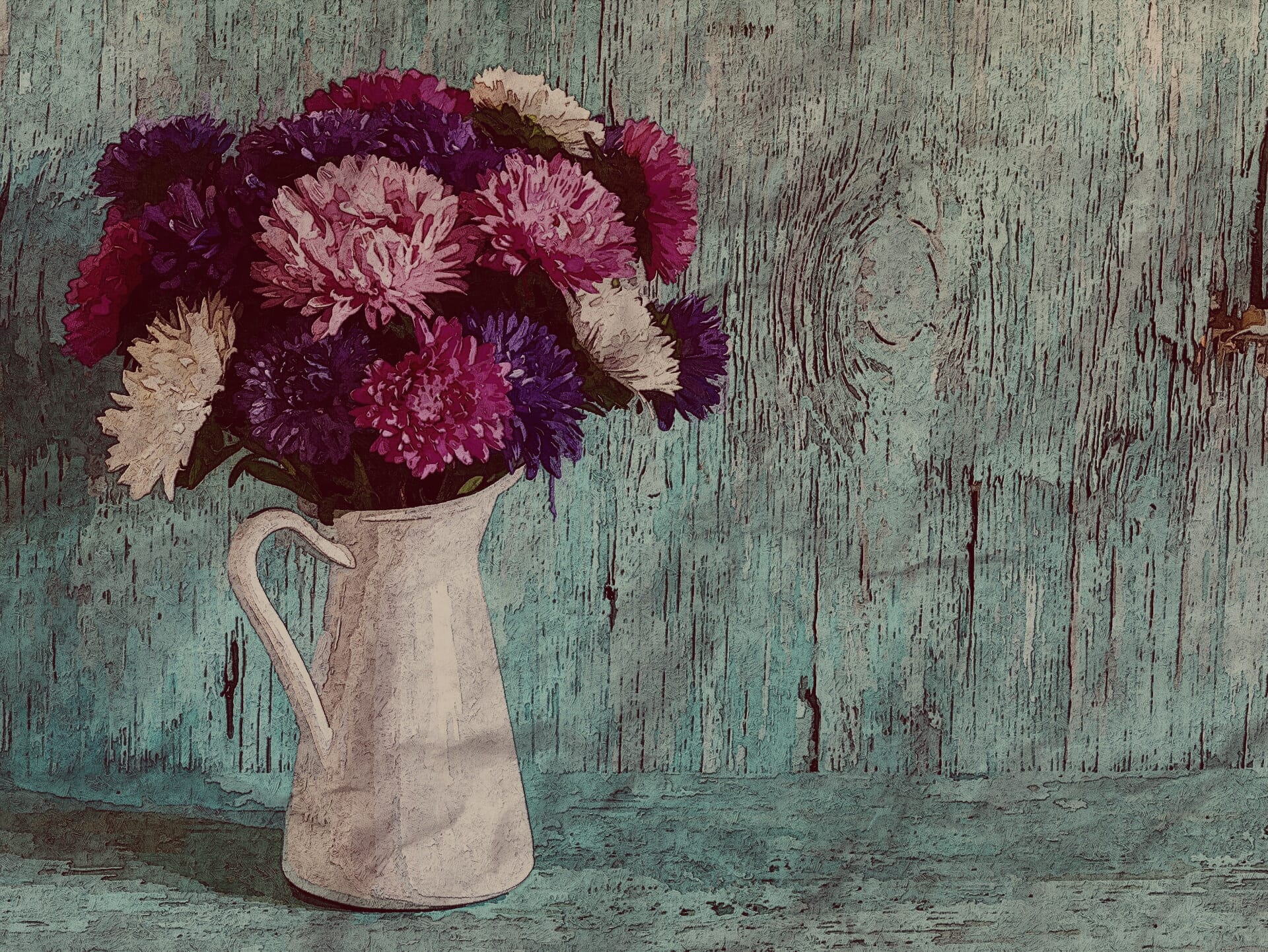
This image has 2 color tones:
https://demo.sirv.com/vase.jpg?colortone.0.color=0c01a7
This image has 3 color tones:
https://demo.sirv.com/vase.jpg?colortone.0.color=d0ba8e
Color tones with other effects
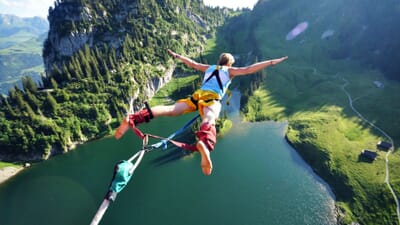
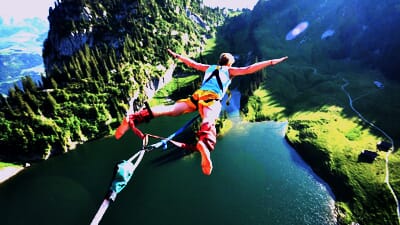
Section titled “Color tones with other effects”Create an even greater range of styles by combining colortone with other Sirv imaging options. The image to the right has greater contrast, brightness, shadows and a colortone:
Original
Processed
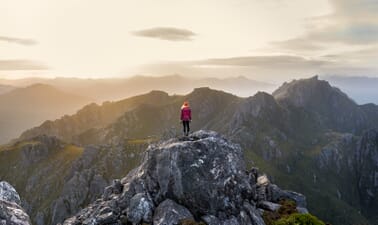
Here’s an image with a different combination: increased highlights, shadows and saturation are followed by colortone option:
Original
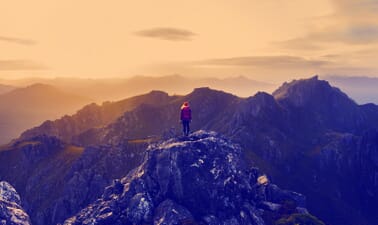
Processed
This image increases contrast, reduces saturation, then applies colortone and vignette:
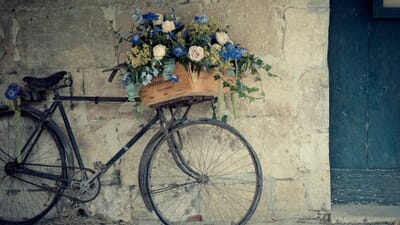
Original
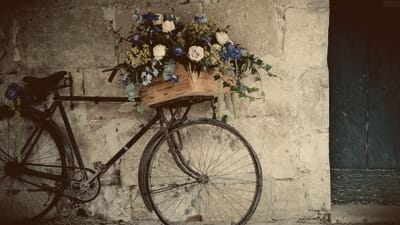
Processed
Change the colors and levels in the URL to create your own look, then save the settings in a profile to reuse them on other images.