Profiles
 By Jake Brumby, Customer Success DirectorUpdated
Short answer
A profile is a saved set of image options that you apply by adding ?profile=name to an image or spin URL. Create one in your Profiles folder, choose the settings and save. When you change a profile, every image that uses it updates, with no code changes. Options in the URL override the profile.
After reading this you will know
- How to create a profile and apply it to images and spins
- Which settings win when the URL and a profile disagree
- How to apply a profile to a whole folder
- What a profile file looks like
You can apply the same options to multiple images or 360 spins by creating profiles.
Profiles let you easily apply and update styles on images/spins across your website, without changing any code.
When profile settings are updated in your Sirv account, every image/spin referencing that profile will also update.
Apply a profile
Section titled “Apply a profile”To apply a profile, append ?profile=name to the image/spin URL. name should be the file name of the profile you’d like to apply (found in your Profiles folder). Example:
https://demo.sirv.com/look.jpg?profile=Example-Text

No profile

With profile
Create a profile
Section titled “Create a profile”To create a profile:
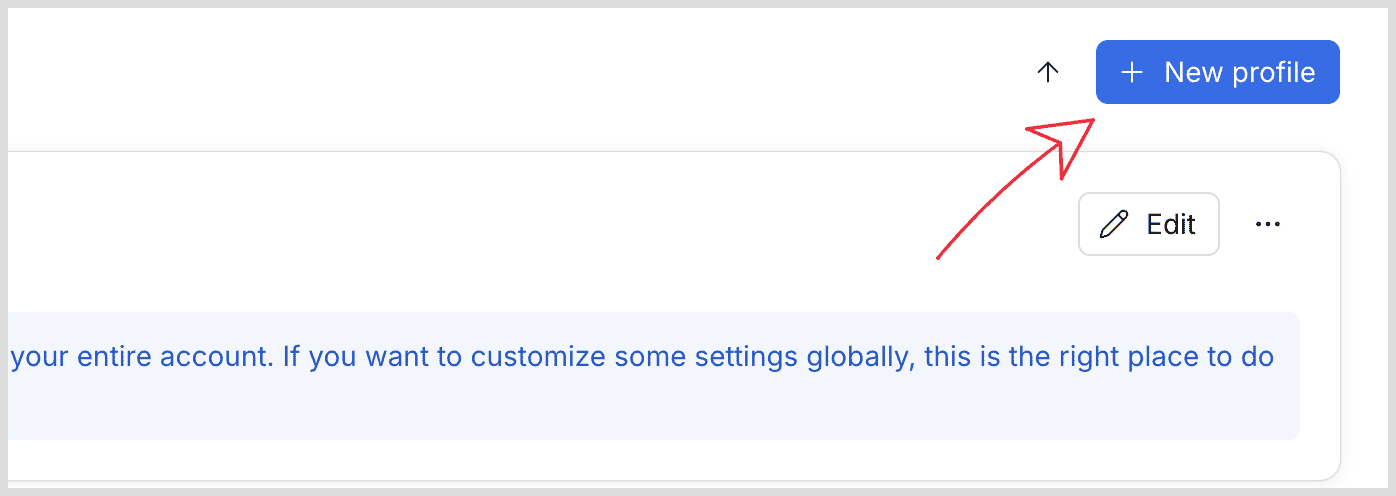
- Go to Assets > Profiles and click “New profile”:
- The profile editor opens. Type a name for your profile at the top:

- Choose the settings you wish to apply, such as a text overlay. Switch on each setting you change:
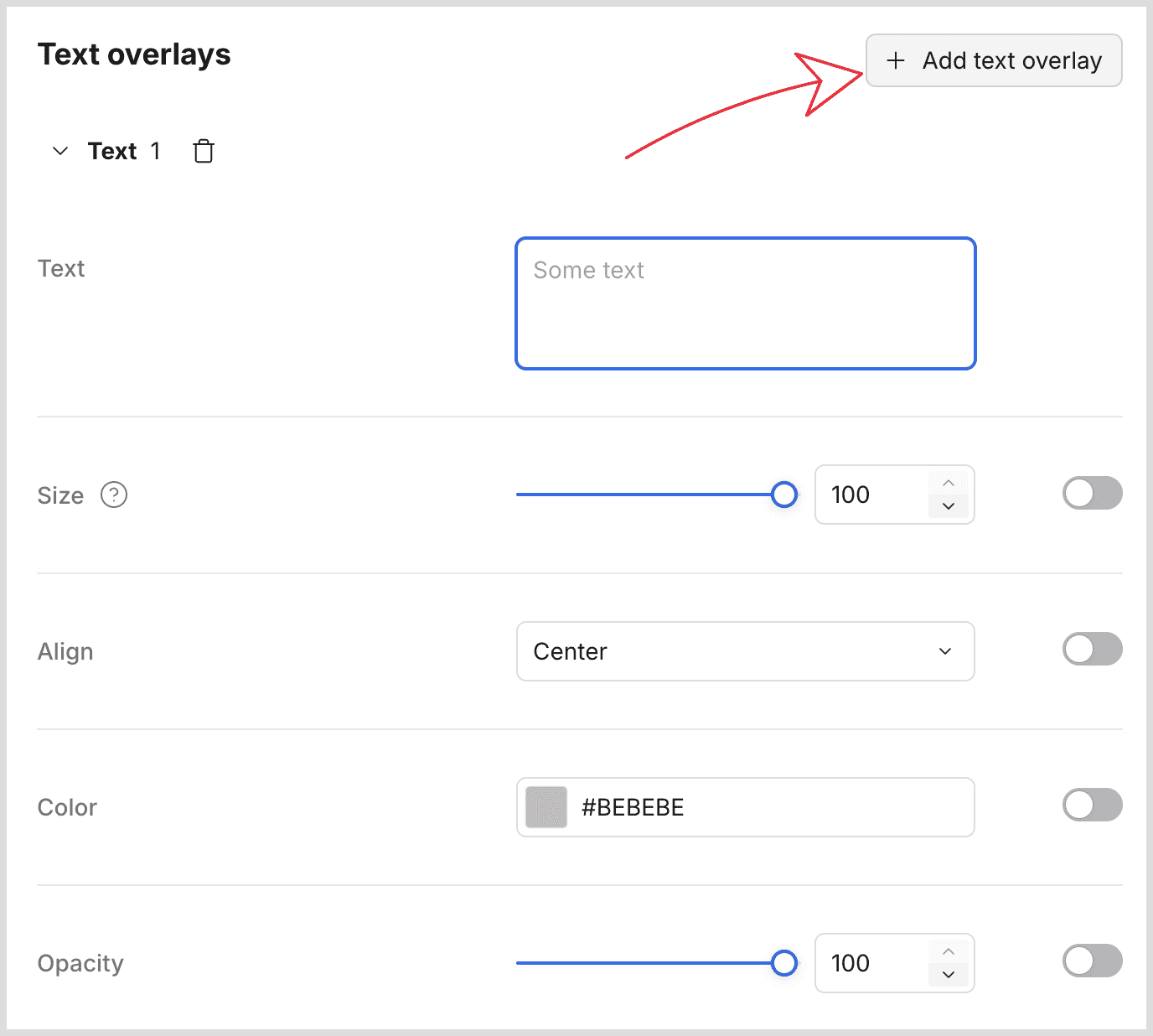
- Click “Create”.
In the example above, the new profile was named Example. You would apply it to an image like so:
https://example-account.sirv.com/my-image.jpg?profile=Example
Order of processing
Section titled “Order of processing”If the same option is applied via multiple sources, the source with the highest precedence is used, in this hierarchy:
- URL (highest precedence)
- Profile
- Default profile (lowest precedence)
For example, if “quality” is only set in the Default profile, that value will apply.
If “quality” is also set in a custom profile and in the URL (e.g. q=75), then the URL option will take precedence.
Add profile to folder
Section titled “Add profile to folder”You can apply a profile to files in a folder (and its subfolders) without appending the ?profile parameter in the URL.
This is called a strict profile - all settings within the profile will be strictly applied and cannot be overridden by adding conflicting parameters in the URL.
This has many uses, such as applying irreversible watermarks to images.
Apply a strict profile
Section titled “Apply a strict profile”Follow these steps to apply a strict profile. 1. Go to the Protected URLs settings of your Sirv account:
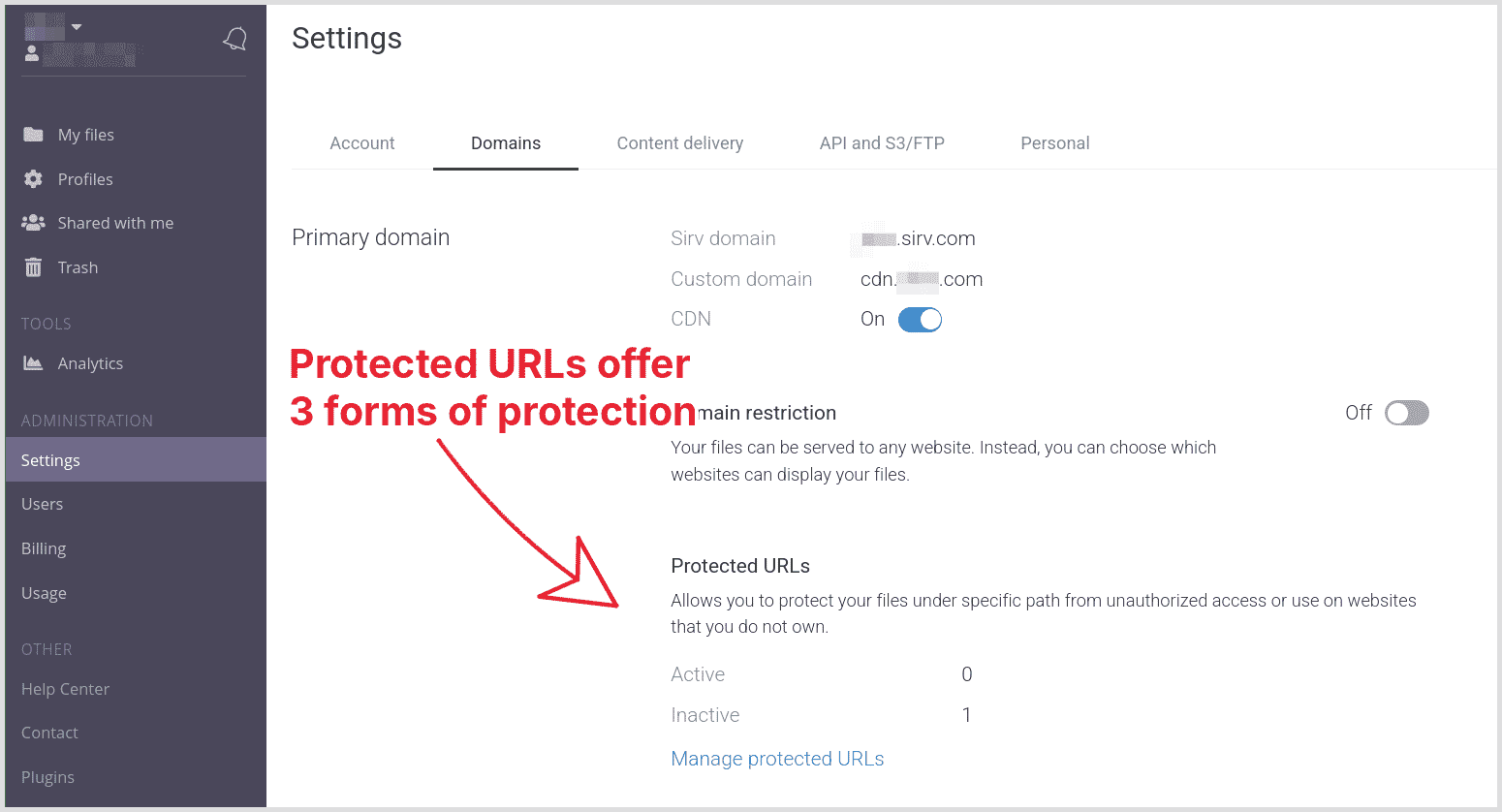
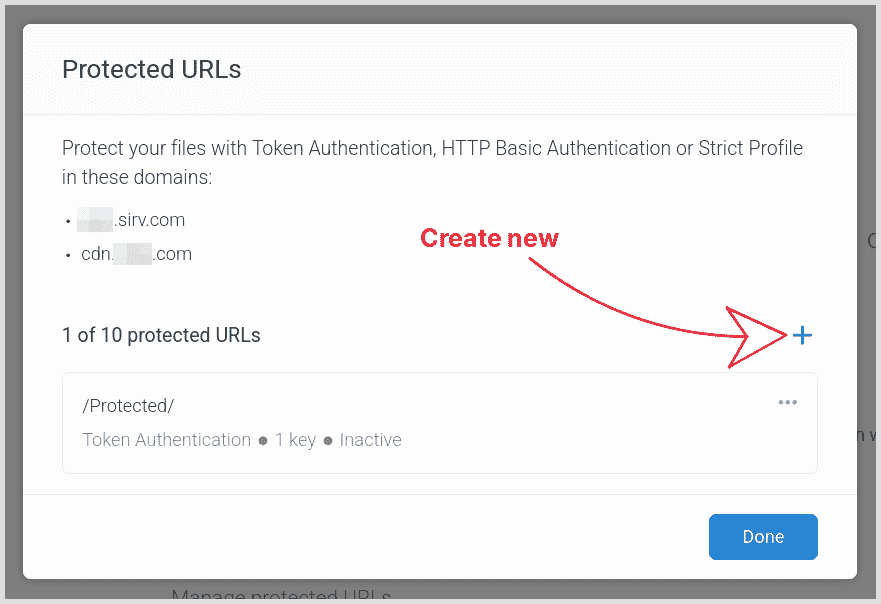
3. Sirv offers 3 types of protection. Choose the strict profile:
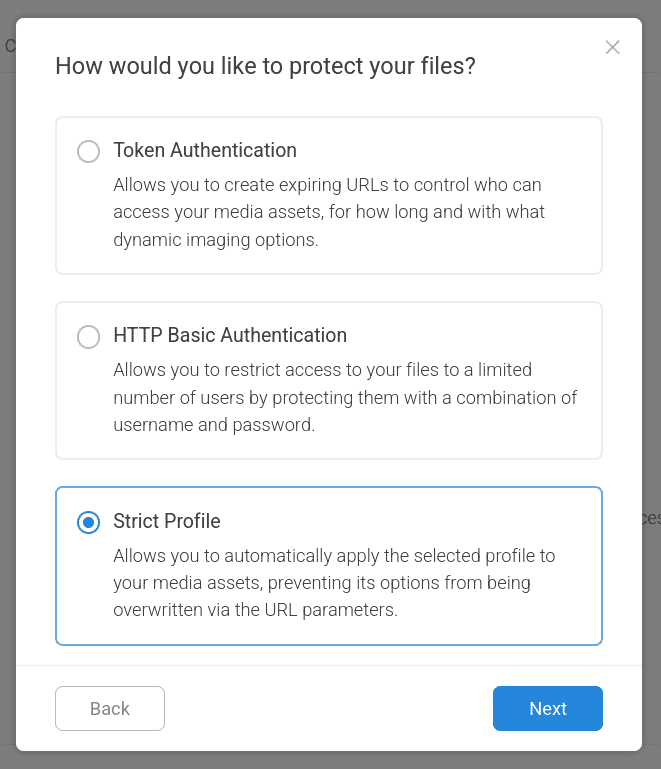
4. Choose the folder and which profile should be applied to the images within it:
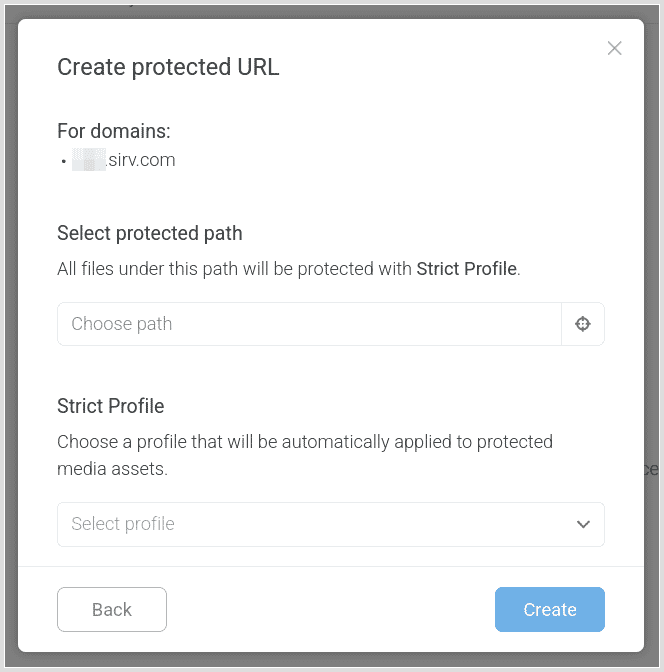
6. Click create. Up to 10 folders (and their subfolders) can have this protection. If you need more than 10 configurations, please ask the Sirv support team.
Example
Section titled “Example”We configured the folder /Examples/Strict with a profile that applies a watermark and text overlay.
The master images on the Sirv account remain as they were - whenever they are served the profile is applied:
https://demo.sirv.com/Examples/Strict/Idra.jpg
Profile code
Section titled “Profile code”Profiles are text files, written in JSON. As they’re just text files, with a predictable format, you can even create your own profiles in your application.
This example shows the content of a typical profile. This will apply a text layer to your images and spins:
{ "image": { "scale": { "width": 1280 }, "frame": { "style": "none" }, "text": { "text": "Text overlay", "style": "simple", "font": { "family": "Open Sans" }, "position": "southeast", "color": "cyan", "opacity": 50, "background": { "color": "red", "opacity": 10 }, "size": 34 } }, "spin": { "width": 400, "zoom": 2.5 }}Save the profile, then add it to any image URL with the profile parameter to apply all its settings at once.