Resize Image Canvas
 By Jake Brumby, Customer Success DirectorUpdated
Short answer
Add canvas.width and canvas.height to the image URL to put space around the image, in pixels or percent. Set the background with canvas.color, which is white by default, and place the image with canvas.position. Use canvas.aspectratio, such as 1:1, to give a mixed set of images the same shape.
After reading this you will know
- How to add space around an image from its URL
- How to set the canvas color, position, opacity and border
- How to give many images the same aspect ratio
Add space around an image by making its canvas bigger with canvas options in the URL. Try it in the demo below.
F8DD6CBorder options3
D3D3D3Width and height
Section titled “Width and height”canvas.width - sets the width of the canvas, in pixels or percentage (%). If you choose a value smaller than the width of the original image, the image will be cropped.
https://sirv.sirv.com/Examples/test-sky.jpg?canvas.width=112%

canvas.height - sets the height of the canvas, in pixels or percentage (%). If you choose a value smaller than the height of the original image, the image will be cropped.
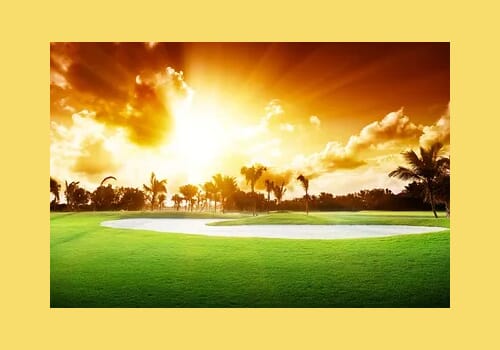
The image below has a 112% canvas width, so white is added to the left and right:
https://sirv.sirv.com/Examples/test-sky.jpg

canvas.color - sets the color of the background canvas. The values are set with hex RGB/RGBA or a color name. The default value is ‘white’. Here’s an example with dark orange (C16303):
https://sirv.sirv.com/Examples/test-sky.jpg

Position
Section titled “Position”canvas.position - sets the position of the canvas behind the image. Other than the default ‘center’, the values are points on a compass, with ‘north’ at the top middle.
The allowed values are: north, northeast, northwest, center, south, southeast, southwest, east, and west.
https://sirv.sirv.com/Examples/test-sky.jpg

Opacity
Section titled “Opacity”canvas.opacity - is set on a scale from 0 (transparent) to 100 (opaque). The default value is ‘100’. JPEG doesn’t support transparency, so the example below is served as PNG:
https://sirv.sirv.com/Examples/test-sky.jpg

Border
Section titled “Border”The canvas border is great for setting a consistently sized border around an image. It can be used with or without the other canvas options.
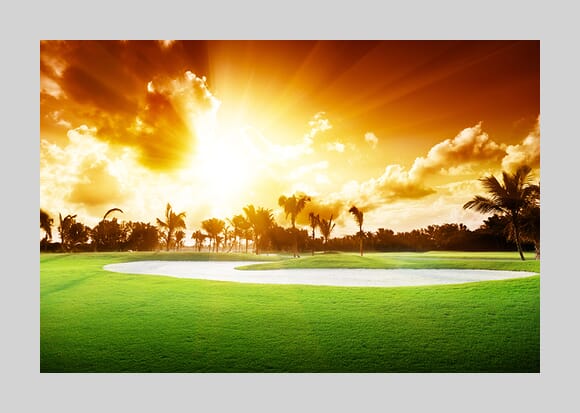
canvas.border.width and canvas.border.height are set in px or %:
https://sirv.sirv.com/Examples/test-sky.jpg?canvas.border.width=40
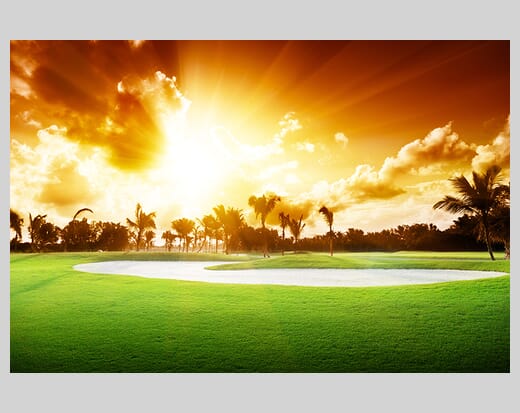
To specify different widths and heights, use both options:
https://sirv.sirv.com/Examples/test-sky.jpg?canvas.border.width=10
canvas.border.color sets a color as a hex ref:
https://sirv.sirv.com/Examples/test-sky.jpg
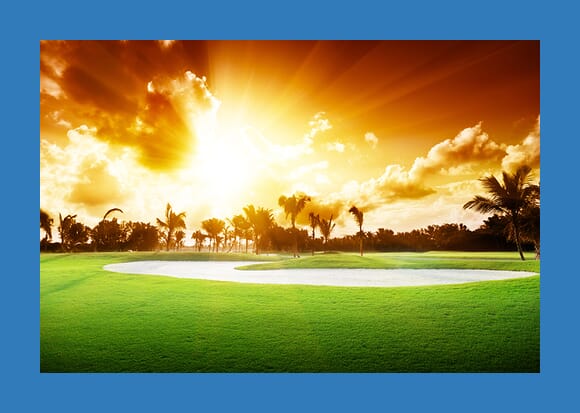
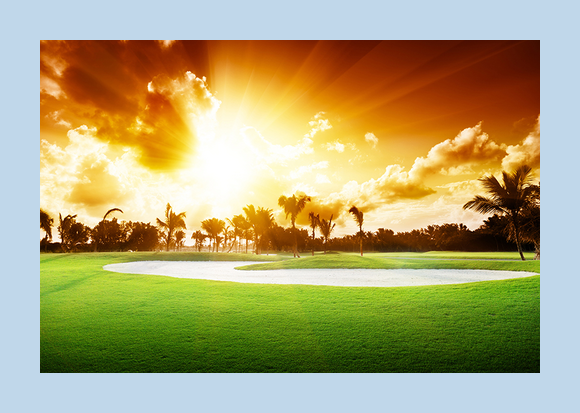
canvas.border.opacity adjusts the transparency - only applied to supporting images (not JPEG):
https://sirv.sirv.com/Examples/test-sky.jpg
Aspect ratio
Section titled “Aspect ratio”canvas.aspectratio sets an aspect ratio to the canvas, which is useful for making a varied set of images have uniform dimensions. Common aspect ratios are 4:3, 16:9, 1:1, 3:2, 5:4.
Each number can have any value from 1-99, as long as the difference is greater than 0.04 and smaller than 25.
https://sirv.sirv.com/Examples/test-sky.jpg
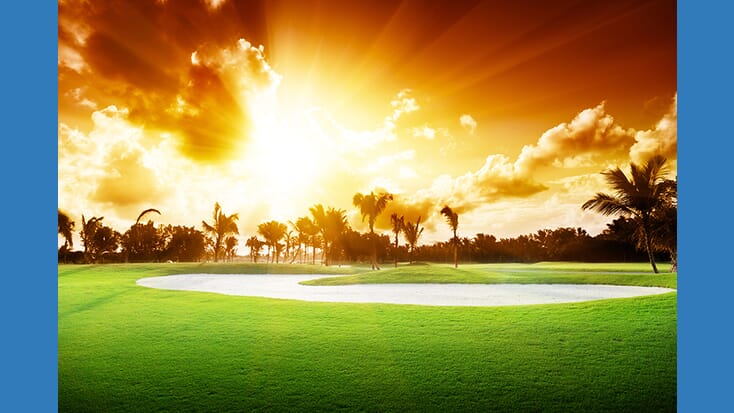
Use the same aspect ratio on every image in a gallery to make all the images line up neatly.