Auto Crop Images
 By Jake Brumby, Customer Success DirectorUpdated
Short answer
Add crop.type=trim to the image URL, and Sirv crops away the plain background around the object automatically. Add crop.pad.x and crop.pad.y, such as 15%, to keep some space around it. This gives every product image the same look, without editing each photo by hand.
After reading this you will know
- How to trim the background around a product automatically
- How to add padding around the cropped object
Automatically crop an image on a solid background color.
Autocrop with edge detection is useful for achieving a uniform look for your images, for example to standardize ecommerce product images.
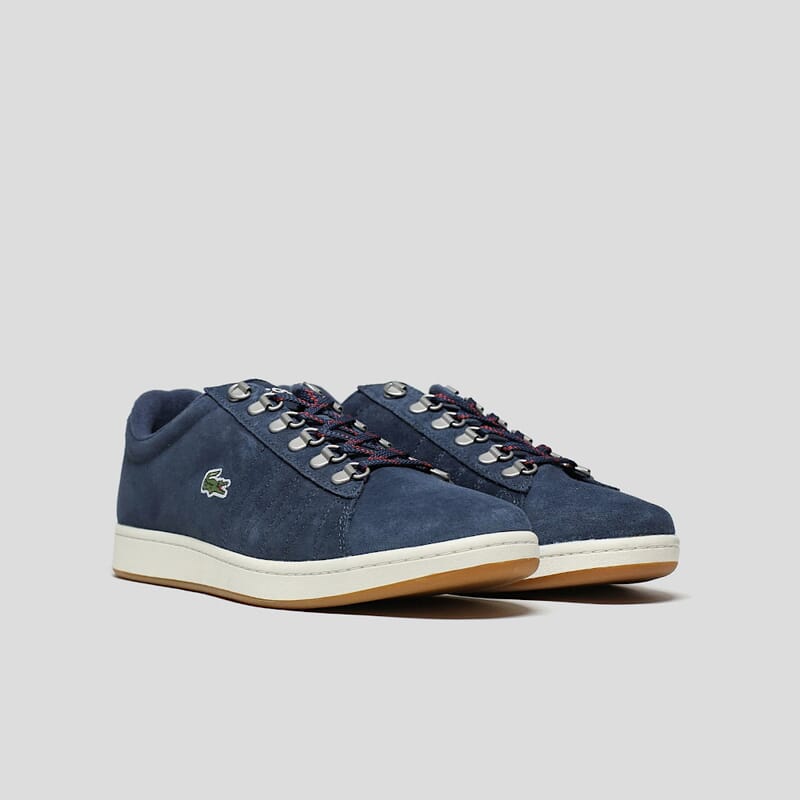
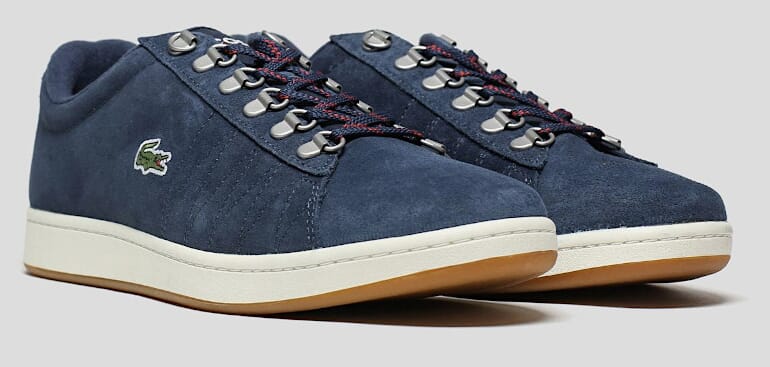
Trim image
Section titled “Trim image”To remove the whitespace around an object, set crop.type to trim:
https://demo.sirv.com/trainer-grey.jpg?crop.type=trim
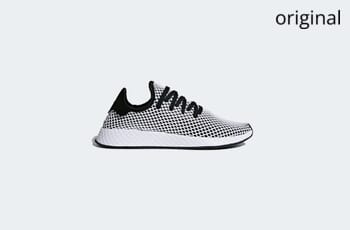
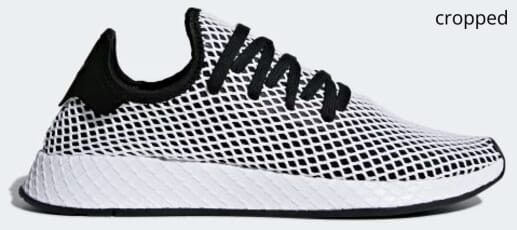
Increase the space between the object and the image edge by adding padding with crop.pad.x and crop.pad.y. This example adds 15% padding:
https://demo.sirv.com/trainer-grey.jpg

Change the padding values to give the product more or less space around it.