How to customize the message on a 360 spin
 By Marc Bonne, Customer Success TeamUpdated
Short answer
A hint such as "Drag to spin" shows over each 360 spin, so visitors know they can turn it. Change its text in a profile or in the spin file, with separate text for desktop and touch screens. Change its position, colors and style with CSS rules for .spin-figure .sirv-spin-hint on your page.
After reading this you will know
- How to change the hint text on a 360 spin
- How to restyle and move the hint with CSS
To inform users that an image is an interactive spin, a hint message is displayed over the image.
The standard hint message looks like this:

The instructions below show how to change the “Drag to spin” text and the design of the message.
Change the hint text
Section titled “Change the hint text”To change the text for every spin, open your profile in Assets > Profiles, click Edit, then choose Spin options > Hint. Different text can be set for desktop and touch-screen devices.
Switch on “Hint text” or “Mobile hint text”, type your text and click “Save changes”. The “Hint” row can turn the hint off altogether:
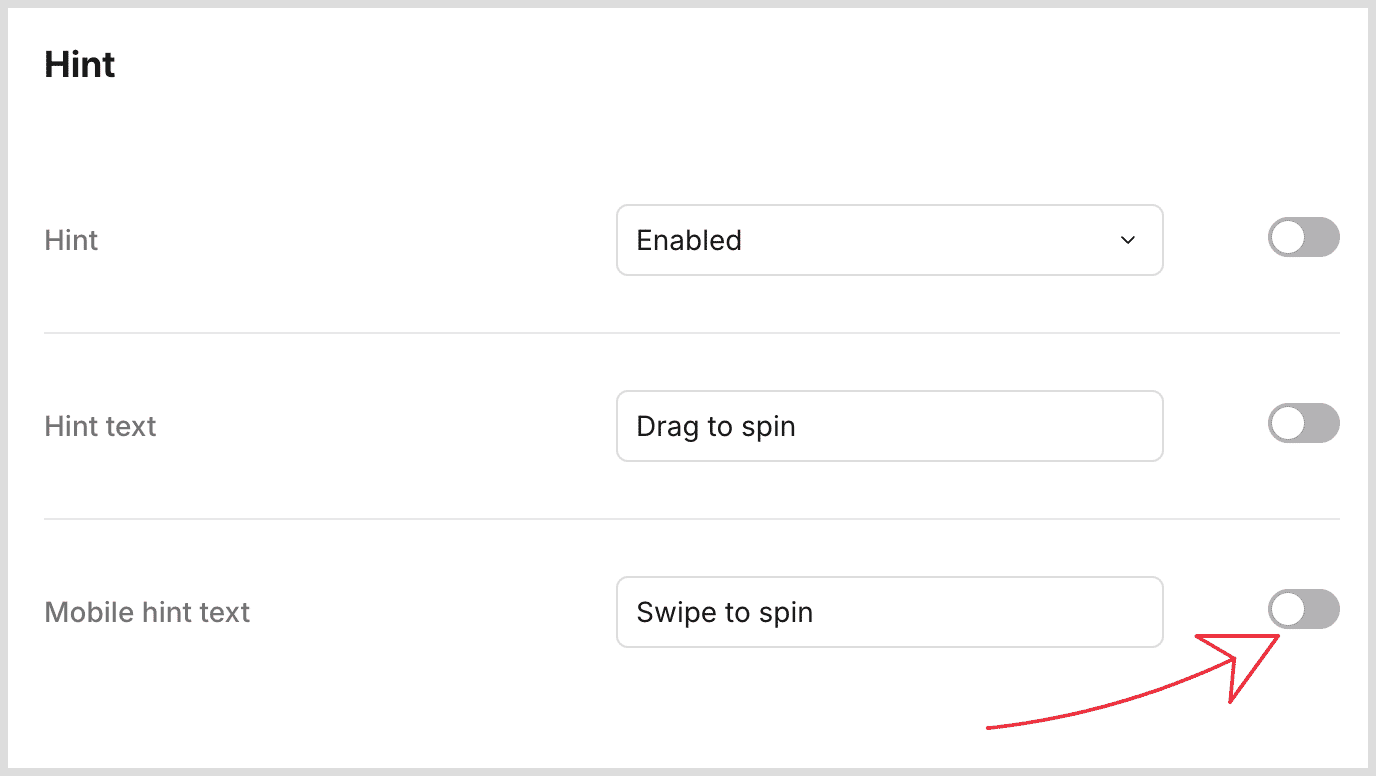
To change the hint of one spin only, set hint.message.text in its data-options, for example data-options="hint.message.text:Turn me".
Change the hint design
Section titled “Change the hint design”You can change the location, graphics, and style of the message with CSS.
To move the hint up or down, use the top and bottom properties in the .spin-figure .sirv-spin-hint CSS rules. For example, to align the hint to the bottom edge of images:
<style>.spin-figure .sirv-spin-hint { top: auto; bottom: 0;}</style>Below are all the styles available to be edited. Add padding, margin, font styles and other CSS as you require to create the design you wish:
<style>.spin-figure .sirv-spin-hint { /* Styles of the hint box */}.spin-figure .sirv-spin-hint .hint-side { /* Styles of the left/right sides of hint box (arrows) */}.spin-figure .sirv-spin-hint .hint-side.left { /* Styles of the left side of hint box (left arrow) */}.spin-figure .sirv-spin-hint .hint-side.right { /* Styles of the right side of hint box (right arrow) */}.spin-figure .sirv-spin-hint .hint-text { /* Styles of the hint text */}</style>Here’s a spin with a custom design:
The purple message underneath was created with this CSS:
<style type="text/css"> .spin-figure .sirv-spin-hint { background-image: none; background-color: rgba(173, 45, 91, 0.6); font-size: 14px; font-family: 'Helvetica Neue', Helvetica, Arial, sans-serif; padding: 0.3em 0.1em; box-shadow: none; border:none; border-radius: 0px; opacity: 1; width: 100%; max-width: 100%; top: auto; bottom: 0; left: 0; right: 0; -webkit-transform: none !important; transform: none !important; -webkit-font-smoothing: antialiased; } .spin-figure .sirv-spin-hint .hint-side, .sirv-spin-hint-side { display: none; } .spin-figure .sirv-spin-hint .hint-text { width: auto; max-width: 96%; color: #fff; display: inline !important; }</style>Add the CSS to your page, and every spin on that page shows the new hint design.