Color Manipulation Options
 By Jake Brumby, Customer Success DirectorUpdated
Short answer
Every color option in Sirv takes an RGB or RGBA hex code, such as 01417F, without the # sign. That includes text, outline, frame, canvas, vignette and watermark colors. Sirv can also report the 64 dominant colors of an image as JSON: add ?histogram=rgb&info to the image URL.
After reading this you will know
- How to set any color option with an RGB or RGBA code
- Which options take a color
- How to get the dominant colors of an image
Every Sirv option that takes a color, such as text, frame or vignette colors, accepts it the same way, as an RGB or RGBA value. Pick a color in the demo below to see the value to use.
Parameters that have color are:
- vignette.color
- text.color
- text.outline.color
- text.background.color
- watermark.canvas.color
- frame.color
- frame.rim.color
- canvas.color
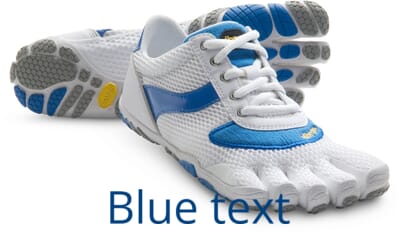
To set a solid color, use a standard RGB reference such as 01417F in your URL or profile, for example:
https://sirv.sirv.com/Examples/test-vibram.jpg
Dominant colors
Section titled “Dominant colors”Sirv can identify the dominant color in each of 64 parts of your image. Each area is divided equally by height and width, like these examples:
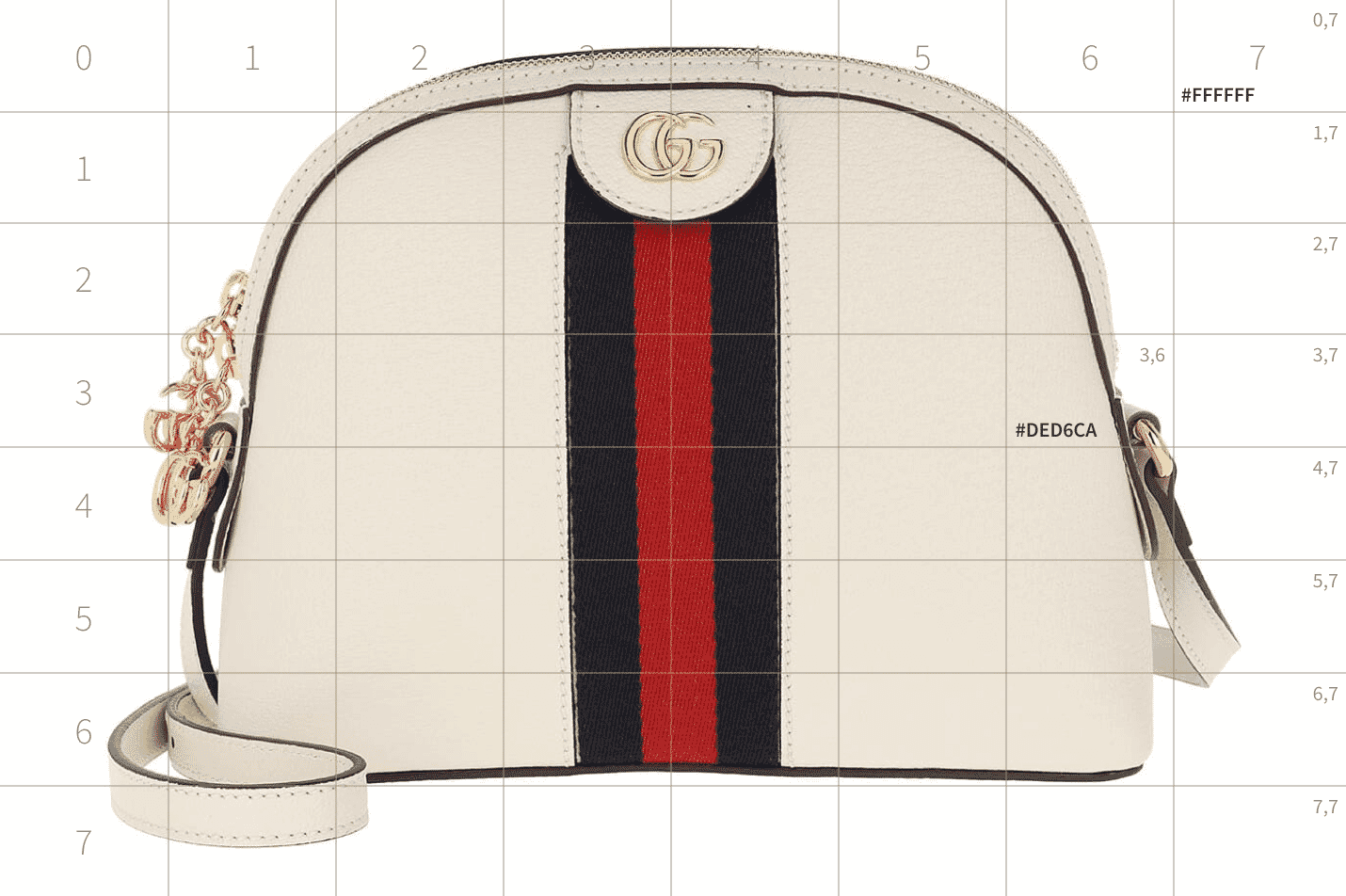
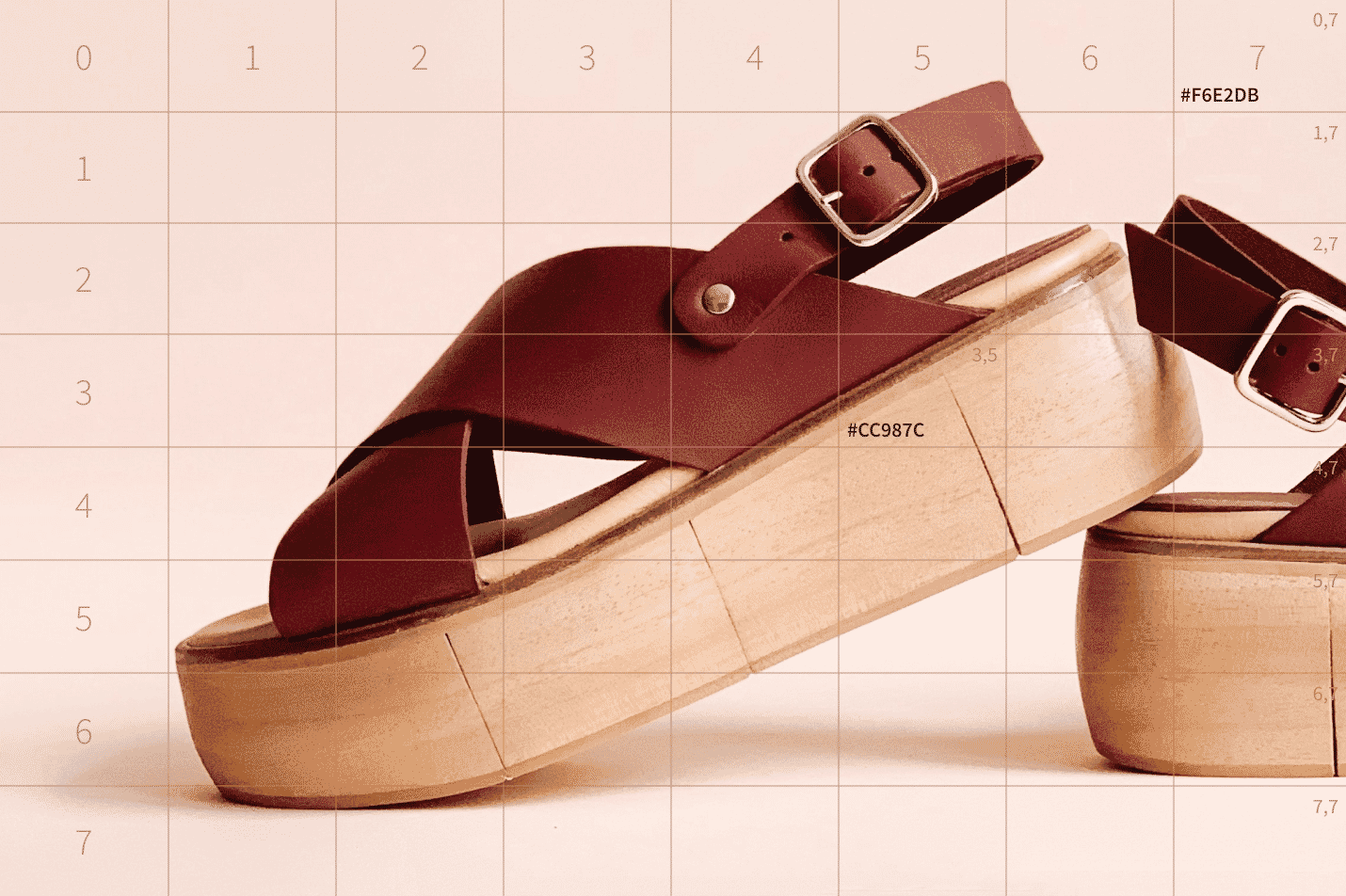
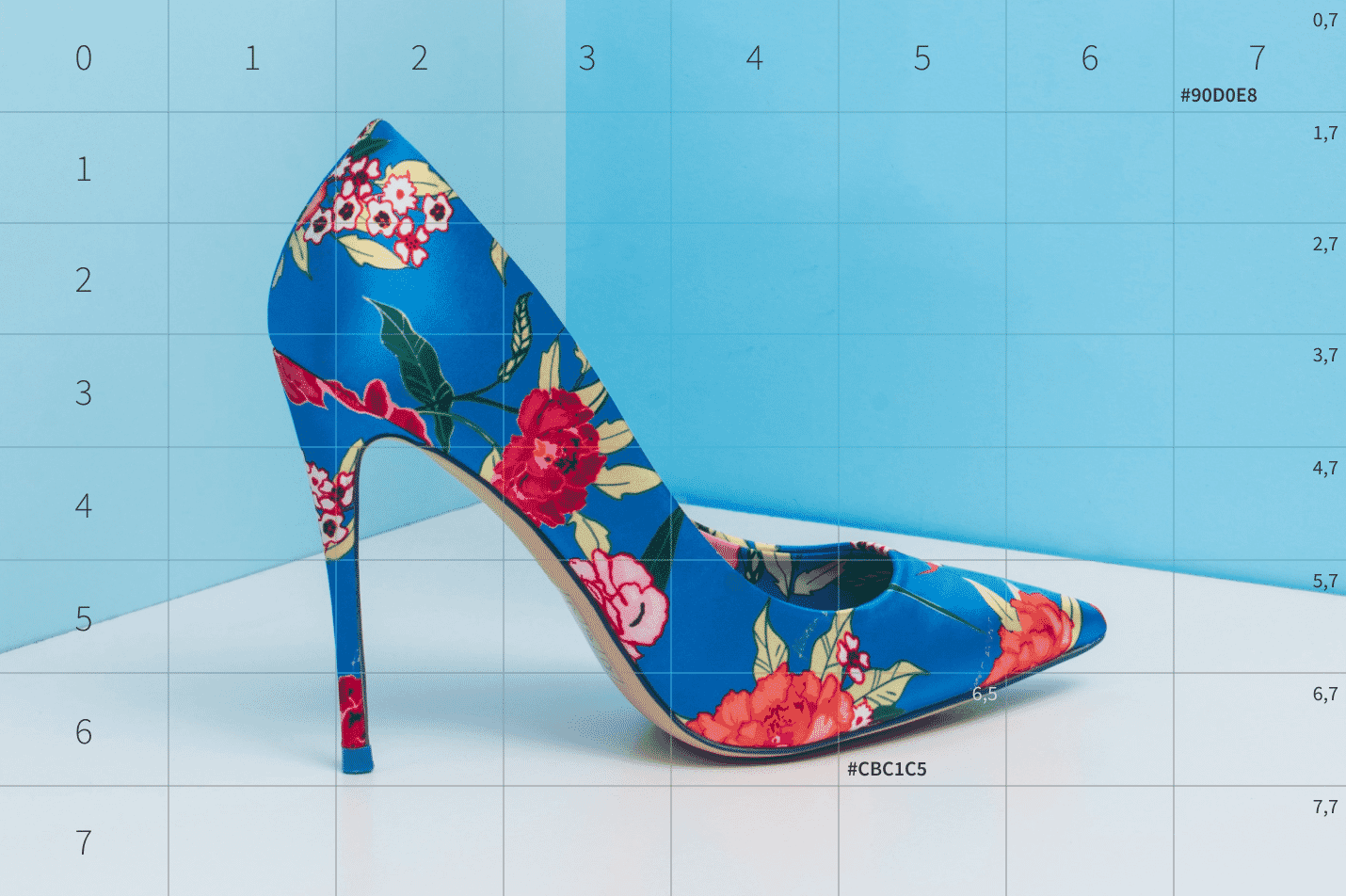
Obtain the 64 dominant colors in either JSON or JSONP format by appending ?histogram=rgb&info to your image.
JSON example: https://demo.sirv.com/example.jpg?histogram=rgb&info

JSONP example: https://demo.sirv.com/example.jpg?info&callback=abc

Values for the 64 areas are displayed in sets of 8, like so:
"dominantColors": [ [ "#B9B7AE", "#A1A6B5", "#C0CAD3", "#AAA79C", "#AEA693", "#979385", "#D9F9FF", "#B3D8F7" ], [ "#B0AB99", "#908A7D", "#C7AF8C", "#6C6254", "#675343", "#806B55", "#9AABB6", "#A2BCD2" ], [ "#B9D3DA", "#7D8282", "#7A756C", "#777B7C", "#7F7262", "#9C9287", "#696157", "#6D7782" ], [ "#B5CDD5", "#858E92", "#8F9696", "#9A9791", "#8C7E70", "#847360", "#443B32", "#3E3F3F" ], [ "#A6AAA0", "#939CA1", "#70757C", "#877867", "#8F7558", "#7D6347", "#483A2E", "#3A3C41" ], [ "#8C7D68", "#948C7F", "#7C8696", "#787379", "#5E452F", "#695D52", "#3B3025", "#1A1A18" ], [ "#736149", "#503F2E", "#7C818C", "#5D5E65", "#3E2D22", "#31241B", "#36271B", "#161511" ], [ "#5D564C", "#847E76", "#84827F", "#78746F", "#827E79", "#68625C", "#4D4137", "#3C2B1E" ] ],Use these hex values to match page backgrounds, placeholders or product filters to the colors in each image.