Add Text to Image
 By Jake Brumby, Customer Success DirectorUpdated
Short answer
Add text to the image URL to write on the image, for example ?text=Hello. Then style it with text.size, text.color, text.position, any Google font, an outline or a background. Use %0A for a line break and encode special characters such as & or ©. You can even show the image's own metadata.
After reading this you will know
- How to add text to an image from its URL
- How to set the size, color, position and font
- How to write several lines and special characters
- How to show image metadata as text
Overlay text anywhere on the image. Adjust the font, style, size, colors and effects. Up to 4 layers can be overlaid.
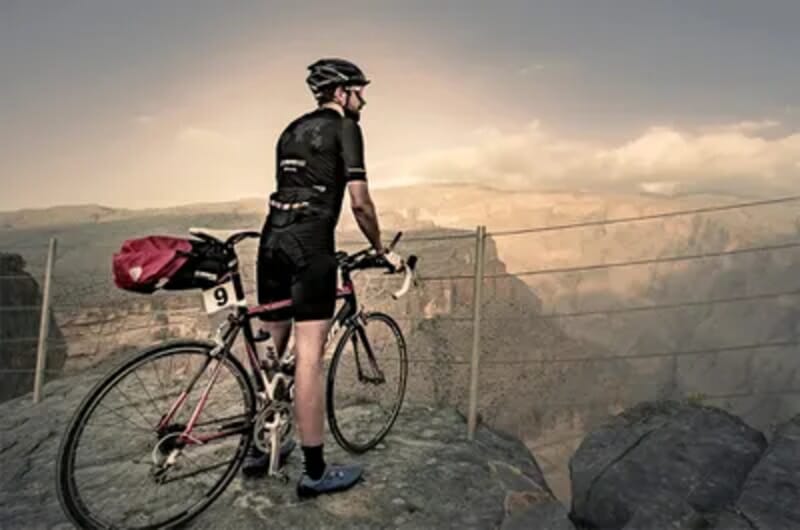
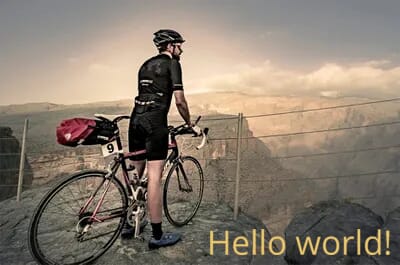 OriginalWith options
EBC76DPosition options4
Font options2
Outline options3
000000Background options2
000000text the sets text to be displayed. The example below is the default small grey text in the bottom right corner.
Further down this page, we will change the color, size, weight, and effects to make the text stand out.
https://demo.sirv.com/oman.jpg?text=Overlay text here!
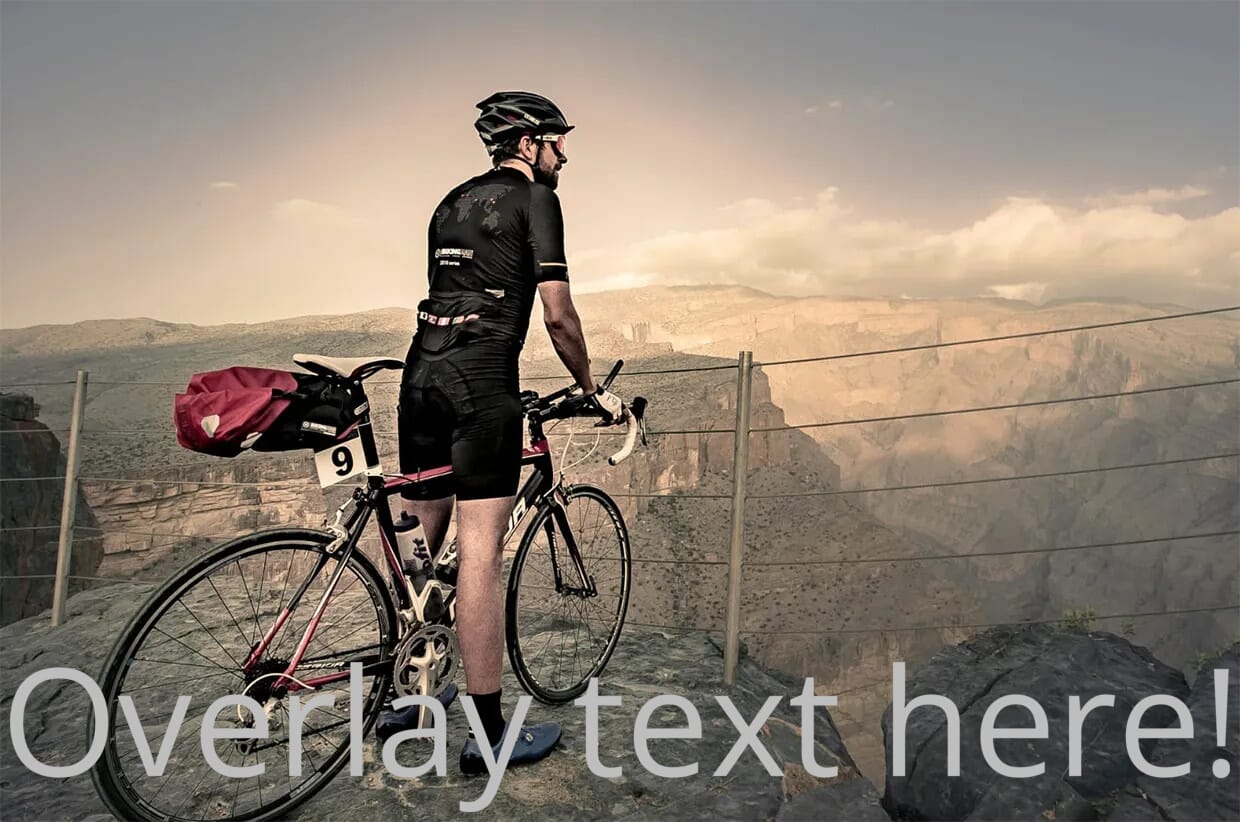
That URL contains spaces and an exclamation mark (!), which browsers interpret correctly.
Some characters such as $, £, €, #, &, © are not interpreted correctly, so use the ASCII character equivalent instead. See the Special characters section below for a list of common codes.
text.size - the width of the text area in percent (%), relative to the image width. This text is 50% of the image width:
https://demo.sirv.com/oman.jpg
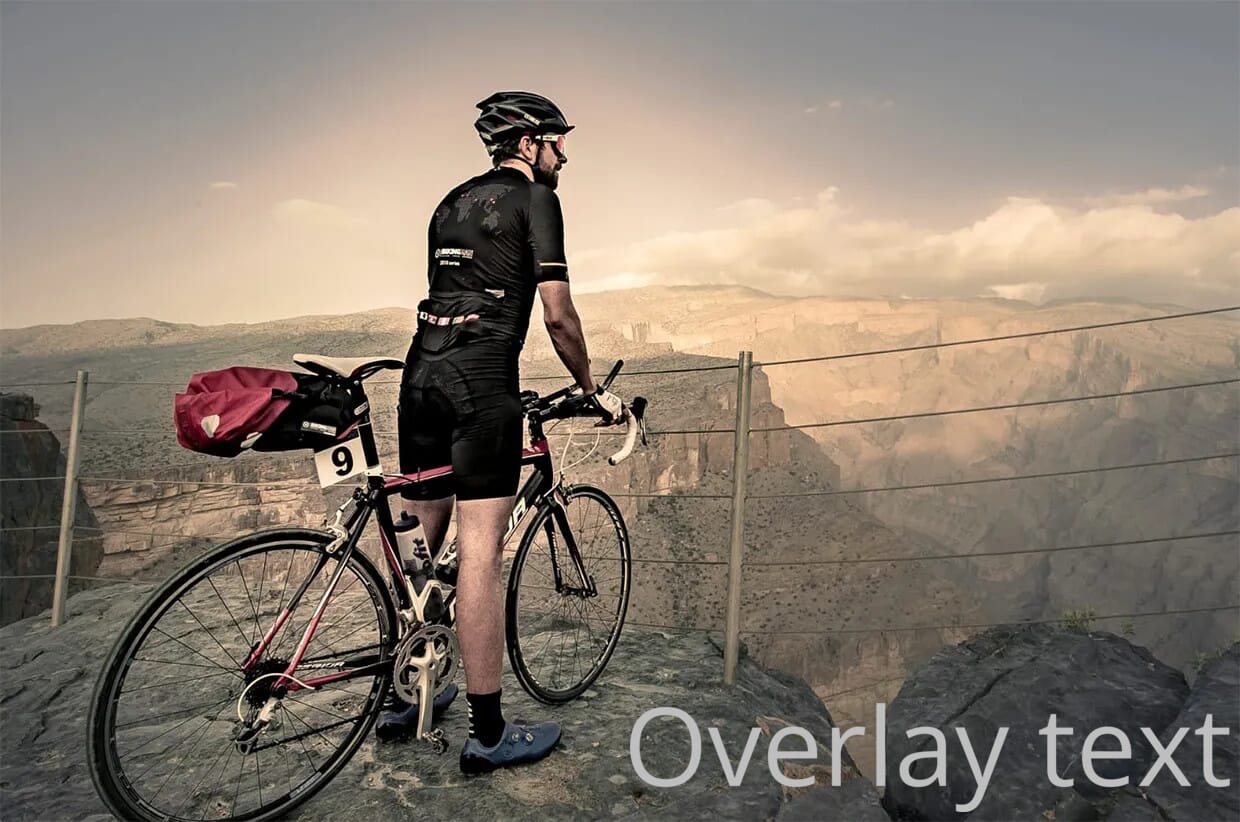
text.color - the text color, applied as RGB/RGBA or a color name. (See the Color section for an explanation of color options in Sirv.)
https://demo.sirv.com/oman.jpg
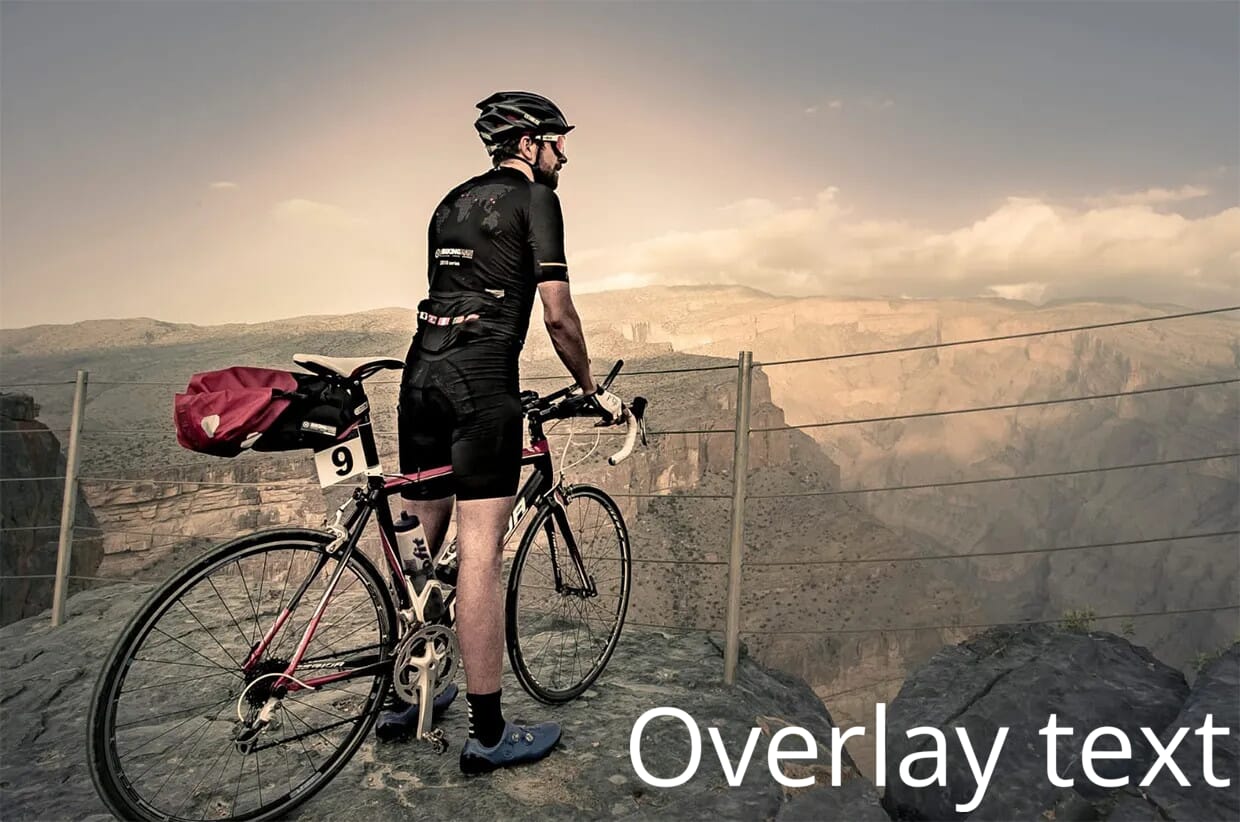
Opacity
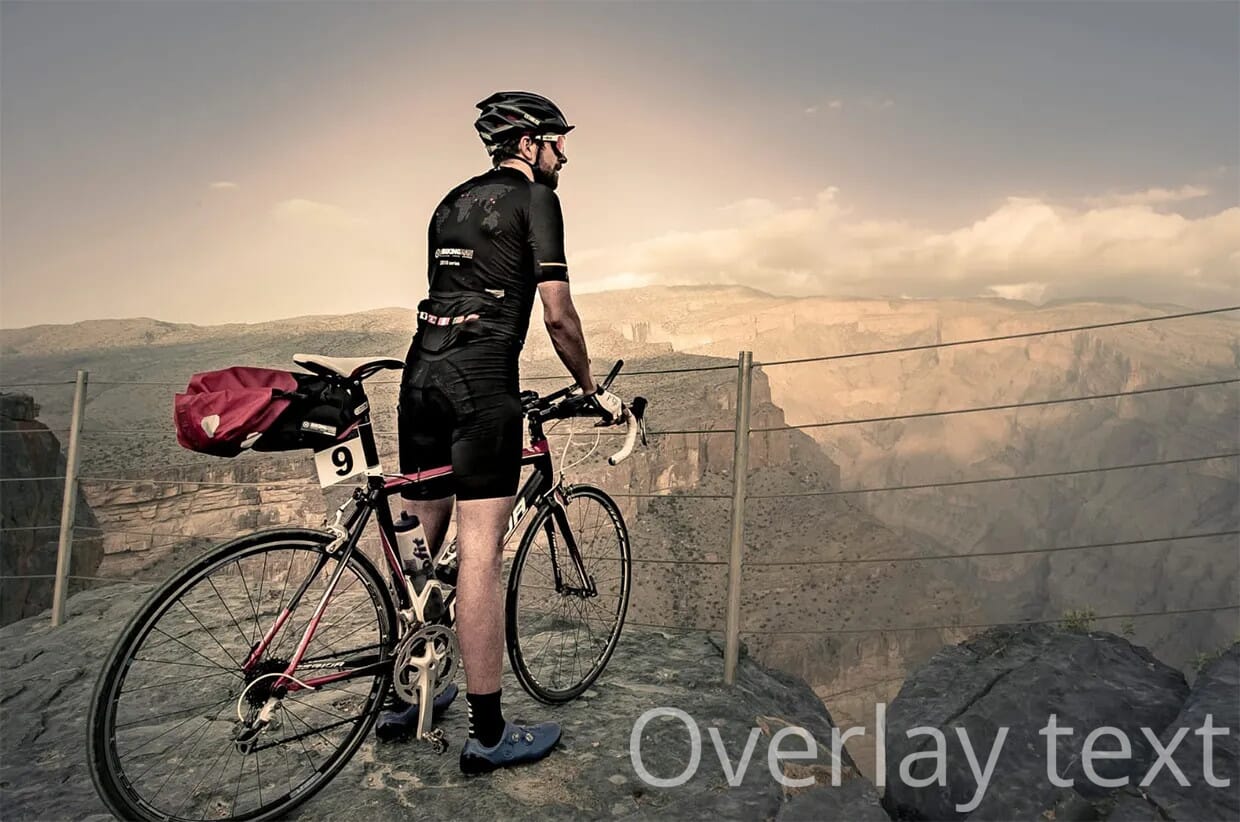
Section titled “Opacity”text.opacity - the opacity of the text from 0 (transparent) to 100 (opaque). The default value is ‘100’. The text on the image below is 50% opacity:
https://demo.sirv.com/oman.jpg
Position
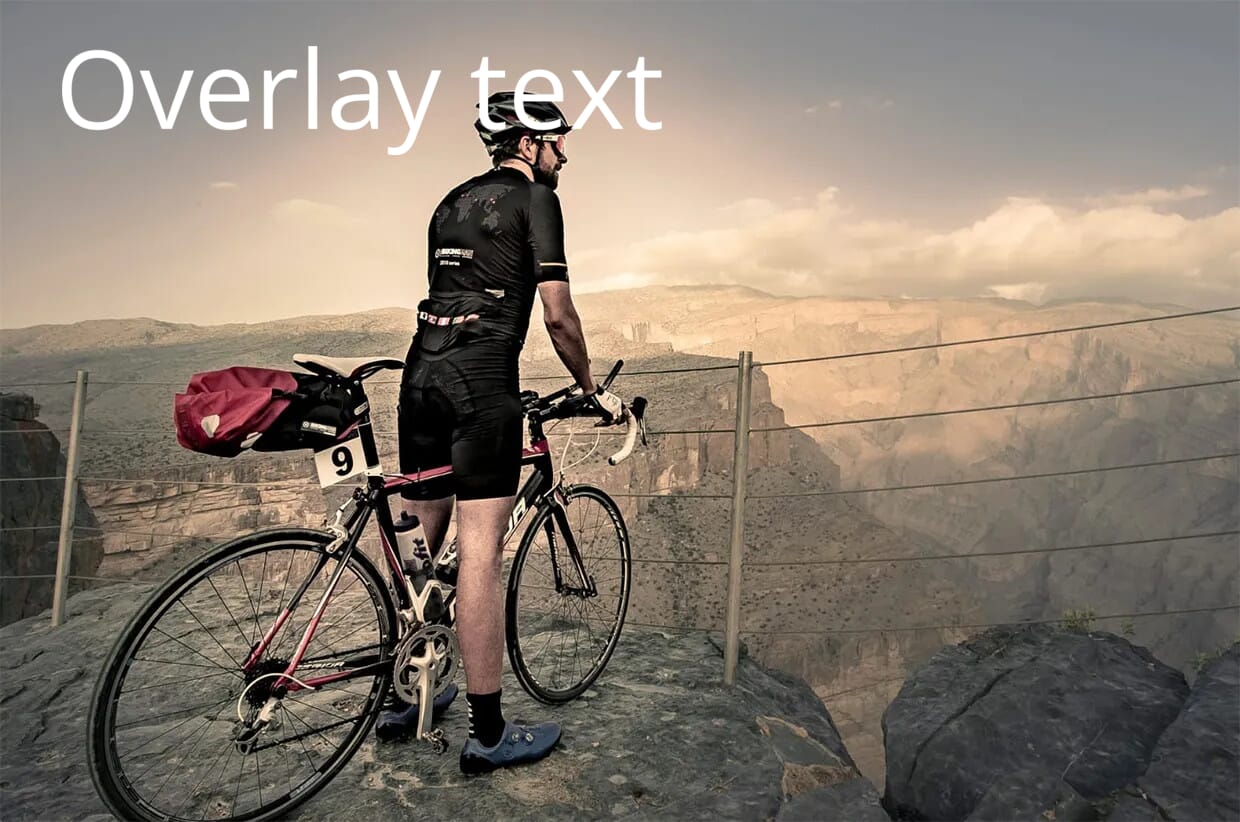
Section titled “Position”text.position - the location of the text on the image. Positions are described with the points of a compass, whereby ‘north’ is the top center.
Available values are: center, north, northeast, northwest, south, southeast, southwest, east, and west. The default position is ‘southeast’ (lower right corner).
https://demo.sirv.com/oman.jpg

Alternatively, text can be located anywhere at all, with three further options. text.position.x - the distance from the left and text.position.y sets the distance from the top.
You can use either pixels or percent (%), as either positive or negative values. By default, the position is set from the top left:
https://demo.sirv.com/oman.jpg
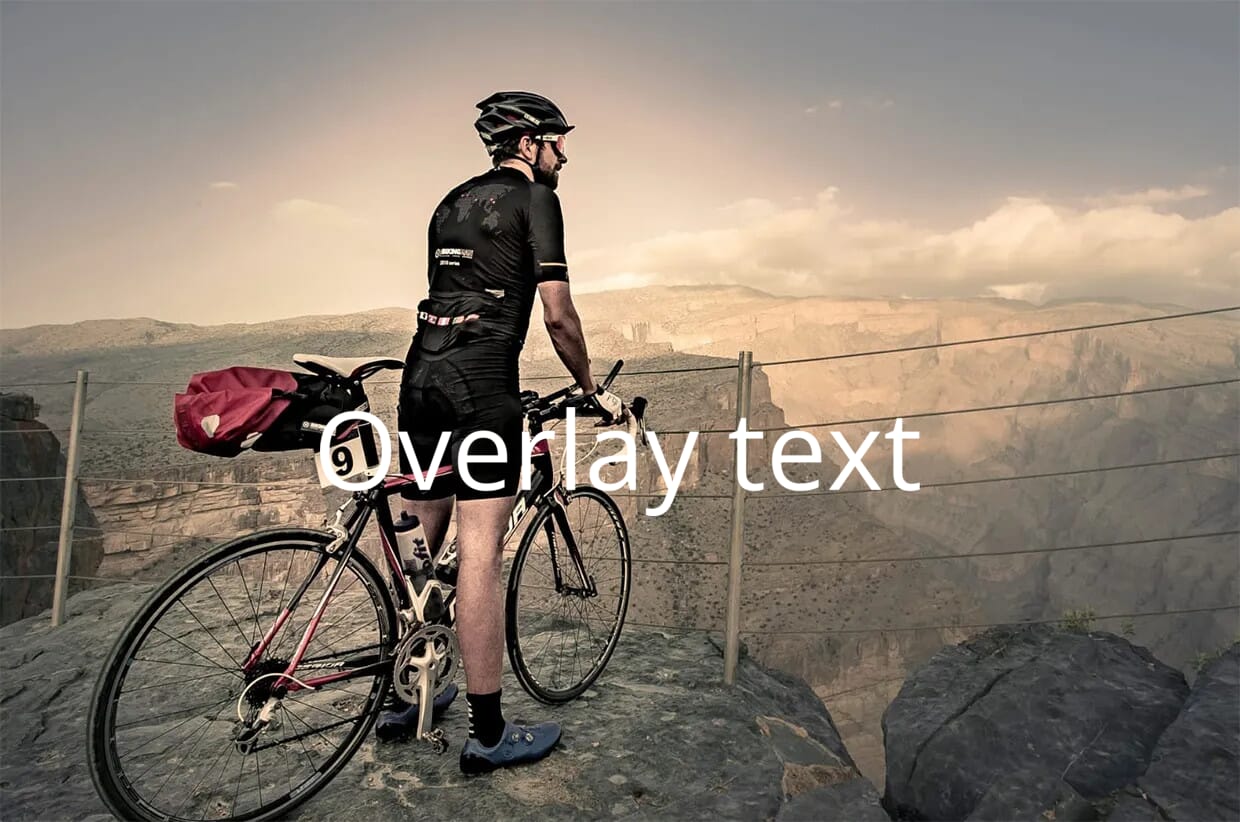
text.position.gravity - the compass location from which the text position is adjusted. For example, text can be aligned 50px below the center like so:
https://demo.sirv.com/oman.jpg
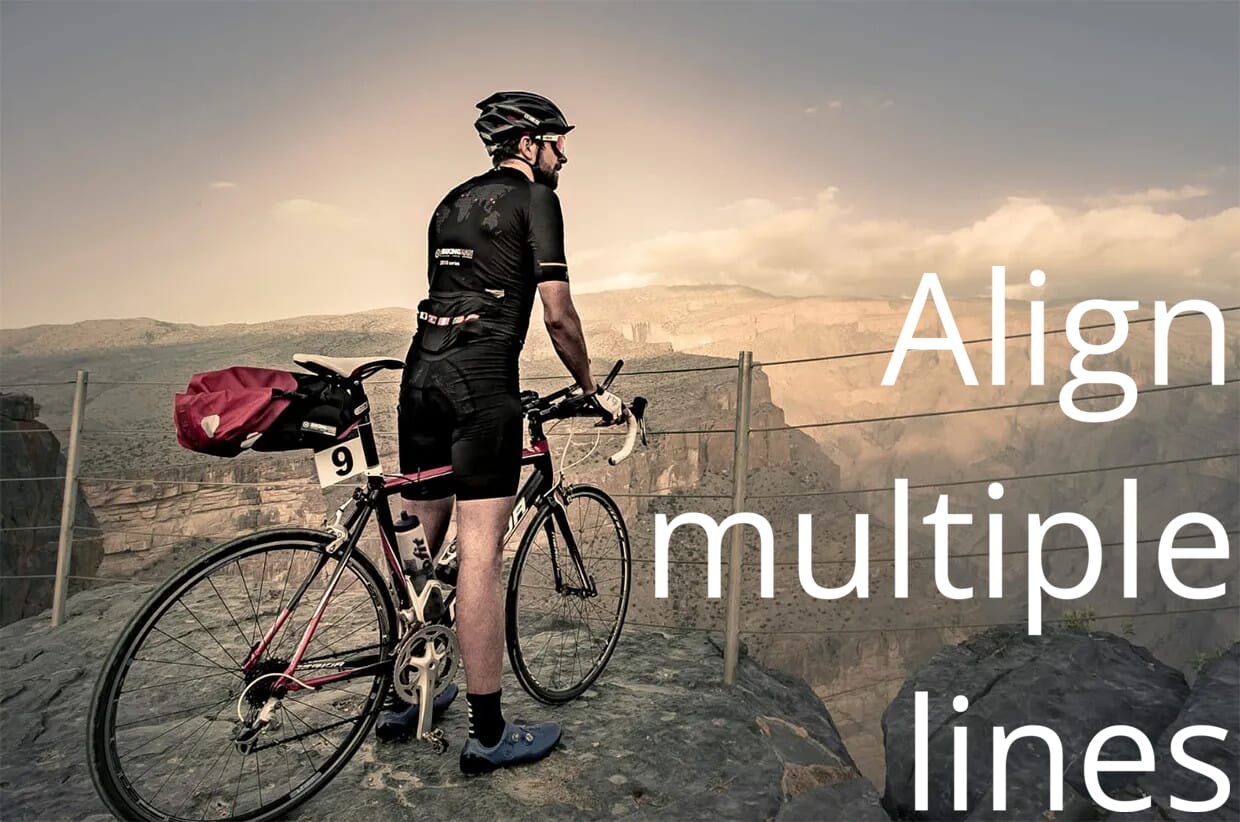
Multiple lines
Section titled “Multiple lines”‘%0A’ - add line breaks to your text for showing multiple lines:
https://demo.sirv.com/oman.jpg

Alignment
Section titled “Alignment”text.align - align multiple lines of text to the left, right or center. This example aligns the text right:
https://demo.sirv.com/oman.jpg
Using metadata
Section titled “Using metadata”Metadata from your images can be displayed in your text overlays. To see an images meta, add ?info to the end of the URL, like so:
https://demo.sirv.com/oman.jpg
To display metadata in a text overlay, use ${metadata path}. This example displays the copyright information from the metadata:
https://demo.sirv.com/oman.jpg
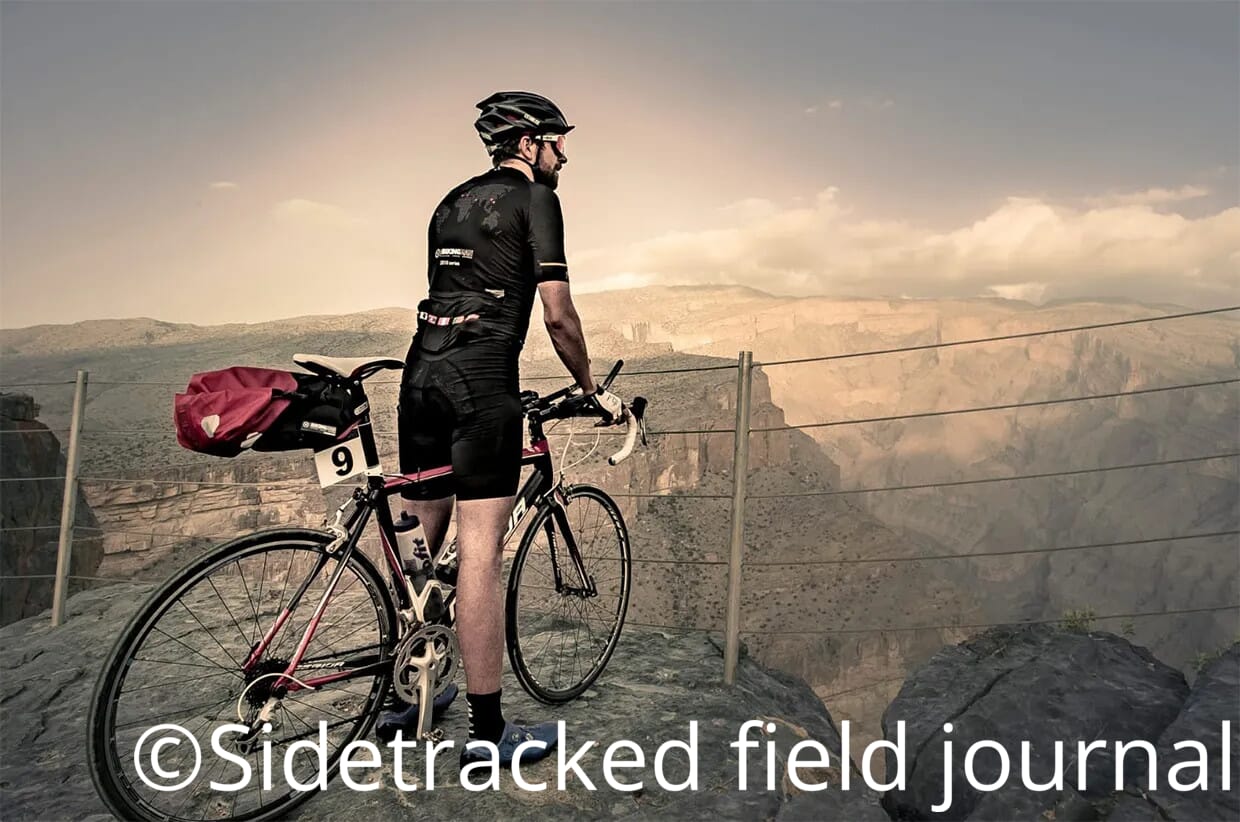
It’s easy to apply metadata as text on your images or spins. Read the image metadata article to see more examples and learn how to do this.
Font options
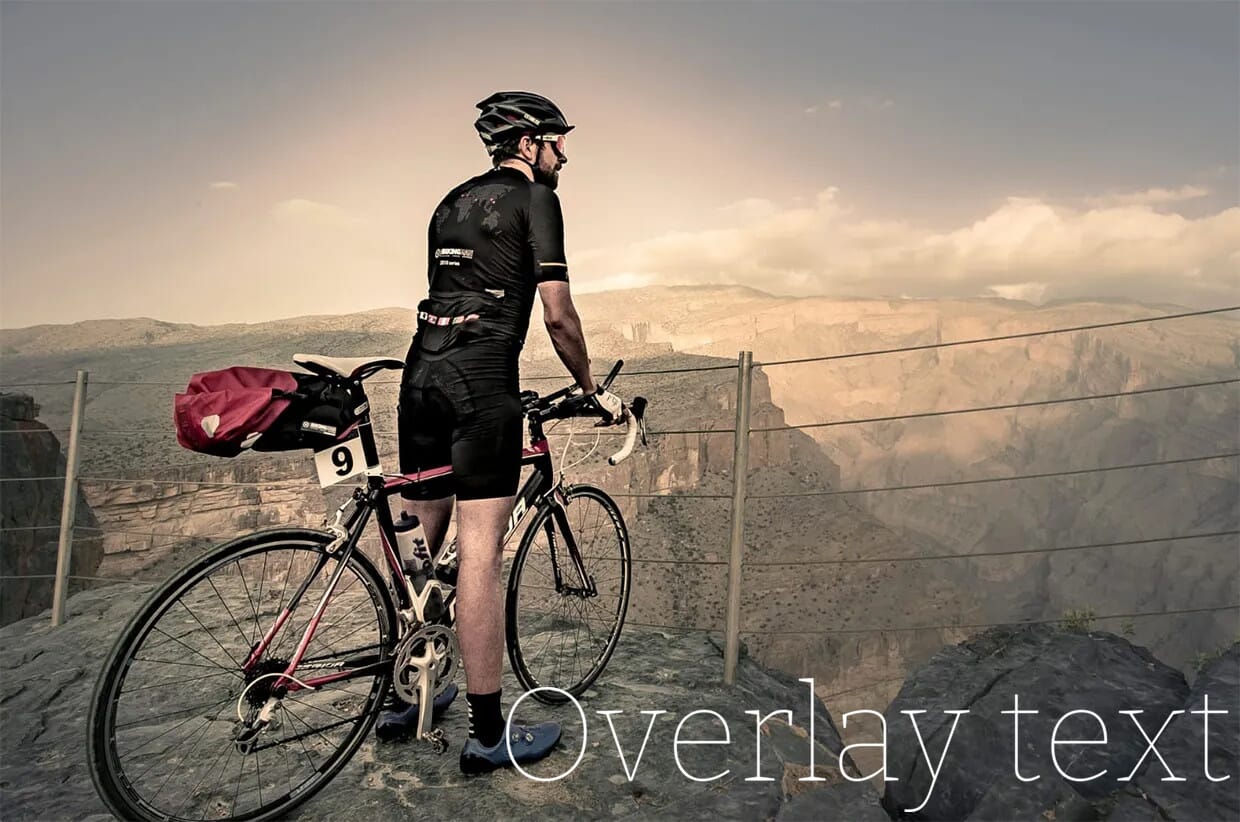
Section titled “Font options”text.font.family - sets the text font. The default is Open Sans. You can choose from all the fonts in the expansive Google Fonts library and Google Noto library (for foreign characters). Here is the Bitter font:
https://demo.sirv.com/oman.jpg
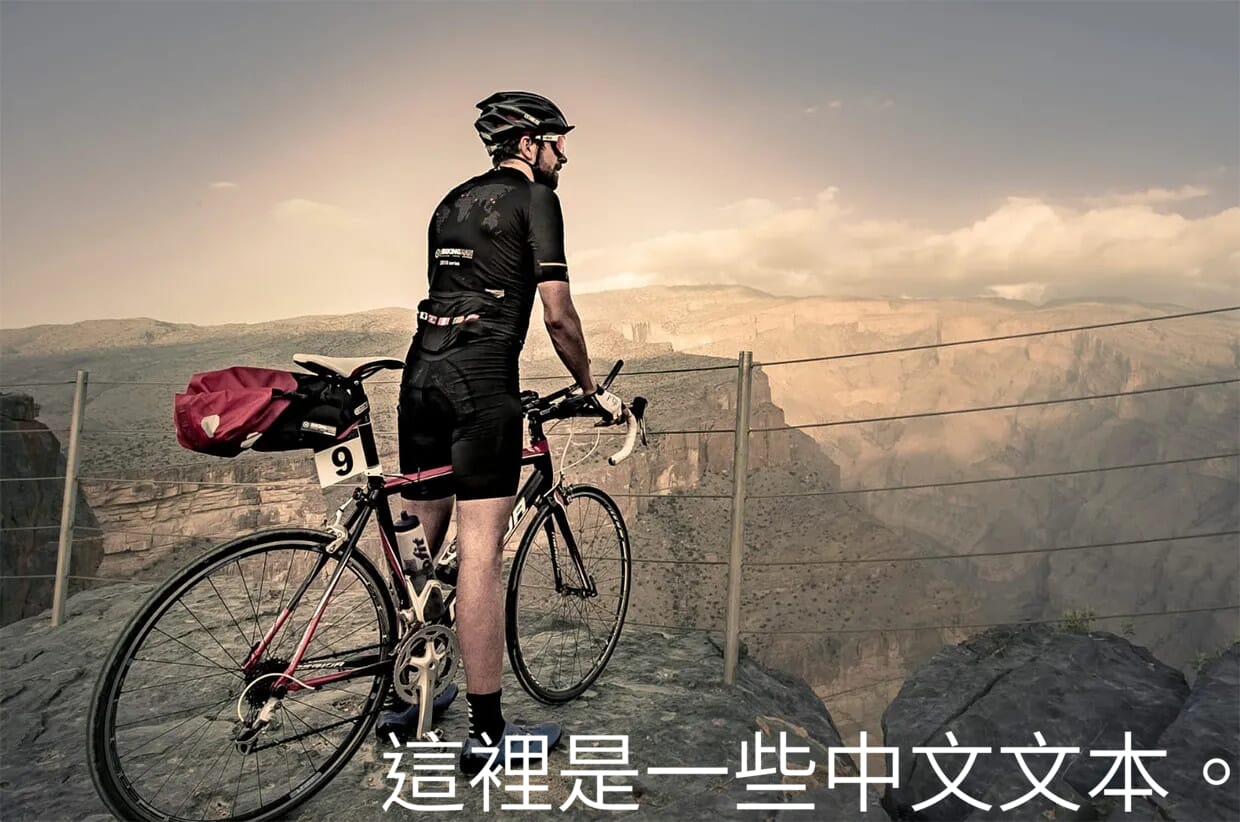
Here is the Noto Sans CJK TC (for Traditional Chinese) from Google Noto fonts:
https://demo.sirv.com/oman.jpg
text.font.size - sets the height of the font in pixels (px). This lets you fix the size so that it has no relation to the image size.
In most cases, text.size (see above) is more suitable. The example below sets a height of 18px:
https://demo.sirv.com/oman.jpg

text.font.style - can set the font to be italic instead of the default ‘normal’:
https://demo.sirv.com/oman.jpg
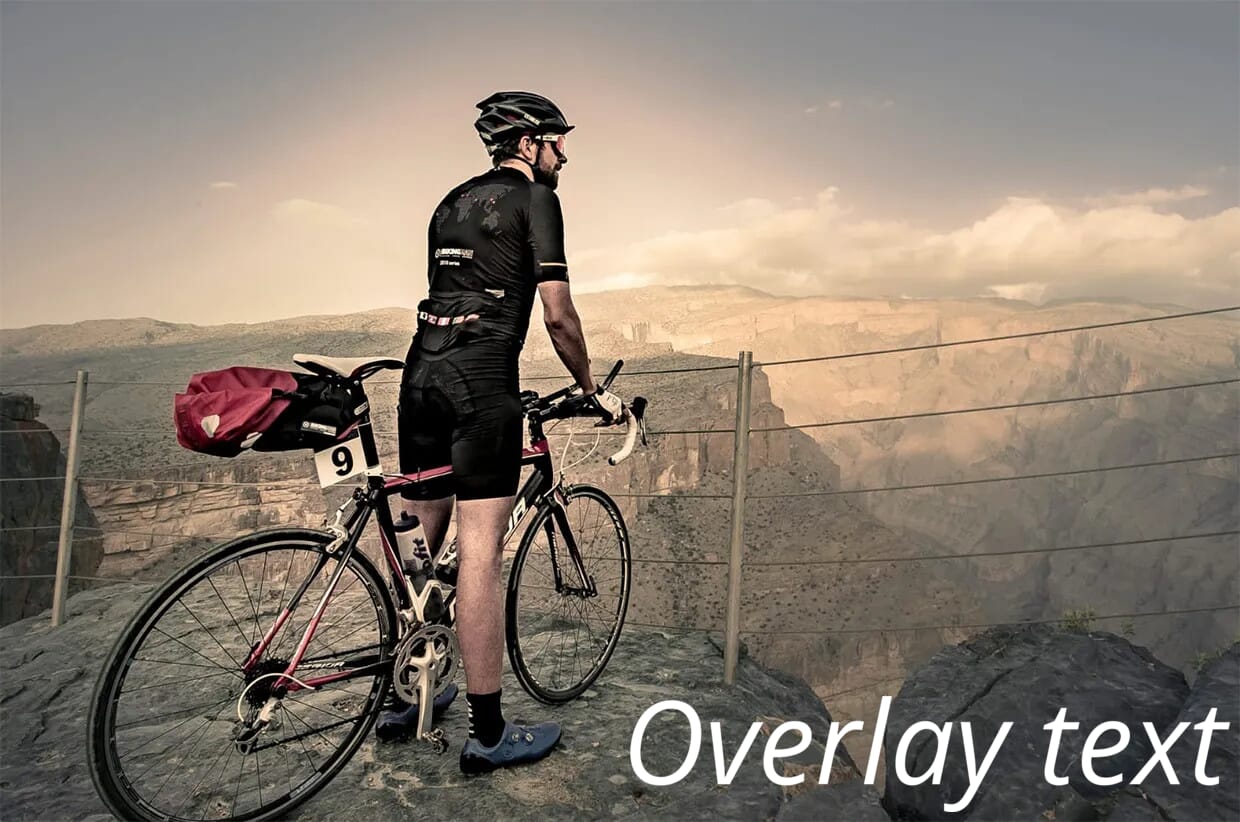
text.font.weight - change the font weight from the default value of ‘400’. Options are 300 or light, 400 or normal, 600 or semi-bold, 700 or bold, 800 or extra-bold. This example sets ‘300’:
https://demo.sirv.com/oman.jpg
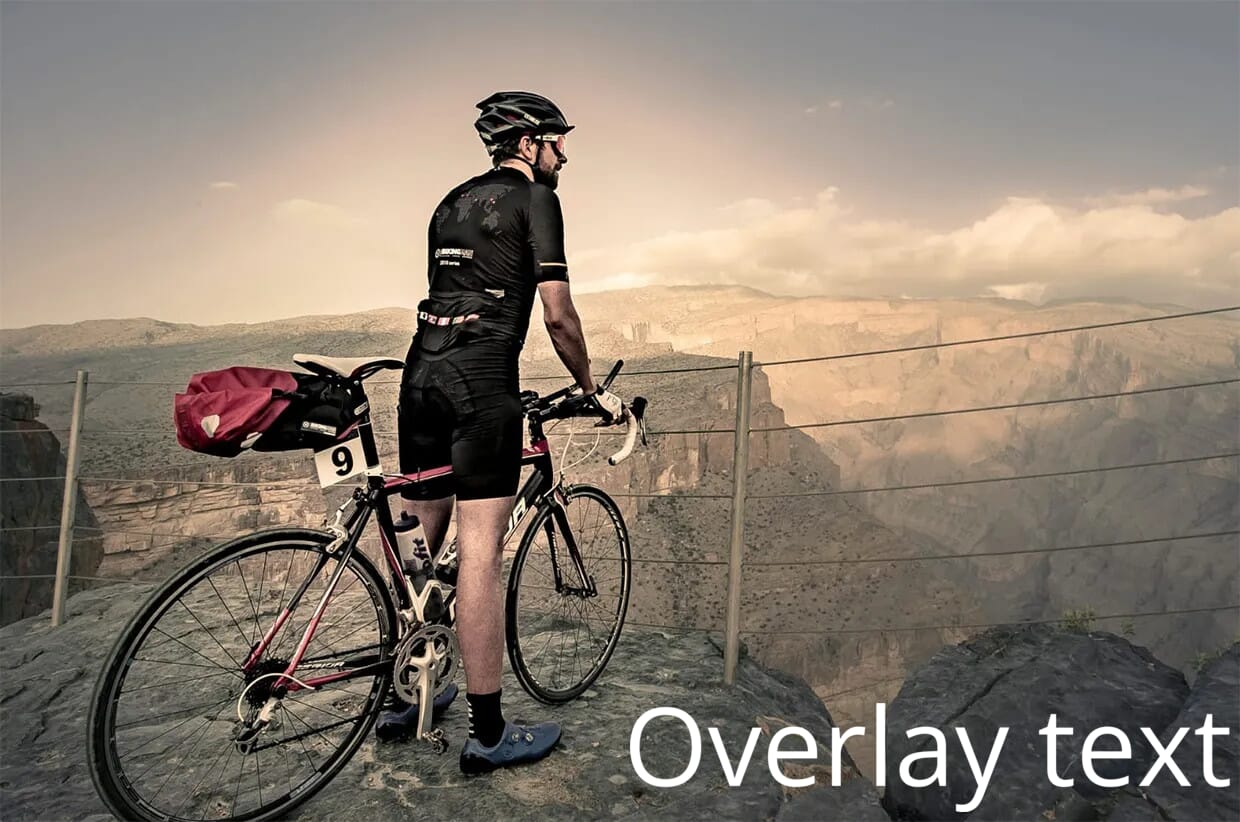
This example sets ‘extra-bold’:
https://demo.sirv.com/oman.jpg

Outline
Section titled “Outline”text.outline.width - sets an outline (in pixels) around the text characters. The default is ‘0’.
https://demo.sirv.com/oman.jpg
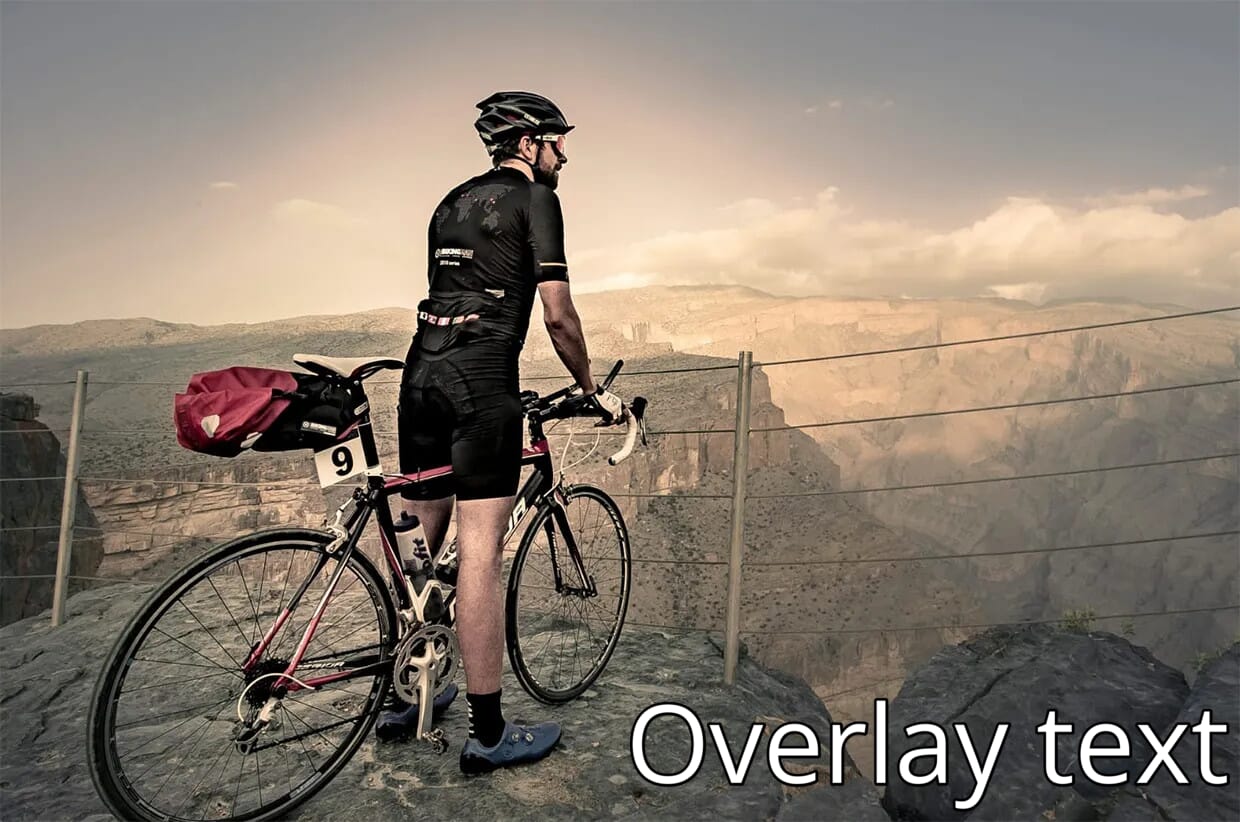
text.outline.color - sets the color of the text outline. The default color is ‘black’. Options are explained in the Color section.
https://demo.sirv.com/oman.jpg
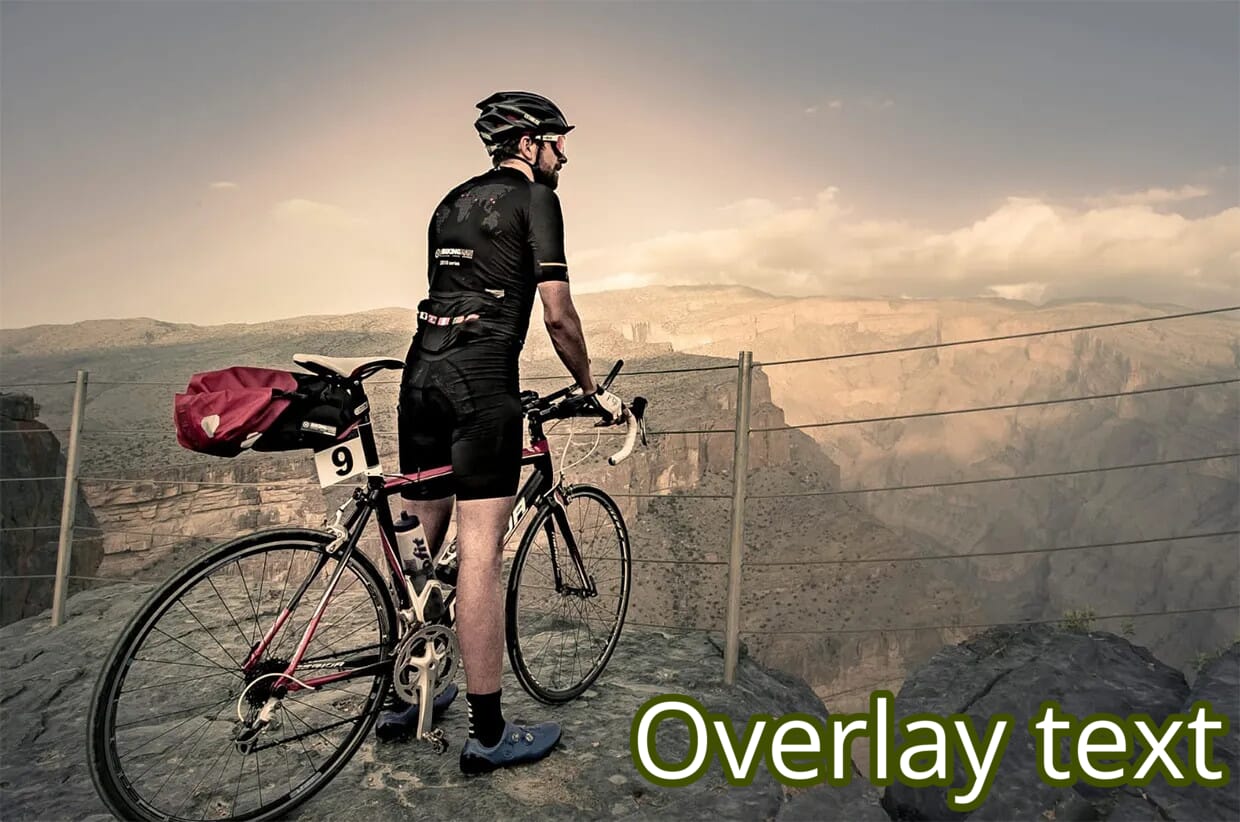
text.outline.opacity - is set on a scale from 0 (transparent) to 100 (opaque). The default value is ‘100’.
https://demo.sirv.com/oman.jpg
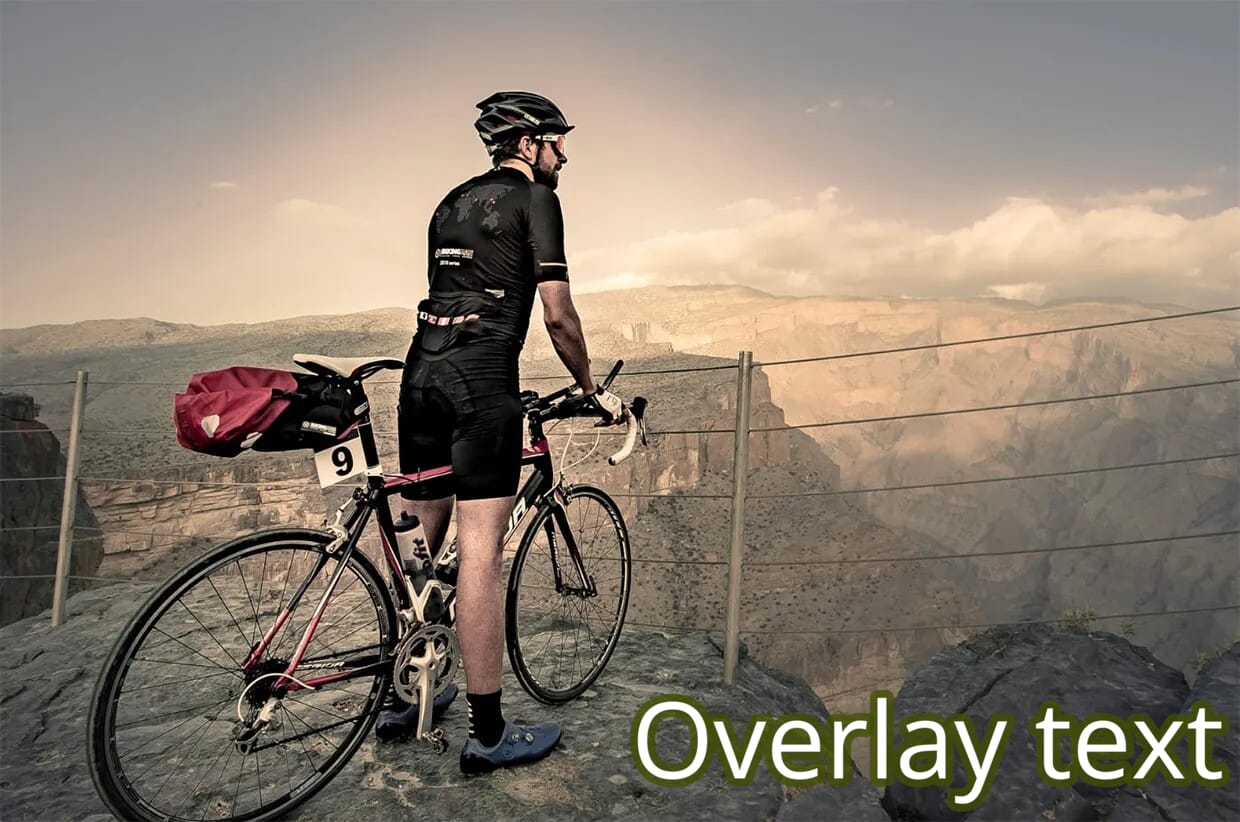
text.outline.blur - blurs the edge of the outline. The value is set in pixels with a default value of ‘0’.
https://demo.sirv.com/oman.jpg
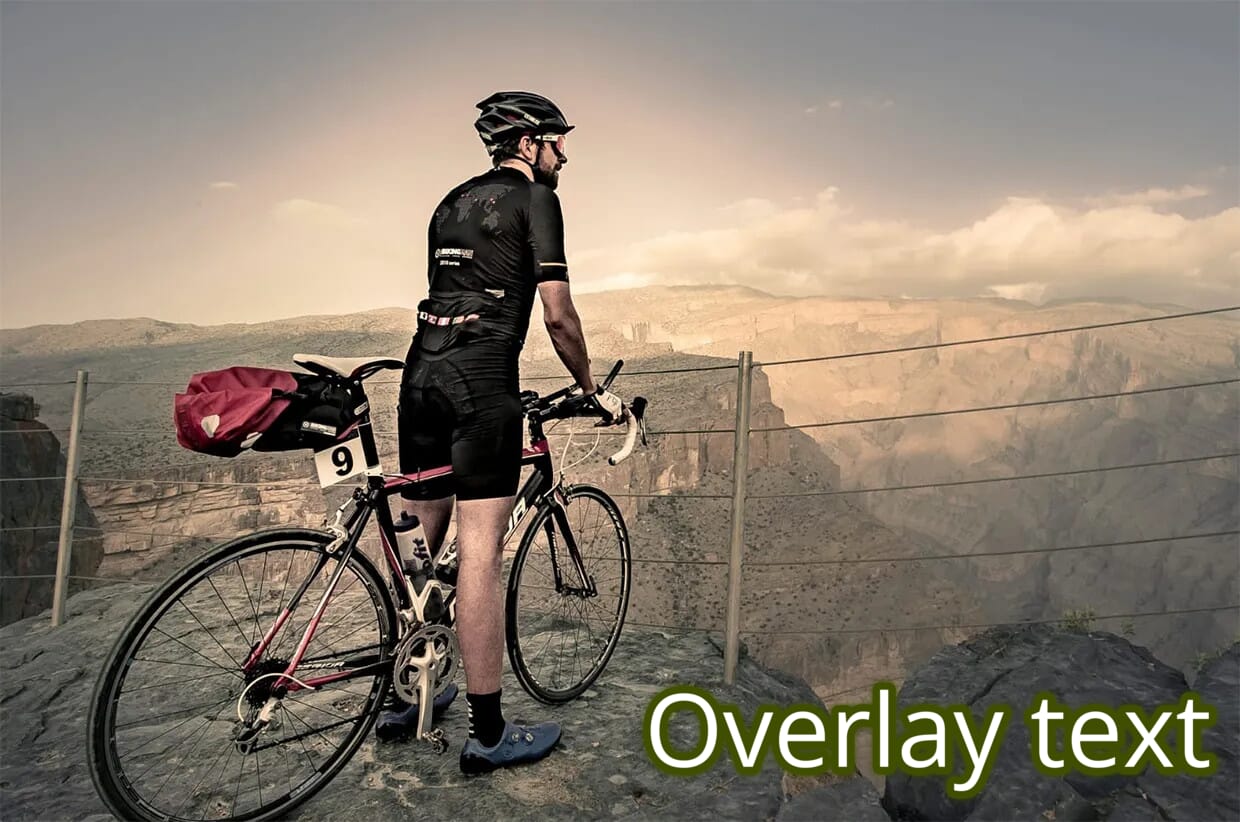
Background
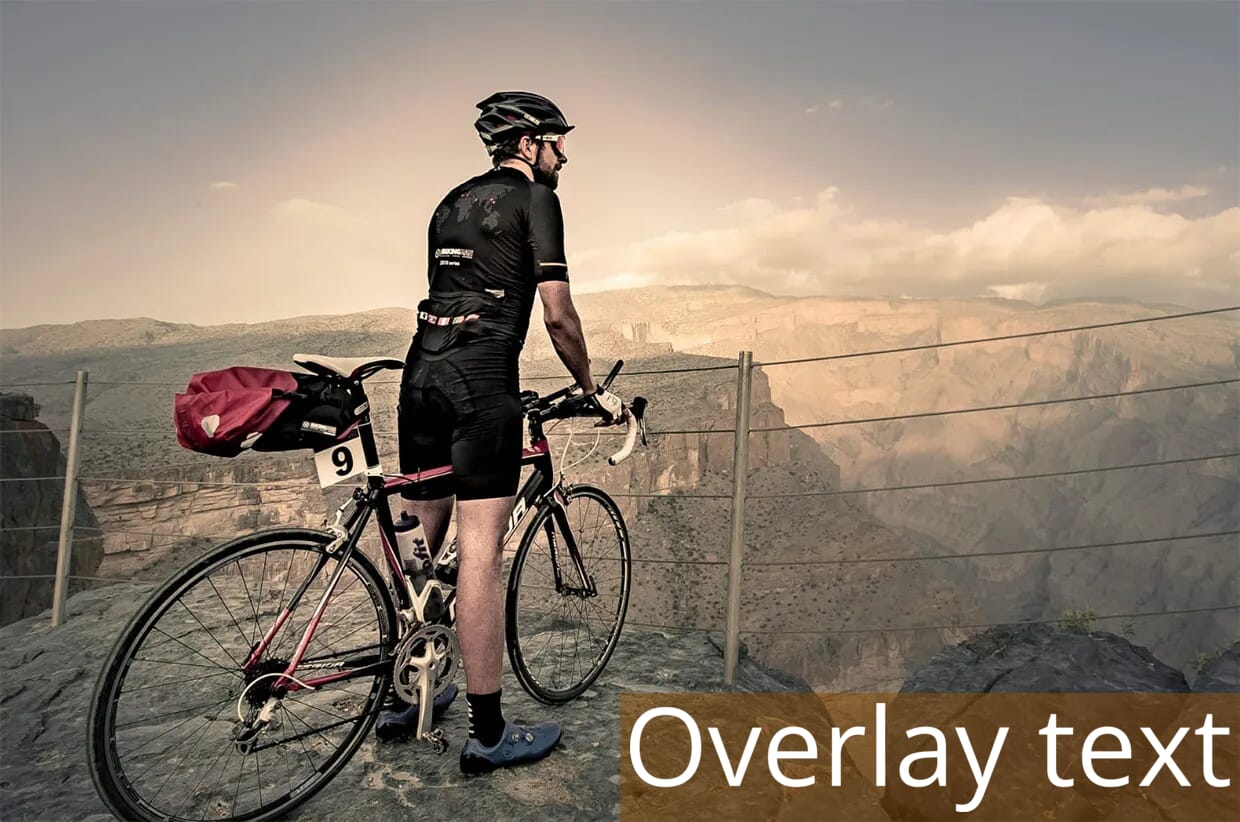
Section titled “Background”You can add a background area behind the text by using text.background.color to choose a color (see the Color section) and text.background.opacity to set the opacity (default is transparent).
https://demo.sirv.com/oman.jpg
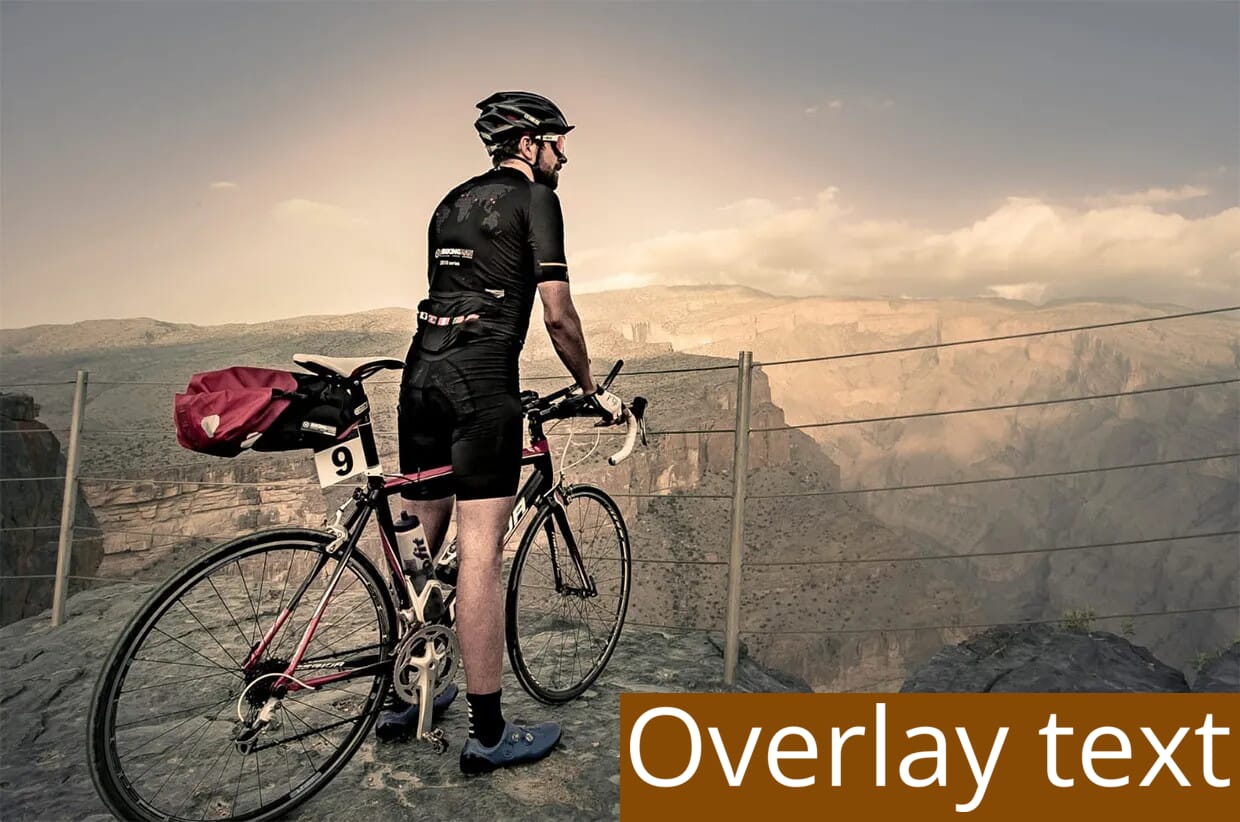
text.background.opacity is on a scale from 0 (transparent) to 100 (opaque). This example makes the background solid:
https://demo.sirv.com/oman.jpg
Base64 text encoding
Section titled “Base64 text encoding”You can embed a wider range of characters by using the text.text64 parameter instead of the text parameter. Encode your text using Base64. Use a Base64 encoding tool if needed.
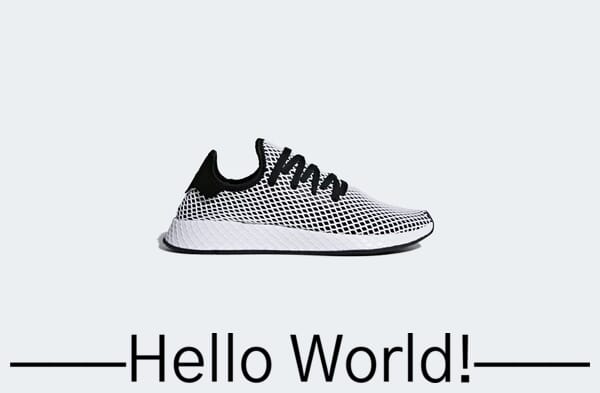
Base64 supports all kinds of characters and glyphs but the font you use must also support those glyphs. The example below adds 3 long hyphen glyphs ⎯⎯⎯ before and after the text.
The Unicode character is U+23AF, which is 4o6v in Base64. That glyph is supported by a handful of Google Fonts, such as the Gothic A1 font:
https://demo.sirv.com/trainer-grey.jpg
Base64 encoding works for any language and for emoji, so use it when the normal text parameter does not show your characters.