Failed Uploads and Corrupt Files
 By Jake Brumby, Customer Success DirectorUpdated
Short answer
A file can arrive in Sirv empty or unreadable if it was already damaged, or if its upload was interrupted. Signs are a file that won't open, a 415 error, or an odd file size; Sirv also flags zero-byte files on your Notifications page. Check the original, upload it again, or try another upload method.
After reading this you will know
- Why uploaded files can end up empty or corrupt
- How to find corrupt or zero-byte files in your account
- How to fix them and avoid it happening again
Sometimes, files uploaded to Sirv become corrupted. They may be completely empty (zero bytes) or have a size but remain unreadable.
This article explains why these corrupt files occur, how to identify them, and what steps you can take to fix or prevent them.
Causes of corrupt files
Section titled “Causes of corrupt files”Files can become corrupt in several ways:
- Already corrupt before upload - the file could have already been corrupt (missing its body) before it was uploaded to Sirv.
- Corrupt during upload - if the upload is interrupted before completion, the file may become corrupted.
- Corrupt after upload - the file could become corrupt after it has fully uploaded to Sirv, though this is very unlikely.
How to detect corrupt files
Section titled “How to detect corrupt files”There are a few ways to determine if a file is corrupt:
- Cannot open the file - if the file fails to open in an image viewer or browser, it may be corrupted.
- 415 error in Sirv - if you attempt to view an image in Sirv and receive a 415 error, this may indicate that the file is corrupt.
- Unexpected file size - a corrupted file may have an unusually small or large size compared to what is expected (check the upload limits too).
Additionally, if Sirv detects that a zero byte file has been uploaded to your account, it will generate a message on the Notifications page of your Sirv account:
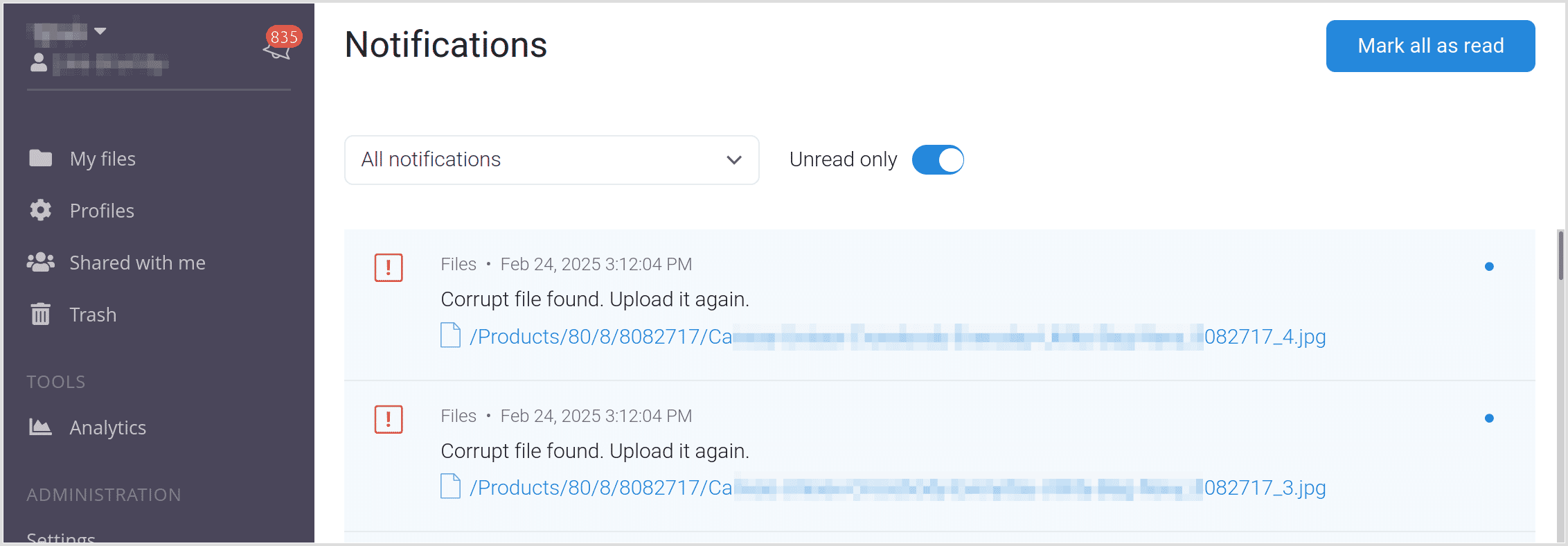
You can also look for any zero byte images by viewing all images in your Sirv account and showing the results in ascending size order.
How to solve corrupt files
Section titled “How to solve corrupt files”- Check the original file - try opening the file in an image viewer or browser. If it does not display correctly, it is already corrupt, and you will need to obtain a new copy.
- Re-upload the file - if the original file is intact, try uploading it again to see if the issue persists.
- Use a different upload method - if corruption reoccurs, consider using an alternative upload method (e.g., instead of using FTP, use S3, the Sirv REST API or GitHub Actions.)
How to avoid corrupt files
Section titled “How to avoid corrupt files”To minimize the risk of file corruption:
- Avoid using FTP - FTP can be unreliable and may lead to incomplete uploads. If you must use FTP, use a reliable client, we recommend Filezilla.
- Use alternative upload methods - uploading via S3, the Sirv REST API, or directly through app.sirv.com is more reliable.
- Sirv’s URL fetching API method - this method prevents empty files from being uploaded by returning a failure response. To fetch a whole list of URLs, use the CSV bulk upload tool.
- Verify the original file - before uploading, ensure the file is ready for upload, not broken or missing data.