Share Folders
 By Marc Bonne, Customer Success TeamUpdated
Short answer
You can share a Sirv folder in two ways. Turn on a share link that anyone can open, which always shows the folder's current contents. Or share the folder with another Sirv account, as editable or view only. Shared files stay in your account and count towards your storage, and the recipient can copy them.
After reading this you will know
- How to share a folder with anyone through a link
- How to share a folder with another Sirv account, editable or view only
- How the other account can copy shared files into its own storage
There are two ways to share folders:
- Share a folder with anyone, by turning on a share link.
- Share and collaborate on a folder with another Sirv account.
Generate a link
Section titled “Generate a link”Turn on a share link and send it to whoever you want to share the files with. It’s a live link, so reflects the real-time contents of the folder.
When you add or delete files, anyone viewing will see the latest contents.
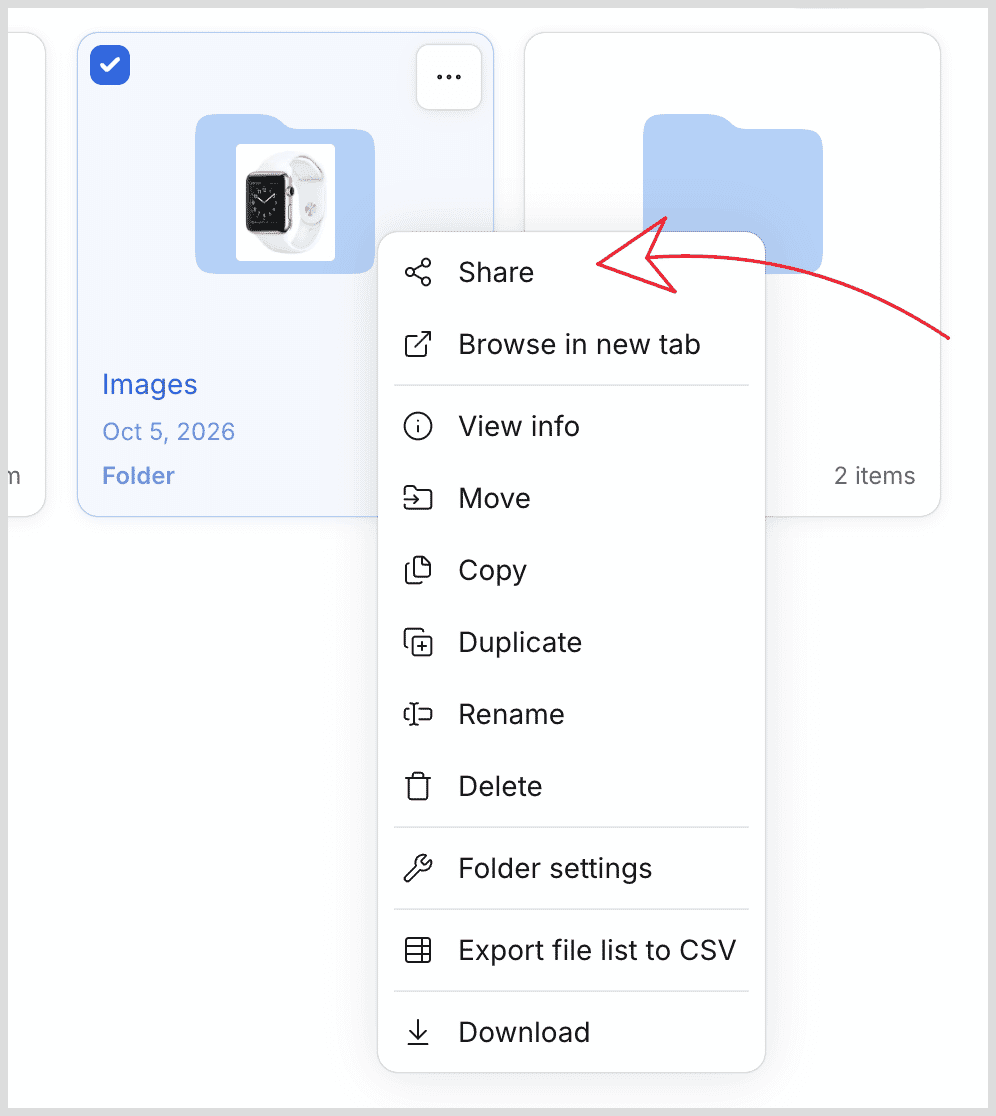
1. Right-click the folder and choose “Share”.
2. Turn on the “Share link” switch.
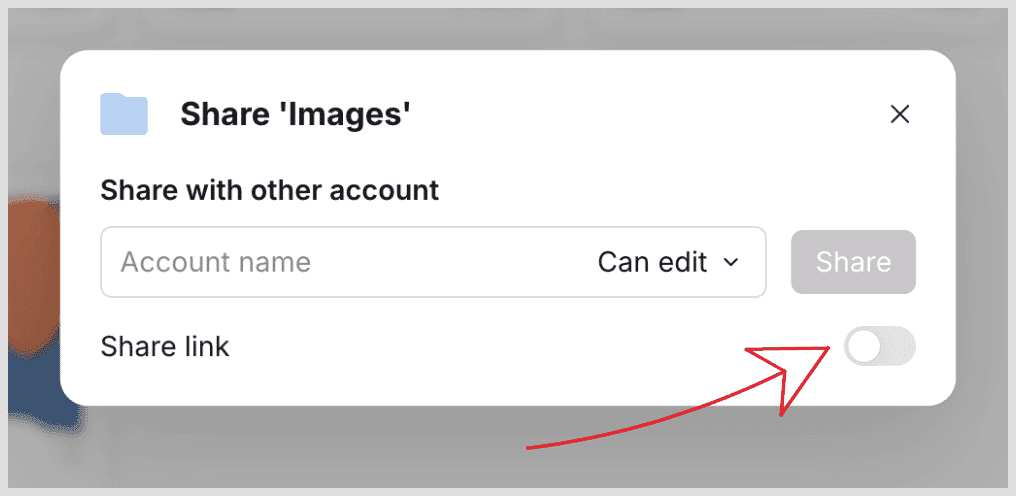
3. Copy the link and send it to whoever you wish to share it with. You can turn the switch off at any time. Visitors will no longer be able to see the folder contents.
If you turn the link on again for the same folder, it will be a new URL.
Collaborate with another account
Section titled “Collaborate with another account”You can also share folders with other Sirv accounts.
This is great for collaboration with photographers, web teams, external agencies and suppliers who also use Sirv and you don’t want to make them a user of your account.
The folder contents can be shared as editable or “view only”:
- Editable - recipient account can view, copy, add, edit, delete and rename the contents.
- View only - recipient account can view and copy the contents only.
The physical files remain in your account, so they count towards your storage usage (not the recipients).
If a file is served, it will count towards the transfer allowance of whichever account served the file. 1. Right-click the folder and choose “Share” from the menu.
2. Enter the name of the account you want to share the folder with:
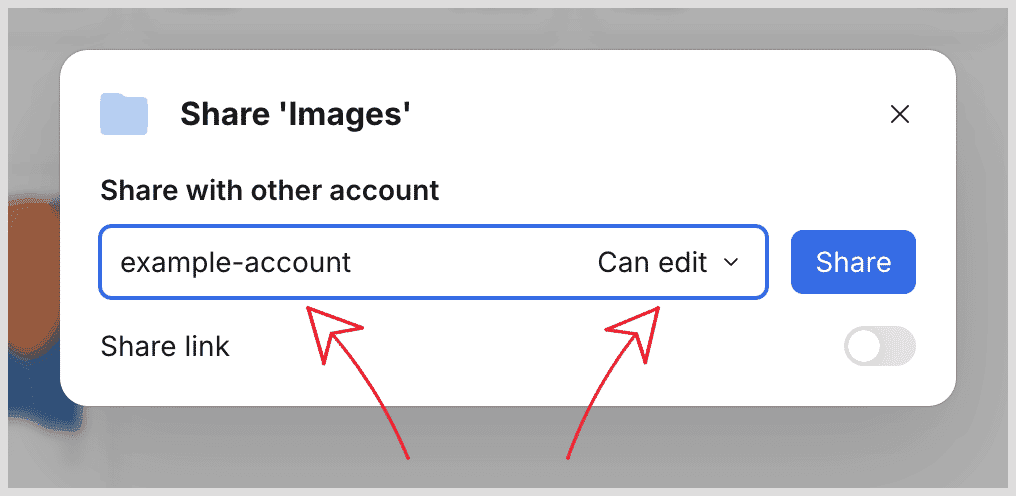
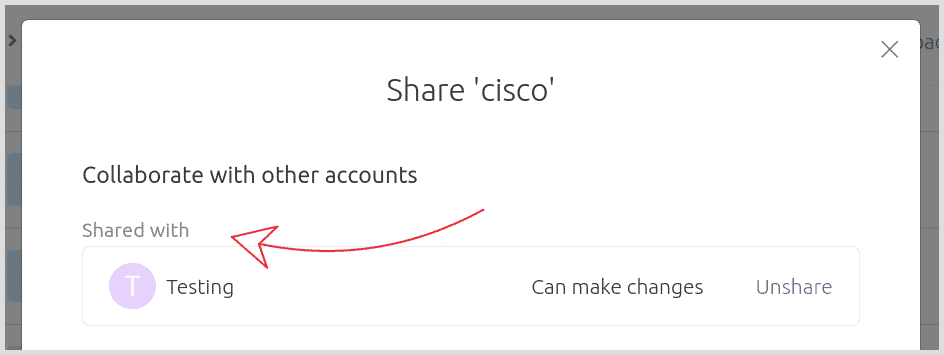
3. Choose “View only” or “Can edit”, then click “Share”. 4. You’ll see a list of accounts that folder has been shared with:
5. The folder will immediately appear in the other account, in their “Shared” section, under Assets:
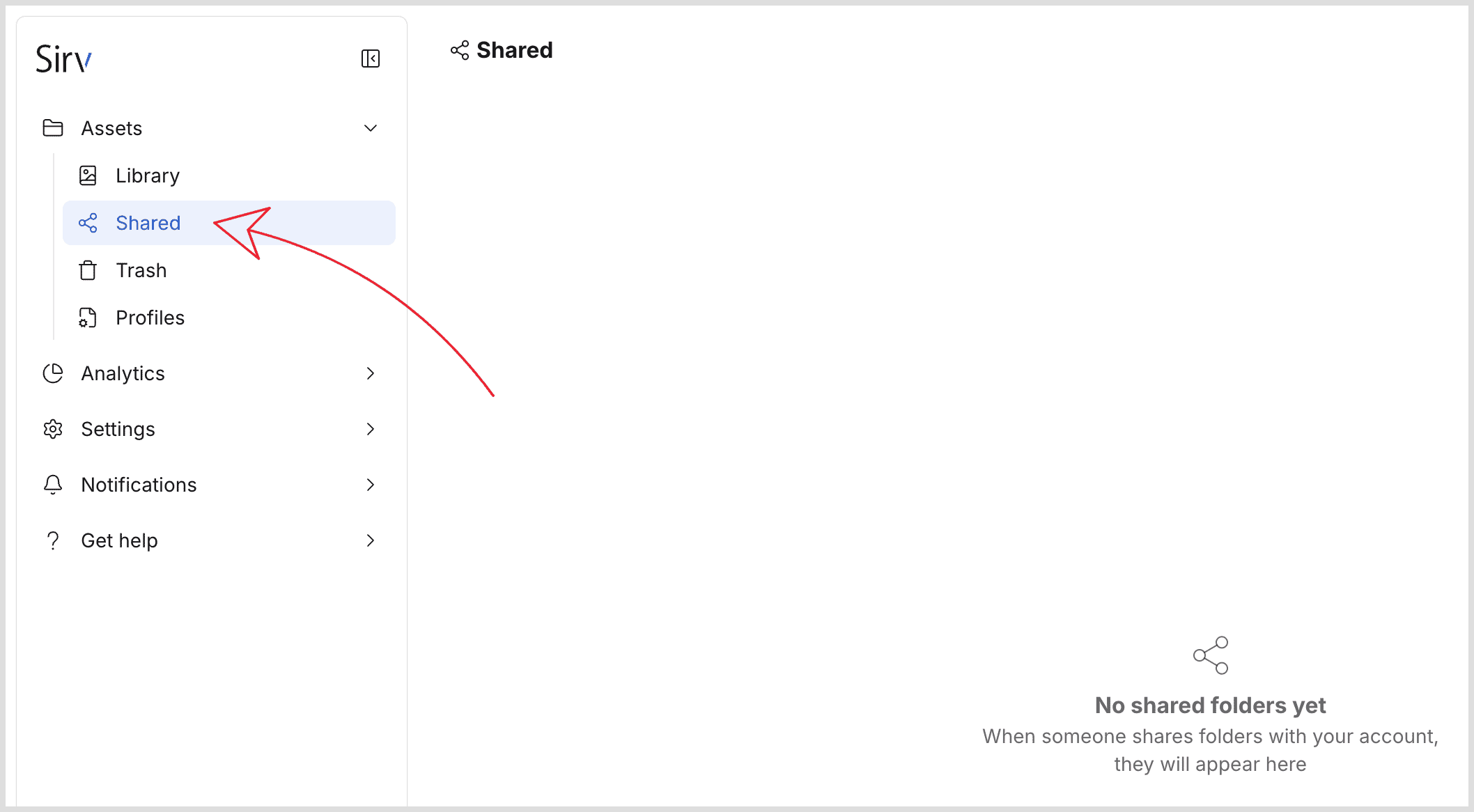
“View only” folders will display a lock icon in the corner.
Moving folders
Section titled “Moving folders”Recipients receive folders into their “Shared” section. The files are stored on the other Sirv account, so you may wish to copy them to your account.
To copy a folder from “Shared”, right-click the folder and choose “Copy”:
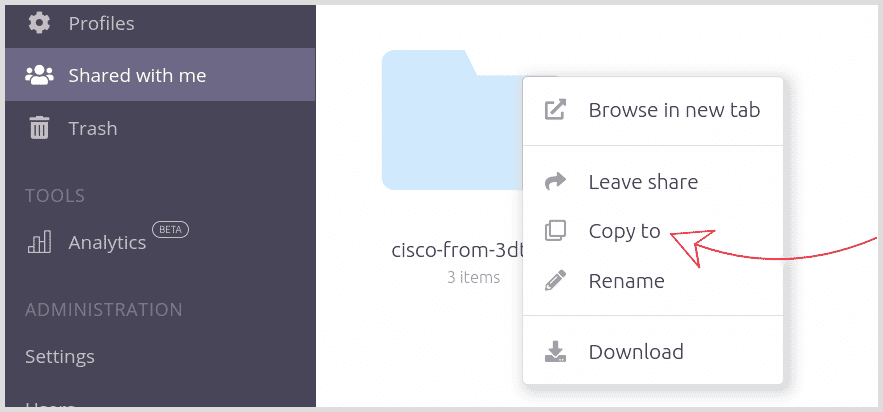
Select the folder you’d like to copy the files to and click “Copy here”. It could take a few minutes to move a large number of files.
Alternatively, login via FTP and drag the folder from your “/Shared” folder to the place where you’d like to store the files.