Sirv for DatoCMS
 By Igor Varyvoda, Head of Sirv StudioUpdated
Short answer
In DatoCMS, go to Configuration, then Plugins, find Sirv in the Marketplace and click Install. Paste your Sirv REST API Client ID and Client secret and click Connect, then add a Sirv field to a model. Editors can pick images, videos, 360 spins, Sirv Media Viewers and 3D models without leaving DatoCMS.
After reading this you will know
- How to install Sirv in DatoCMS and connect your account
- How to add a Sirv field to a model
- How to show the picked media on your website

Add Sirv as a media source inside DatoCMS.
Connect your Sirv account, browse your Sirv DAM, and pick images, videos, 360 spins, Sirv Media Viewers and 3D models without leaving the DatoCMS editor.
Your assets stay on Sirv and are delivered from Sirv’s global CDN, in the optimal image format (often WebP) at the perfect dimensions.
Typical file size is 40-70% smaller than the original, for faster pages, happier users and higher conversions.
Unlike copying files into DatoCMS’s Media Area, the Sirv plugin stores only a small JSON reference to each asset (its path, delivery domain and dimensions).
The file is never duplicated, so you keep Sirv’s dynamic imaging, responsive srcset, 360 spins and the Sirv Media Viewer on your live site.
The plugin is built on the DatoCMS Plugin SDK and installs into any project. It ships zero credentials - you connect with your own Sirv REST API keys, once.
Installation
Section titled “Installation”- In DatoCMS, go to Configuration > Plugins, click the + button, find Sirv on the Marketplace and click Install.
- DatoCMS opens the plugin’s settings screen so you can connect your Sirv account (next section).
- That’s it - the plugin is ready to attach to your models’ fields.
Connect your Sirv account
Section titled “Connect your Sirv account”On the plugin settings screen, paste your Sirv account’s REST API Client ID and Client secret, then click Connect.
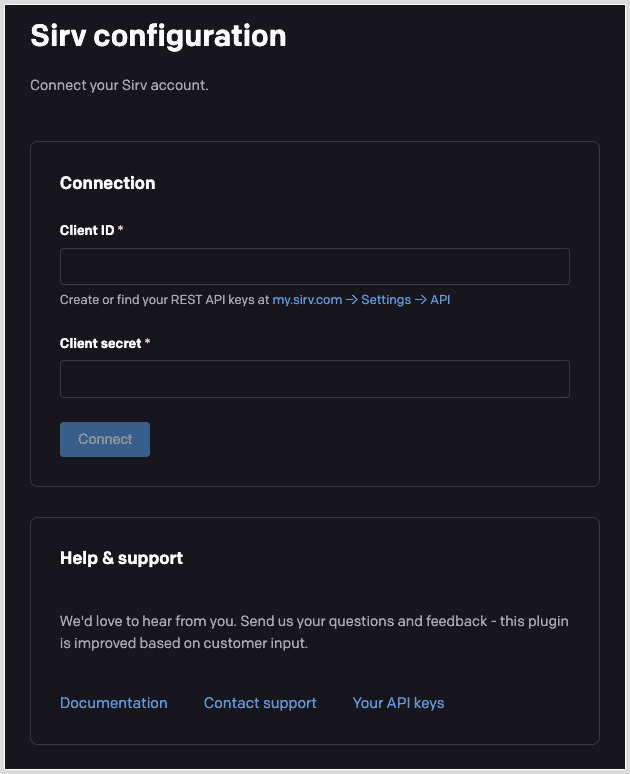
If your account has more than one delivery domain, you’ll be asked to choose which one to serve assets from.
The connection is saved automatically and reused afterwards - you only connect once.
Find your API credentials
Section titled “Find your API credentials”In Sirv, go to Settings > API access. Copy the Client ID and Client secret shown there. Don’t have a Sirv account yet? Create a free account first.
Add a Sirv field to a model
Section titled “Add a Sirv field to a model”Sirv assets live in dedicated fields on your models. To add one:
-
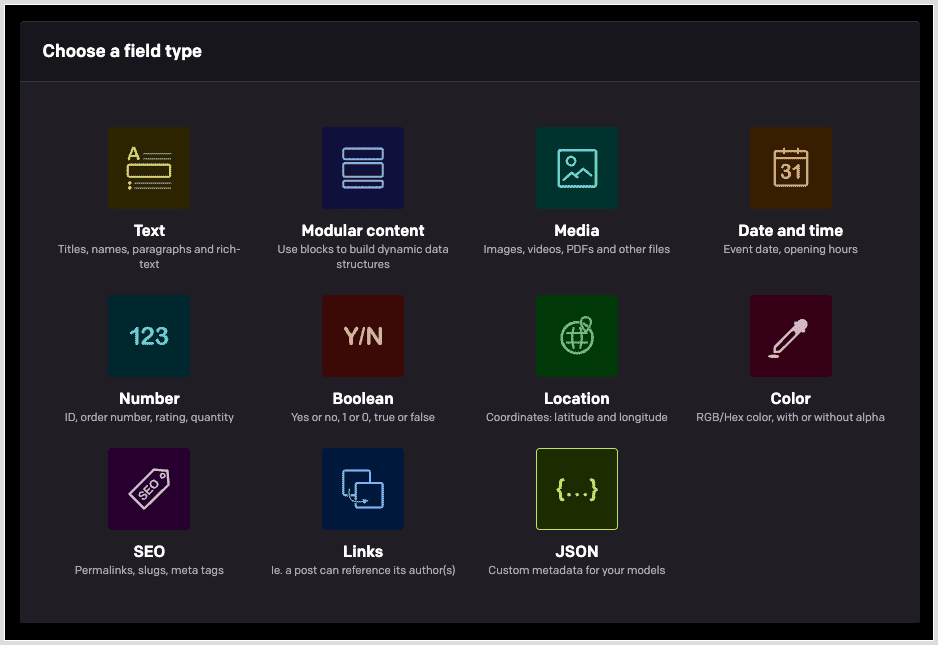
Open Schema > Models, choose a model and click Add new field. Select JSON (for a single asset or a gallery), or Single-line string (to store just an asset URL).
![Choosing the JSON field type when adding a new field to a DatoCMS model]()
-
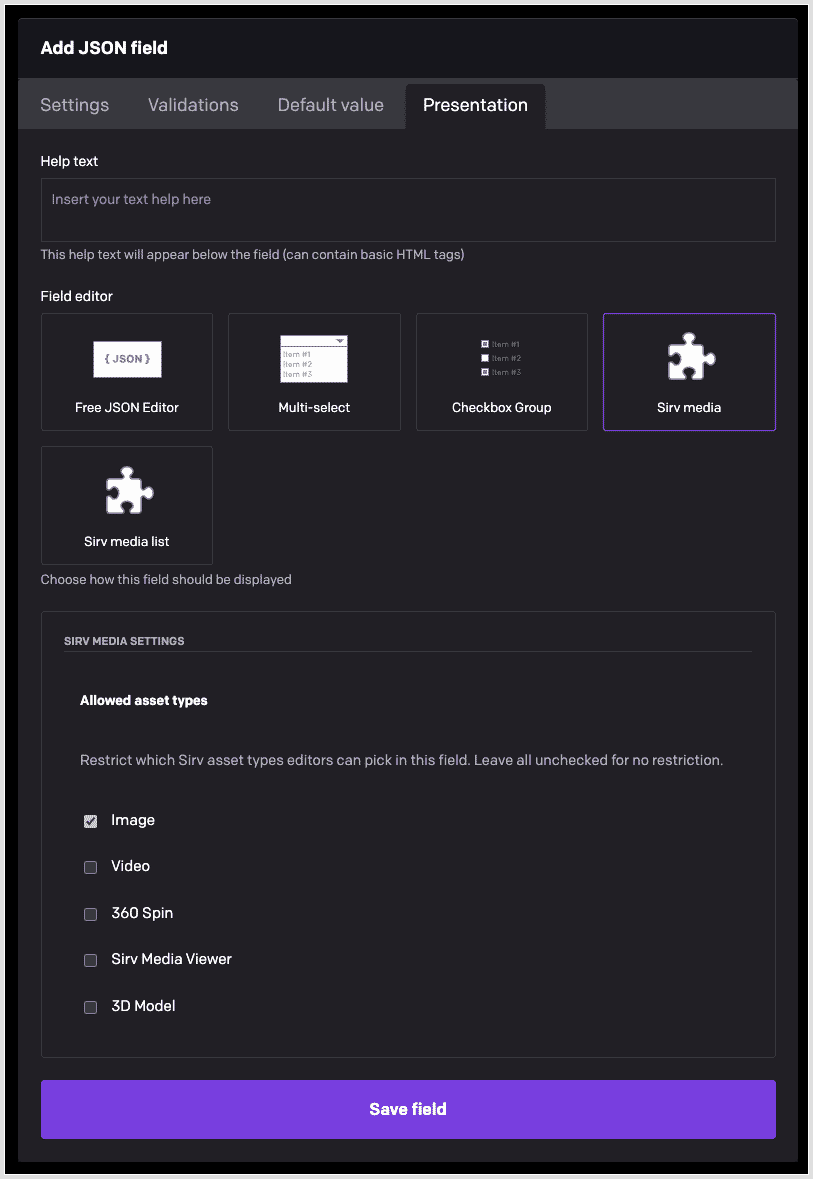
Give the field a name, for example “Hero media”, then open the field’s Presentation tab.
-
Under Field editor, choose Sirv media (single asset), Sirv media list (gallery) or Sirv asset URL (string fields), and optionally restrict the Allowed asset types.
![Selecting the Sirv media editor on the Presentation tab of a DatoCMS JSON field]()
-
Save the field. The Sirv picker now appears whenever you edit a record of that model.
Field extensions
Section titled “Field extensions”- Sirv media - one image, video, 360 spin, Sirv Media Viewer or 3D model. Attached to a JSON field.
- Sirv media list - multiple assets, with multi-select and drag-to-reorder. Attached to a JSON field.
- Sirv asset URL - any Sirv asset (including PDFs and other files) stored as a plain delivery URL. Attached to a Single-line string field.
Use Allowed asset types in the field’s plugin settings to limit the picker to specific kinds: image, video, spin, view, model (and file for the URL field).
Leave all unchecked to allow every media type.
Pick assets from Sirv
Section titled “Pick assets from Sirv”Open a record that uses a Sirv field and click Pick from Sirv.
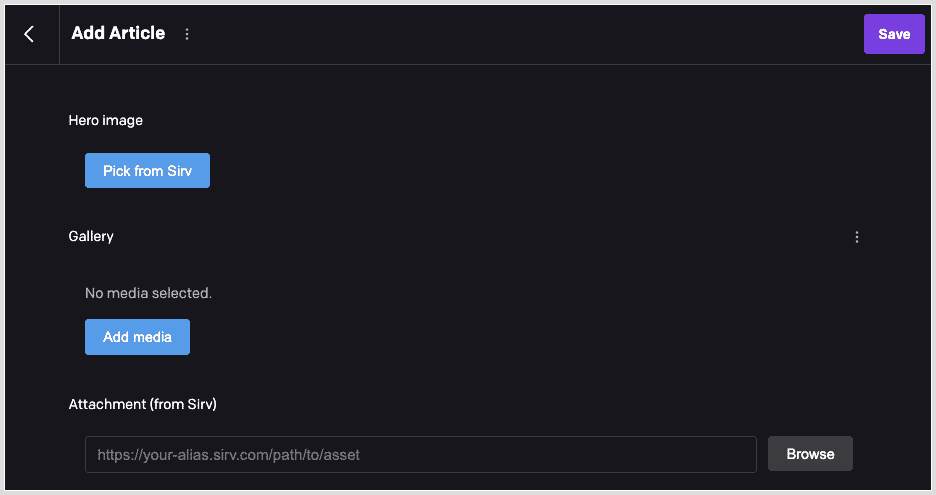
The Sirv media browser opens. Navigate your folders, search the whole account, and filter by type using the chips (Image, Video, 360 Spin, Sirv Media Viewer, 3D Model).
You can also create folders and upload files right from the browser.
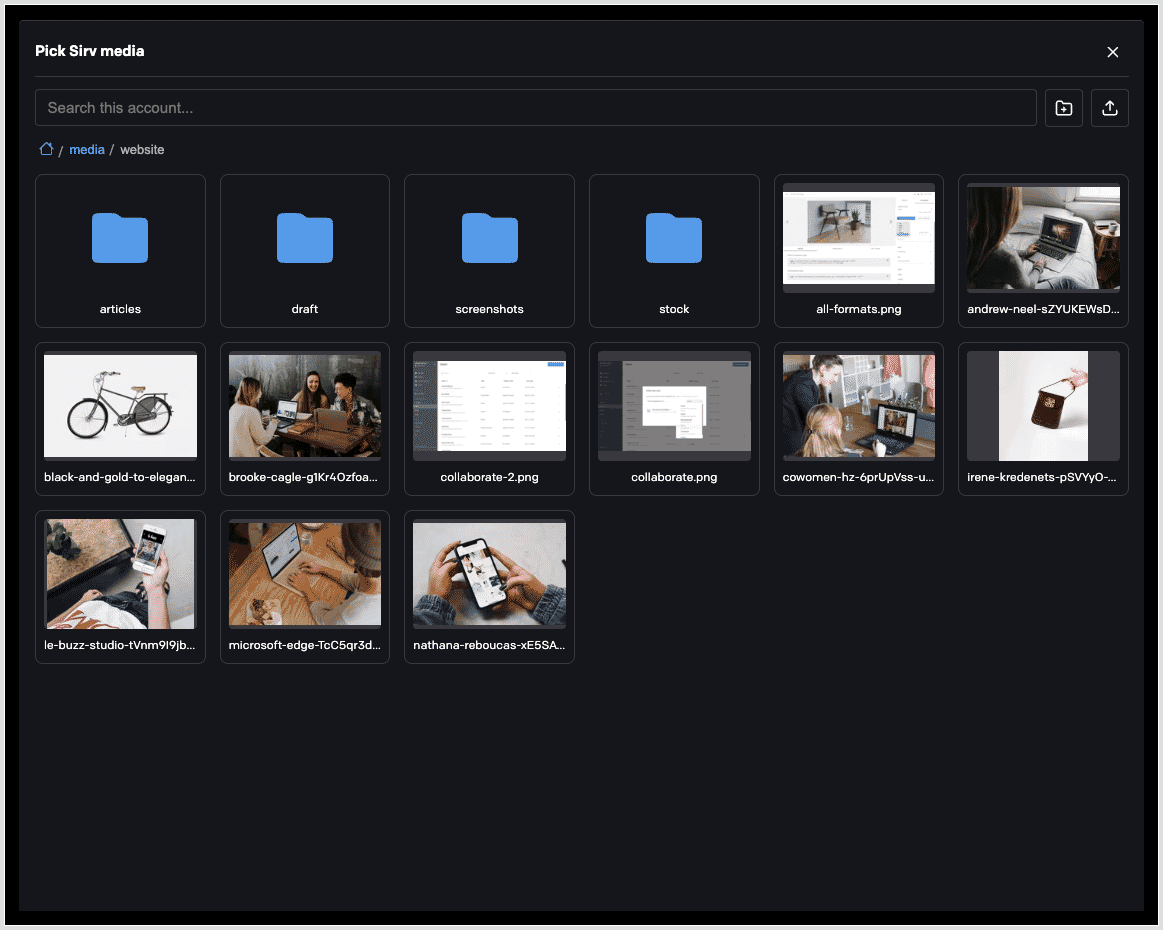
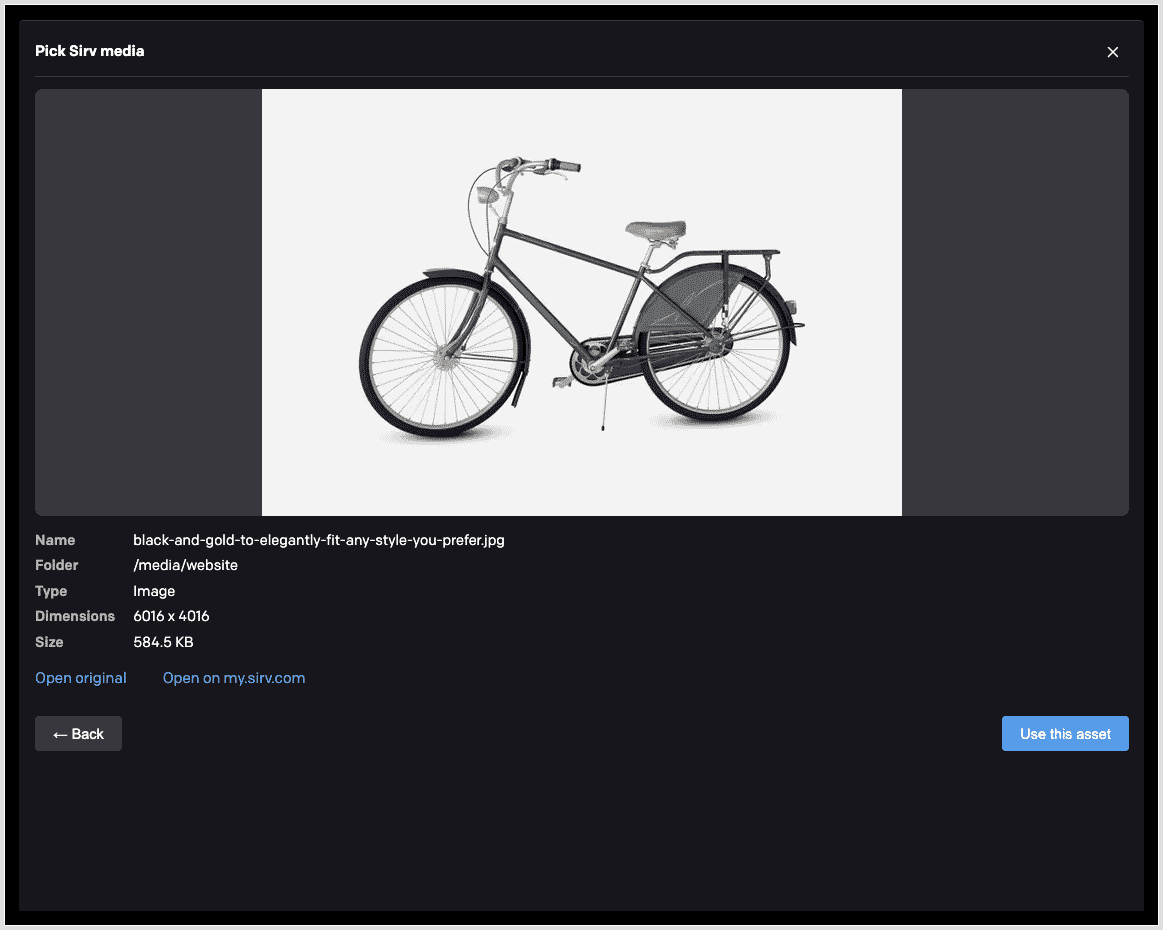
Click an asset to preview it - images, videos, 360 spins, viewers and 3D models all preview live - then click Use this asset.
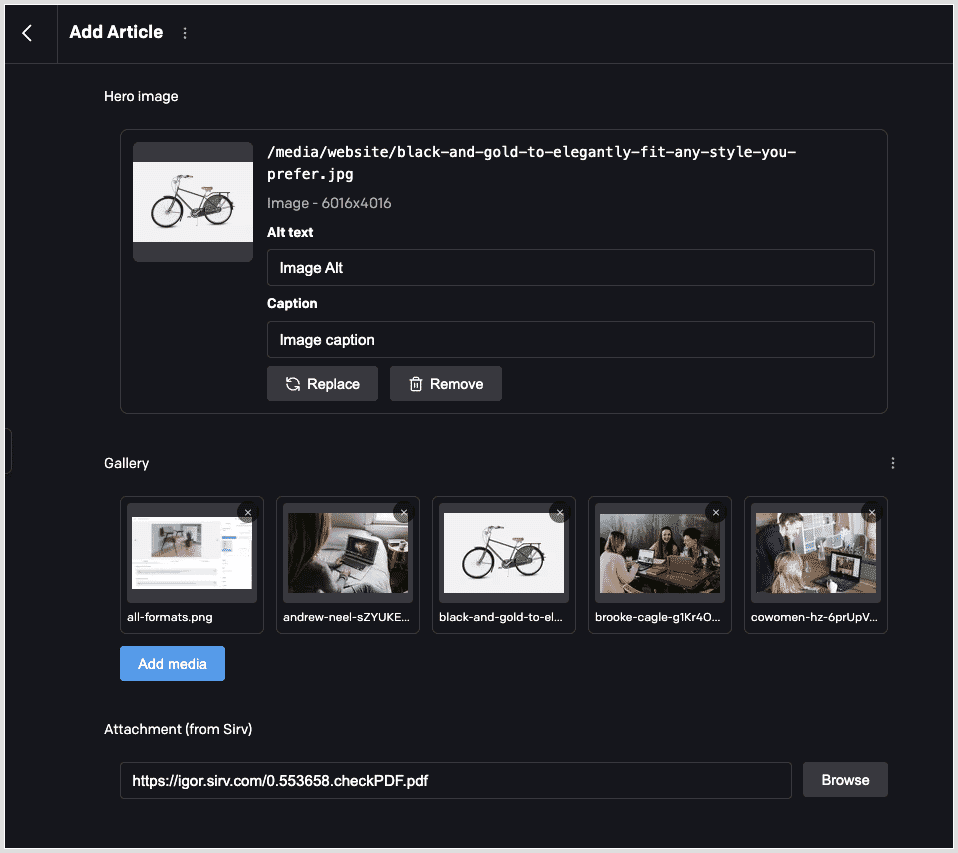
The asset is added to the field. For images and videos, the Alt text and Caption are auto-filled from the asset’s Sirv metadata, and you can fine-tune them inline.
Render on your website
Section titled “Render on your website”The field stores a small JSON value (or a URL string for the Asset URL field).
Render it on your frontend with the free @sirv/react package, which delivers responsive images, videos, 360 spins and combined Sirv Media Viewer galleries.
npm install @sirv/reactDatoCMS returns JSON field values as strings in its GraphQL API - parse them, then pass the value straight to the Sirv components:
import { SirvProvider, SirvMedia, SirvGallery, fromSanityMedia as fromSirvMedia } from '@sirv/react';
export function Product({ record }) {  const hero = JSON.parse(record.heroMedia);      // Sirv media field  const gallery = JSON.parse(record.gallery);     // Sirv media list field
  return (    <SirvProvider alias="youraccount.sirv.com" quality={82}>      {/* Single media field (image, video, 360 spin, viewer or 3D model) */}      <SirvMedia value={fromSirvMedia(hero)} width={640} />
      {/* Gallery field, as one combined Sirv Media Viewer */}      <SirvGallery        items={gallery.map(fromSirvMedia)}        layout="viewer"        width={640}        height={480}      />    </SirvProvider>  );}
For an Asset URL field, the value is already a delivery URL - use it directly in an <img>, <a> or your own component.
Add Sirv media to modular content
Section titled “Add Sirv media to modular content”To place Sirv media inside DatoCMS’s modular content or structured text, use a block:
- Create a block model, for example Sirv Media Block, with one JSON field whose Presentation editor is Sirv media.
- Add the block to your modular-content or structured-text field’s allowed blocks. Editors insert it like any other block and pick the asset with the usual Sirv browser.
- When rendering, map the block to a Sirv component exactly as in the example above.
360 spins, viewers and 3D models
Section titled “360 spins, viewers and 3D models”Sirv is more than an image CDN. Pick a 360 spin, a Sirv Media Viewer or a 3D model (.glb) in the same browser, and store it on a Sirv field.
Render it with <SirvMedia> or <SirvGallery layout="viewer">. The viewer combines images, videos and spins into one interactive gallery with zoomable images, on desktop and mobile.
Common questions
Section titled “Common questions”Do my images get copied into DatoCMS?
No. The Sirv field stores only a small JSON reference (the asset's path, delivery domain and dimensions). The file stays on Sirv and is served from the Sirv CDN, so you keep dynamic imaging, responsive srcset, 360 spins and the Sirv Media Viewer.
Which DatoCMS field types can use Sirv?
A JSON field (for a single asset or a gallery) and a Single-line string field (to store an asset URL). Open the field's Presentation tab and choose the Sirv media, Sirv media list or Sirv asset URL editor.
Does it support videos, 360 spins, viewers and 3D models?
Yes. The media browser lets you pick images, videos, 360 spins, Sirv Media Viewers and 3D models, with a live preview of each. They render on your website with the @sirv/react package.
Are my Sirv credentials safe?
You paste your own Sirv REST API Client ID and secret once, on the plugin settings screen. They are stored as the plugin's parameters in your DatoCMS project and used only to talk to Sirv. Project collaborators who can use the plugin can read them, so use a dedicated key - you can revoke it any time at app.sirv.com. The plugin bundles no credentials of its own.
Can I import Sirv images into DatoCMS's Media Area?
The recommended model keeps assets on Sirv - DatoCMS uploads are file copies, which would lose dynamic imaging and 360 spins. Use the Sirv fields instead of the native Media Area for Sirv-hosted assets.