JPEG Quality Comparison: 80% vs 90%
 By Marc Bonne, Customer Success TeamUpdated
Short answer
Use 80% JPEG quality for most website images. In our side-by-side tests the 80% files were about 30% smaller than 90% with almost no visible loss, and 80% is Sirv's default. Go up to 90% only for sharp, high-contrast detail such as logos or text. At 75% and below, differences start to show.
After reading this you will know
- How much smaller an 80% JPEG is than a 90% JPEG
- Which quality to use for which kind of image
- How to change JPEG quality in a Sirv URL
How to choose the best JPEG quality
Section titled “How to choose the best JPEG quality”Finding a happy medium between image quality and file size is a crucial part of optimizing your website.
The right JPEG quality will ensure your images look great, your pages load fast and even help you rank well in search engines. Let’s look at 2 frequently used settings: 80% and 90%.
File sizes at 80% and 90%
Section titled “File sizes at 80% and 90%”We saved the same images at 80% and 90% quality and compared the file sizes:
| Image | 80% quality | 90% quality |
|---|---|---|
| Louis Vuitton bag | 12.4 KB | 17.9 KB |
| Longines watch | 21.9 KB | 30.8 KB |
| Longines watch face (400px crop) | 33.5 KB | 49.4 KB |
| Colourful abstract | 20.3 KB | 29.8 KB |
| Yellow flower | 30.8 KB | 45.4 KB |
On average, the 80% files are about 30% smaller than the 90% files (measured 19 Nov 2026).
Five JPEG quality comparisons
Section titled “Five JPEG quality comparisons”Below are 5 sets of JPEG images side-by-side. Study each one carefully to spot the differences.
The first image has 80% quality and smallest file size, so will load fastest. The second image has 90% quality, which is considered high quality.
While its file size is larger than the 80% quality image, it is still much smaller than a 100% quality JPEG.
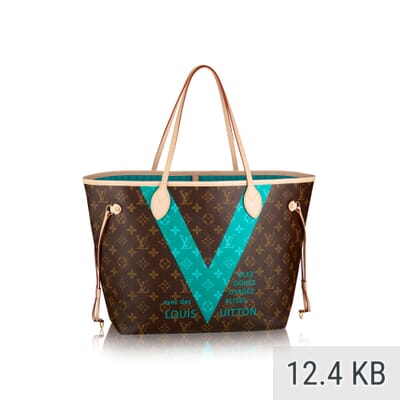
80% quality
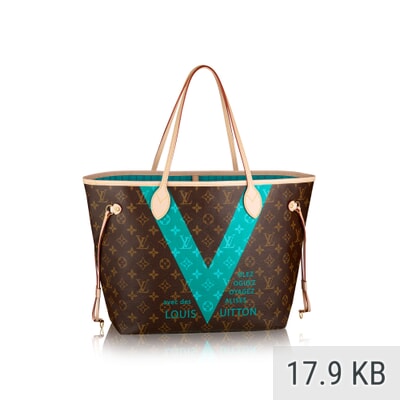
90% quality
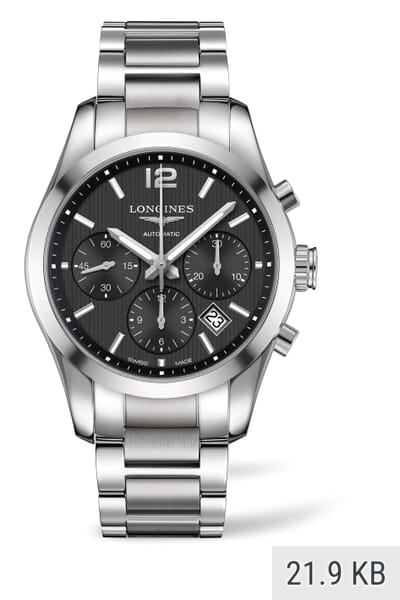
80% quality
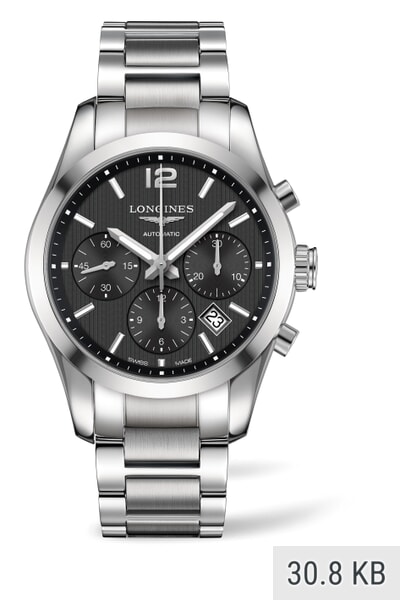
90% quality
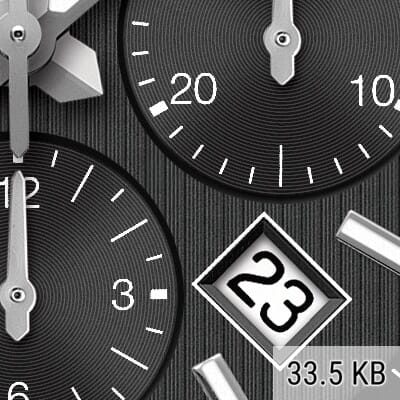
80% quality
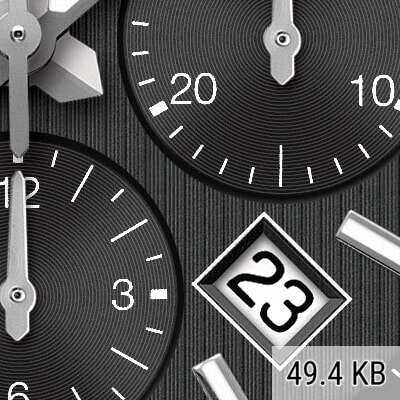
90% quality
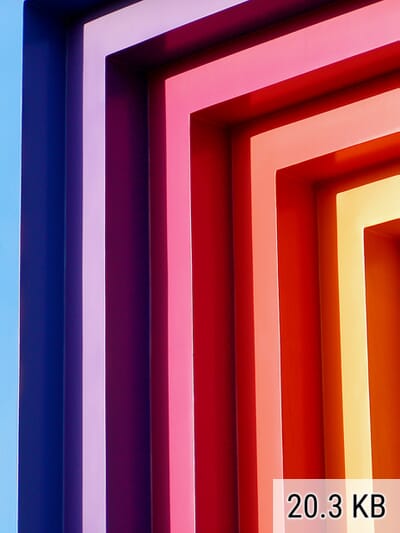
80% quality
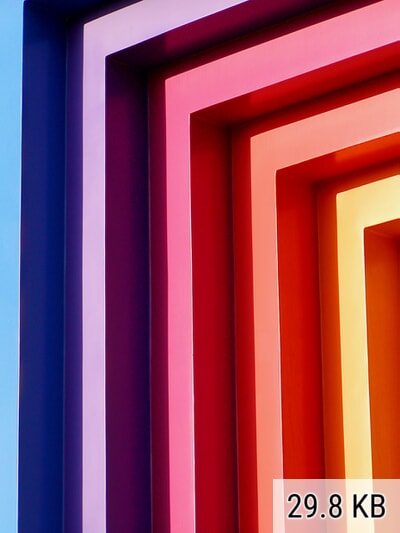
90% quality
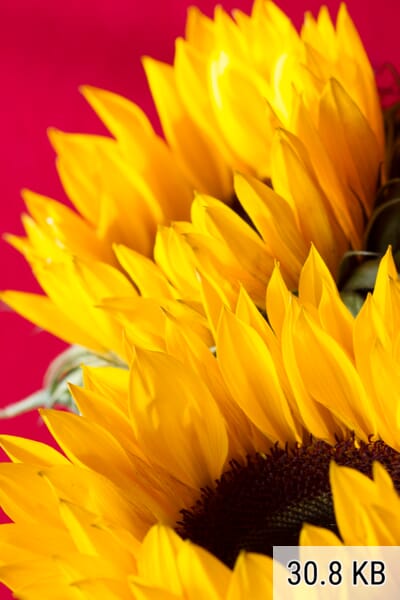
80% quality
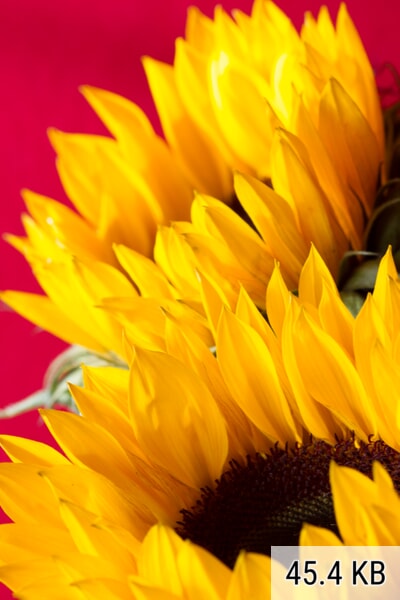
90% quality
Trade-off: quality vs. file size
Section titled “Trade-off: quality vs. file size”The perfect quality setting for your images depends upon the detail, color and contrast of your images, as well as the user-experience you’re aiming to achieve.
Some images can be compressed further without obvious loss in quality, while others begin to show JPEG artifacts much sooner.
Study the Longines watch face in the third example and you’ll probably notice the artifacts around high contrast areas such as the Longines logo.
Which JPEG quality should I use for which images?
Section titled “Which JPEG quality should I use for which images?”| Quality | What you get | Use it for |
|---|---|---|
| 90% | Very high quality, with a big saving on the 100% file size | High-contrast detail, logos, text and hero images where every pixel counts |
| 80% | A bigger file size saving with almost no loss in quality | Most product photos and website images. It’s Sirv’s default |
| 75% and lower | Obvious differences start to show | Only after you have checked the result by eye |
Screenshots, diagrams and text-heavy graphics show JPEG artifacts first, around text and flat colour. Keep them at 90% or higher, or serve them as PNG or WebP.
Use Sirv to find the perfect quality
Section titled “Use Sirv to find the perfect quality”JPEG quality comparison is made easy with Sirv. It generates new images in a split second, making it simple to find the best JPEG image quality for your needs.
Upload your image to your Sirv account (or create an account) and attach the q (quality) parameter in the image URL. By default, Sirv outputs JPEGs at 80%. Example URLs:
- https://sirv.sirv.com/Examples/test-girl.jpg?q=90 (19.1 KB)
- https://sirv.sirv.com/Examples/test-girl.jpg?q=80 (12.7 KB)
- https://sirv.sirv.com/Examples/test-girl.jpg?q=72 (10.1 KB)


Simply adjust the value in the URL and you’ll instantly see the new image at your chosen JPEG quality setting.
Compare images against each other and decide which is the best JPEG image quality setting for you. As a general benchmark:
- 90% JPEG quality gives a very high-quality image while gaining a significant reduction on the original 100% file size.
- 80% JPEG quality gives a greater file size reduction with almost no loss in quality.
- 75% JPEG quality and lower begins to show obvious differences in the image, which can reduce your website user experience.
What about WebP and AVIF?
Section titled “What about WebP and AVIF?”You may not need to pick a format at all. Sirv’s default optimal format serves each visitor the best format for their device.
The smallest file is usually AVIF or WebP, though sometimes an optimized PNG or a compressed JPEG is more suitable.
The same rule applies: choose the lowest quality that looks right at the size shown on the page.
JPEG optimization for your entire website
Section titled “JPEG optimization for your entire website”Refer to the Sirv JPEG quality documentation for more JPEG quality comparison examples.
Together with scale, crop, watermark and other effects, Sirv can quickly become an indispensable imaging service.
Automate your work-flow, optimize your website user experience and take control of your images.