How to add 360 Spins to Shopify
 By Anne-Marie Fletcher, Customer Success TeamUpdated
Short answer
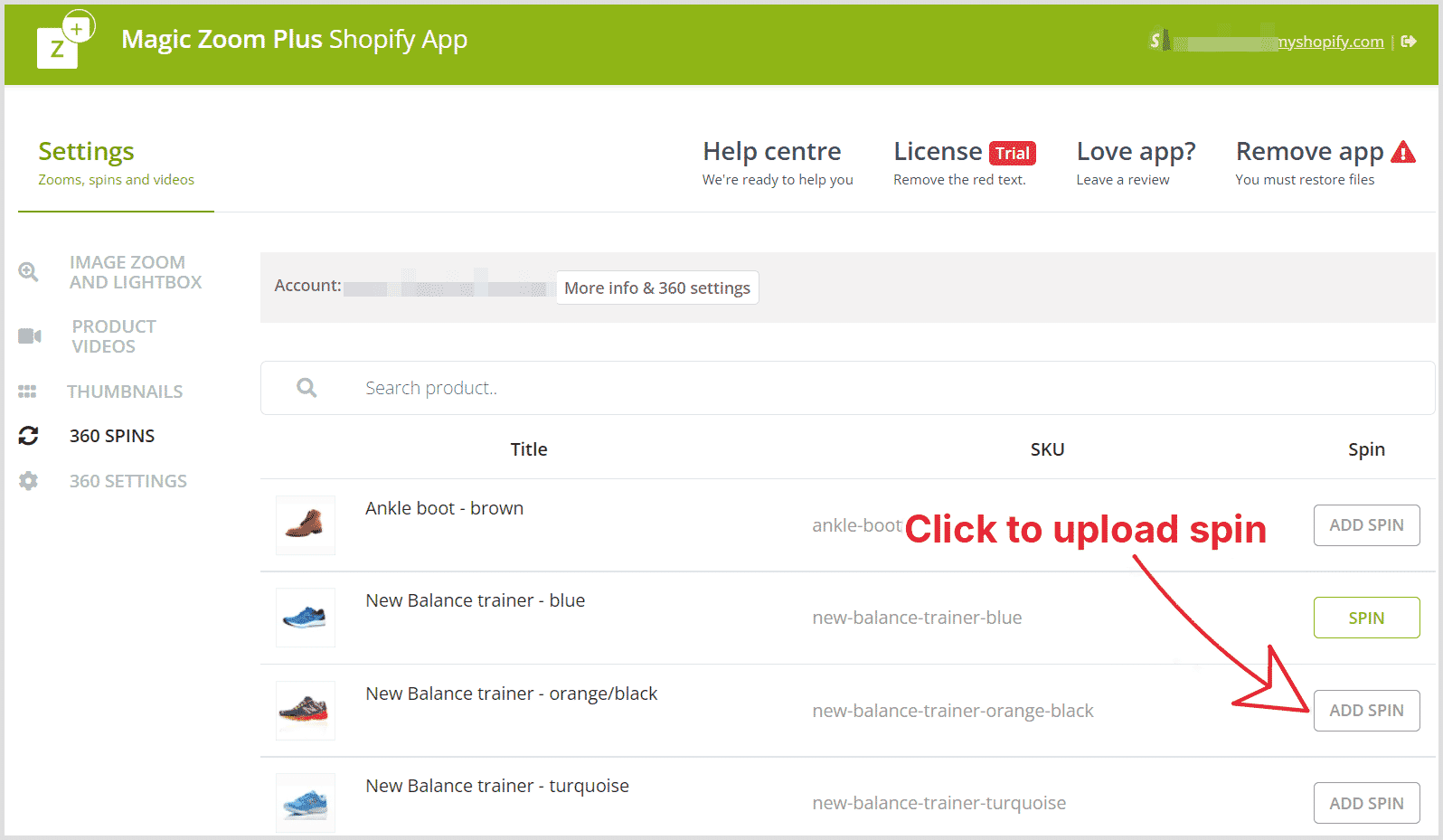
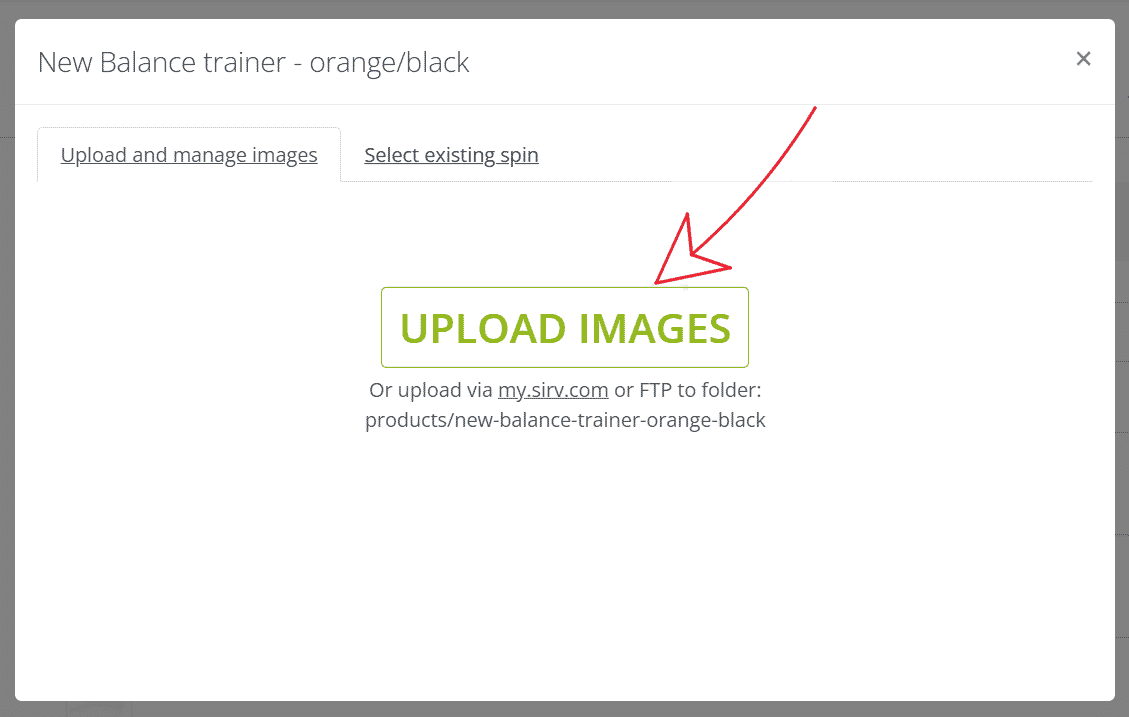
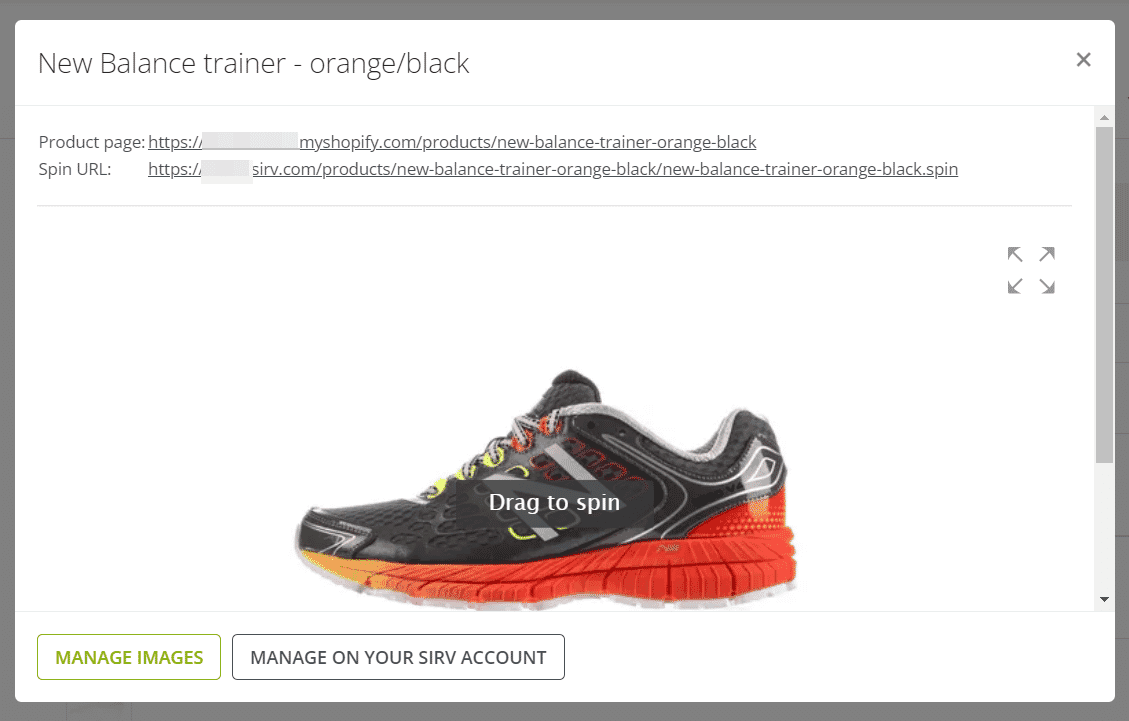
Install the Magic Zoom Plus for Shopify app, log in with your Sirv account, then click "Add Spin" on a product to upload its 360 images. The spin shows first in the product gallery; change its place and icon in the "360 settings" tab. To add many spins, upload them to Sirv in folders named after each product.
After reading this you will know
- How to add 360 spins to Shopify products and variants
- How to match spins to products by folder name
- How to add a spin to pages and blog posts

Shopify makes it easy to create beautiful online stores. They know how create a fast and easy shopping experience. That’s why Sirv 360 spins are such a winner on Shopify.
They look gorgeous, feel sophisticated and are easy to set-up, thanks to Shopify’s top-rated image zoom app, Magic Zoom Plus. Try this demo for yourself.
Follow the steps below to add 360 spins to your product page, home page or text areas.
Add 360 spins to products
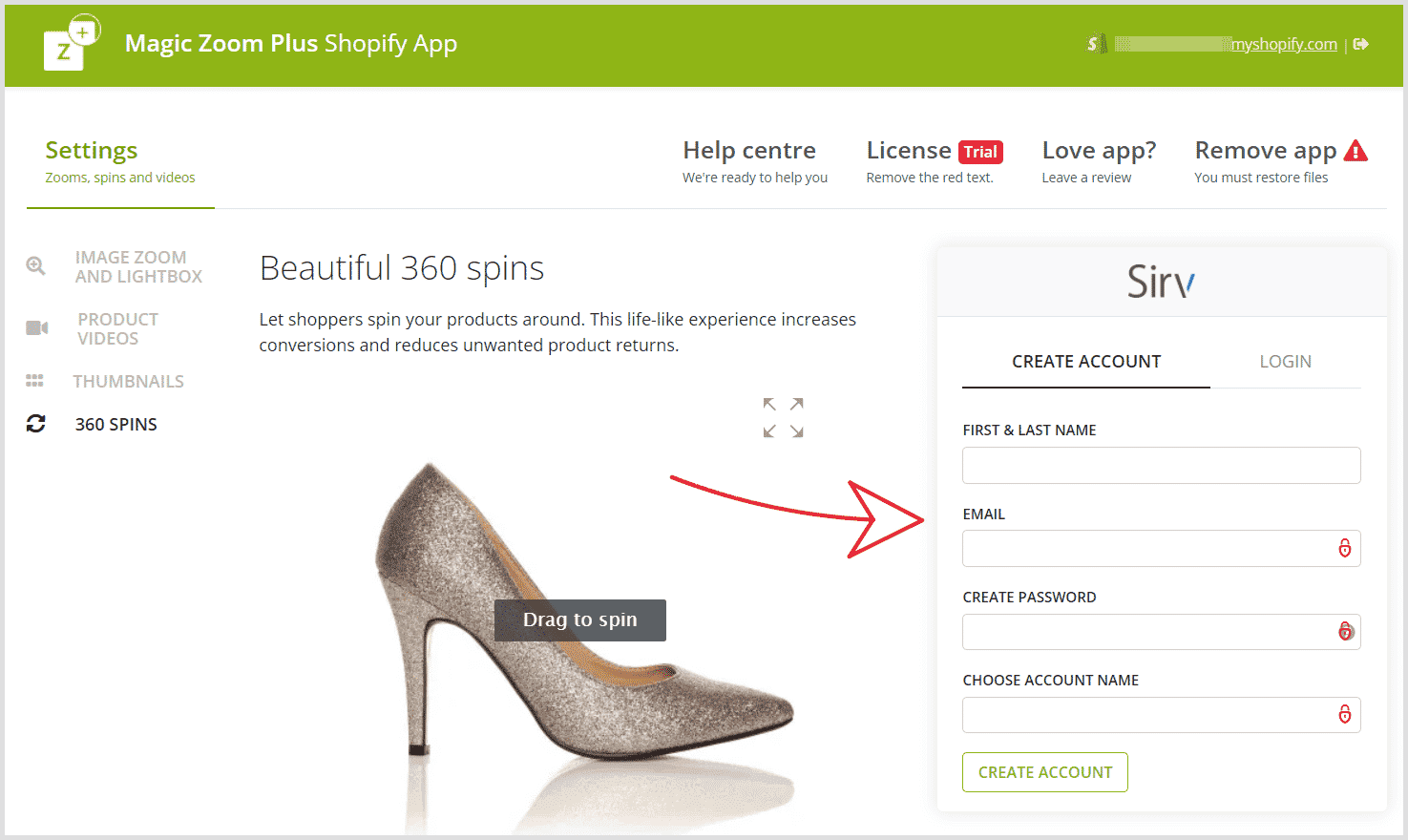
Section titled “Add 360 spins to products”1. Install the free trial Magic Zoom Plus for Shopify app. (If you like it, get a full license for £49). 2. Create your free Sirv account (or login if you already have an account).
You can use Sirv free or choose a paid plan.
Custom spin settings
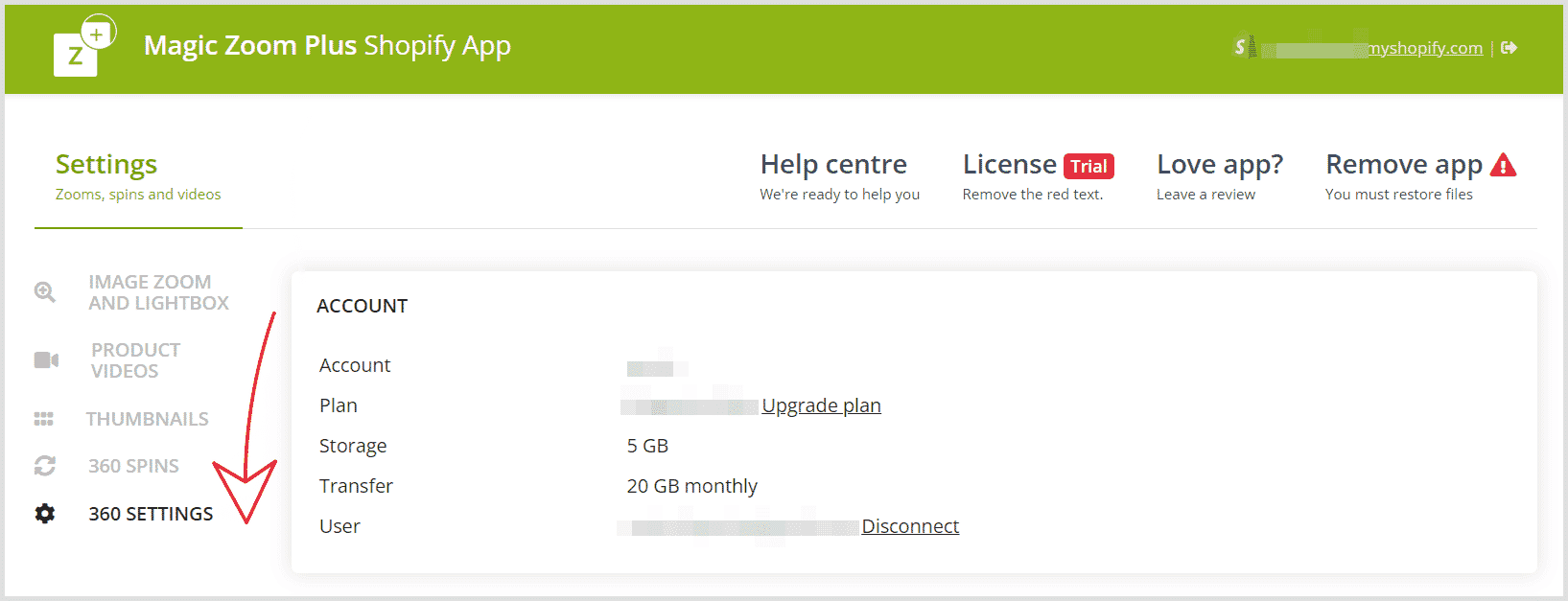
Section titled “Custom spin settings”Your spin will be the first image to show in the product gallery. To change this or to change the thumbnail icon, click “360 settings” tab.
There are 12 icons to choose from (or design your own), which can be placed first, second or last in your gallery:
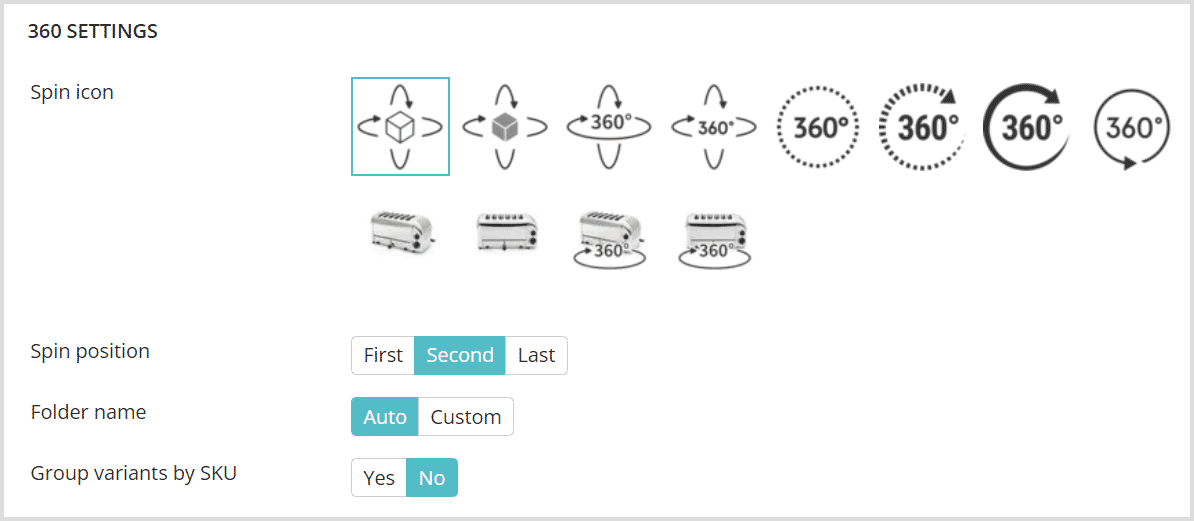
We recommend placing the spin first because visitors instantly engage with spins.
After viewing a 360 spin, shoppers have greater confidence in a product, they are more likely to purchase and less likely to return for a refund.
Custom folder structure
Section titled “Custom folder structure”If you have a large number of spins, it may be faster to upload them directly to your Sirv account. Choose the “Custom” folder name, to choose your own folder path:
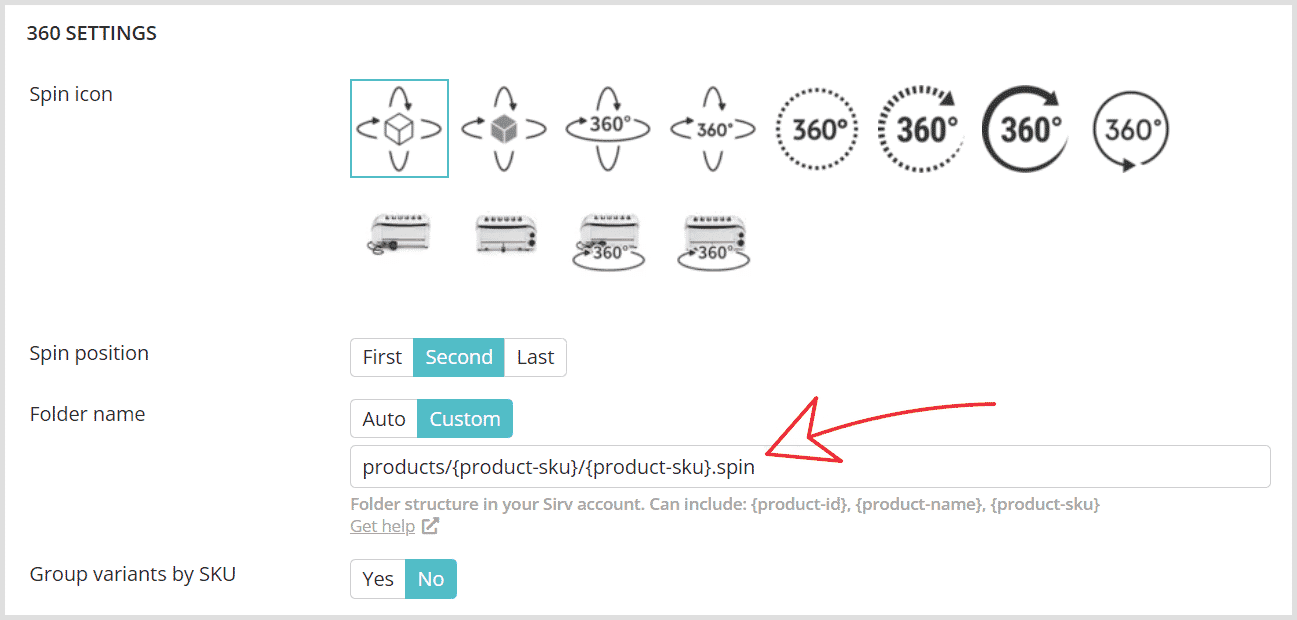
To match each spin to a product, name your folders to match one of these Shopify values:
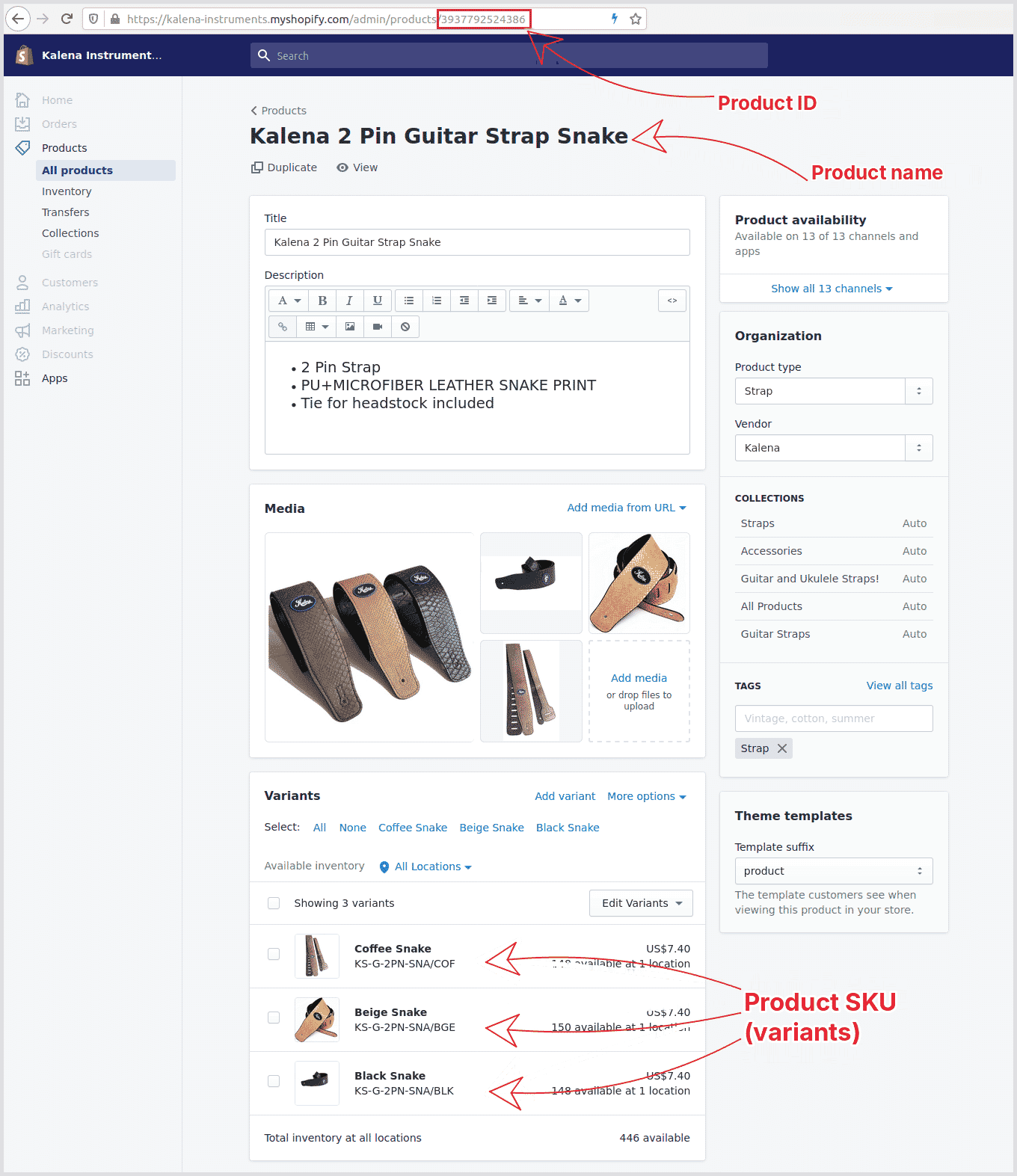
- Product ID:
{product-id} - Product name:
{product-name} - Product SKU:
{product-sku}
A typical folder structure would be:
products/{product-sku}/{product-sku}.spinFor example, if your product had an ID of 185202, the file path in your Sirv account would be:
products/185202/185202.spinThe first folder “products/” is optional. We recommend a master folder to keep your home folder orderly.
After all, you might use Sirv for hosting many other images, videos and files in future. It’s a powerful CDN for any static file, not only spins.
The .spin file will inherit its folder name, so just ensure the folder has the correct name. The screenshot below shows where to find your product ID, SKU and name:
For Shopify products without variants, the SKU field looks like this:
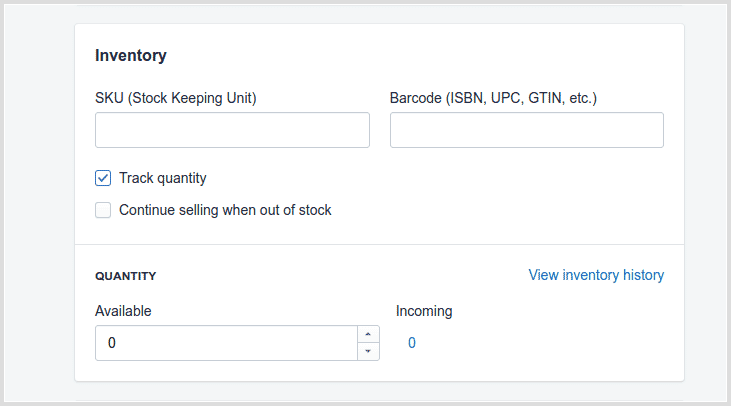
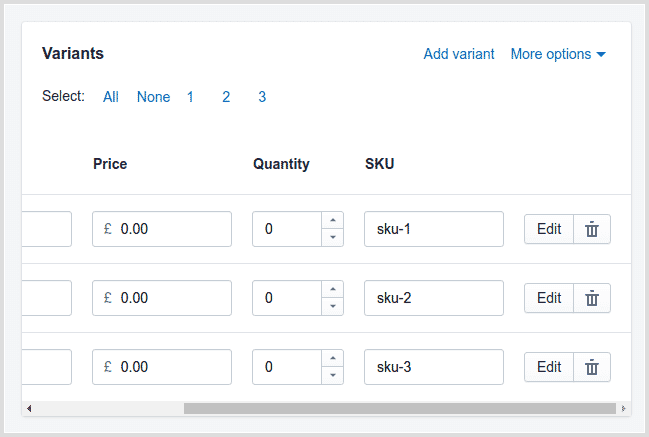
If a product has variants, the SKU fields typically looks like this:
Customize your spins
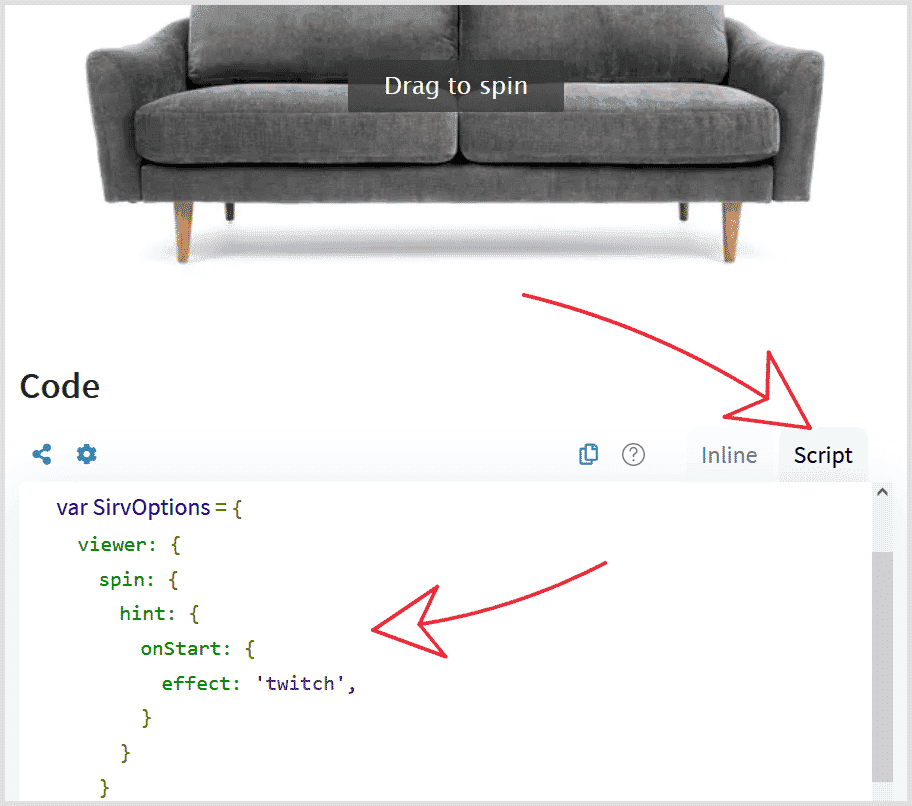
Section titled “Customize your spins”It’s easy to customize your 360 spins with over 30 options to change the speed, effects, hint, text and more.
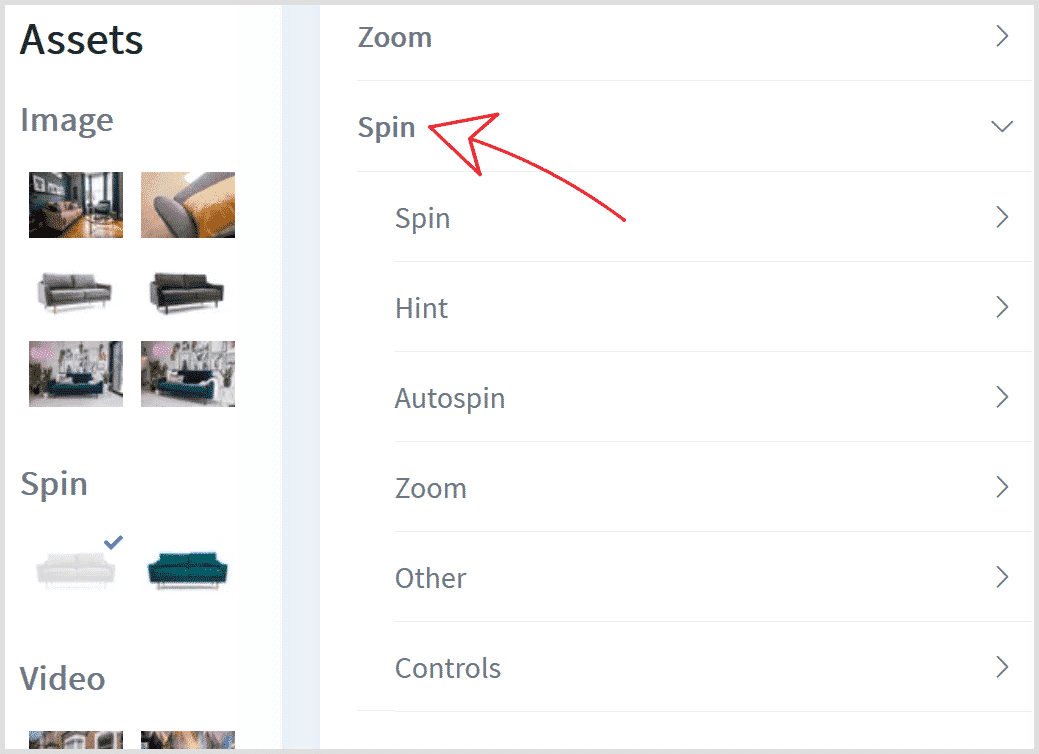
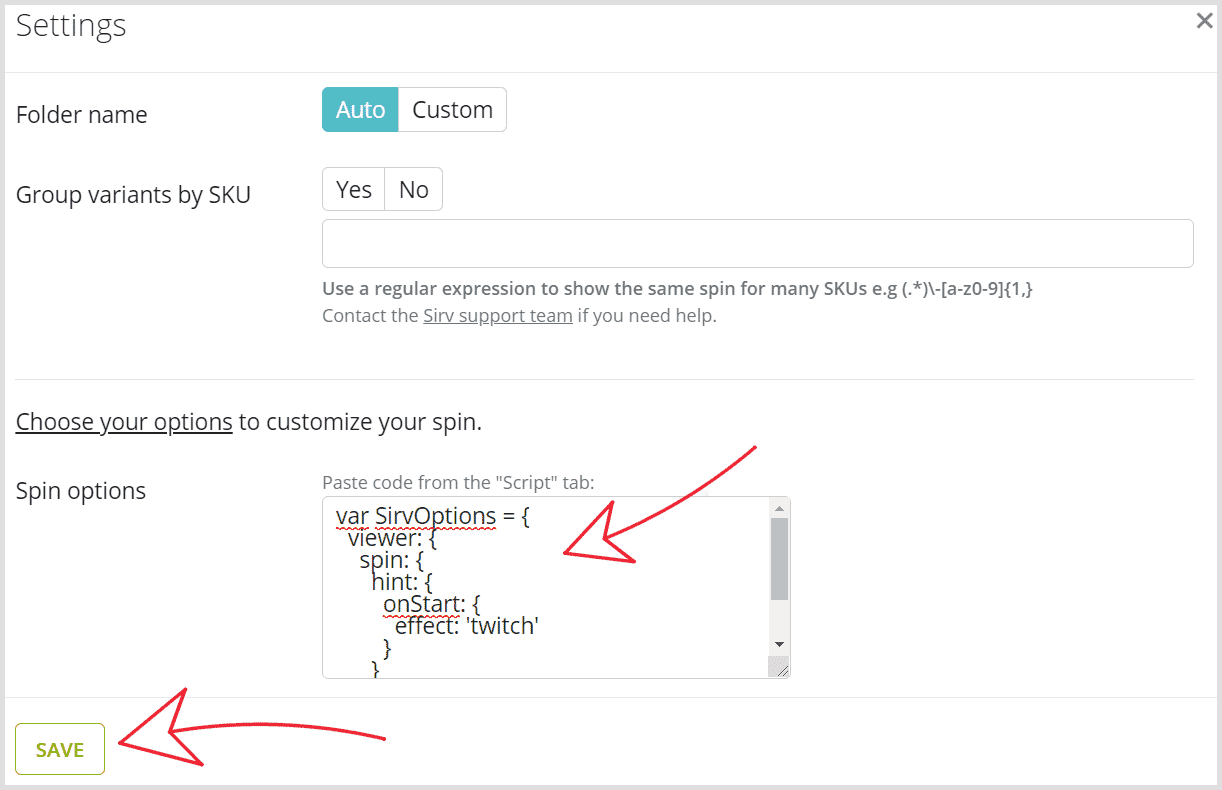
1. Go to the Sirv Media Viewer generator page. 2. Select your spin options:
Product variants
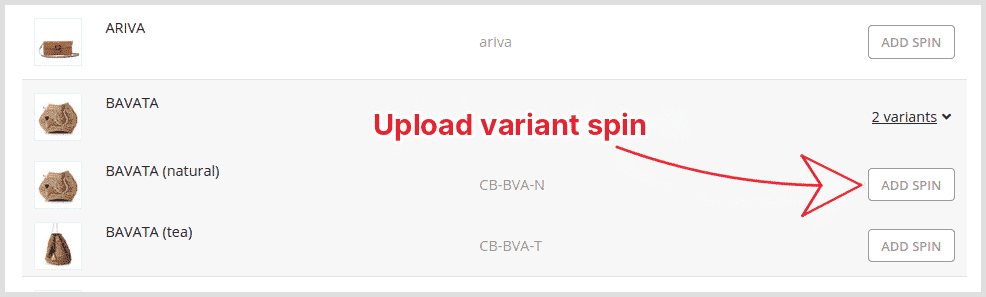
Section titled “Product variants”You can also add 360 spins to product variants. Simply find the product in the list, reveal its variants and upload the images to the appropriate variant:
Supported themes
Section titled “Supported themes”Magic Zoom Plus supports over 100 Shopify themes and installation usually works immediately. If there is an issue, click the Restore button and email the Magic Toolbox team.
They’ll add support for your theme within 48 hours. Themes already supported:
- Adaptable
- Atlantic
- Blueseventy
- Candida Maria
- Cape Wine Charms
- Carleton
- Clean Live
- Contemporary
- Editions Tweaky
- Envy
- Expression
- Fashionopolism
- Fiumara Apparel
- Flex
- Fresh
- Henrybb
- Indie
- Jitensha
- Launchpad
- Limitless
- Lionesque2
- Lucid One
- Main
- Megatronic
- Minimal
- Minimo White
- Mobilia
- Natural
- New Standard
- Nomadista5
- Pandora-2
- Panoramic
- Philadelphia
- Play v1-2
- Pop
- Providence
- React
- Responsive
- Simple
- Square
- Sunlight
- Supply
- Symmetry
- Technophile
- Vantage
- Vantage Responsive
Add 360 spins to a text area
Section titled “Add 360 spins to a text area”You can also add spins to your Shopify home page, blog posts or product descriptions.
1. Upload your spin images to your Sirv account. If you don’t have an account yet, register here.
2. Copy and paste the code below into the ‘Source code’ field > Replace ENTER-YOUR-SPIN-URL.spin with your spin URL > Click ‘Ok’ > Click ‘Save’:
<div class="Sirv">  <div data-src="ENTER-YOUR-SPIN-URL.spin"></div>
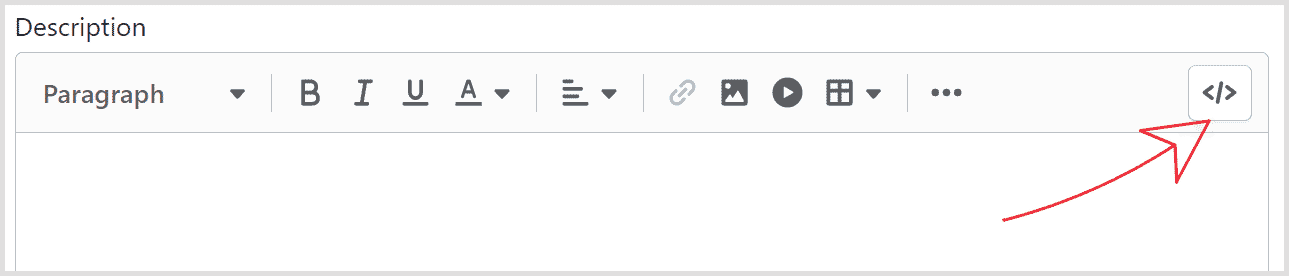
</div><script src="https://scripts.sirv.com/sirvjs/v3/sirv.js"></script>Tip: To find your spin URL, right click the .spin file in your Sirv account, and then select ‘Copy link’. 3. Go to the text area in Shopify where you want to add your spin and click the code icon:
4. Paste the spin code:
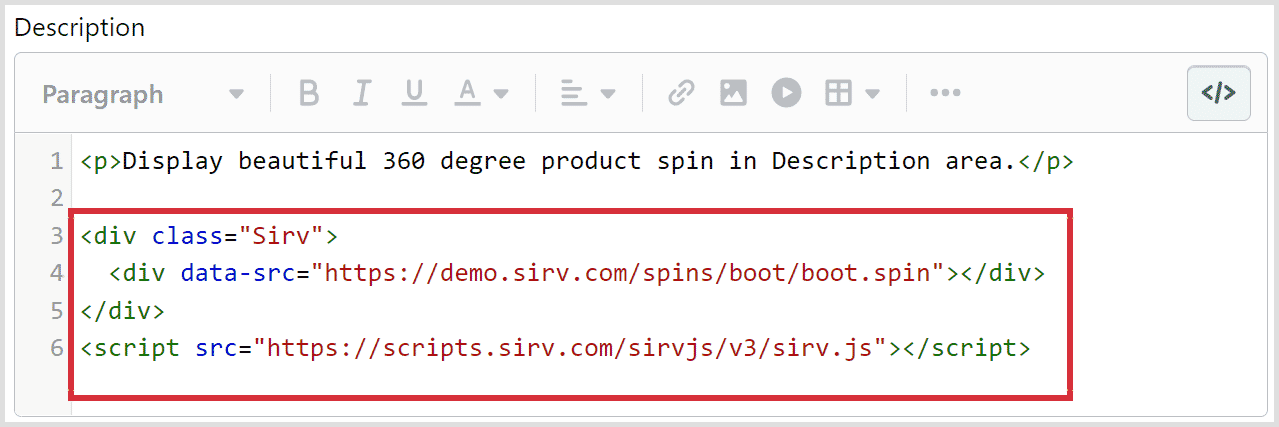
5. Click “Save” and enjoy your 360 spin.
Clear spin cache
Section titled “Clear spin cache”If your spin does not show when you expected it to, either the folder name on Sirv may be wrong or the Shopify app cache may be outdated.
Please try clearing the cache of spin URLs. Your spins will remain associated to your products, so this is safe and quick to use:
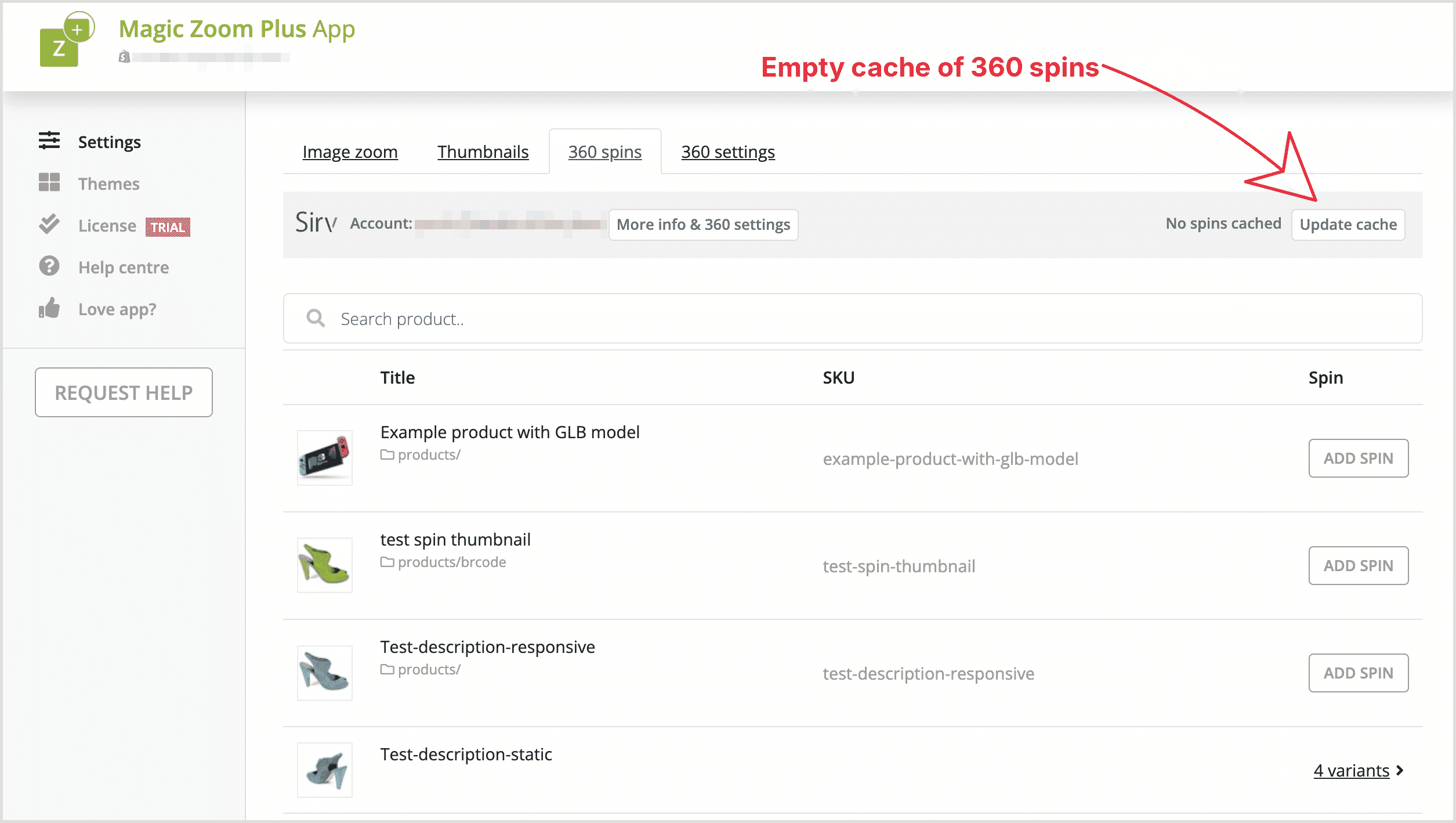
After you clear the cache, reload your product page and the spin should appear. If it still doesn’t, you can add Sirv as a collaborator so we can check your store.