Change Sirv Default Settings
 By Marc Bonne, Customer Success TeamUpdated
Short answer
Edit the Default profile in your Profiles folder to change how every image and spin in your account looks, for example to add a watermark everywhere. The change applies at once and clears cached images. A custom profile, URL options, spin file settings or JavaScript can still override the defaults.
After reading this you will know
- How to change the default settings for your whole account
- In which order profiles, URL options and spin settings override each other
- Why a change to the defaults makes images reprocess
With more than 100 options for customizing your dynamic images, spins and zooms, we were mindful to choose the most suitable default settings for typical usage.
Your images, spins and zooms will look great immediately. If you’d like to change the settings, it’s usually best to create a profile and apply it to images or spins.
In rare cases, you might wish to change the master defaults that are applied to all images in your account.
The Default profile
Section titled “The Default profile”A special Default profile is located in your Profiles folder. It’s a simple way to override default settings. Let’s say you want to show a watermark on every one of your images.
You can either do this by creating a profile with a name of your choice and attaching it to the end of your image/spin URLs, or you can change the Default profile.
How to change the default settings
Section titled “How to change the default settings”- Go to the Profiles page in your Sirv account.
- Click Edit on the Default profile:
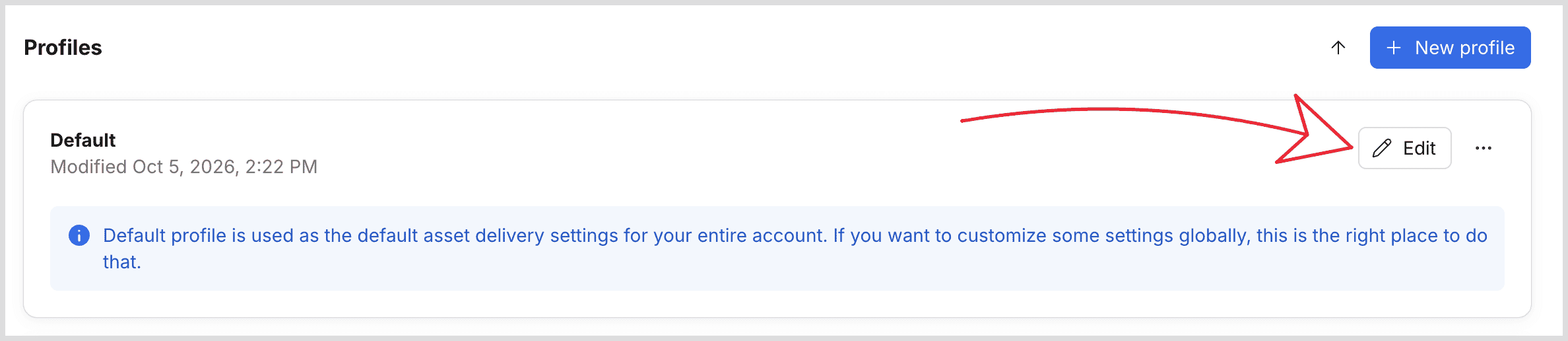
- Open the section you need. Turn on the switch next to each option you want as the new default, then set its value:
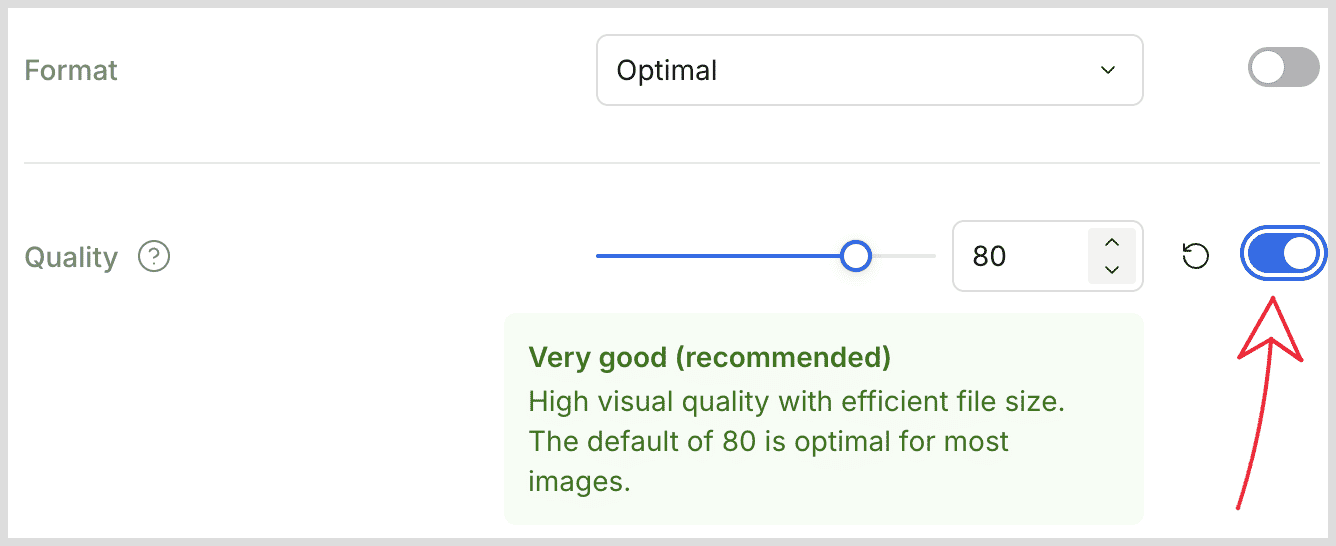
- Click Save changes.
Every image in your account will now be served using your new default settings.
Override the default settings
Section titled “Override the default settings”To apply different settings to a particular image or spin, simply append a profile name or options to its URL. The order of inheritance when applying options of an image or spin are:
- Default profile.
- Custom profile: create a profile and append its name to an image/spin URL e.g.
https://demo.sirv.com/car.jpg?profile=Example-Sunset
https://demo.sirv.com/cap.spin?profile=Example-Greyscale
- URL: append your options directly to an image/spin URL e.g.
https://demo.sirv.com/car.jpg?w=300
https://demo.sirv.com/cap.spin?w=300
-
Spin file: options stored in a .spin file apply only to that spin.
-
JavaScript: all spins on an HTML page can also be changed with JavaScript.
The power of Profiles
Section titled “The power of Profiles”Profiles are extremely powerful - every image or spin that references a profile will be instantly updated when you change the profile settings.
It gives you precise control over the design of images on your website. You can create as many profiles as you wish and apply them to any image or spin.
Go to the Profiles folder of your account to see some example profiles and create your own.