Export 360 Spins to Grainger Listings
 By Jake Brumby, Customer Success DirectorUpdated
Short answer
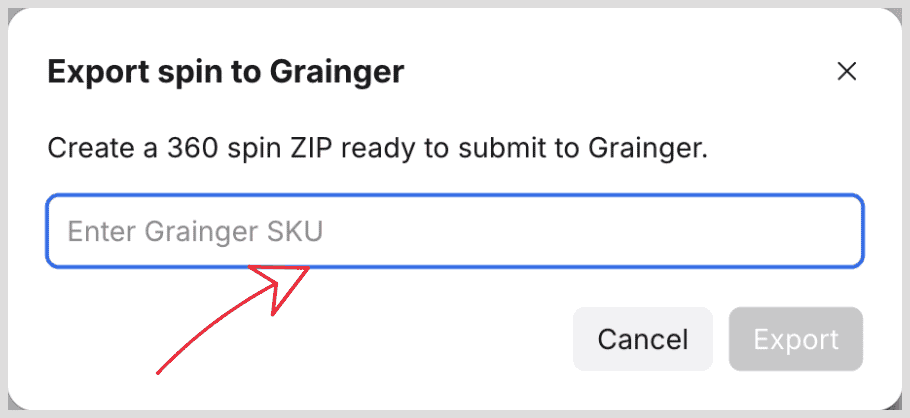
Sirv turns a 360 spin into a zip that meets Grainger's rules for format, size and file names. Right-click the spin in your Sirv account, choose Export spin to > Export to Grainger, enter the Grainger item number (SKU) and click "Export". For many spins at once, use Sirv's free batch script or the REST API.
After reading this you will know
- How to export a 360 spin for a Grainger listing
- How to export many spins at once
- What Grainger requires, and how Sirv meets it

Sirv can prepare your 360-degree product spins for submission to the Grainger website.
Grainger has strict requirements for images to be accepted - image format, dimensions and filename must all meet their needs, zipped into a file. Sirv does this automatically for you, as it does for Amazon, Walmart, The Home Depot and Lowe’s.
Create 360 spins for Grainger
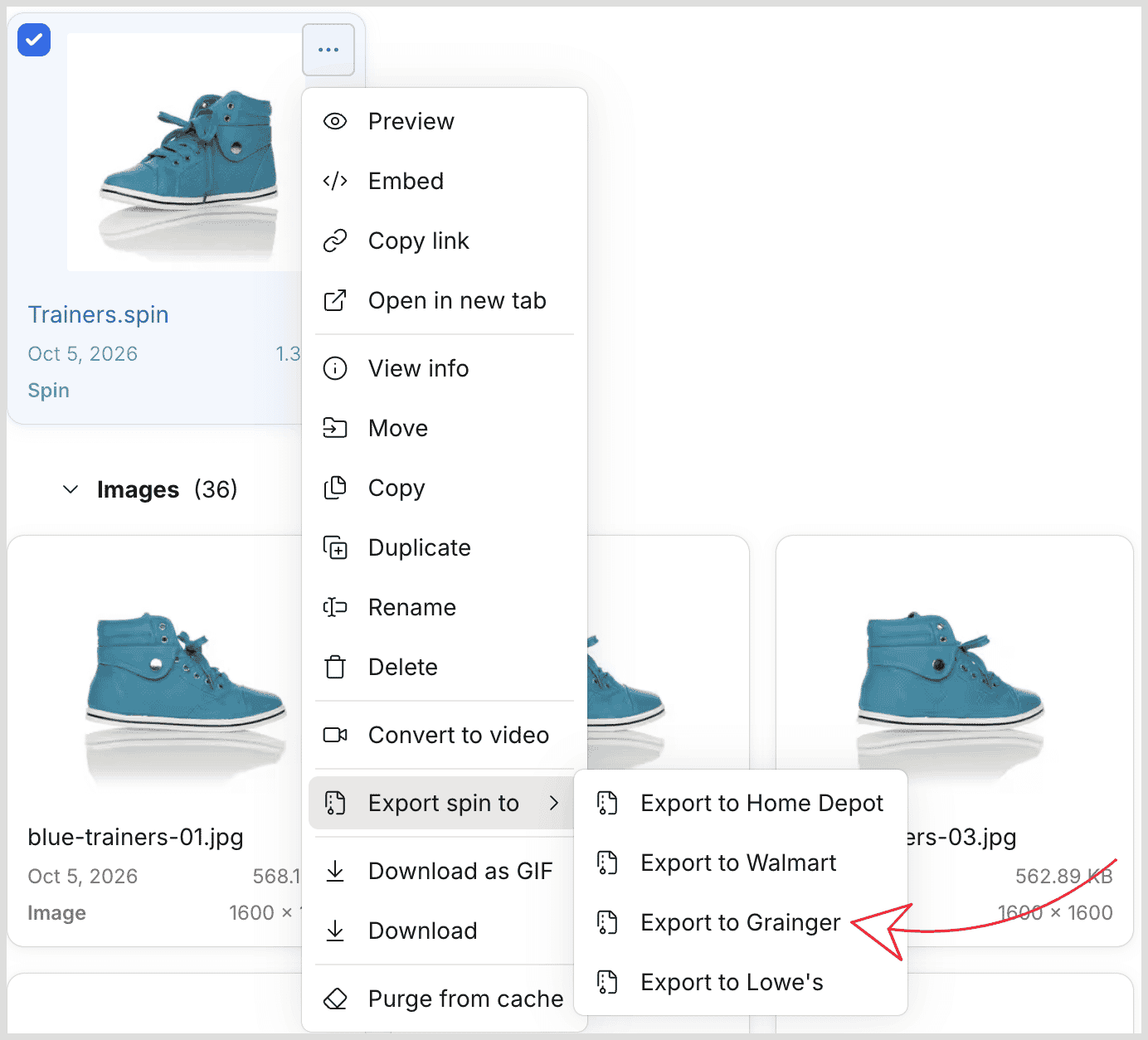
Section titled “Create 360 spins for Grainger”1. Go to your Sirv account. New users can create an account. 2. Right-click a spin, or click its ”…” menu, and choose Export spin to > Export to Grainger (Business 5 or higher):

Batch create multiple Grainger zips
Section titled “Batch create multiple Grainger zips”To make many zips in one go, run a short script with the Sirv REST API. It sends each spin to the Export spin to Grainger command, the same export as in your account.
1. In your Sirv account, go to Settings > API access and create an API client. Keep its client ID and secret to hand.
2. Make a file called spins.csv with one spin per line: the spin’s path in your Sirv account, a comma, then its Grainger Item number:
/products/drill/drill.spin,SKU1234/products/saw/saw.spin,SKU12393. Save this script as export.mjs in the same folder:
// export.mjs: makes a Grainger zip for each spin in spins.csvimport { readFileSync } from 'node:fs';
const api = 'https://api.sirv.com/v2';const auth = await fetch(`${api}/token`, {  method: 'POST',  headers: { 'content-type': 'application/json' },  body: JSON.stringify({ clientId: process.env.SIRV_CLIENT_ID, clientSecret: process.env.SIRV_CLIENT_SECRET }),});const { token } = await auth.json();
for (const line of readFileSync('spins.csv', 'utf8').split('\n').filter(Boolean)) {  const [filename, id] = line.split(',').map((s) => s.trim());  const res = await fetch(`${api}/files/spin2grainger360`, {    method: 'POST',    headers: { 'content-type': 'application/json', authorization: `Bearer ${token}` },    body: JSON.stringify({ filename, sku: id }),  });  console.log(filename, res.status, await res.text());}
4. Run it with Node.js 18 or later, with your client ID and secret in the environment:
SIRV_CLIENT_ID=your-client-id SIRV_CLIENT_SECRET=your-client-secret node export.mjsEach line of the output names the zip Sirv made, saved in your account next to the spin. Rather not run a script? Send the same request one spin at a time from Postman.
Create Grainger 360 spins via API
Section titled “Create Grainger 360 spins via API”Alternatively, you can use the Sirv REST API to automatically convert spins to Grainger zips which meet all of Grainger’s requirements.
What are Grainger’s 360 spin requirements?
Section titled “What are Grainger’s 360 spin requirements?”Sirv executes all of the following processing options to meet Grainger’s 360-degree product photography listing requirements:
- Resize images to 2000 × 2000 px square
- Up to 3 rows of images (to tilt product up/down)
- Convert to JPEG format
- Rename images to {SKU}_SS01_R01_C01.jpg, {SKU}_SS01_R01_C02.jpg etc.
- Package files into zipped folder with SKU (Grainger Item #)
Sirv completes this in a few seconds, providing you with a zip URL ready to submit to Grainger.