Video Streaming
 By Jake Brumby, Customer Success DirectorUpdated
Short answer
Upload a video to your Sirv account and embed it with a div and Sirv JS. Sirv streams it in short segments at 1080p, 720p, 480p and 360p, choosing the best one for each viewer's connection and screen. Options set autoplay, loop, controls and quality, and Sirv adds video schema markup for search engines by itself.
After reading this you will know
- How to embed a streaming video from Sirv
- Which options control playback, controls and quality
- How thumbnails, SEO and stream resolutions work
Sirv Media Viewer can embed videos from your Sirv account, streaming them so they load fast. It automatically generates streams split into short segments, at different resolutions.
The appropriate size is served to each user, lazy loaded for optimal playback speed, user experience and SEO.
Examples
Section titled “Examples”Single video hosted on Sirv
Section titled “Single video hosted on Sirv”Here’s a single video:
The code is simple:
<div class="Sirv" data-src="https://demo.sirv.com/videos/e-tron_quattro.mp4"></div>Your page should also reference the sirv.js script, as early in your HTML possible, for fast loading:
<script src="https://scripts.sirv.com/sirvjs/v3/sirv.js"></script>If you only need Sirv JS for videos, you can use a smaller version of Sirv JS instead:
<script src="https://scripts.sirv.com/sirvjs/v3/sirv.js?modules=video"></script>Enable video streaming on your account
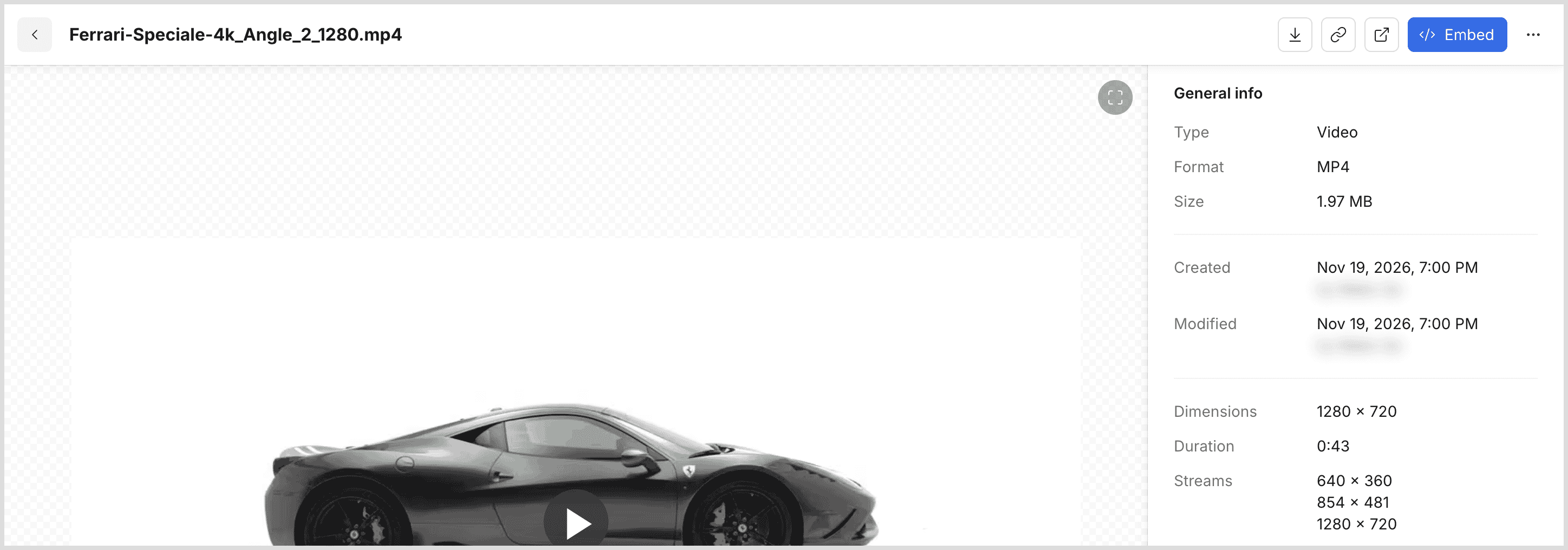
Section titled “Enable video streaming on your account”Sirv creates the HLS streams for you after you upload a video. There is nothing to switch on.
To see them, open the video’s preview in your Sirv account. Its General info lists the sizes under Streams:
Options
Section titled “Options”Adjust the video behaviour and playback with the following options:
| Parameter | Default | Options | Description |
|---|---|---|---|
autoplay | false | true, false | Automatically play the video on load. |
loop | false | true, false | Replay the video after it ends. |
preload | true | true, false | Preload the first segment of a video stream |
quality.min | 360 | 360, 480, 720, 1080 | Set the minimum video stream resolution. |
quality.max | 1080 | 360, 480, 720, 1080 | Set the maximum video stream resolution. |
volume | 100 | 0-100 | Set the initial volume. |
controls.enable | true | true, false | Show or hide the video controls. |
controls.volume | true | true, false | Show option to change video volume. |
controls.speed | false | true, false | Show option to change playback speed. |
controls.quality | false | true, false | Show option to change video resolution. |
controls.playbar | true | true, false | Show bar with small play button, progress and remaining time. |
controls.playButton | true | true, false | Show big button to play/pause video. |
background | false | true, false | Hide all buttons and disable click. |
seo | true | true, false | Inject JSON-LD markup for better video SEO. |
How to apply options
Section titled “How to apply options”You can apply video options either inline or globally in a script.
Options applied inline:
<div class="Sirv" data-options="video.autoplay:true; video.loop:true; video.controls.speed:true"> <div data-src="https://sirv.com/video.mp4"></div></div>Options applied globally:
<script>SirvOptions = { "viewer": { "video": { "autoplay": true, "loop": true, "controls": { "speed": true } } }}</script>Autoplay
Section titled “Autoplay”To automatically start playing the video on load, set video.autoplay to true:
<div class="Sirv" data-src="https://demo.sirv.com/videos/e-tron_quattro.mp4" data-options="video.autoplay: true;"></div><script>var SirvOptions = { "viewer": { "video": { "autoplay": true } }}</script>Autoplay audio
Section titled “Autoplay audio”Autoplay videos will start with the volume muted. This behaviour is determined by the browser - it is not possible to autoplay a video with sound enabled. To hear sound, the visitor should click the unmute icon.
To restart the video automatically when it reaches the end, set video.loop to true:
<div class="Sirv" data-src="https://demo.sirv.com/videos/e-tron_quattro.mp4" data-options="video.loop: true;"></div><script>var SirvOptions = { "viewer": { "video": { "loop": true } }}</script>Preload
Section titled “Preload”Videos will start playback instantly, without any buffering delay. This is achieved by preloading the first 2-second segment of the video when the video/gallery enters the viewport.
A 2-second segment is typically 100-500 KB in file size, depending on the resolution of the stream served.
To prevent preloading the first segment, set video.preload to false:
<div class="Sirv" data-src="https://demo.sirv.com/videos/e-tron_quattro.mp4" data-options="video.preload: false;"></div><script>var SirvOptions = { "viewer": { "video": { "preload": false } }}</script>If preload is applied to a video that is not hosted on Sirv or has no video streams, the full video will be preloaded.
Controls
Section titled “Controls”Allow users to speed up or slow down the video by enabling the playback speed button. Set video.controls.speed:true.
Allow users to change resolution quality (by default, Sirv will identify the most optimal resolution). Set video.controls.quality:true.
This example shows all buttons:
The volume button is shown by default. To hide it, set video.controls.volume:false.
To hide the small play button, progress bar and remaining time, set video.controls.playbar:false.
To hide all controls, set video.controls.enable:false. Users can click anywhere on the video to play/pause:
<div class="Sirv" data-src="https://demo.sirv.com/videos/e-tron_quattro.mp4" data-options="video.controls.enable: false;"></div><script>var SirvOptions = { "viewer": { "video": { "controls": { "enable": false } } }}</script>To also hide the big play/pause button in the middle, set video.controls.playButton:false. Users will still be able to click anywhere to play/pause:
<div class="Sirv" data-src="https://demo.sirv.com/videos/e-tron_quattro.mp4" data-options="video.controls.playButton: false;"></div><script>var SirvOptions = { "viewer": { "video": { "controls": { "enable": false, "playButton": false } } }}</script>You can disable all user interactions and buttons by setting video.background:true. This is perfect for background videos - they will autoplay, muted, in a loop.
This setting will supersede any related options: autoplay, loop or controls. It can also be applied to Vimeo videos.
<div class="Sirv" data-src="https://demo.sirv.com/videos/e-tron_quattro.mp4" data-options="video.background: true;"></div><script>var SirvOptions = { "viewer": { "video": { "background": true } }}</script>Quality
Section titled “Quality”The most suitable video stream resolution is automatically served to each user, depending on the speed of the users internet connection and the size of the video container.
If their connection is fast enough, then Sirv will serve the stream larger than the container, which is then scaled down in the browser to the exact dimensions required.
This ensures good quality. (If you enable the quality control, the user may choose another quality).
You can choose a minimum or maximum quality to be served. A minimum quality video.quality.min can ensure that users always see a particularly high quality video.
A maximum quality video.quality.max can cap the size and therefore minimize data transfer.
The example below sets a minimum quality of 1080p (1920 × 1080):
<div class="Sirv" data-src="https://demo.sirv.com/videos/e-tron_quattro.mp4" data-options="video.quality.min: 1080;"></div><script>var SirvOptions = { "viewer": { "video": { "quality": { "min": 1080 } } }}</script>If a video doesn’t have a stream that large, then the largest available stream will be used.
Video SEO
Section titled “Video SEO”Your videos will gain better search engine rankings if they have schema.org markup.
Sirv automatically adds this markup, by injecting video metadata (via JSON-LD) into your page. Example of JSON-LD schema that Sirv automatically injects into a page:
<script type="application/ld+json">{ "@type": "VideoObject", "@context": "http://schema.org/", "@id": "https://demo.sirv.com/video.mp4", "name": "Valley drone footage", "description": "Flying down a river valley in near Queenstown, New Zealand", "thumbnailUrl": "https://demo.sirv.com/video.mp4?thumbnail=1280", "contentUrl": "https://demo.sirv.com/video.mp4", "uploadDate": "2022-02-21T13:00:21.375Z", "duration": "PT22S"}</script>Video name and description
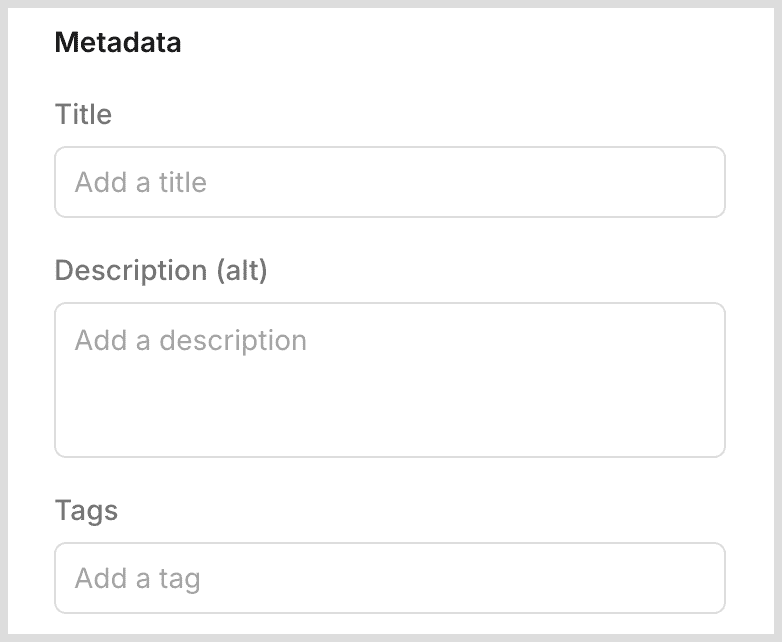
Section titled “Video name and description”The name and description will be automatically populated from the video’s Title and Description in your Sirv account. Add them in the Metadata section of the video’s preview:
You can use the Sirv API to programmatically add a meta description or meta title.
Alternatively, you can apply the name and description in your HTML, via the data-title and data-description attributes. For example:
<div class="Sirv" data-src="https://demo.sirv.com/video.mp4" data-title="Video title" data-description="Video description"></div>JSON-LD will still be injected if the video has no title or description, but you’ll gain the biggest SEO benefit if you populate those fields.
Button color
Section titled “Button color”Try the Sirv Media Viewer code generator to choose a different button color and other viewer settings.
To change the button color, add the following CSS styles:
-
Default state:
.smv .smv-sirv-video.video-js .vjs-big-play-button -
On hover/focus:
.smv-sirv-video.video-js:hover .vjs-big-play-button,.smv-sirv-video.video-js .vjs-big-play-button:focus
The following example creates a 50% opacity yellow button, with 100% opacity on hover:
<style type="text/css"> .smv .smv-sirv-video.video-js .vjs-big-play-button {  background-color: rgba(250, 251, 0, 0.5); }
 .smv-sirv-video.video-js:hover .vjs-big-play-button, .smv-sirv-video.video-js .vjs-big-play-button:focus {  background-color: rgba(250, 251, 0, 1); }</style>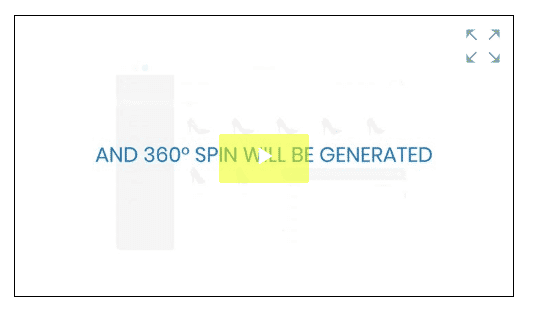
Yellow button, default state
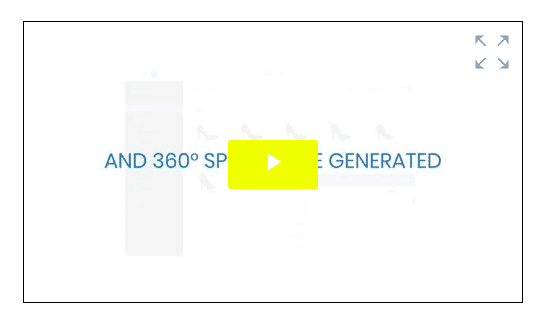
Yellow button, on hover/focus
Videos and images
Section titled “Videos and images”Videos can be shown alongside static, zoomable or 360 spinning images. Thumbnails are automatically generated, to switch between assets:
Sample code:
<div class="Sirv"> <div data-src="https://demo.sirv.com/demo/303/testing.mp4"></div> <div data-src="https://demo.sirv.com/demo/303/benefits.mp4"></div> <div data-src="https://demo.sirv.com/demo/303/0.jpg" data-type="zoom"></div> <div data-src="https://demo.sirv.com/demo/303/1.jpg" data-type="zoom"></div> <div data-src="https://demo.sirv.com/demo/303/2.jpg" data-type="zoom"></div></div>Video thumbnail
Section titled “Video thumbnail”Custom video thumbnail
Section titled “Custom video thumbnail”The image displayed before your video plays is called the thumbnail (or poster). The thumbnail image also determines the gallery thumbnail, if your video is part of a gallery.
The default thumbnail is the frame at one-third into the video duration. You can choose a different image by adding thumbnail in the data-options, like so:
<div class="Sirv"> <div data-src="https://demo.sirv.com/videos/e-tron_quattro.mp4" data-options="thumbnail: https://demo.sirv.com/videos/audi_e-tron_50_quattro.jpg"></div></div>Any image URL can be shown as the thumbnail - either from your Sirv account or an image elsewhere on the web. You can also set the thumbnail as a different frame from the video.
The example below would set the frame from 11.8 seconds into the video:
<div class="Sirv"> <div data-src="https://demo.sirv.com/videos/e-tron_quattro.mp4" data-options="thumbnail: 11.8"></div></div>Show image from video
Section titled “Show image from video”You can show any frame from a video as an image. Just append ?thumbnail=250 to the video URL (where 250 is the width in px).
The following example sets width of 300px:
https://demo.sirv.com/videos/e-tron_quattro.mp4?thumbnail=300Choose a particular frame from the video by setting video.thumbPos. The value looks like xxx.xx where xxx is the number of seconds and xx is the frame number for that second.
The following example shows frame 8 from the 34th second:
https://demo.sirv.com/videos/e-tron_quattro.mp4?thumbnail=300&video.thumbPos=34.8Use that image however you wish - as the video thumbnail in your gallery or just as an image on its own.
Video thumbnail SEO
Section titled “Video thumbnail SEO”The thumbnail and poster images will automatically inherit an alt tag with the meta description of your image.
If you have set a data-description for your video, then that text will be used for the alt tag instead.
Alterantively, you can add the data-alt attribute and that will take precedence as the source of the alt tag. For example:
<div class="Sirv"> <div data-src="https://demo.sirv.com/videos/e-tron_quattro.mp4" data-options="thumbnail: https://demo.sirv.com/videos/audi_e-tron_50_quattro.jpg" data-alt="Your own alt text here"></div></div>If none of the above methods are used, then no alt tag will be added to the thumbnail or poster.
Open video from link
Section titled “Open video from link”It’s possible to open a fullscreen video on click of a link. Add this onClick event to your link:
<a class="video" href="https://demo.sirv.com/example.mp4" onclick="showFullscreenVideo(this.href); event.preventDefault();">Link to video</a>Add this JavaScript code to your page:
<script>  function showFullscreenVideo(url) {    const smvVideoId = 'smv-fullscreen-video';    const options = 'autostart: false; fullscreen.always: true; video.autoplay: true; video.loop: true;';
    const onReady = (viewer) => {      if (viewer.id  === smvVideoId) {        Sirv.off('viewer:ready', onReady);        viewer.fullscreen();      }    }
    const onFullscreenOut = (viewer) => {      if (viewer.id  === smvVideoId) {        Sirv.off('viewer:fullscreenOut', onFullscreenOut);
        setTimeout(() => {          try {            Sirv.stop(`#${smvVideoId}`);          } finally {            document.querySelector(`#${smvVideoId}`).remove();          }        });      }    }
    document.body.insertAdjacentHTML('beforeend',        `<div id="${smvVideoId}" class="Sirv" style="position: absolute; top: -100px; width: 100px; height: 100px; opacity: 0; pointer-events: none;" data-src="${url}" data-options="${options}"></div>`    );
    Sirv.on('viewer:ready', onReady);    Sirv.on('viewer:fullscreenOut', onFullscreenOut)    Sirv.start(`#${smvVideoId}`);  }</script>
You can change the settings of the video by adjusting the const options variable.
Iframe embed
Section titled “Iframe embed”You can embed a video in an iframe instead of a div. Append ?embed to the video URL, for example:
<iframe src="https://demo.sirv.com/video.mp4?embed" width="100%" height="100%" frameborder="0" allowfullscreen=""></iframe>HLS streaming resolutions
Section titled “HLS streaming resolutions”Four HLS streams will be generated when you upload your video to Sirv:
- 1080p (1920 × 1080)
- 720p (1280 × 720)
- 480p (854 × 480)
- 360p (640 × 360)
More streams can be generated, from a choice of:
- 2160p (3840 × 2160)
- 1440p (2560 × 1440)
- 240p (426 × 240)
Videos are scaled by their shortest dimension, so a portrait video (height greater than width) will be scaled by its width.
For example, the 720p stream for a video of dimensions 1080 × 1220 would be scaled to 720 × 814 (w × h). Streams are divided into 2-second segments.
The first 2 seconds will be preloaded when the page loads, to permit instant playback. Subsequent 2-second segments will start downloading once the video starts playing.
Supported formats & codecs
Section titled “Supported formats & codecs”All common video formats and codecs are supported by Sirv video streaming, including:
- MP4
- MOV
- WMV
- AVI
- AVCHD
- MKV
- WEBM
- MPEG-2
- Many others…
There are no known unsupported formats - if any are identified, they will be listed here.
Video file size limit
Section titled “Video file size limit”The largest video Sirv makes streams from depends on your plan:
| Plan | Largest video |
|---|---|
| Free | 20 MB |
| Trial | 100 MB |
| Business | 512 MB |
| Enterprise | 1 GB |
If a video is larger, it is stored but no streams are made for it.
Prevent cumulative layout shift
Section titled “Prevent cumulative layout shift”Cumulative layout shift (CLS) is the unexpected movement of page content, such as text or images, while the page is loading.
This can occur if the video has no size associated to it in the HTML page. To prevent content from jumping, add a style to the div with either height/width or aspect ratio.
This example sets the aspect ratio of the video, which is 1920/1080:
<div class="Sirv" style="aspect-ratio:1920/1080"> <div data-src="https://demo.sirv.com/video.mp4"></div></div>Videos from YouTube, Vimeo etc.
Section titled “Videos from YouTube, Vimeo etc.”As well as adding streaming Sirv videos to your gallery, you can also add videos from almost any other source including:
- YouTube
- Vimeo
- Other video services
- Your own hosting
Refer to the external video embedding documentation.