Image Vignette
 By Jake Brumby, Customer Success DirectorUpdated
Short answer
Add vignette.value to the image URL to darken its edges, from 0 to 100, where 20 is the default and higher values reach further in. Set the color with vignette.color, as an HTML color name or a hex code without the # sign, for example ?vignette.color=ff0000&vignette.value=50.
After reading this you will know
- How to add a vignette to an image from its URL
- How to set its size and color
Darken the edges of an image, or fade them into any color, by adding vignette to its URL. Try it in the demo below.

 OriginalWith options
575C60vignette.value controls how far into the image the vignette appears. It is set with a number from 0 to 100. The default is 20.
https://demo.sirv.com/vase.jpg?vignette.value=50
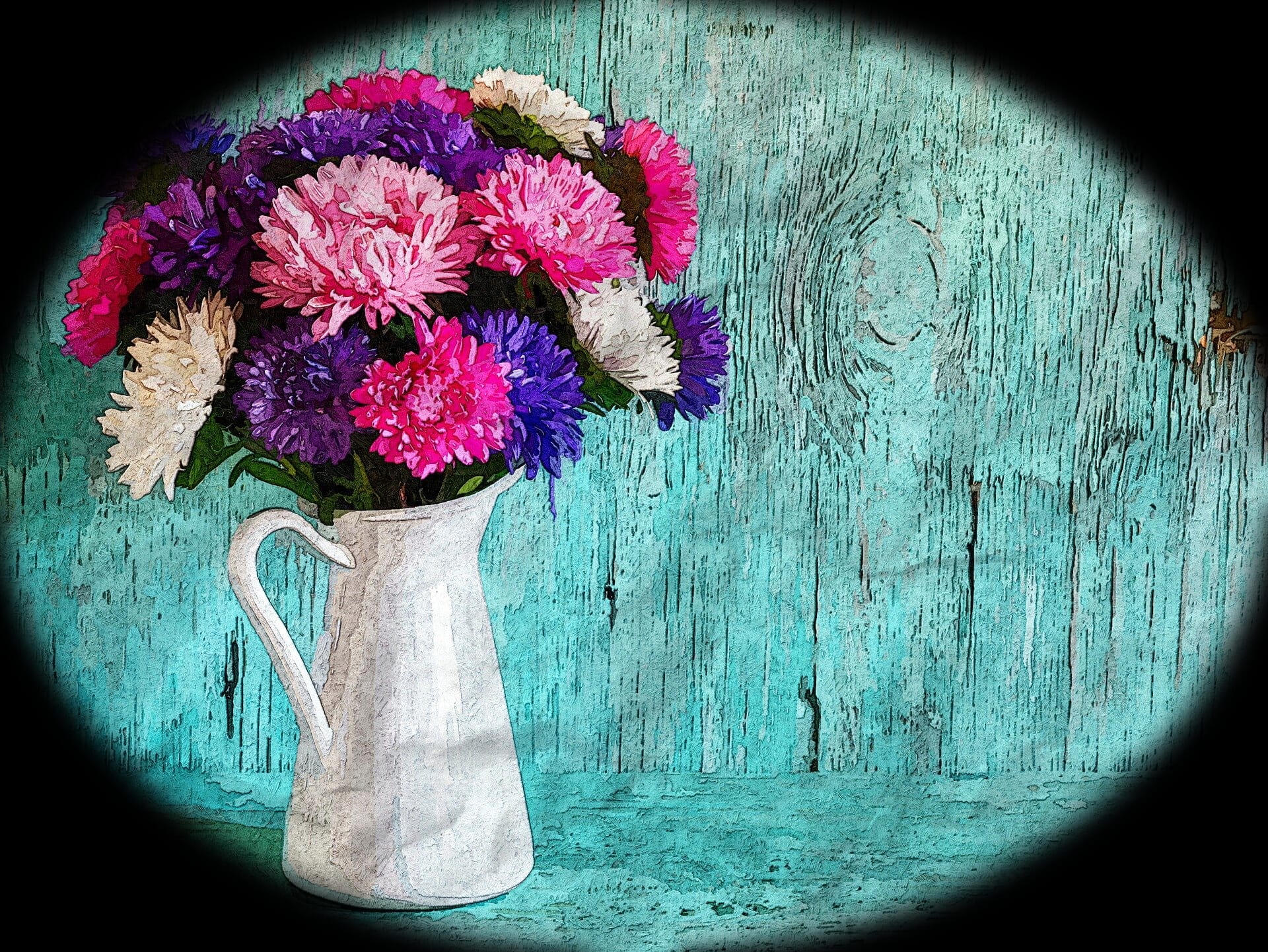
vignette.color sets the color of the vignette. The values are set with hex RGB/RGBA or an HTML color name.
https://demo.sirv.com/vase.jpg?vignette.color=red
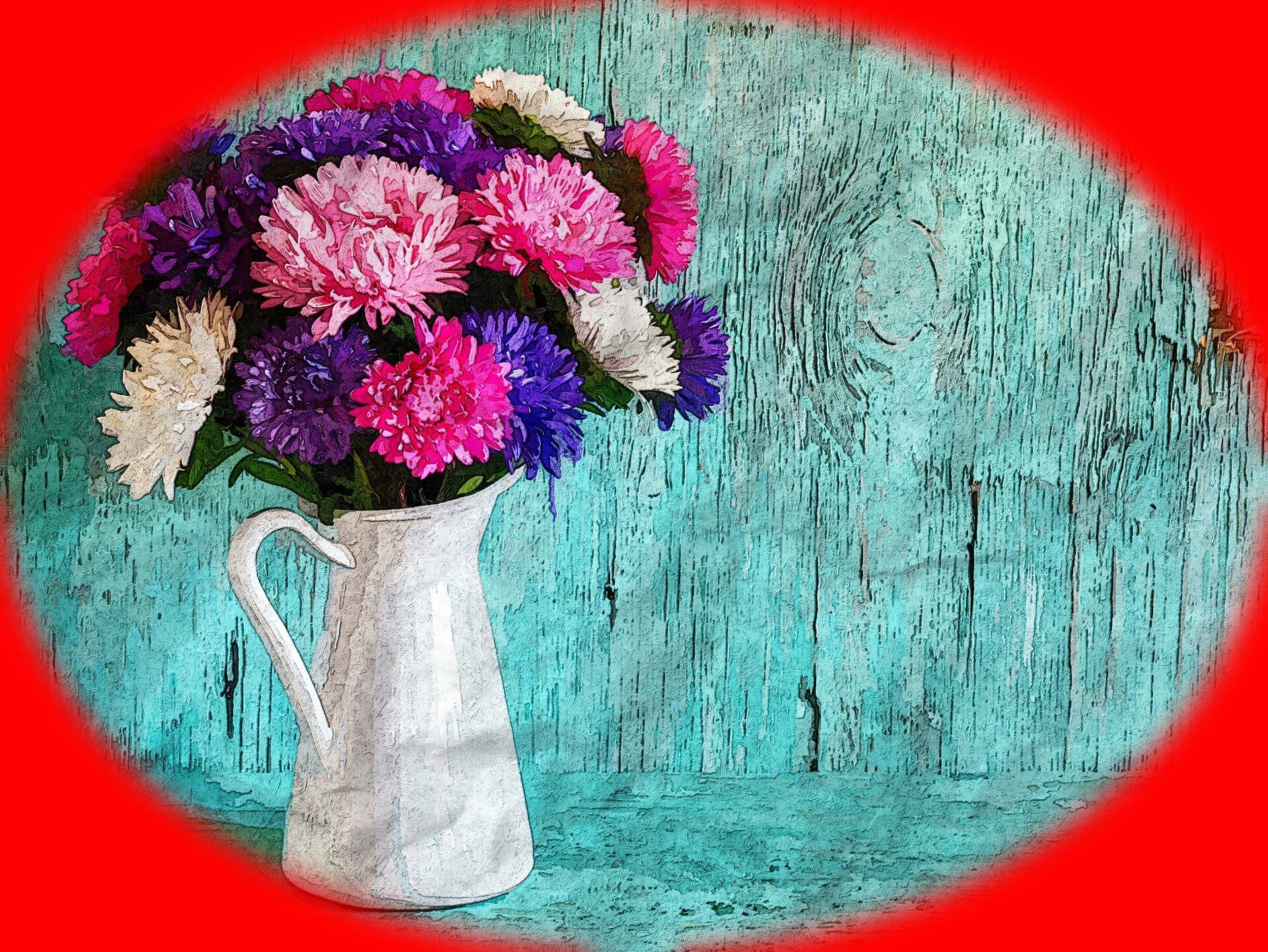
If you set the color with a hex value, don’t include a ’#’ character in the URL. For example:
https://demo.sirv.com/vase.jpg?vignette.color=ff0000
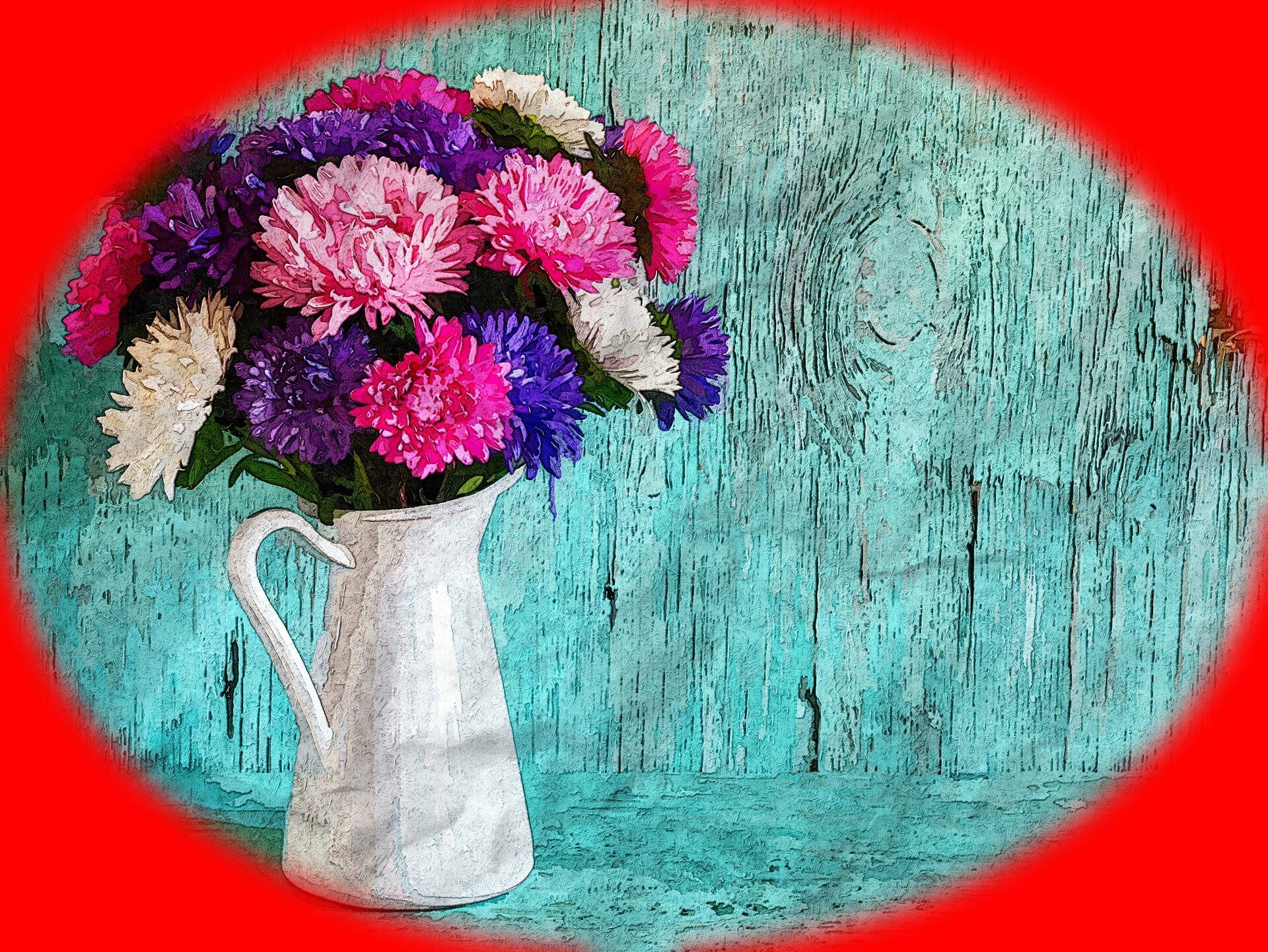
Here are examples of vignette.value and vignette.color together:
https://demo.sirv.com/vase.jpg?vignette.color=blue
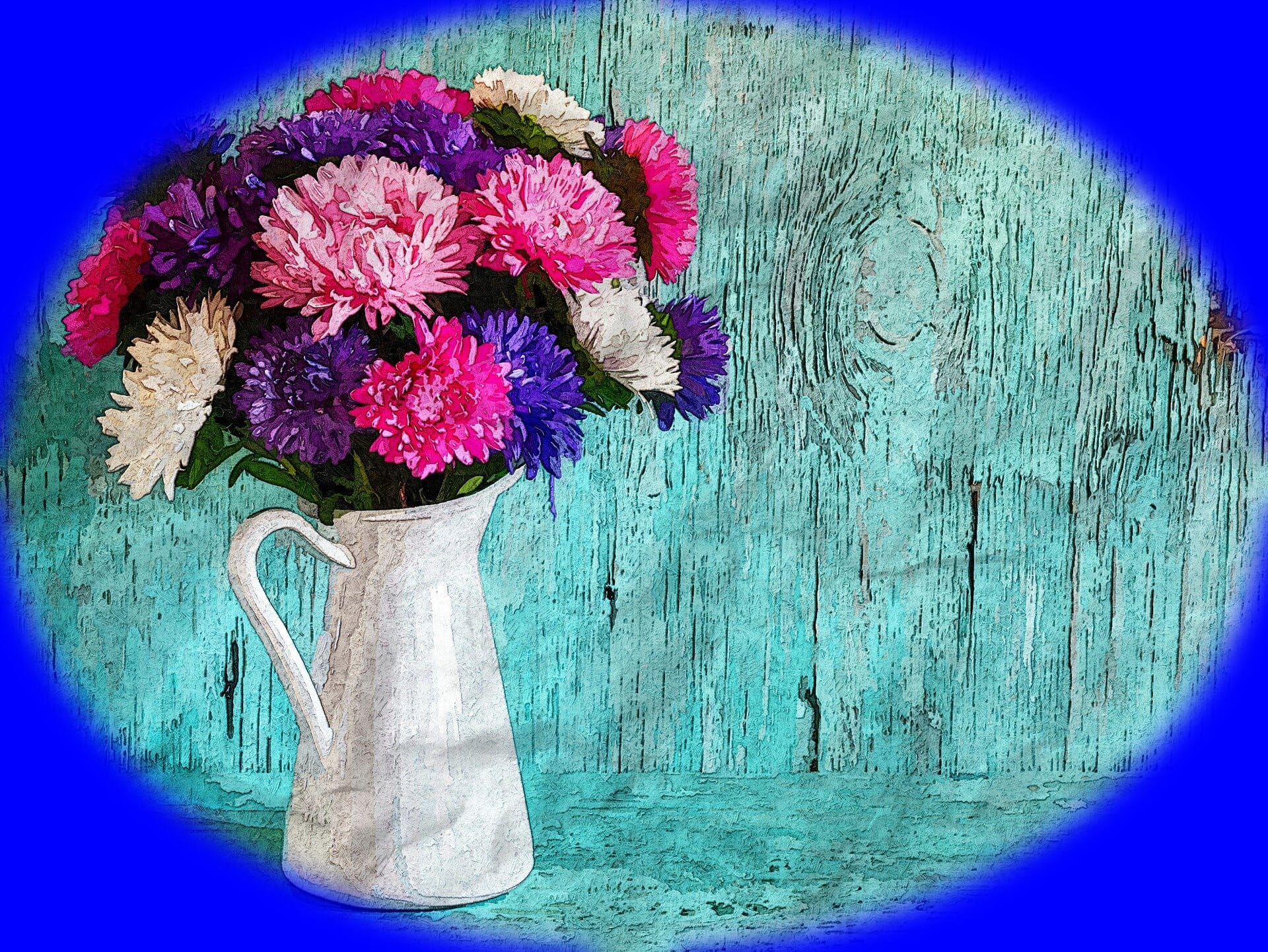
https://demo.sirv.com/vase.jpg?vignette.color=ff8c00

https://demo.sirv.com/vase.jpg?vignette.color=ffffff
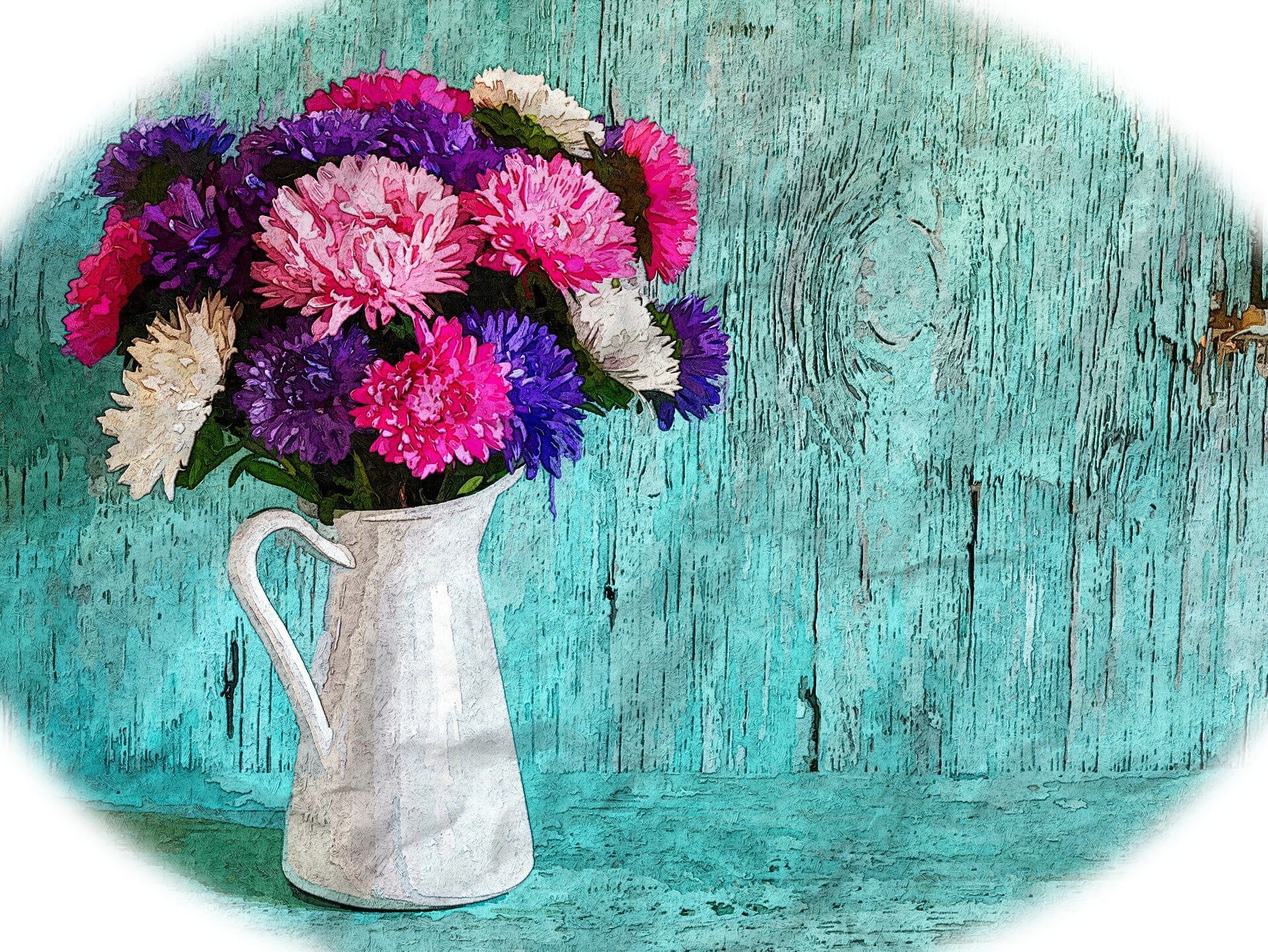
Pick a vignette color that matches your page background to blend the image edges into the page.