Create Animated GIFs from 360 Spins
 By Anne-Marie Fletcher, Customer Success TeamUpdated
Short answer
Add ?image to the end of a .spin URL, and Sirv serves the spin as an animated image. Set the speed with image.speed, the frames with image, from 2 to 144, and add rules to rotate, jump or zoom. Sirv serves it as WebP when the browser supports it, otherwise as a GIF.
After reading this you will know
- How to turn a 360 spin into an animated GIF
- How to set the speed, frames and movement
- Which format the animation is served in
Sirv can serve your spins as GIFs, or turn them into videos. Simply append ?image to your .spin file and you’ll see a GIF.
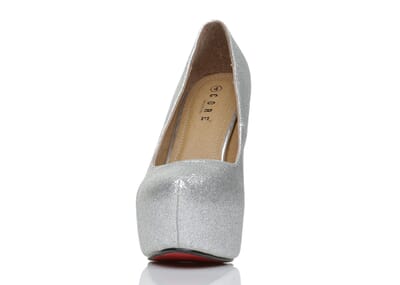
Customize the speed, direction, pause, jump to certain frames and zoom in to create an animated GIF. Try the demo below or scroll down this page for more animated GIF examples.
Frames and format options4
Parameters
Section titled “Parameters”Customize your GIF with the following parameters:
| Parameter | Default | Options | Description |
|---|---|---|---|
image | 72 | numeric | Number of frames in the GIF (from 2-144) |
image.rules | G, L, R, Z | Go to frame, rotate Left, rotate Right, Zoom | |
image.speed | 3000 | numeric (ms) | Time in milliseconds for one full rotation |
image.pause | 0 | numeric (ms) | Pause animation after last frame |
Image rules
Section titled “Image rules”You can set as many image.rules as you wish. Each rule is executed in the order of the URL. The options are:
- G = Go to certain number of degrees
- L = Rotate left by a number of degrees
- R = Rotate right by a number of degrees
- Z = Zoom in (%)
Use the image.speed parameter to set the time in ms for the spin to complete one full rotation. This will set 1500ms:
https://demo.sirv.com/spins/high-heel/high-heel.spin
Same rules, different speeds:
1500ms
3500ms
5000ms
Number of frames
Section titled “Number of frames”Your animated image will contain from 2 to 144 frames, depending on the number of frames in your original spin. The default is 72 frames.
If your spin has more than 72 images, then an appropriate number will be used. For example, a spin with 100 frames will be converted to 50 frames (i.e. every second frame shown).
If you’d like to show all 100 frames, set image to 100:
https://demo.sirv.com/spins/dg/dg.spin?image=100You can reduce the number of frames by setting image to a lower value e.g. this sets a limit of 36 frames:
https://demo.sirv.com/spins/dg/dg.spin?image=36Optimal format
Section titled “Optimal format”For fast loading, Sirv serves GIFs in the most optimal format, which is usually WebP.
This next-gen image format supports animation and transparency like GIF, but optimized to a much smaller file size.
If a browser does not support WebP, then a GIF is served. If you specifically require GIF format, you can apply the format=gif parameter.
You can also apply the gif.lossy parameter to change the lossy compression value (default is 5):
https://demo.sirv.com/PinkBoot/PinkBoot.spin?image&format=gif&gif.lossy=50Examples
Section titled “Examples”This GIF rotates by 60 degrees right (R60), goes to 240 degrees (G240), then zooms by 100% (Z100) while rotating left by 80 degrees (L80):
https://demo.sirv.com/spins/dg/dg.spin?h=300&image.rules=R60G240Z100L80Photography: Martini Studios
This GIF jumps to 180 degrees (G180), then zooms to 100% (Z100) while rotating left by 120 degrees (L120).
Next it zooms out to 0% (Z0) while rotating right by 180 degrees (R180), then rotates right by 200 degrees (R200):
https://demo.sirv.com/PinkBoot/PinkBoot.spin?h=300&image.speed=6000&image.pause=2000&image.rules=G180Z100L120Z0R180R200This GIF jumps to 220 degrees (G220), rotates 220 degrees right (R220), then zooms to 70% (Z70) while rotating 80 degrees left (L80):
https://demo.sirv.com/spins/bbq/bbq.spin?w=500&image.rules=G220R220Z70L80&image.speed=5000&image.pause=2000&image=100This GIF rotates 180 degrees left (L180), then 180 degrees right (R180):
https://demo.sirv.com/spins/Magnos/Magnos.spin?h=300&image.rules=L180R180The simplest GIF can simply rotate:
https://demo.sirv.com/spins/Magnos/Magnos.spin?h=300&imageCopy the URL of any spin (even one made from a video), add the image parameter, and use the GIF anywhere you can show an image.