PNG Optimization
 By Jake Brumby, Customer Success DirectorUpdated
Short answer
Sirv optimizes PNG images by default and serves each one as WebP or as an optimized PNG, whichever is smaller. It runs up to 20 passes, usually in about 0.15 seconds, and one test image went from 80 KB to 20 KB. Add png.optimize=true if you set format=png and still want optimization.
After reading this you will know
- How Sirv optimizes PNG images automatically
- Which PNG sizes are optimized
- How to keep optimization when you force the PNG format
Sirv optimizes PNG images by default, which makes their files much smaller. Compare the file sizes in the demo below.
Sirv automatically serves your images in the ‘optimal’ format, which will automatically serve your images as either WebP or optimized PNG, whichever is more efficient.
The amount of PNG optimization applied by Sirv depends on the image size. The smaller the image, the greater the optimization (in steps from 300x300, 500x500, 700x700, 900x900, 1200x1200).
PNG images larger than 1500x1500 pixels are not optimized by default. To force an image to be always served as PNG to all browsers, set format to png:
https://demo.sirv.com/look.jpg?format=png
format lets you control PNG optimization with true/false. By default, PNG optimization is enabled for the optimal format and disabled if format is set to a different value.
If you have changed the format value and wish to enable PNG optimization, set it to true, like so:
https://demo.sirv.com/look.jpg
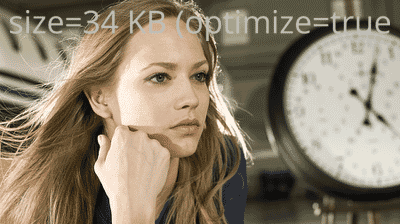

&text.font.family=Roboto Condensed&text.font.size=14px&text.color=white)
PNG optimization dramatically speeds up delivery of your images. Sirv performs up to 20 passes to find the best possible optimizations.
This optimization process is very fast, usually completing within 0.15 second. The optimized image is then cached and ready to serve to all for future viewers.
Compare the unoptimized image to the left (80 KB) against the optimized image to the right (only 20 KB):
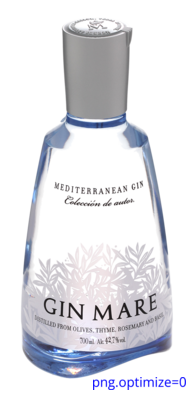
Not optimized
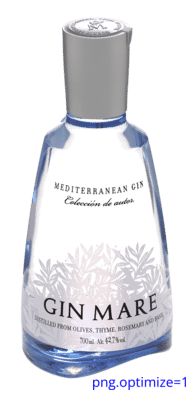
Optimized
Both images look the same, but the optimized one is four times smaller.