WordPress 360 Spins, Image Zoom and Media Galleries
 By Anne-Marie Fletcher, Customer Success TeamUpdated
 Sirv for WordPress1. In WordPress, go to Plugins › Add New, search “Sirv”, then Install and Activate.2. Open the Sirv settings page and log in with your Sirv account, or create a free one right there.3. Click Enable, then Sync to copy your media library to Sirv.Open on WordPress.org
Short answer
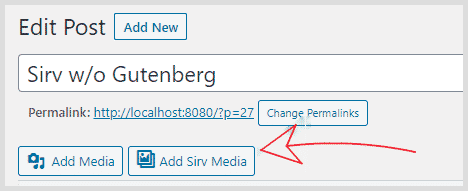
Install the Sirv plugin, then add a Sirv media block in Gutenberg or click Add Sirv Media in the Classic Editor. You can embed 360 spins, videos, zoomable images, responsive and static images. Each gallery or spin is saved as a shortcode, so you can reuse it on other pages and posts.
After reading this you will know
- How to add spins, videos, zooms and images to WordPress posts
- How Gutenberg and the Classic Editor differ
- How Sirv shortcodes and featured images work
Sirv supports plenty of media you can embed in your pages or posts:
You can also organize your media by using shortcodes.
Gutenberg vs Classic Editor differences
Section titled “Gutenberg vs Classic Editor differences”Sirv fully supports both Gutenberg and Classic Editor, and Elementor too. Here’s how to add a Sirv media block in Gutenberg:
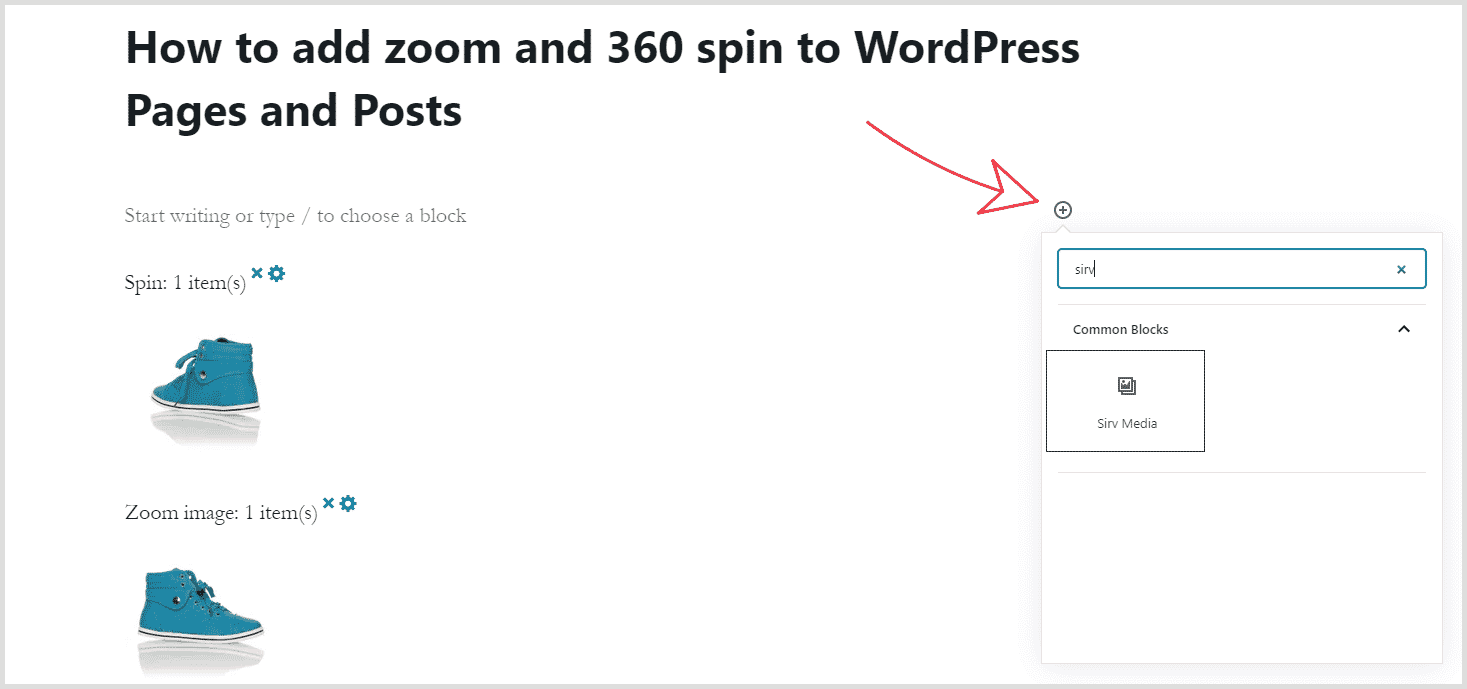
Add 360 degree spin to a WordPress page or post
Section titled “Add 360 degree spin to a WordPress page or post”Enjoy life-like 360 spins. Display spins on its own or as part of an image gallery. 1. Install the Sirv plugin on your WordPress site.
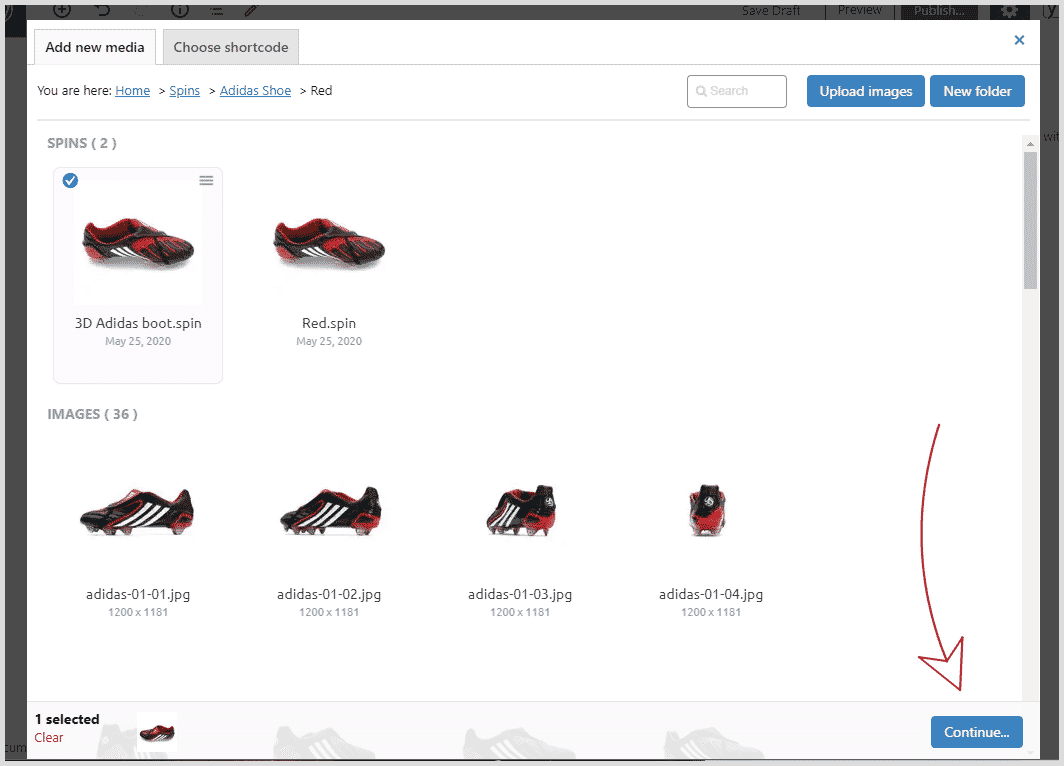
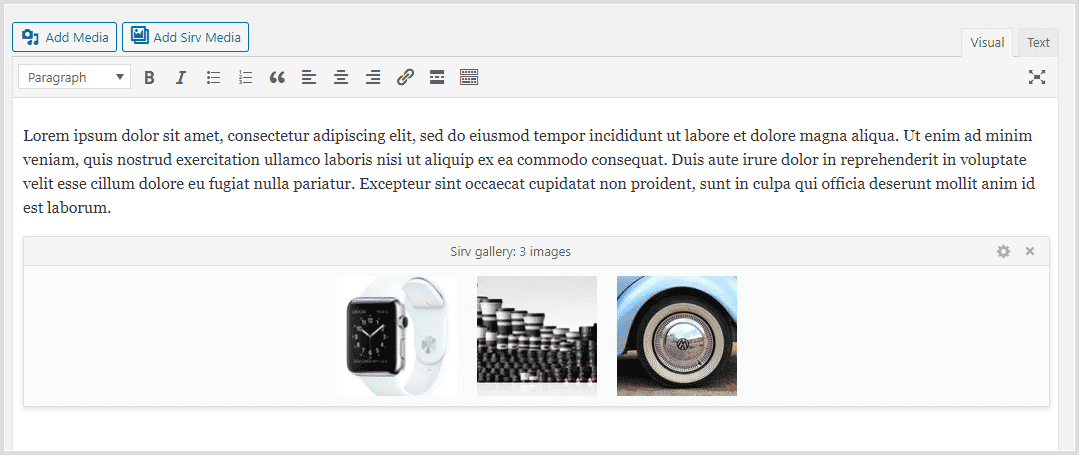
2. Click “Add Sirv Media” button in your page or post: 3. Select 360 spin image in your Sirv Library > Click “Continue”:
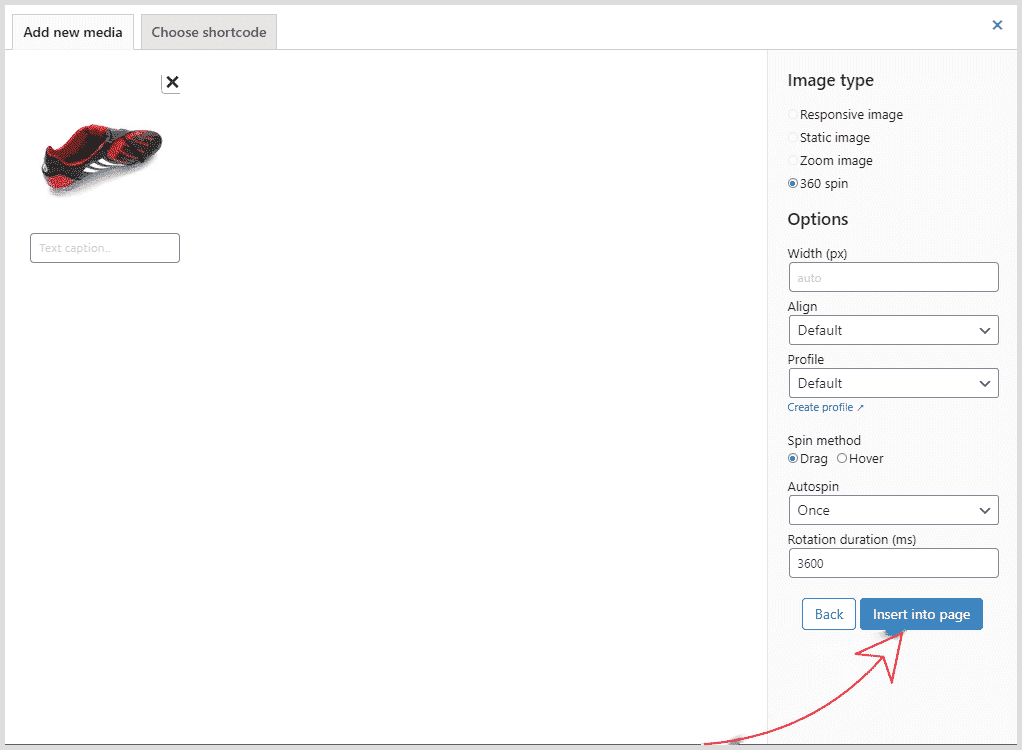
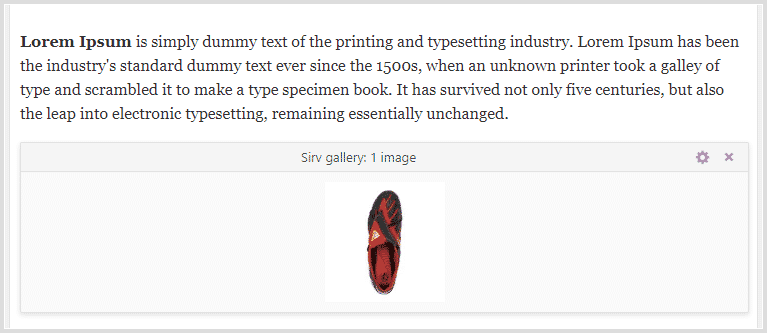
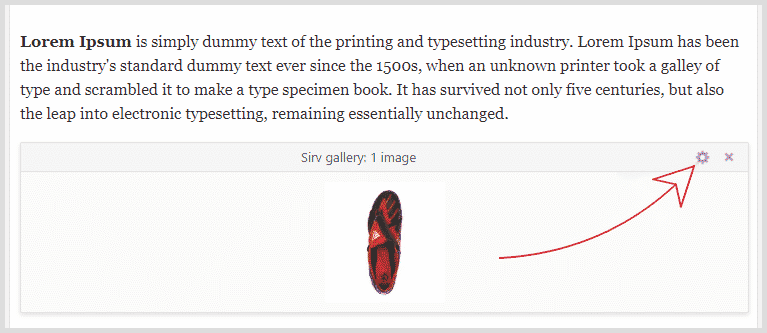
8. Your spin is now fully interactive in your page/post (if it doesn’t appear, try these WordPress fixes).
Add zoomable images to a WordPress page or post
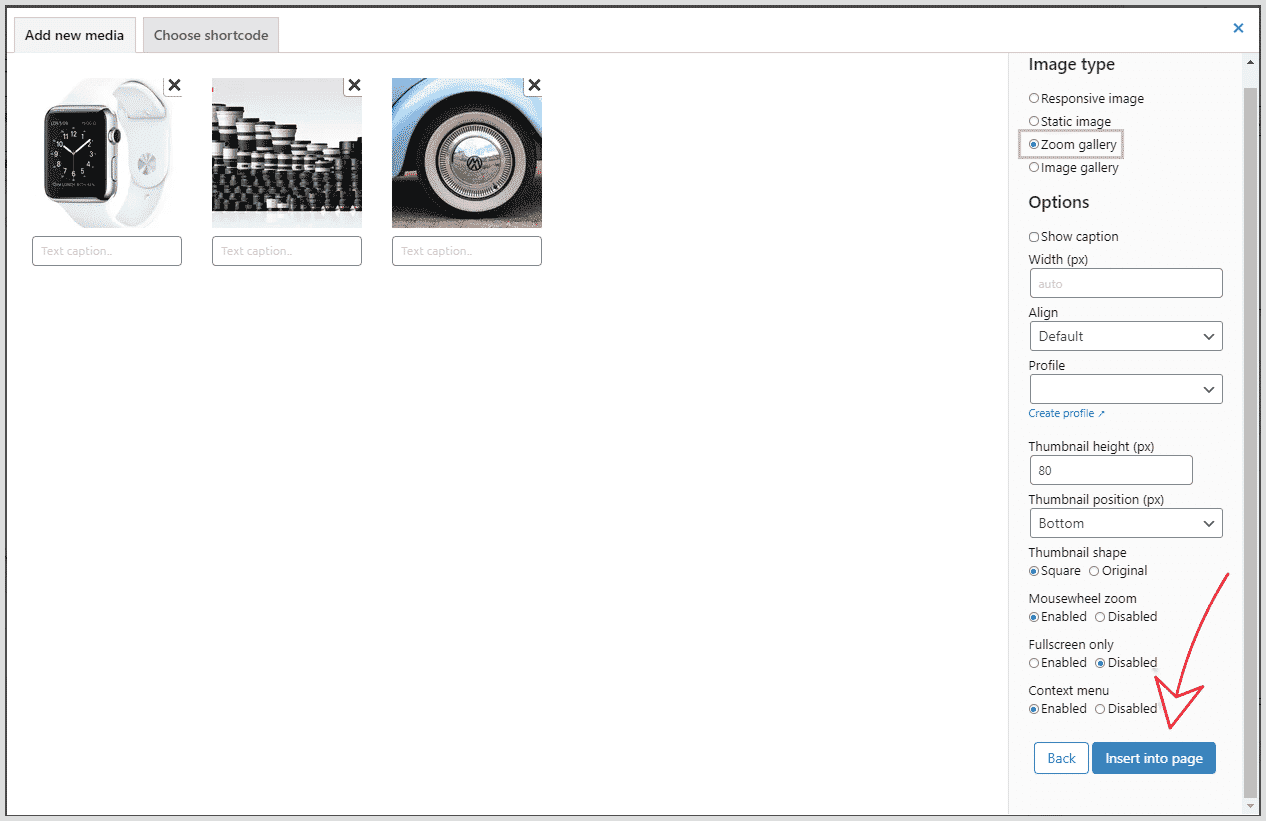
Section titled “Add zoomable images to a WordPress page or post”Visitors love seeing close-up detail of any image. The larger your original images are, the deeper the zoom. 1. Install Sirv plugin on your WordPress site.
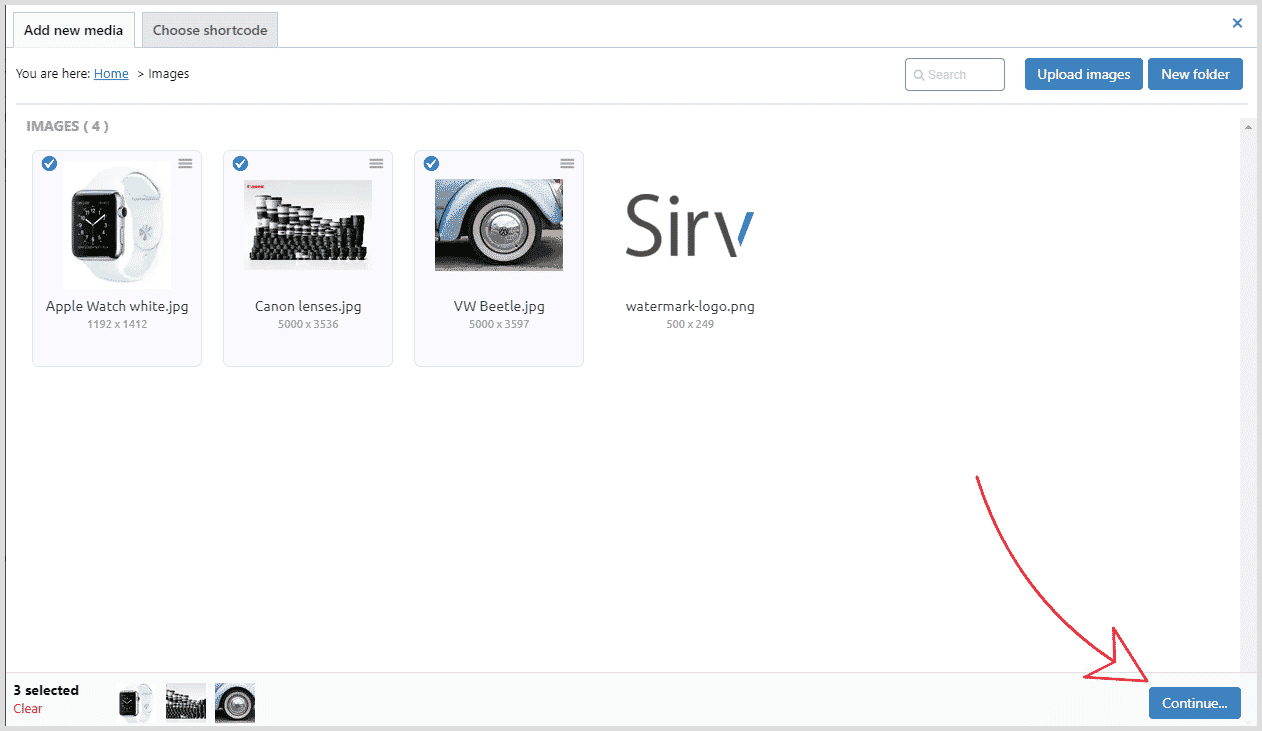
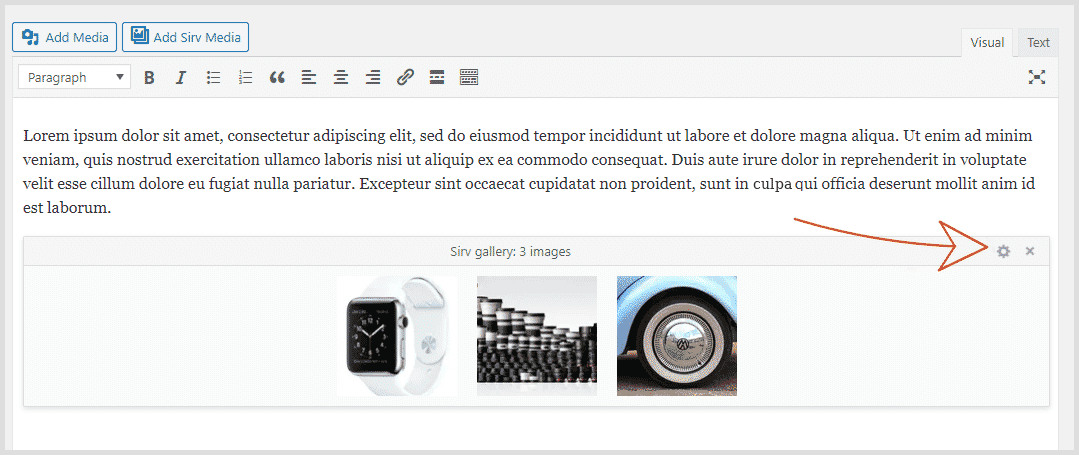
2. Click the “Add Sirv Media” button in your page or post. 3. Select images to be zoomed, then click “Continue”:
Add responsive images to WodPress page or post
Section titled “Add responsive images to WodPress page or post”A single image or a gallery of images can be added without the zoom effect. The image(s) will be optimized and resized on-the-fly.
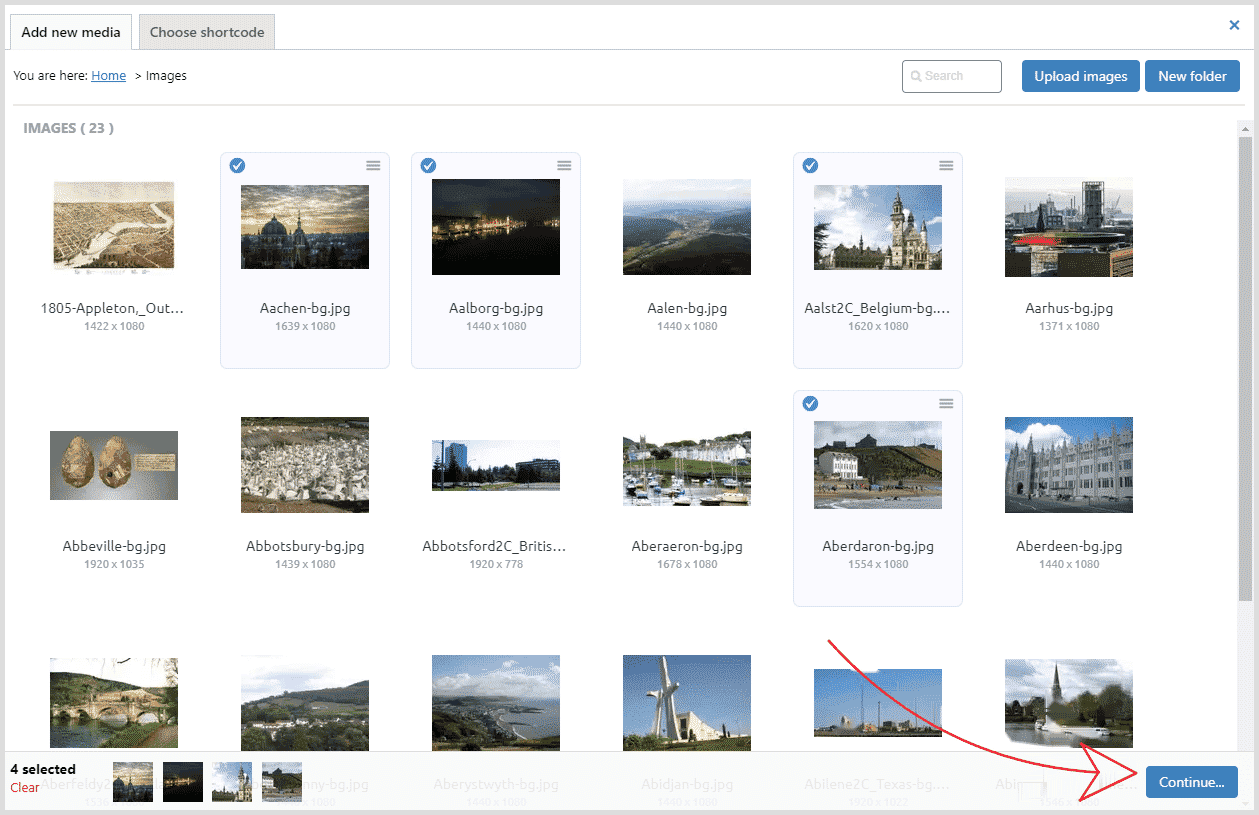
They will load fast and will look perfect on any viewing device. 1. Install Sirv plugin on your WordPress site. 2. Click “Add Sirv Media” button in your page or post.
3. Select images you want to be responsive > Click “Continue”:
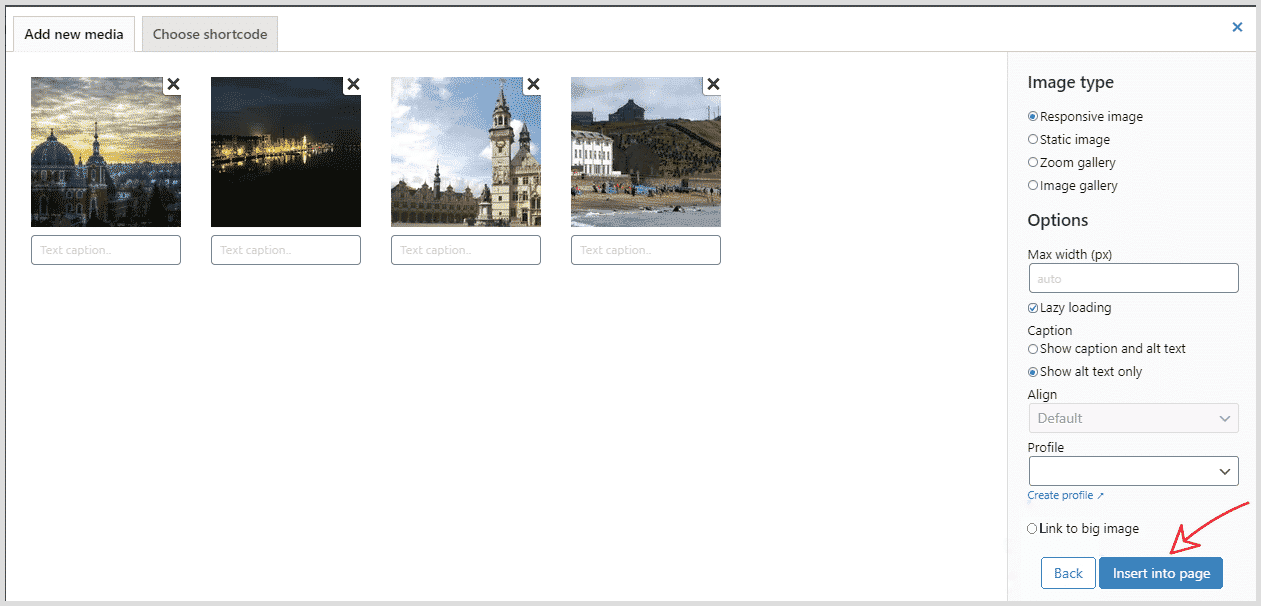
You can set the maximum width of your images, whether to show the caption or not. Lazy loading will automatically resize and optimize your images for the perfect user experience.
5. Responsive images will appear in page/post as image embeds.
Add a static image to a WordPress page or post
Section titled “Add a static image to a WordPress page or post”If you’d like more control over your images, you can load regular static images from Sirv. 1. Install Sirv plugin on your WordPress site.
2. Click “Add Sirv Media” button in your page or post. 3. Select image from your Sirv Library > Click “Continue”:
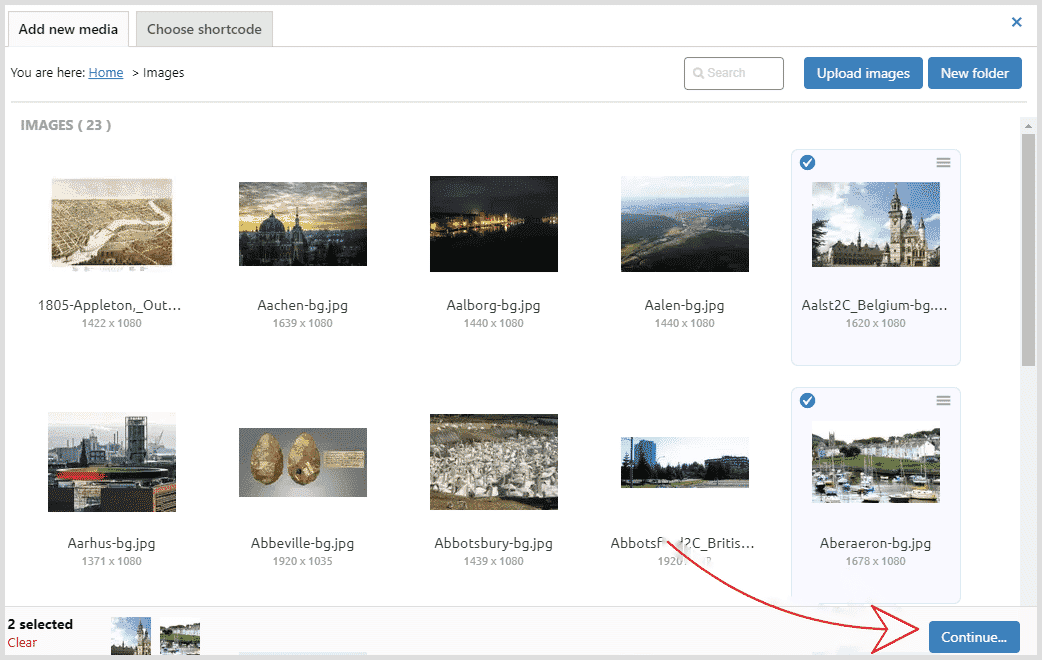
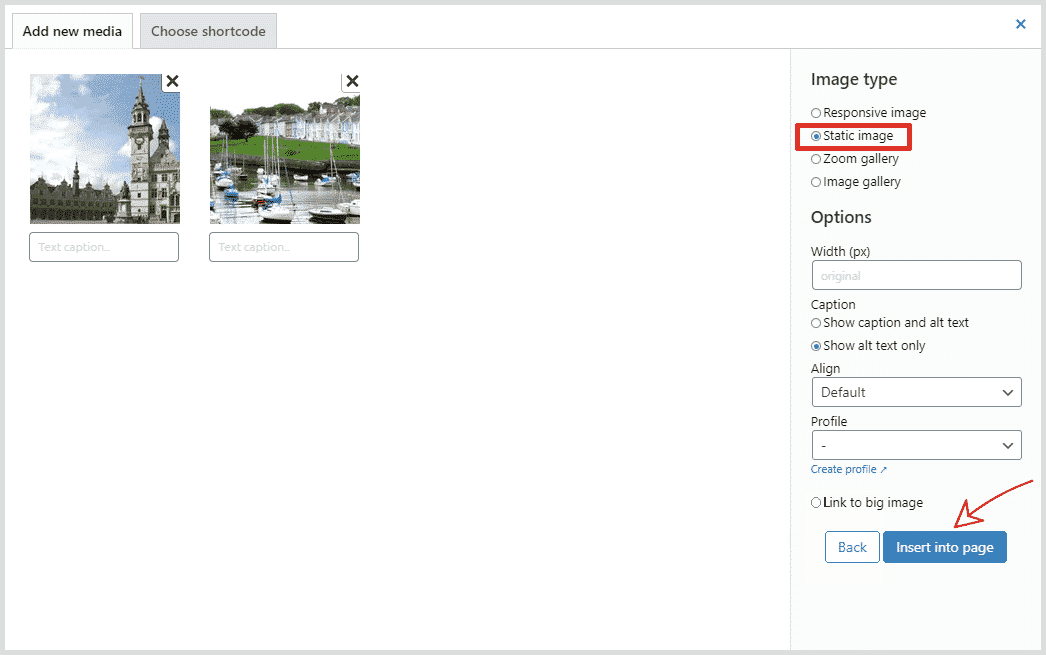
5. The images will appear in your post or page just like regular WordPress images would (images in your theme’s CSS can be served from Sirv too).
You can go to the ‘Text’ tab in your editor and apply different transformations like changing size, contrast, sharpness, and many more.
Add a video to a WordPress page or post
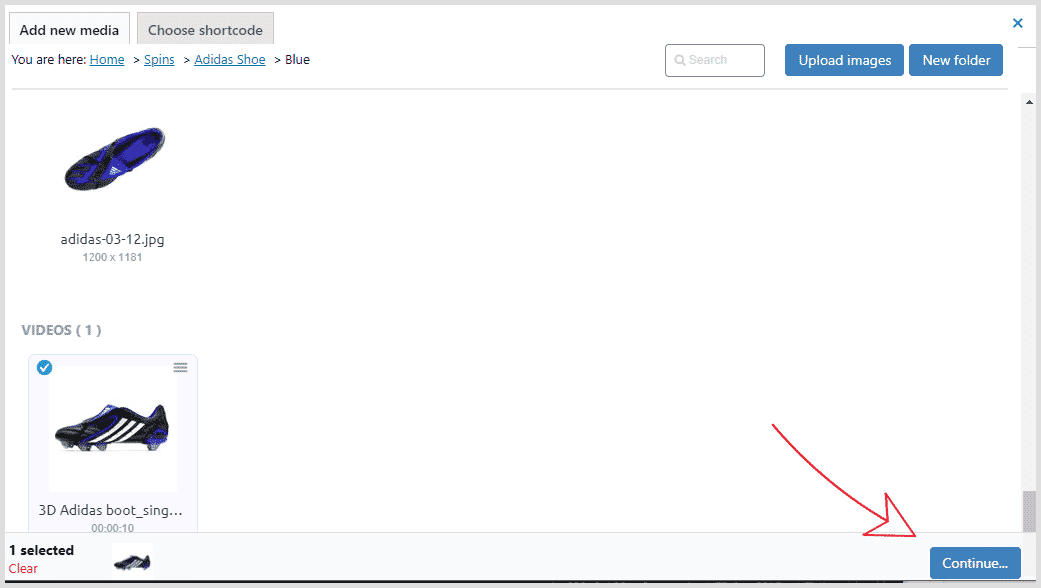
Section titled “Add a video to a WordPress page or post”1. Install Sirv plugin on your WordPress site. 2. Click “Add Sirv Media” button in your page or post. 3. Select your video (or videos) and click ‘Continue’:
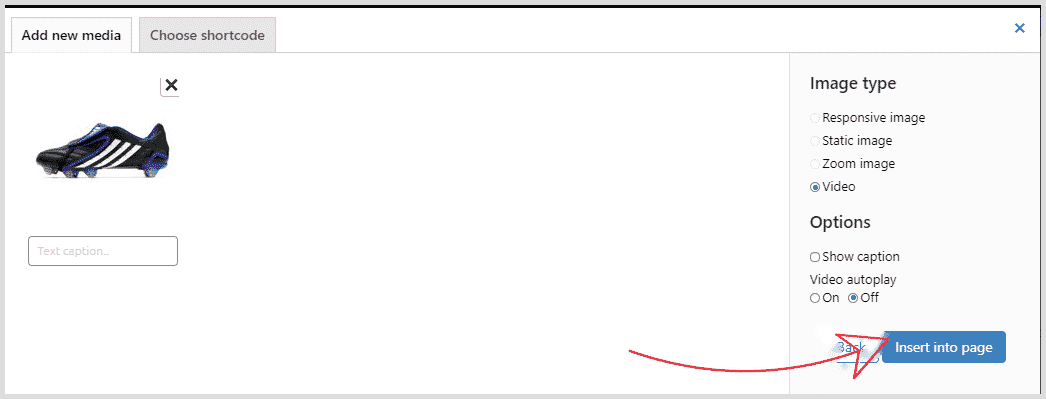
Sirv shortcodes explained
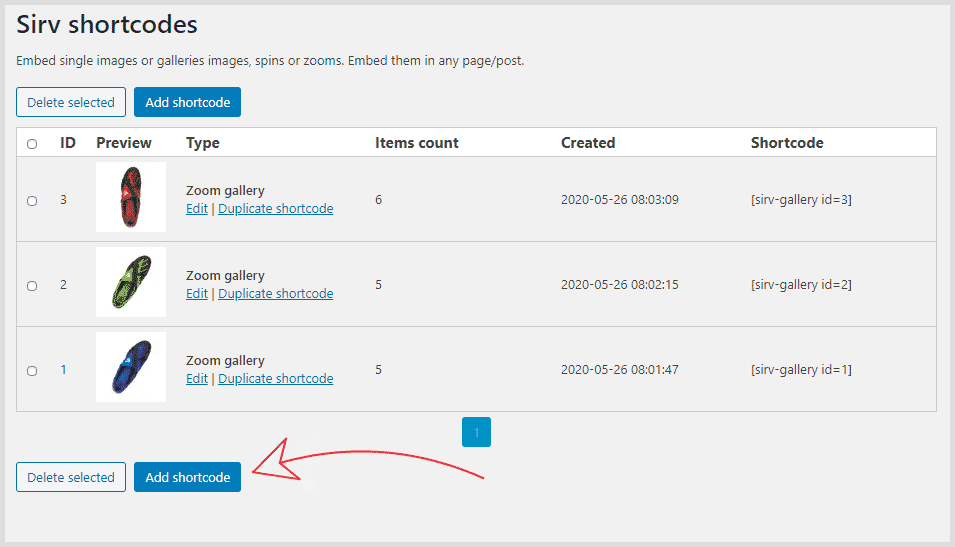
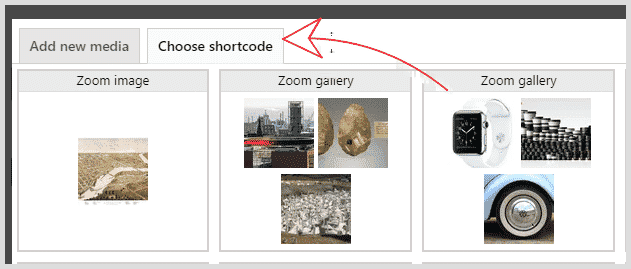
Section titled “Sirv shortcodes explained”Sirv shortcodes are a convenient way to reuse and embed image/video galleries and 360 spins.
Whenever you add Sirv media and create an image gallery, 360 spin, image zoom, or a ‘zoom gallery’, they will be saved in the ‘shortcodes section’ of Sirv settings.
Featured images and Sirv
Section titled “Featured images and Sirv”By default, WordPress asks you to choose featured images from your Media Library.
You can use the ‘Featured image from URL’ plugin to choose featured images from your Sirv account or by simply entering the image URL.
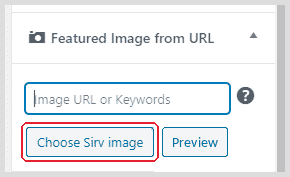
This will allow you to use your Sirv media as featured images for posts and WooCommerce products.