Contrast
 By Jake Brumby, Customer Success DirectorUpdated
Short answer
Add contrast to the image URL to raise or lower the contrast, for example ?contrast=30 or ?contrast=-30. The scale runs from -100, low contrast, to 100, high contrast, and the default is 0. Sirv creates the adjusted image instantly from your original, so the file in your account stays unchanged.
After reading this you will know
- How to change the contrast of an image from its URL
- Which values to use, and what the default is
Make the light and dark parts of an image stand apart more, or less, by adding contrast to its URL. Try it in the demo below.
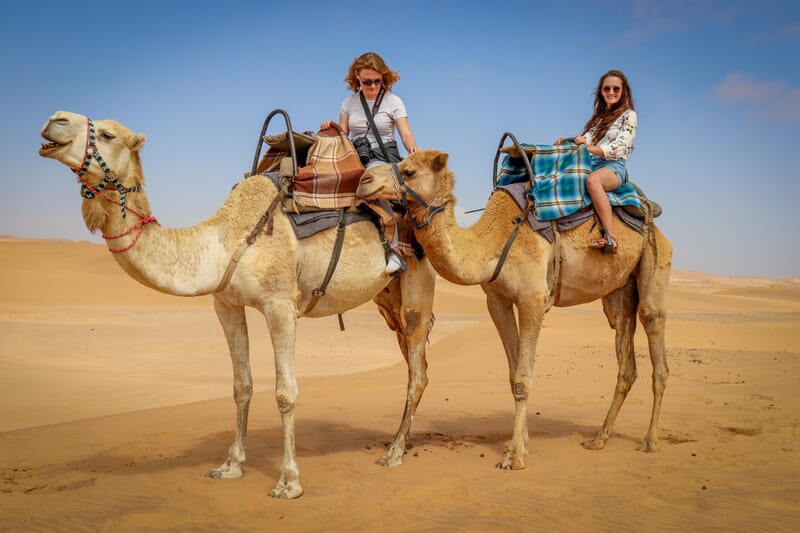
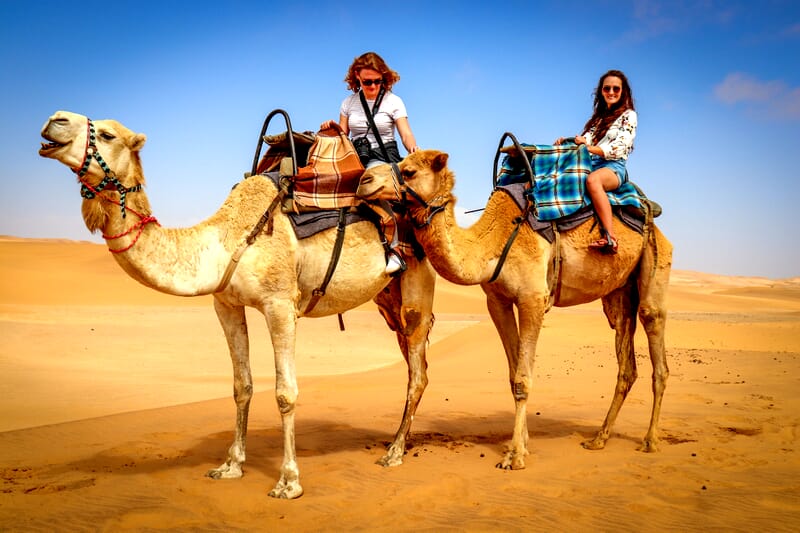
contrast is set on a scale from -100 (low contrast) to 100 (high contrast).
The default is 0.
https://demo.sirv.com/namib.jpg?contrast=30
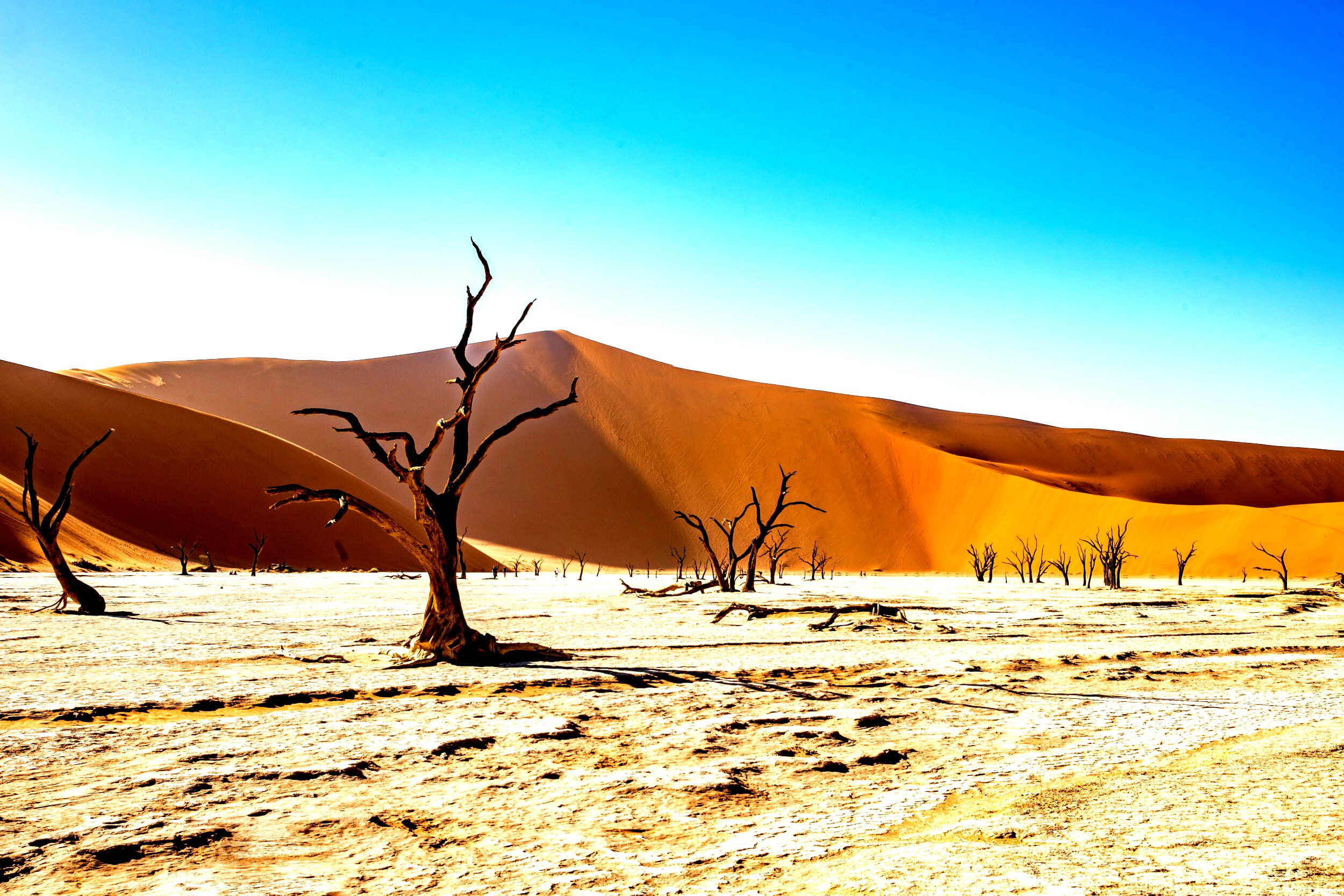
https://demo.sirv.com/namib.jpg?contrast=-30
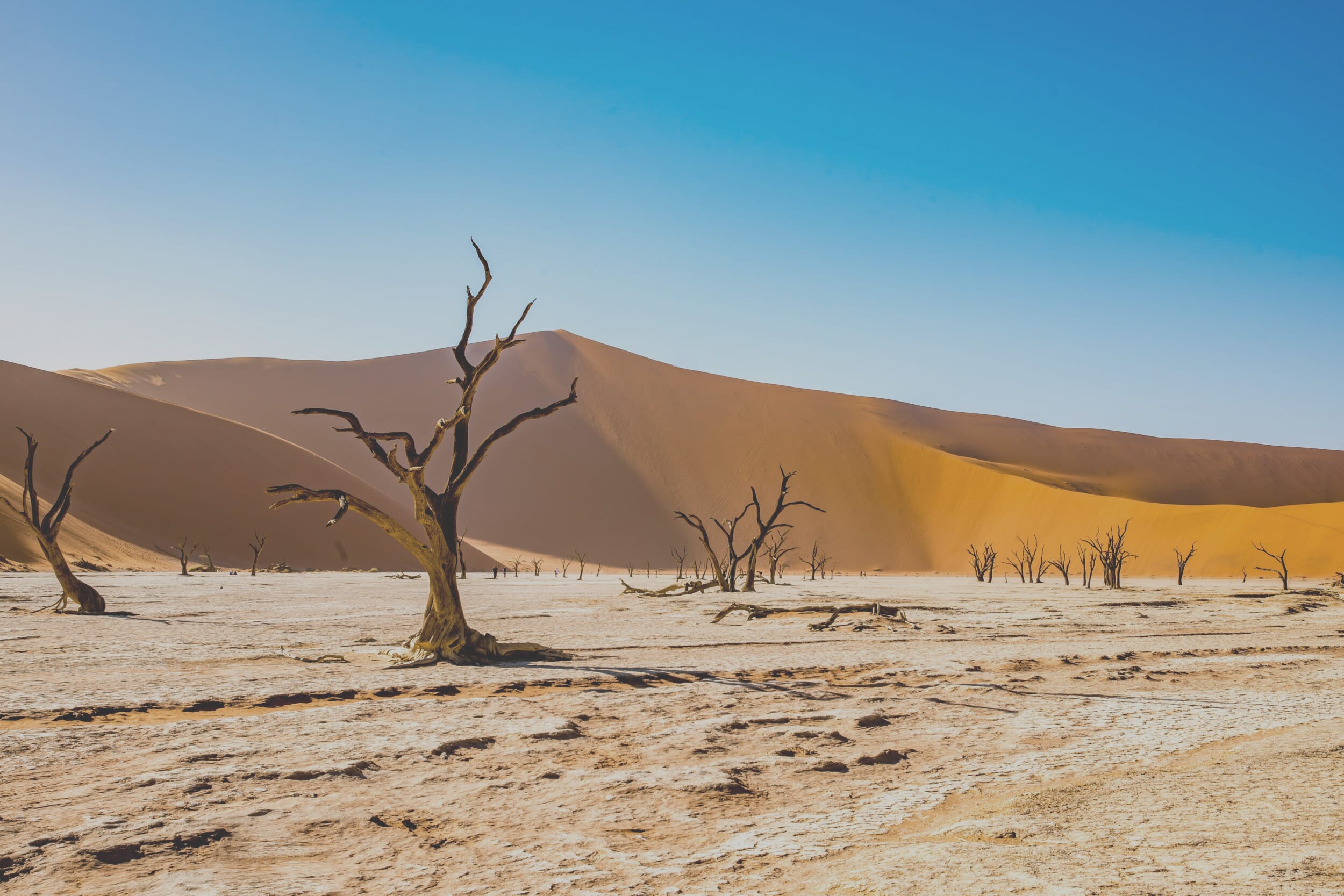
Small changes, between -30 and 30, are usually enough to make a photo look more vivid or softer.