Sirv for Prismic
 By Igor Varyvoda, Head of Sirv StudioUpdated
Short answer
Prismic has no plugins, so Sirv connects through its Integration Field. Send your Sirv API Client ID and Client Secret to Sirv's connector to get a catalog URL and token, create the catalog in Prismic and add the field to a page type. Prismic indexes your media about every 30 minutes, and editors pick assets in the Page Builder.
After reading this you will know
- How the Sirv integration for Prismic works
- How to connect Sirv and add the field to a page type
- How to show the picked media on your frontend

Search and pick media from your Sirv account inside the Prismic Page Builder.
The Sirv integration for Prismic connects your Sirv account to Prismic’s Integration Field.
Editors pick images, videos, 360 spins, Sirv Media Viewer assets and 3D models (glTF/GLB) straight from Prismic’s built-in catalog picker.
Your frontend delivers them through Sirv’s global CDN, resized, optimized and in the best format for every visitor.
Nothing to deploy. Sirv hosts the connector for you - you get a catalog endpoint and an access token, paste them into Prismic, and you are done.
How it works
Section titled “How it works”Prismic does not have a plugin system, but its Integration Field can index an external catalog. Sirv exposes your account as that catalog:
- Prismic crawls the catalog about every 30 minutes and indexes your media - names, thumbnails and metadata.
- Editors search and pick assets in the Page Builder, with thumbnails for every media type.
- The picked asset is stored in the document as a small JSON value, delivered by the Prismic Content API and rendered by the @sirv/react components.
Requirements
Section titled “Requirements”-
A Sirv account (free or paid) with the media you want to use.
-
A Prismic repository with Integration Fields enabled. The feature is included on all Prismic plans.
However, the settings tab is hidden until you request activation via the Prismic Support Portal. Request it first: it is the only step with a waiting time.
Connect your Sirv account
Section titled “Connect your Sirv account”Connect your Sirv account to the hosted connector to get a catalog endpoint and an access token for your media.
-
Get your Sirv API Client ID and Client Secret from Settings > API access in your Sirv account.
-
Send them to the connect endpoint (one command - replace the two values):
curl -X POST https://tools.sirv.com/prismic-api/connect \-H "content-type: application/json" \-d '{"clientId": "YOUR_CLIENT_ID", "clientSecret": "YOUR_CLIENT_SECRET", "folder": "/"}'
The response contains everything Prismic needs:
{ "tenantId": "your-account", "endpoint": "https://tools.sirv.com/prismic-api/t/your-account/catalog", "endpointToken": "1f0c9a2e...", "folder": "/", "account": { "alias": "your-account", "cdnURL": "your-account.sirv.com" }}Hold on to the endpoint and endpointToken - you paste them into Prismic in the next step.
Share only one folder
Section titled “Share only one folder”"folder" controls which part of your Sirv account the catalog exposes. The default "/" shares the whole account.
If your account is large, or you simply want editors to pick only approved media, point it at one folder instead:
"folder": "/website/media"Only the files inside that folder (and its subfolders) are indexed by Prismic; everything else in your account stays invisible to it.
To change the scope later, run the same connect command again with a different "folder". The endpoint and token stay the same.
The new scope takes effect on Prismic’s next pull. To re-index immediately, open the catalog in Settings > Integration Fields and re-save it.
Your credentials are validated against the Sirv API, stored encrypted (AES-256-GCM) and never shown to anyone again - Prismic only ever receives the separate access token.
Ran the command twice or lost the token? Connecting again with valid credentials returns the same token. You stay in control:
# check the connectioncurl -H "Authorization: Bearer YOUR_TOKEN" "https://tools.sirv.com/prismic-api/status?tenant=your-account"# rotate the access token (the old one stops working immediately)curl -X POST https://tools.sirv.com/prismic-api/rotate-token \ -H "Authorization: Bearer YOUR_TOKEN" -H "content-type: application/json" -d '{"tenantId": "your-account"}'# disconnect and delete the stored credentialscurl -X POST https://tools.sirv.com/prismic-api/disconnect \ -H "Authorization: Bearer YOUR_TOKEN" -H "content-type: application/json" -d '{"tenantId": "your-account"}'Create the catalog in Prismic
Section titled “Create the catalog in Prismic”-
In your Prismic repository, open Settings > Integration Fields and choose Custom API > Pull data from my endpoint.
-
Fill out the form:
- Catalog name:
sirv_media - Endpoint: the catalog endpoint from the previous step
- Access token: the token from the previous step
![Creating the Sirv catalog in Prismic's Integration Fields settings]()
- Catalog name:
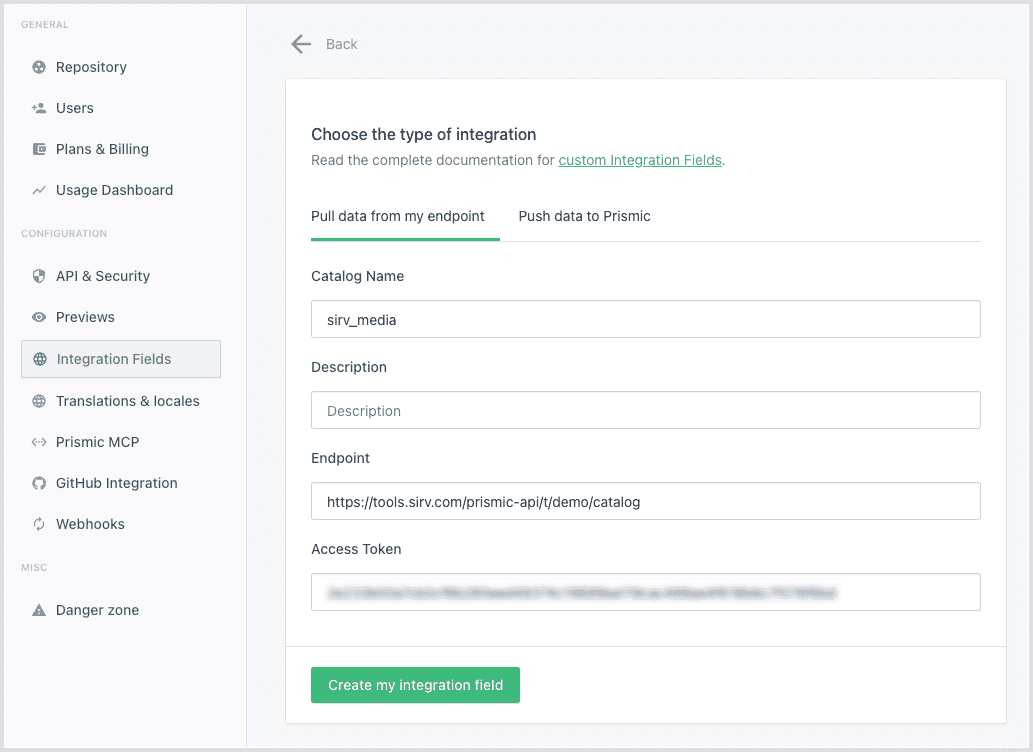
Prismic starts indexing right after you save, then re-pulls the catalog about every 30 minutes, so newly uploaded Sirv files appear in the picker within half an hour.
Add the field to a page type
Section titled “Add the field to a page type”Prismic’s visual Type Builder cannot add integration fields, so add them through Slice Machine or the Prismic CLI.
The field’s catalog is your repository name and the catalog name joined by two dashes (for example my-repo--sirv_media).
-
With the Prismic CLI (run it inside your Slice Machine project):
npx prismic field add integration hero_media --to-type page \--catalog my-repo--sirv_media -
Or add it to the type’s JSON model and push with Slice Machine:
"hero_media": {"type": "IntegrationFields","config": {"catalog": "my-repo--sirv_media","label": "Sirv media"}}
Restrict a field to one media type
Section titled “Restrict a field to one media type”The sirv_media catalog contains every media type, so a field pointed at it lets editors pick anything.
To make a field accept only one type - a “Sirv image” field that shows only images - point it at a type-specific catalog. Append the type to your catalog endpoint:
.../catalog/image # images only.../catalog/video # videos only.../catalog/spin # 360 spins only.../catalog/view # Sirv Media Viewer files only.../catalog/model # 3D models only.../catalog/all # every file, including PDFs, ZIPs and other non-media files.../catalog # the five media types (no generic files)-
In Settings > Integration Fields, create one catalog per type you need, for example
sirv_imageswith the endpoint ending in/catalog/imageand the same access token.Repeat for
sirv_videos,sirv_alland so on. -
Point each field at the matching catalog:
"hero_image": {"type": "IntegrationFields","config": { "catalog": "my-repo--sirv_images", "label": "Sirv image" }},"promo_video": {"type": "IntegrationFields","config": { "catalog": "my-repo--sirv_videos", "label": "Sirv video" }},"attachment": {"type": "IntegrationFields","config": { "catalog": "my-repo--sirv_all", "label": "Any file" }}
Now the “Sirv image” picker shows only images, “Sirv video” only videos, and “Any file” lists everything - including generic files such as PDFs and ZIPs (which the default catalog leaves out).
Pick multiple assets
Section titled “Pick multiple assets”An integration field holds one asset. To let an editor add several - a gallery - wrap the field in a repeatable Group:
"gallery": { "type": "Group", "config": { "label": "Sirv gallery", "fields": { "asset": { "type": "IntegrationFields", "config": { "catalog": "my-repo--sirv_media", "label": "Sirv asset" } } } }}The editor gets an Add button to pick as many Sirv assets as they need, in order.
Picking assets
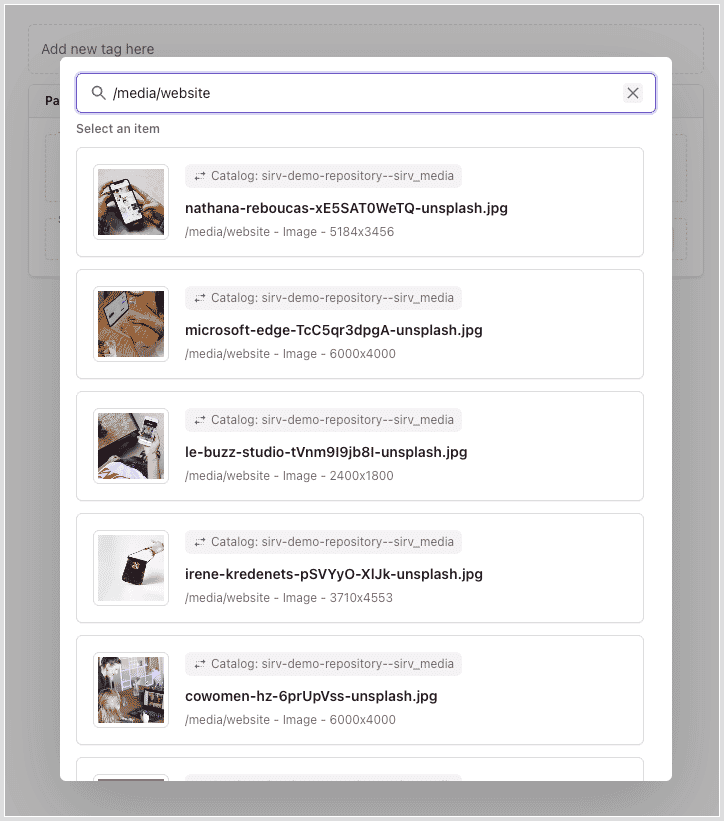
Section titled “Picking assets”Editors click the field, search by file name or folder, and pick.
Every media type shows a real thumbnail - images and videos show a preview frame, 360 spins show a frame of the rotation, and 3D models show a rendered snapshot.
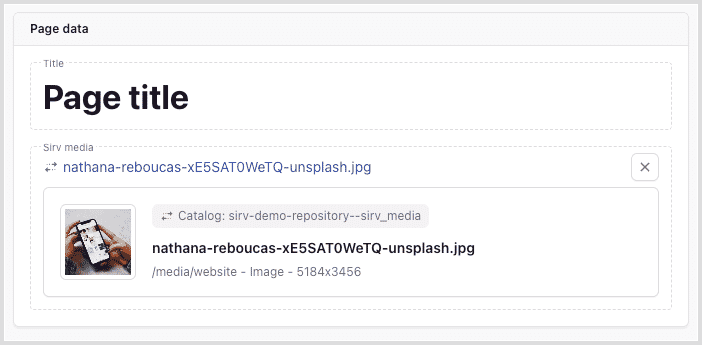
The picked asset appears in the document with its thumbnail, path and dimensions; the x button clears the field to pick another:
What gets stored
Section titled “What gets stored”The document stores a small, flat JSON value - the same sirvMedia format used by all Sirv CMS integrations. Your media itself stays on Sirv.
{ "_type": "sirvMedia", "mediaType": "image", "sirvPath": "/products/shoe.jpg", "sirvAlias": "your-account.sirv.com", "originalUrl": "https://your-account.sirv.com/products/shoe.jpg", "bytes": 63570, "width": 996, "height": 960, "format": "jpg", "alt": ""}Generic files from the /catalog/all catalog come back with "mediaType": "file" and just the common keys (path, URL, size) - render them as a download link from originalUrl.
Rendering on your frontend
Section titled “Rendering on your frontend”Install the renderer:
npm install @sirv/reactThe integration field’s Content API value is the stored JSON, so rendering is one converter call:
'use client';
import { SirvMedia, fromSanityMedia as fromStoredMedia } from '@sirv/react';
export function HeroMedia({ field }) {  return <SirvMedia value={fromStoredMedia(field)} width={640} />;}
<SirvMedia> renders the right component for each media type. Images get a responsive lazy-loaded <img> with automatic AVIF/WebP, and videos get a video player with poster.
360 spins, Media Viewer files and 3D models get interactive sirv.js viewers.
Common questions
Section titled “Common questions”Does Prismic see my Sirv credentials?
No. Your Sirv credentials stay on Sirv's servers, encrypted at rest. Prismic only ever receives the catalog JSON, authenticated with a separate access token that is specific to your account and can be rotated or revoked at any time.
How fresh is the catalog?
Prismic pulls the catalog approximately every 30 minutes, so a newly uploaded Sirv file appears in the picker within half an hour. Assets already picked in documents are unaffected by the crawl cycle.
Which media types are supported?
Images, videos, 360 spins (.spin), Sirv Media Viewer files (.view) and 3D models (.glb) render with @sirv/react. The default catalog covers these five; a separate any-file catalog (/catalog/all) also lists generic files such as PDFs and ZIPs, which you render as a download link from the stored URL.
Can I limit a field to one media type, e.g. only images?
Yes. Create a type-specific catalog whose endpoint ends in /catalog/image (or /video, /spin, /view, /model) and point the field at it. Prismic has no per-field type restriction, so the restriction lives in which catalog the field uses.
I do not see the Integration Fields tab in my repository settings.
Integration Fields are included on all Prismic plans but must be activated per repository. Request activation via the Prismic Support Portal; the tab appears once Prismic approves it.
My account has a huge number of files. Can I share only one folder with Prismic?
Yes. Pass "folder" when connecting - for example "folder": "/website/media" - and the catalog exposes only that folder and its subfolders; the rest of your account is never indexed by Prismic. The default "/" shares the whole account. Re-run the connect command with a different folder to change the scope at any time (the endpoint and token stay the same).
Does this work with large Sirv accounts?
Yes. The connector enumerates your whole account and serves the catalog in pages, so accounts with thousands of assets index fully; Prismic itself supports up to 100,000 items per repository.