Limit User Access to Specific Folders
 By Jake Brumby, Customer Success DirectorUpdated
Short answer
On Enterprise plans you can limit each user to particular folders. When you invite someone from Settings > Users, choose specific folders and pick the ones they can see. To change an existing user, click Edit next to their name. The Primary Owner, Owners and Admins can change folder access.
After reading this you will know
- How to limit a user to specific folders
- How to change folder access for an existing user
- Which plan and roles can do this
It is possible to limit which folders of your Sirv account each user has access to. To stop files being changed by anyone, lock the folder instead.
By default, users can access every folder of your account but Enterprise plans have the ability to limit each user to particular folders and/or subfolders.
Configure folder access
Section titled “Configure folder access”When inviting a user from Settings > Users, you can choose which folders they should see:
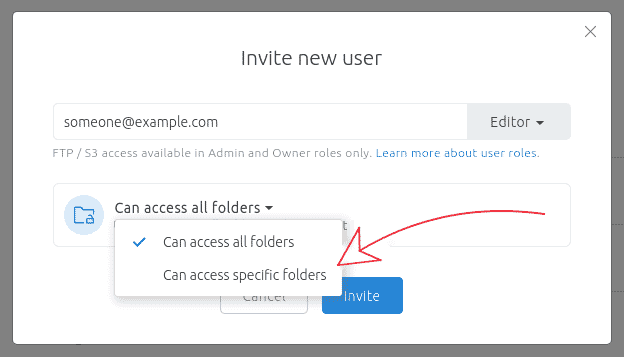
Choose the option to access “specific folders”, then choose which folders they can access:
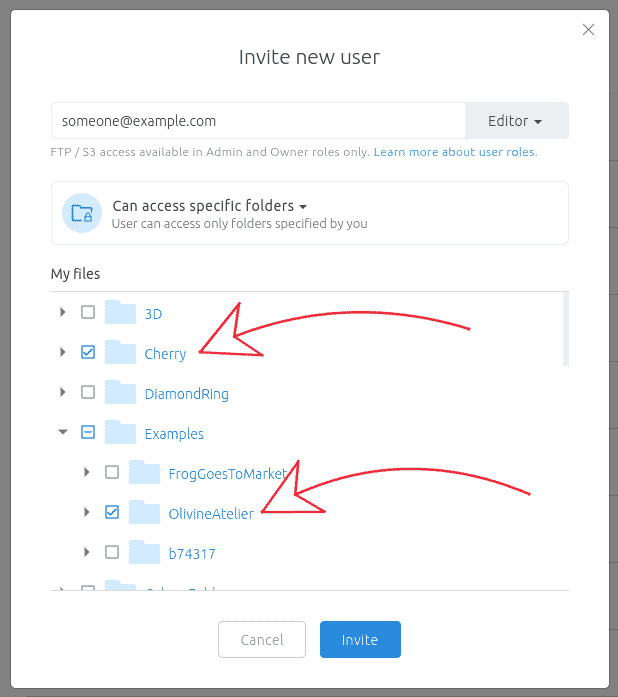
You can update existing users’ folder access, by clicking the “Edit” link in the list of users. Anyone with the role Primary Owner, Owner or Admin can change which folders a user can access.