Export 360 Spins for Amazon
 By Anne-Marie Fletcher, Customer Success TeamUpdated
Short answer
Amazon stopped showing 360 spins in November 2023, so this page is kept for reference only. To show a product turning on Amazon now, convert your spin to a video and upload it, or host a GLB 3D model on Sirv and submit it. The steps below show how Sirv exported spins in the zip format Amazon asked for.
After reading this you will know
- Why 360 spins no longer show on Amazon
- What to use on Amazon instead
- How Sirv exported spins for Amazon
Discontinued: Amazon announced in November 2023 that they would stop displaying 360 spins. The instructions are shown below for historic reference.
Instead, you can convert your 360 spins to videos and upload them to Amazon. Or you can host your GLB files on Sirv and submit them to Amazon (documentation).
If you don’t have GLB files, you can hire a 3D modeller to create a model of your product.

Use Sirv to automatically create 360° spins that meet Amazon’s submission requirements, as it does for Walmart, The Home Depot, Lowe’s and Grainger. Amazon has strict requirements for the image format, dimensions and filename, all zipped up.
Sirv makes this easy.
How to create 360 spins for Amazon
Section titled “How to create 360 spins for Amazon”The Sirv app no longer lists Amazon under Export spin to, so the steps below are kept for reference. The batch script and the REST API further down still make the Amazon zip.
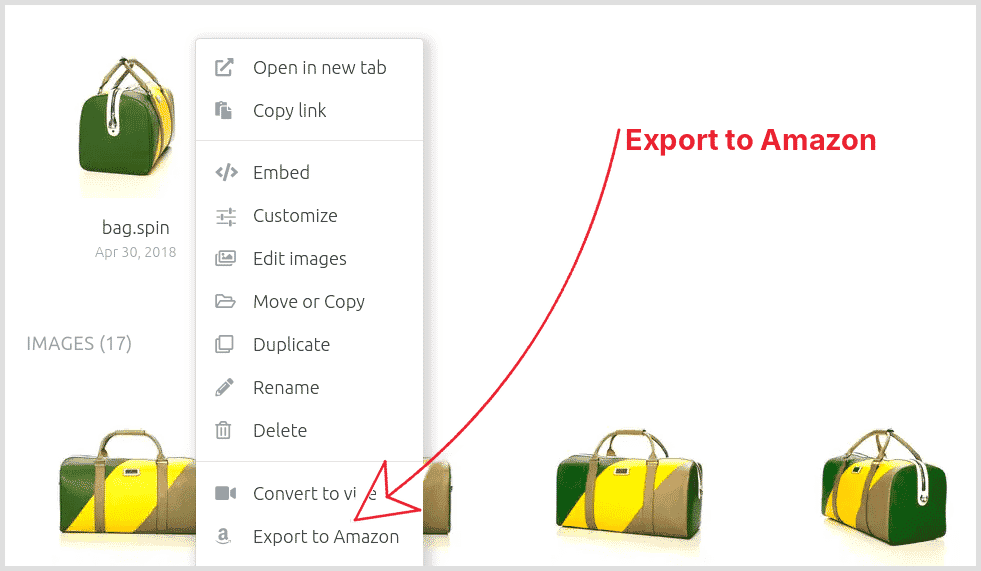
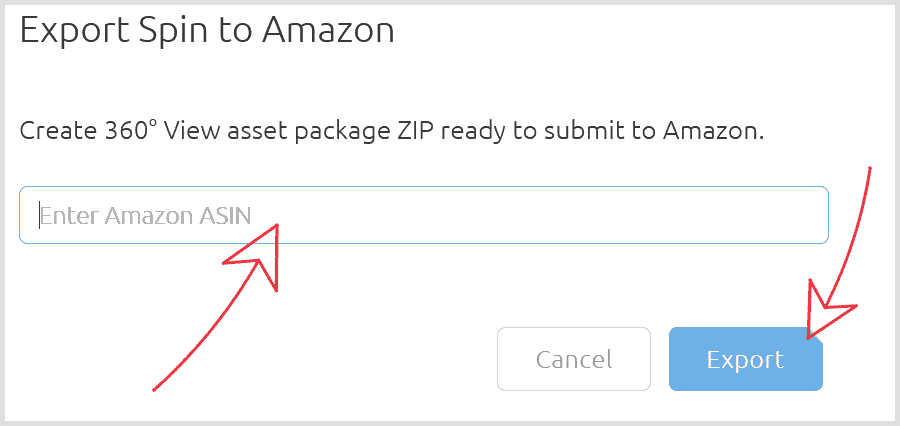
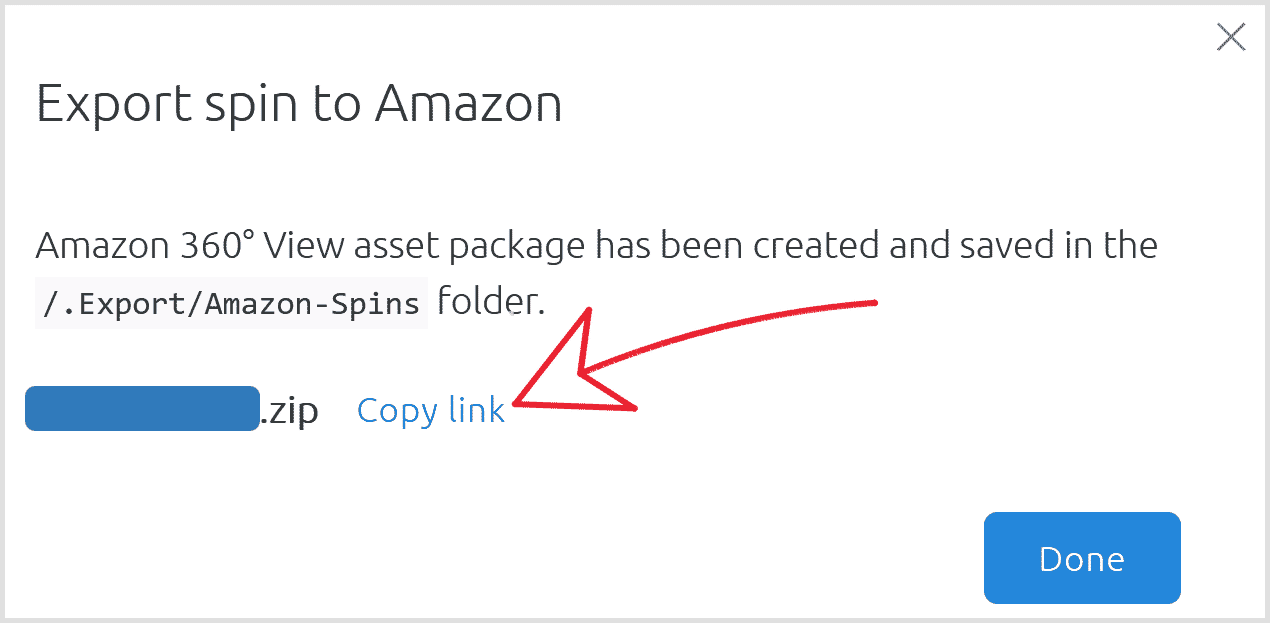
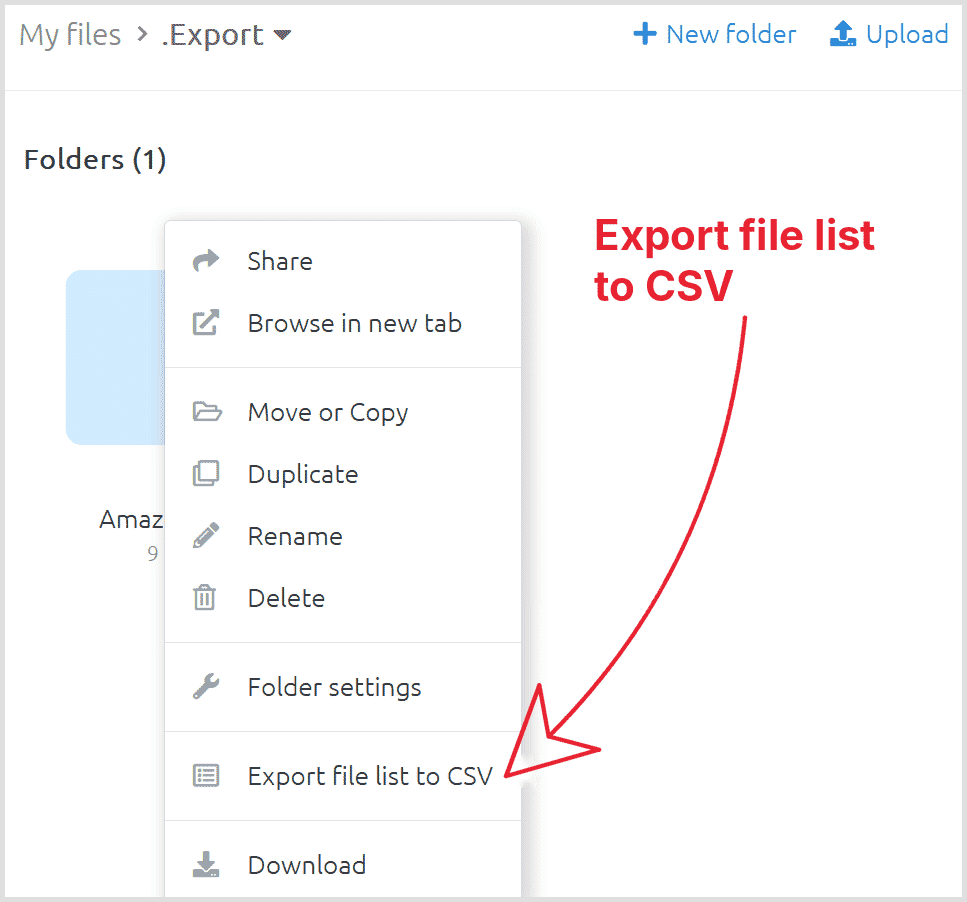
1. Go to your Sirv account. New users can create an account. 2. Right-click a spin and choose “Export to Amazon” (tip: get a list of “All your spins” via the search box):
Batch create multiple Amazon zips
Section titled “Batch create multiple Amazon zips”To make many zips in one go, run a short script with the Sirv REST API. It sends each spin to the Export spin to Amazon command, the same export as in your account.
1. In your Sirv account, go to Settings > API access and create an API client. Keep its client ID and secret to hand.
2. Make a file called spins.csv with one spin per line: the spin’s path in your Sirv account, a comma, then its ASIN:
/products/drill/drill.spin,B00CJ5FP04/products/saw/saw.spin,B00CJ5FP093. Save this script as export.mjs in the same folder:
// export.mjs: makes a Amazon zip for each spin in spins.csvimport { readFileSync } from 'node:fs';
const api = 'https://api.sirv.com/v2';const auth = await fetch(`${api}/token`, {  method: 'POST',  headers: { 'content-type': 'application/json' },  body: JSON.stringify({ clientId: process.env.SIRV_CLIENT_ID, clientSecret: process.env.SIRV_CLIENT_SECRET }),});const { token } = await auth.json();
for (const line of readFileSync('spins.csv', 'utf8').split('\n').filter(Boolean)) {  const [filename, id] = line.split(',').map((s) => s.trim());  const res = await fetch(`${api}/files/spin2amazon360`, {    method: 'POST',    headers: { 'content-type': 'application/json', authorization: `Bearer ${token}` },    body: JSON.stringify({ filename, asin: id }),  });  console.log(filename, res.status, await res.text());}
4. Run it with Node.js 18 or later, with your client ID and secret in the environment:
SIRV_CLIENT_ID=your-client-id SIRV_CLIENT_SECRET=your-client-secret node export.mjsEach line of the output names the zip Sirv made, saved in your account next to the spin. Rather not run a script? Send the same request one spin at a time from Postman.
Create Amazon 360 spins via API
Section titled “Create Amazon 360 spins via API”You can also use the Sirv REST API to automatically create Amazon zips.
What are Amazon’s 360 spin requirements?
Section titled “What are Amazon’s 360 spin requirements?”To prepare 360 spins that meet Amazon’s listing requirements, Sirv performs all the following conversions:
- Resize images to 2500px width (maximum)
- Crop to square aspect ratio (add canvas if necessary)
- Convert to PNG format
- Rename images to
{ASIN}_360_0000_web.png,{ASIN}_360_0001_web.pngetc. - Package files into
{ASIN}.zipand make available via public URL
Sirv does that in seconds, providing you with the zip URL ready to email to your Amazon representative.
For Amazon Vendors, not Amazon Sellers
Section titled “For Amazon Vendors, not Amazon Sellers”We are informed that Amazon permits only Amazon Vendors to submit 360 spins to their marketplace listings, not Amazon Sellers.
This may change in the future, to allow Amazon Sellers to also upload 360 spins.
If you are an Amazon Seller, we recommend contacting your Amazon representative to ask if and when you’ll be able to submit 360 spins to your product image gallery.
Meanwhile, Amazon Sellers can upload spins as videos. Sirv makes it easy to generate an MPG video from your spin (and the other way round, a spin from a video), which can be added to your Amazon listing.
See our guide to easily create a video from your spin. Here’s how a 360 video looks for a games controller.
To identify if a listing is from an Seller or Vendor, Vendor listings typically state “Sold by Amazon” and “Ships by Amazon”.