Upload Images with CyberDuck
 By Marc Bonne, Customer Success TeamUpdated
Short answer
Sirv storage works with the Amazon S3 protocol, so you can upload with Cyberduck, a free S3 and FTP program. S3 uploads are encrypted, resume after an interruption and are faster than SFTP. Open a new S3 connection to s3.sirv.com with the access key and secret from your Sirv account settings, then drag files in.
After reading this you will know
- Why S3 can be a better choice than FTP
- How to connect Cyberduck to your Sirv account
- How to upload files with Cyberduck
Sirv uses S3 compliant storage, enabling you to upload images to Sirv using the Amazon S3 API, with no code (from code, use the upload API). Before you start, prepare your images at full size and quality.
S3 is an attractive alternative to FTP:
- Secure - all uploads are secured via SSL.
- Resumable - interrupted file transfers will pick up where they left off.
- Low latency - faster than SFTP.
The most popular S3 upload program is Cyberduck, which is free and open source. As well as Amazon S3, it supports FTP, SFTP and other protocols. (For FTP, see FileZilla or sync a local folder by FTP.)
How to upload with Cyberduck
Section titled “How to upload with Cyberduck”1. Download Cyberduck (for Windows or Mac) and install it on your computer.
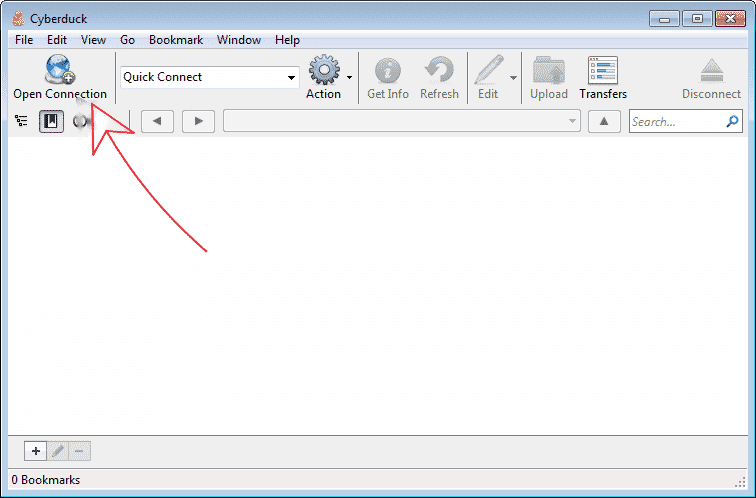
2. Open Cyberduck and click the “Open Connection” button in the top-left:
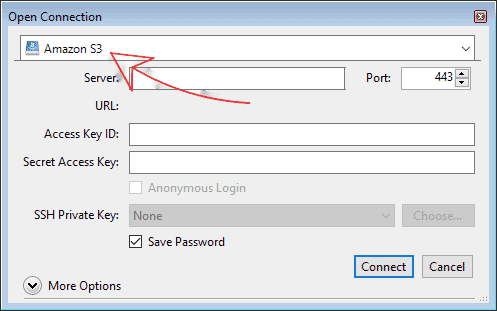
3. Choose S3 (Amazon Simple Storage Service) from the dropdown menu:
4. Go to the Uploads settings in your Sirv account:
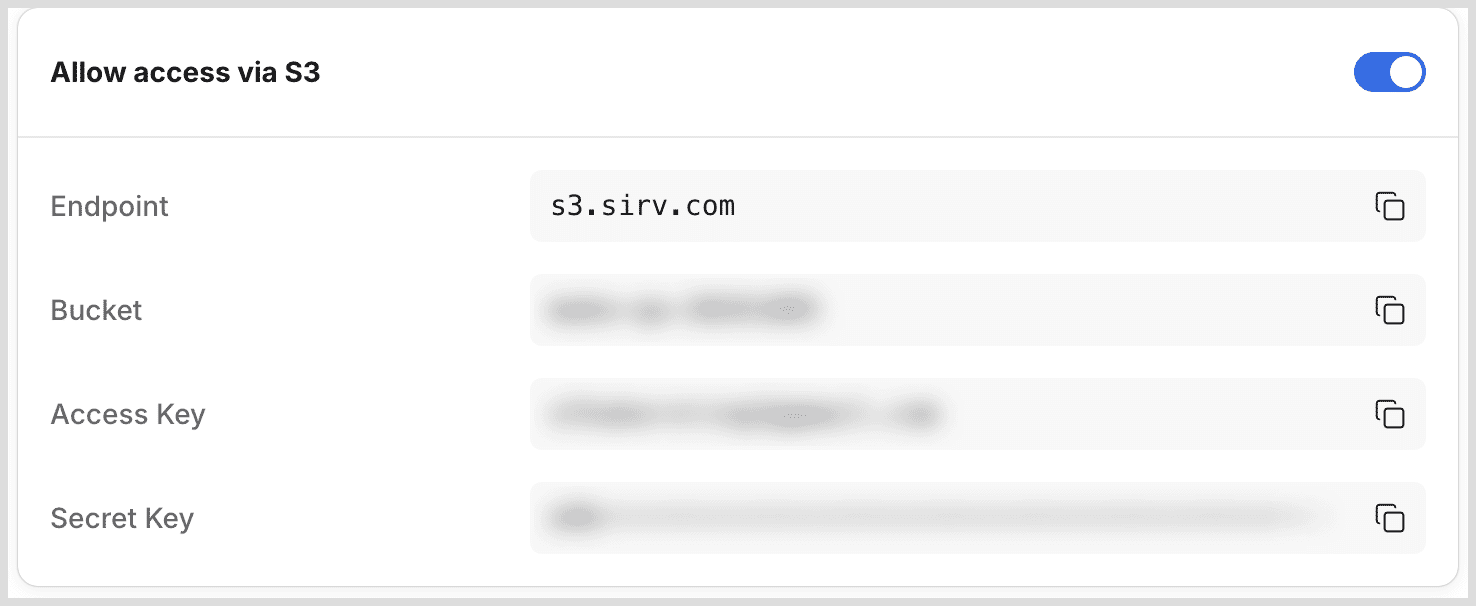
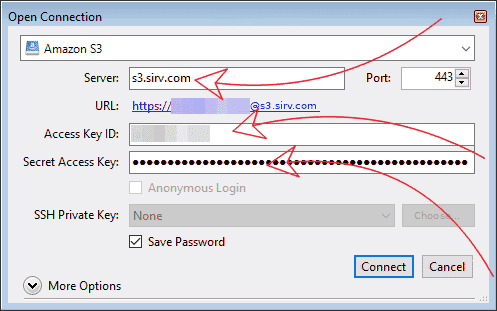
5. Copy and paste the S3 login details into the remaining 3 fields in Cyberduck - Server, Access Key ID and Secret Access Key. Your Secret Key is masked, so copy it with the copy icon next to it:
6. Click “Connect” and your Sirv account will load. If you have access to more than one Sirv account, you’ll see all accounts listed here.
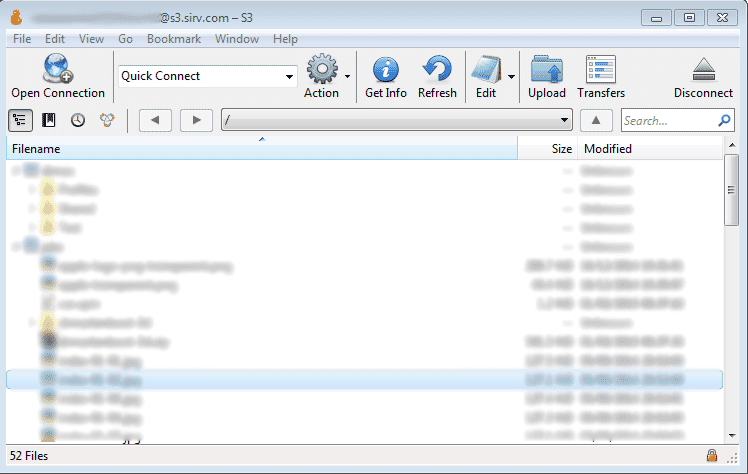
7. You can Upload images to S3 by clicking the “Upload” button or you can drag and drop folders/files into Cyberduck. You can create folders, move files and delete files as you need.
8. If you are uploading more files than your hourly S3 limit permits, you can throttle the bandwidth used by Cyberduck to slow down the speed of uploads and stay within your allowance (see the full list of limits).
Go to Preferences > Bandwidth > Uploads and set Uploads: Maximum Throughput to about 500 KB/s.
9. After you close Cyberduck, it will automatically reopen the same window(s) and log you in next time you open the program.
You can permanently save the connection to your Sirv account as a Bookmark. For uploads that run by themselves, use a CSV file or GitHub Actions.