How to add a watermark to a 360 spin
 By Marc Bonne, Customer Success TeamUpdated
Short answer
Upload your watermark image, such as a transparent PNG, to Sirv. Create a profile, add the watermark in its settings and save. Then add ?profile=name to the spin URL, and every frame of the spin shows the watermark. Settings saved in a profile can be reused on many spins; settings saved in a .spin file apply to that spin only.
After reading this you will know
- How to add a watermark to a 360 spin with a profile
- The difference between profile and spin file settings
Sirv can quickly add image watermarks to your 360 spins, zooms or static images. The step-by-step tutorial below shows you how. Compare these two spins, with and without a watermark:
Before
After
The watermark was added by simply choosing some settings in a profile and appending the profile name to the end of the URL, like so:
- Before:
https://demo.sirv.com/boot.spin - After:
https://demo.sirv.com/boot.spin?profile=logo-on-spin
Watermark tutorial
Section titled “Watermark tutorial”- Upload your watermark image to your Sirv account. It can be saved in any folder of your account. (New users can create a Sirv account). This is the watermark used in the demo (a transparent PNG):

- Go to the Profiles page and click New profile.

- Give your profile a descriptive name that you’ll recognize.
- Click “Add image or spin” in the preview panel on the right and pick a spin. The preview updates as you change the profile.
- Under Spin options, open Image rendering > Watermarks and click Add watermark. Pick your watermark image and click Select.
- Switch on the options you want, such as position, scale and opacity. Each option has its own switch on the right.
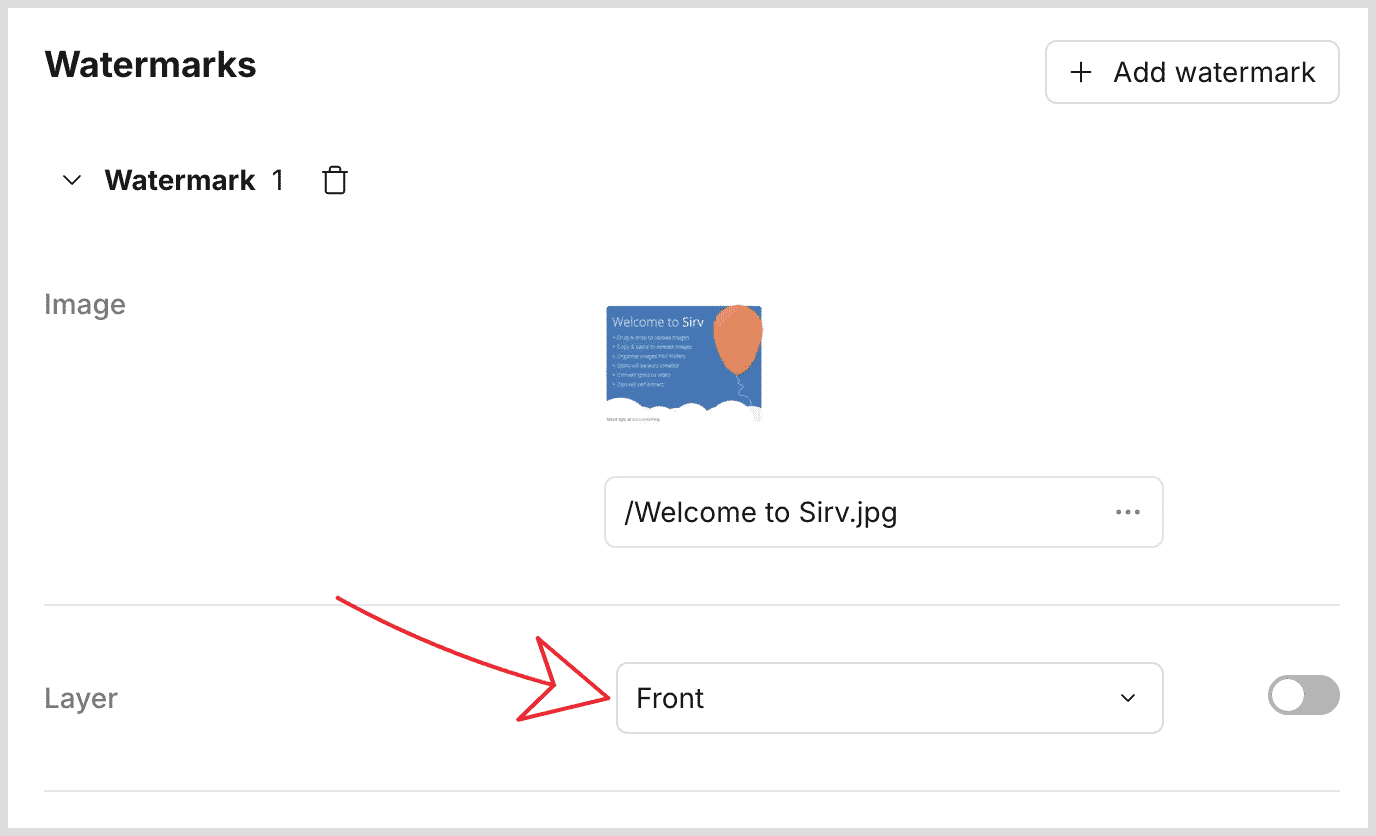
- Click Save changes, and the profile is ready to use.
- Apply the profile to a spin by appending ?profile=name-of-your-profile to the spin. In the demo above, the URL is:
https://demo.sirv.com/boot.spin?profile=logo-on-spin
Watermarking methods
Section titled “Watermarking methods”Watermarks can be applied with a profile, as above, or in the settings of a single .spin file. There is an important difference:
- Spin - settings applied in a .spin file are applied only to that spin.
- Profile - settings applied via a .profile are applied to any spins which reference that profile.
In most cases, the best method is to create a profile. It gives you control to manage lots of spins from one single place.
You can quickly make changes to your watermark and they are applied immediately to every spin that references that profile.