View and Use Image Metadata
 By Olha Kersting, Head of MarketingUpdated
Short answer
Sirv reads the EXIF, IPTC and XMP data in your original images, and you can add a title, description and tags to any file. Add ?info to an image URL to see its metadata. You can show metadata in text overlays, and Sirv strips it from served images unless you choose to keep it.
After reading this you will know
- How to view the metadata in your images
- How to add a title, description and tags in Sirv
- How to show metadata in text overlays or keep it in served images
Metadata can come from your original images or be added within Sirv.
Meta in your original images
Section titled “Meta in your original images”Every image that you upload to Sirv contains potentially useful data - in EXIF, IPTC and XMP formats.
Information such as creation date, copyright and GPS coordinates can be used to overlay unique text on images; geolocate images on maps; protect your ownership rights and more.
Sirv gives you insant access to all your image metadata in a conveniently accessible JSON text file. To see the data, simply append ?info to any image URL. For example:
https://demo.sirv.com/example.jpg?info
Open that URL and you’ll see a layout like this:

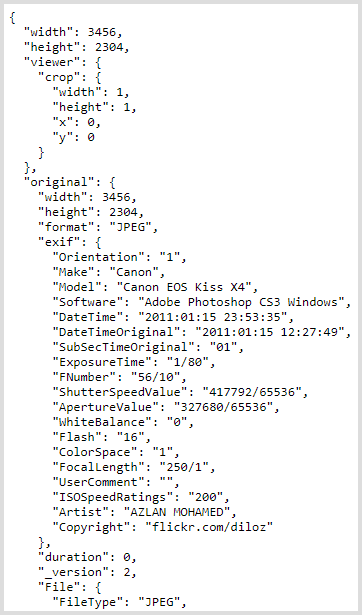
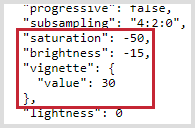
The metadata also shows any dynamic image options you may have applied, for example:
https://demo.sirv.com/example.jpg
Add metadata in Sirv
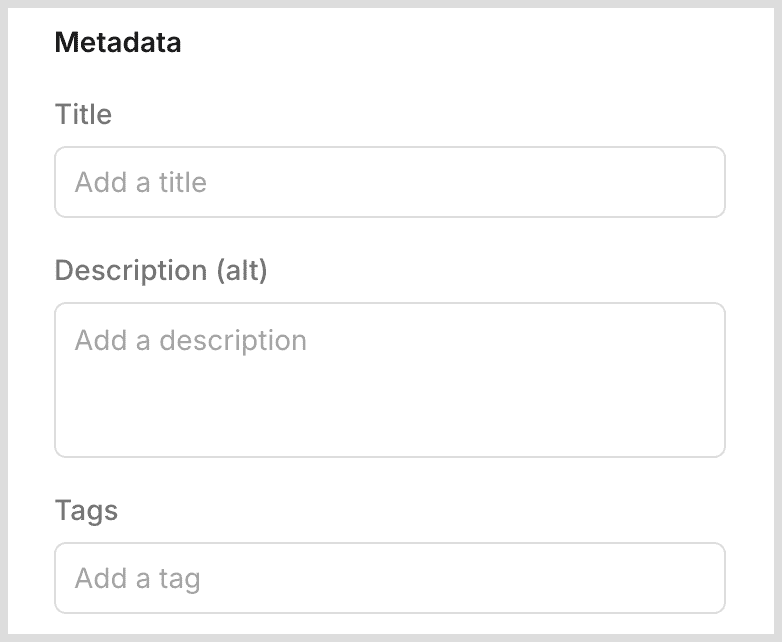
Section titled “Add metadata in Sirv”You can add the following metadata to any file in Sirv:
- Title
- Description (added in the img alt tag when using sirv.js)
- Tags
Click a file’s name to open its preview, then fill in the Metadata section on the right:
Meta can also be added via the Sirv REST API:
Metadata in text overlays
Section titled “Metadata in text overlays”One powerful usage of metadata is for text overlays. By referencing the metadata name inside curly braces $, it will be displayed on the image. For example:
${title}will display the title from Sirv.${description}will display the description from Sirv.${EXIF.Copyright}will display the EXIF copyright data.
The following example adds two metadata fields: EXIF.Model (the camera model) and IPTC.By-line (the artist). See how it is overlayed in the bottom right corner of the image:
https://demo.sirv.com/example.jpg

The example below has text positioned to the south, with a partially transparent background and red Kreon font:
https://demo.sirv.com/example.jpg

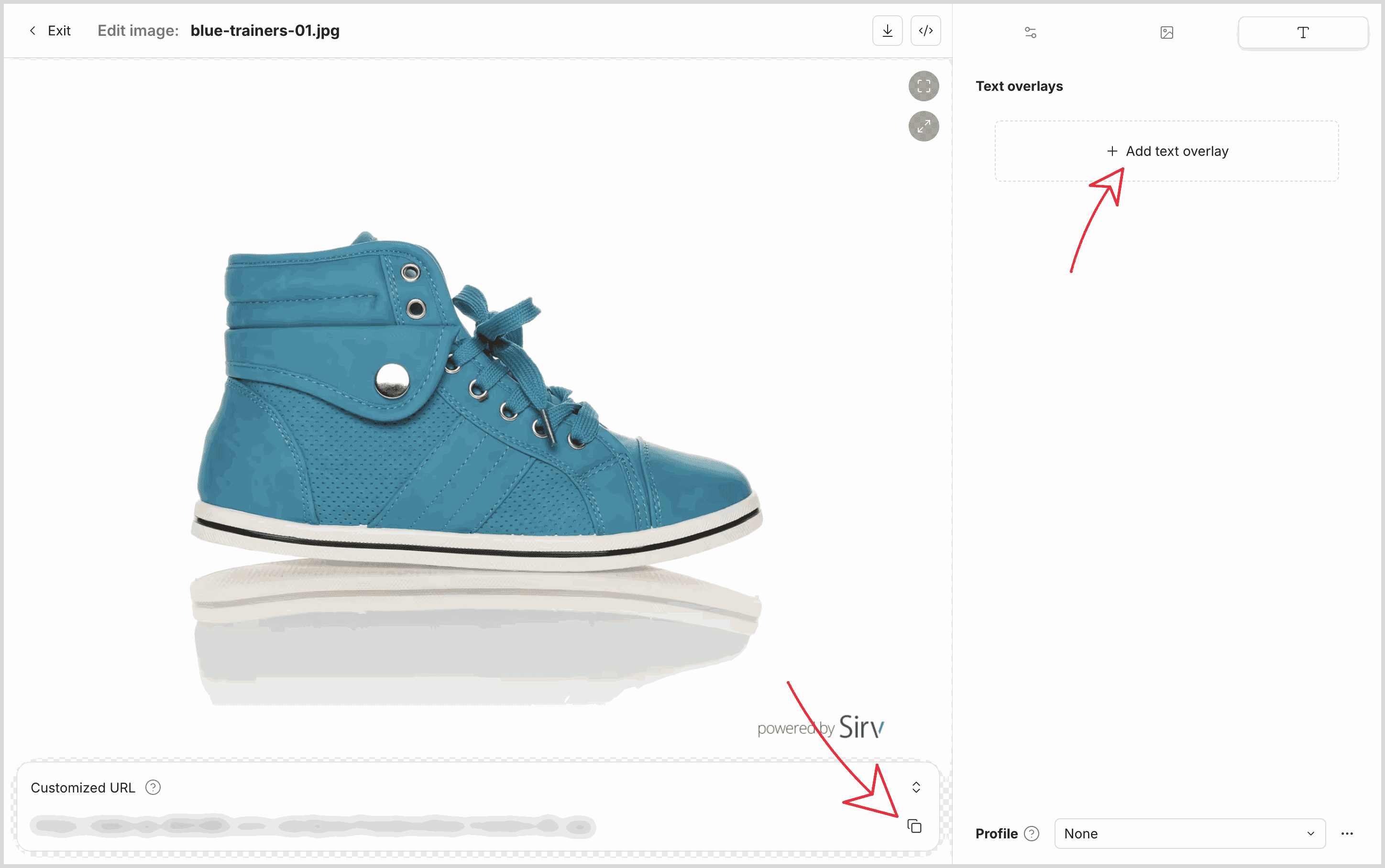
The image editor in your Sirv account helps you style your text. Click Edit on an image, open the Text overlays tab (T) and click Add text overlay.
Choose the location, color, font, outline and background, then copy the Customized URL at the bottom:
Metadata for photographers
Section titled “Metadata for photographers”Image metadata usually contains a lot of interesting information for photographers. Digital cameras automatically record the exposure, aperture, flash, ISO, geolocation and more.
The example below displays the status of the camera flash when photographed:
https://demo.sirv.com/example.jpg


You can add several parameters, with line breaks in between using , %0A like so:
https://demo.sirv.com/example.jpg
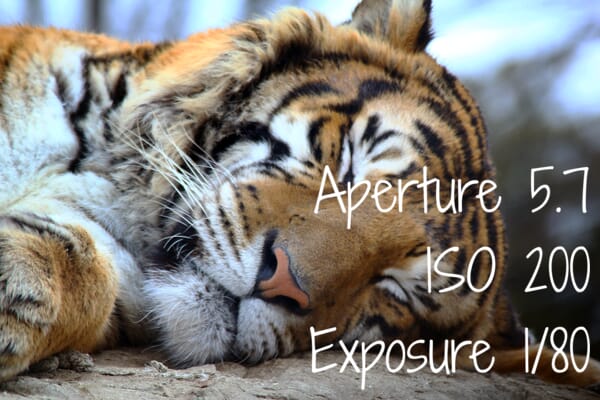

An image can contain up to 4 sections of text, placed anywhere on the image. Each section can contain as many meta parameters as you wish, with up to 100 characters.

Metadata in ecommerce
Section titled “Metadata in ecommerce”Metadata can be useful for marketing automation in ecommerce.
For example, if your product names, prices or descriptions are included in the metadata, you can automatically overlay relevant text on every image:

Your entire product range could have such overlays - the next image has identical options in the URL, yet shows different text, thanks to its meta:

You could even create personalized, targeted messages containing your customers’ names. Compare the two images below:


Both those images have the same options, except for the names Jack & Jill, which could be fetched automatically from your customer database.
This mass-personalization of imagery allows you to create highly targeted social media and campaigns. There are all kinds of ways to use your EXIF data.
Consider how a photographic tour company might overlay metadata in its marketing campaigns:


https://demo.sirv.com/Examples/strabo-sahara.jpg
Meta stripping
Section titled “Meta stripping”Sirv automatically removes metadata immediately before processing an image, as part of its image optimization process.
This helps reduce image file size, for faster loading. (Meta is always preserved in the original master image).
If you prefer to keep your copyright and other EXIF/XMP/IPTC data in your served images, change the default settings in your Default profile.
Click Edit on the profile and open Format. Turn on the switch next to “Strip image metadata”, set it to “Disabled” and click Save changes:

Try Sirv today
Section titled “Try Sirv today”Explore the possibilities of metadata with Sirv. Create your account today and get 5GB free space for 30 days.