Add 360 Spins to Facebook
 By Anne-Marie Fletcher, Customer Success TeamUpdated
Short answer
Facebook does not allow interactive 360 spins, but you can still share them in two ways. Paste a spin URL into a post and Facebook shows it as an animated GIF. Or convert the spin to a video in Sirv and upload it, so it plays and loops in the feed.
After reading this you will know
- How to share a 360 spin on Facebook as an animated GIF
- How to convert a spin to a video for Facebook
- Why fully interactive spins are not possible on Facebook
Easily embed engaging 360-degree spins into your Facebook posts. Fully interactive spins are not permitted but your audience will still love these 2 types of spin:
- Paste a spin URL and it will appear as an animated GIF.
- Or, upload a video, generated from your Sirv account.
Note: In April 2018, Facebook stopped displaying animated GIFs on Facebook pages (i.e. pages used by businesses), so follow the video instructions below.
Personal Facebook feeds can still display GIFs.
Paste a spin URL
Section titled “Paste a spin URL”1. Upload a sequence of images to your Sirv account. Sirv will automatically generate a spin file (see our guide on creating spins).
If you don’t already have a Sirv account, create an account here.
2. Click … on the spin (or right-click it) and choose Copy link:
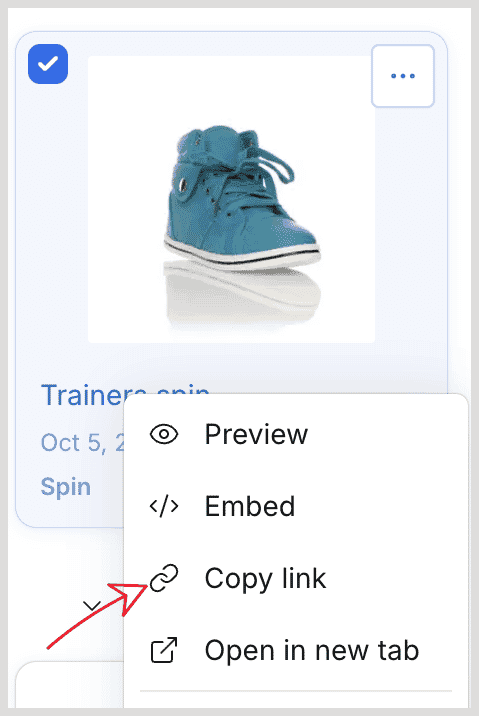
It will look something like this: https://demo.sirv.com/drill/drill.spin 3. Paste the URL of the spin into a Facebook post and write any text you wish to include in the post.
It’s normal if Facebook doesn’t show a preview of the animated GIF. Your GIF will appear as soon as you publish the post.
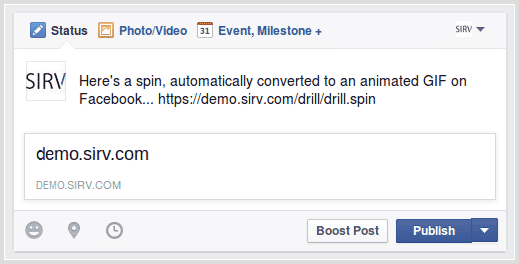
4. Publish your post and you’ll see a beautiful spinning animation in your Facebook activity feed.

The spin will be 500px width and up to 72 frames in length - making a high-quality, smooth animated GIF on Facebook. If your spin has more than 72 frames, some won’t appear in the animation.
Click the GIF to link to the original, interactive spin, where users can drag and zoom the spin. If your spin feels too fast or too slow, change the speed with the autospinSpeed setting.
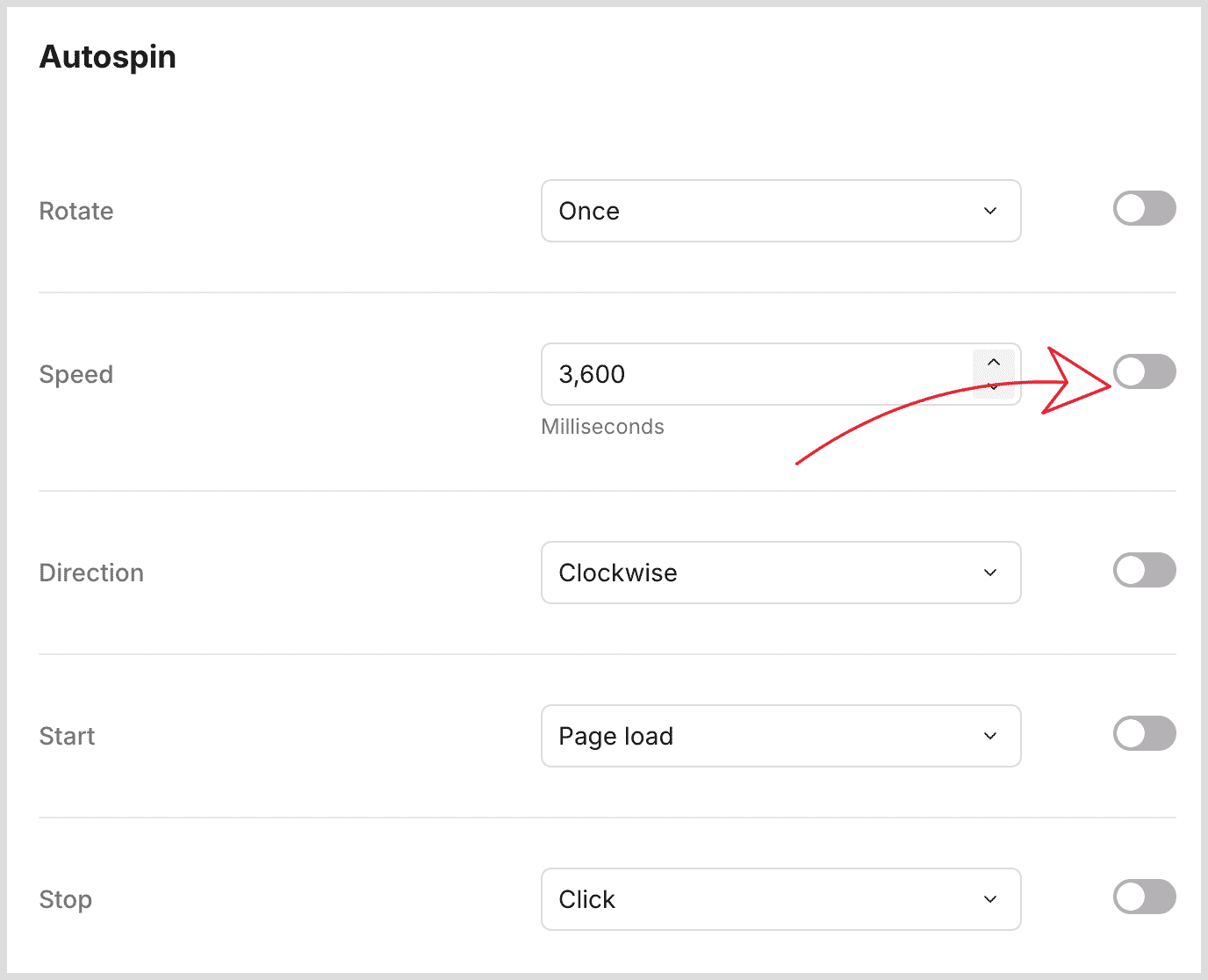
Change the default speed (3600ms per rotation) in a profile, under Spin options > Autospin > Speed. Set it in your Default profile to change every spin.
Decrease the milliseconds to make it faster; increase the milliseconds to make it slower.
Upload a video of your spin
Section titled “Upload a video of your spin”Alternatively, display your spins as videos. Facebook videos normally autoplay and loop, so they’re a nice alternative to spin GIFs. To add a video to your Facebook post:
1. Click … on your spin (or right-click it) and choose Convert to video. It needs a Business 5 plan or higher:
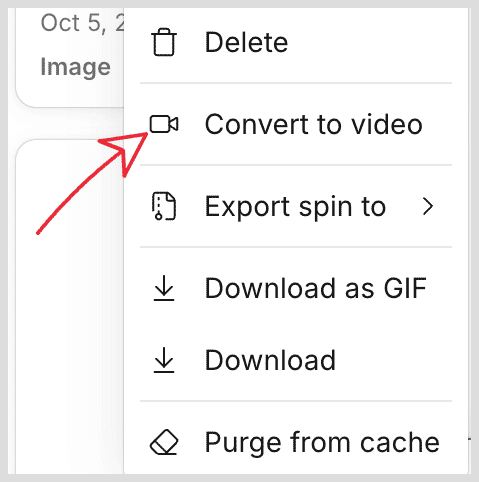
2. You can change the dimensions of your spin, the number of loops and the loop duration (the speed):
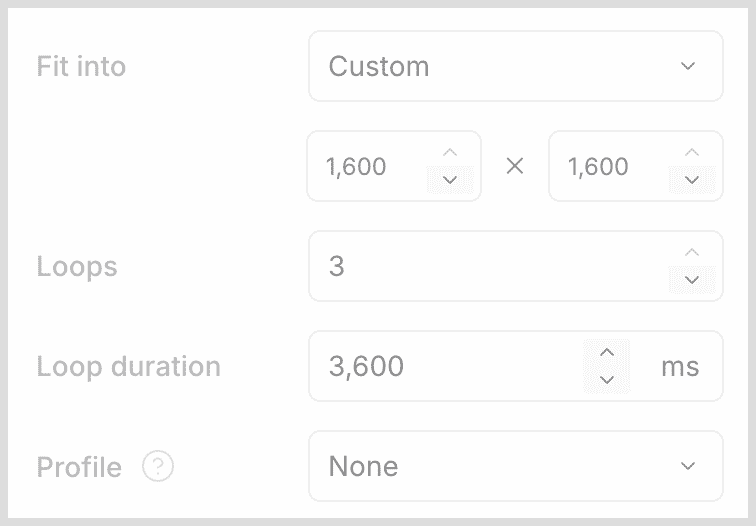
3. When converted, download the video as a .mp4 file and attach it to your Facebook post. It will look like this:
Facebook plays it on a loop, so it turns like the spin itself.