Add or Remove Users
 By Anne-Marie Fletcher, Customer Success TeamUpdated
Short answer
To invite someone, go to Settings > Users in your Sirv account, click Invite new user, enter their email, choose a role and click Send invite. They get an email that is valid for 7 days. To remove a user, click the three dots next to their name and remove them. Each user has their own login.
After reading this you will know
- How to invite a new user and choose their role
- How long an invitation lasts
- How to remove a user from your account
Your Sirv account permits multiple users, to help you collaborate with your team.
Each user gets their own username/password and is given one of 6 roles (Owner, Admin, Billing Manager, Editor, Contributor or Viewer), depending on the tasks they need to perform.
Refer to the table of roles and permissions for the full list of permissions per role. Only Primary Owner, Owner and Admin roles have the authority to add/remove users.
Adding and removing users is fast and easy. It all happens on your Users page, under Settings.
Invite a new user
Section titled “Invite a new user”1. Go to Settings > Users in your Sirv account. (If you don’t have an account yet, register here).
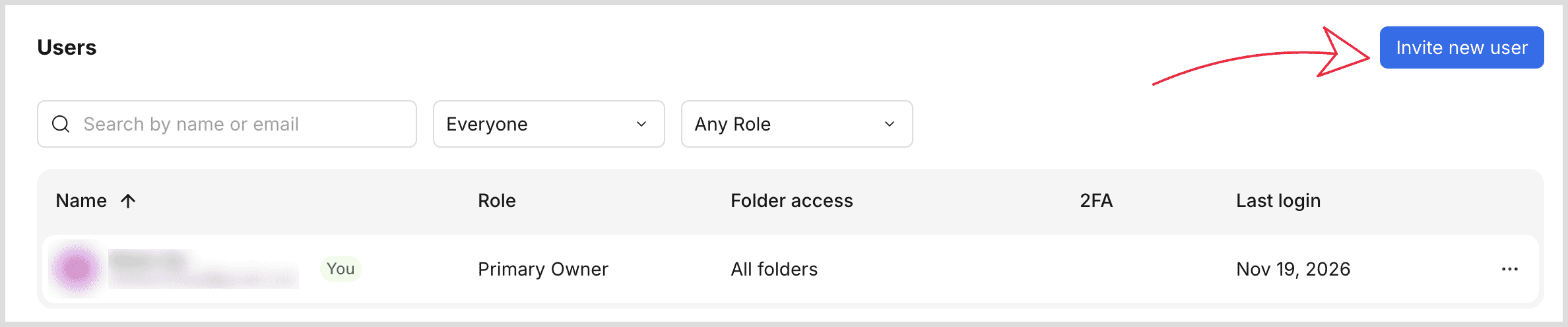
2. Click “Invite new user” at the top right:
3. Enter the person’s email address, then pick a role from the list. Each role shows what it can do, and “Roles and permissions” opens the full table:
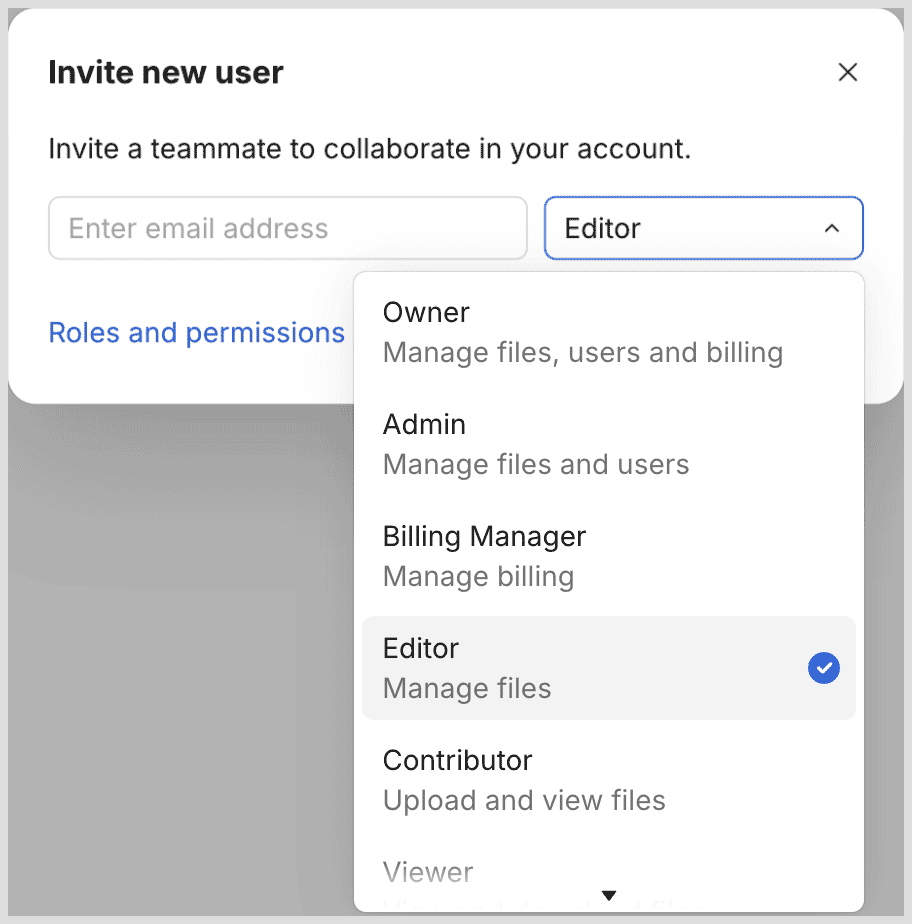
4. Click “Send invite”. The role is Editor unless you change it.
5. The new user will receive an invitation email, which will expire in 7 days.
They should click the link in the email to accept the invitation and create their password, then they will have access to your account.
Remove a user
Section titled “Remove a user”1. To remove a user, go to Settings > Users.
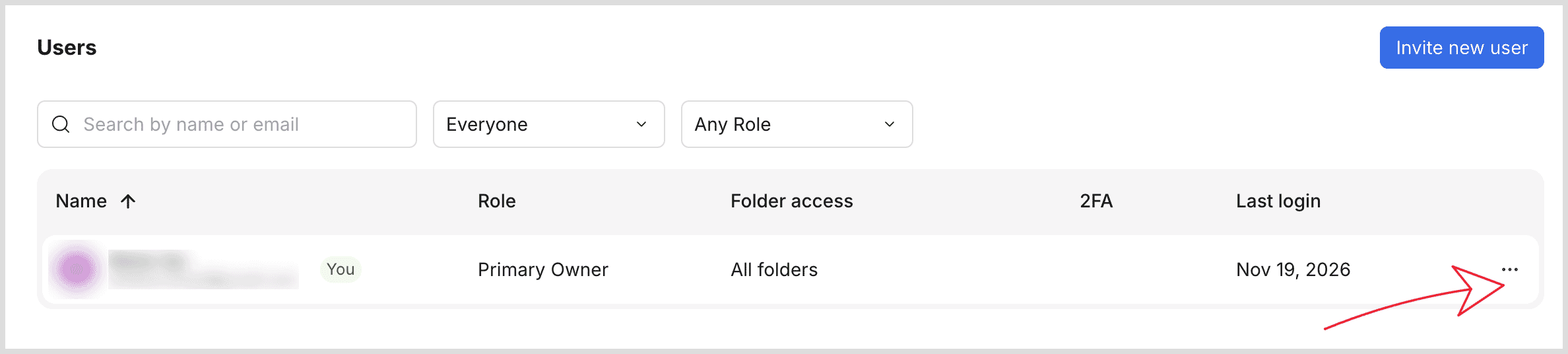
2. Click the 3 dots at the end of the user’s row and choose to remove them from the account:
3. A dialog will appear, asking for confirmation.