Rotate Image
 By Jake Brumby, Customer Success DirectorUpdated
Short answer
Add rotate to the image URL with the number of degrees you need, for example ?rotate=45. The value can be anything from -180 to 180, so you can turn an image either way. Sirv creates the rotated image instantly from your original, so the file in your account stays unchanged.
After reading this you will know
- How to rotate an image from its URL
- Which values turn it clockwise or anticlockwise
Turn an image by adding rotate to its URL with the number of degrees, from -180 to 180. Try it in the demo below.

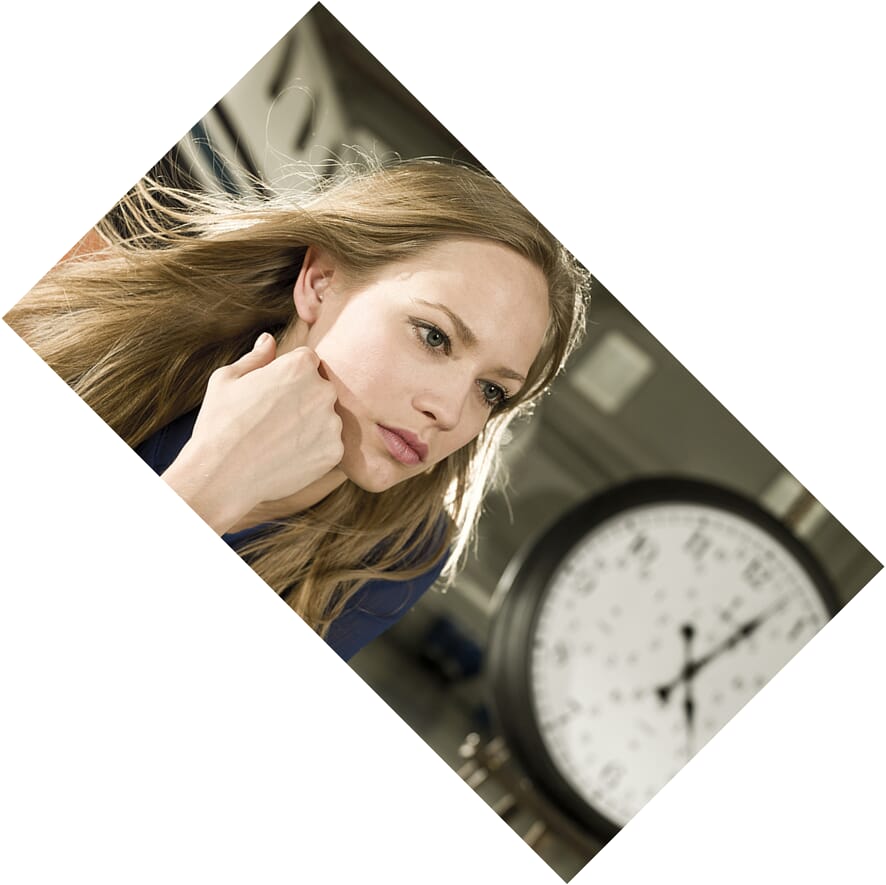
https://demo.sirv.com/look.jpg?rotate=45
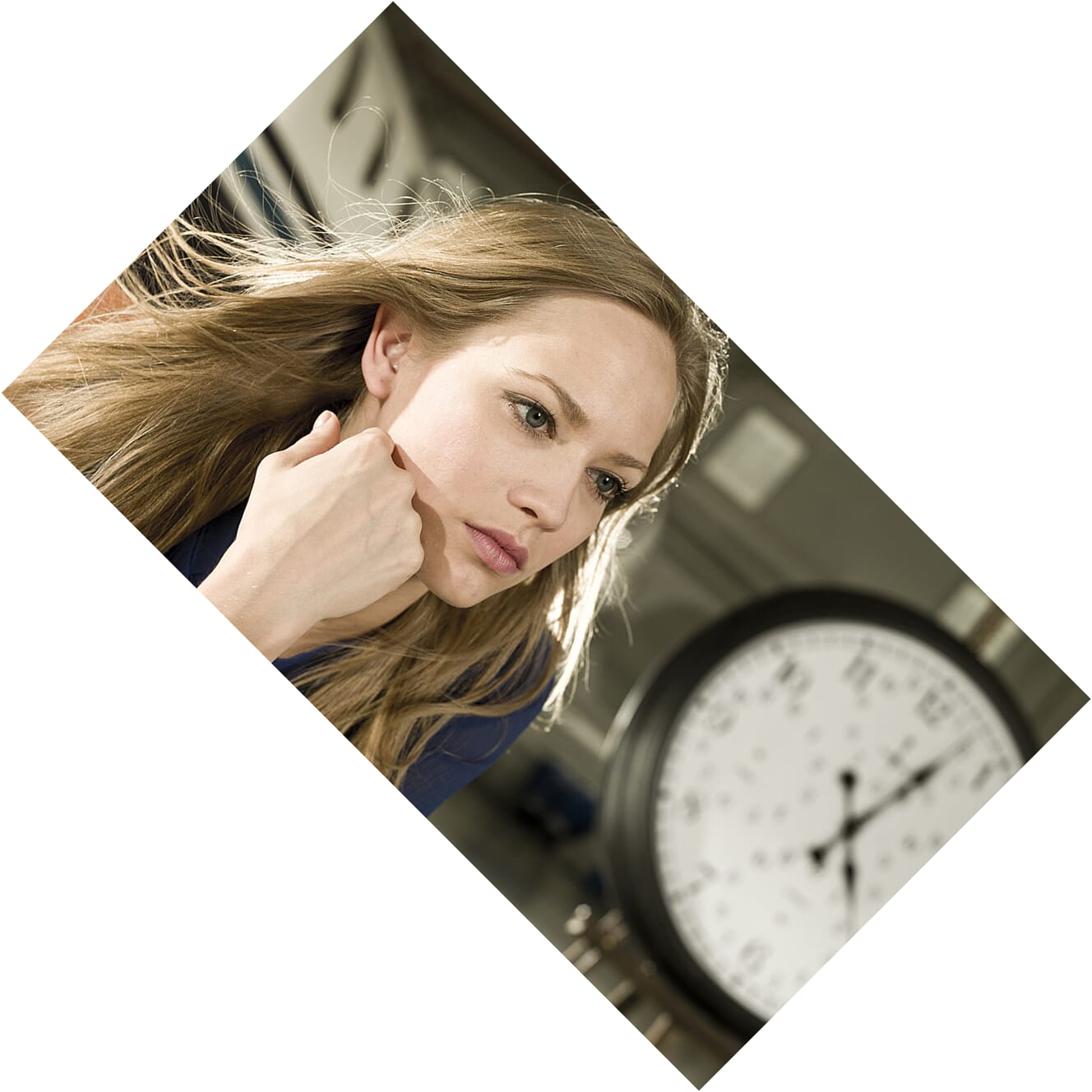
Use a negative value to rotate the image anti-clockwise.