Sirv plugin for Adobe Creative Cloud extensions
 By Igor Varyvoda, Head of Sirv StudioUpdated
Short answer
Install the Sirv extension for Photoshop, InDesign or Illustrator from the Adobe Marketplace and sign in once per app. A Sirv panel then lets you browse and search your Sirv account, place assets at full resolution and save your work back to Sirv without leaving the design app.
After reading this you will know
- How to install the Sirv extension for Photoshop, InDesign and Illustrator
- How to place assets and save your work back to Sirv
Connect your Sirv DAM account to Adobe Photoshop, InDesign and Illustrator.
Browse assets, place them in your artwork/documents and save your creations back into Sirv without ever leaving your design app.
The Sirv extension adds a panel in your Adobe app, so you can pull images, videos or other media straight from your Sirv account into your designs.
When your artwork is finished, the same panel can upload it back to Sirv in one click, keeping every team member working from a single source of truth.
Features
Section titled “Features”- Browse your Sirv account from a native panel inside Photoshop, InDesign and Illustrator, with folder navigation, search and thumbnail previews.
- Place assets in one click at full resolution, or at an optimised size to keep your document light.
- Upload back to Sirv straight from the active document, choosing the destination folder and overwrite logic.
- Asset details on demand: dimensions, file size, CDN URL and a “View on my.sirv.com” link for every item.
- Secure sign-in with email, password and 6-digit OTP, plus account selection for users with more than one Sirv account.
- Role-aware actions: delete buttons only appear for Owners, Primary owners and Admins, so other users cannot remove assets by accident.
- Consistent across the suite, so your team only learns the interface once.
- Always up to date: your Sirv account is the source of truth, with automatic token refresh in the background.
Installation
Section titled “Installation”Each Sirv extension is published on the Adobe Marketplace, so installing is the same as any other Adobe plugin.
-
Open the Sirv extension page on the Adobe Marketplace and click “Get it now”. There are separate listings for Photoshop, InDesign and Illustrator, so pick the one you need (or install all three).
-
The Creative Cloud desktop app opens and installs the extension automatically. You will see Sirv listed under Stock & Marketplace > Plugins > Manage plugins.
-
Open Photoshop, InDesign or Illustrator and launch the panel:
- Photoshop and InDesign:
Plugins > Sirv - Illustrator:
Window > Extensions > Sirv
![Sirv panel docked inside Adobe]()
- Photoshop and InDesign:
-
Sign in with your Sirv email and password. If you do not have an account yet, click Sign up link to create a free one.
Enter the 6-digit code from your authenticator app if two-factor authentication is enabled.
Then pick which Sirv account to connect (skipped automatically if your email has access to only one).
![Sirv extension sign-in screen]()
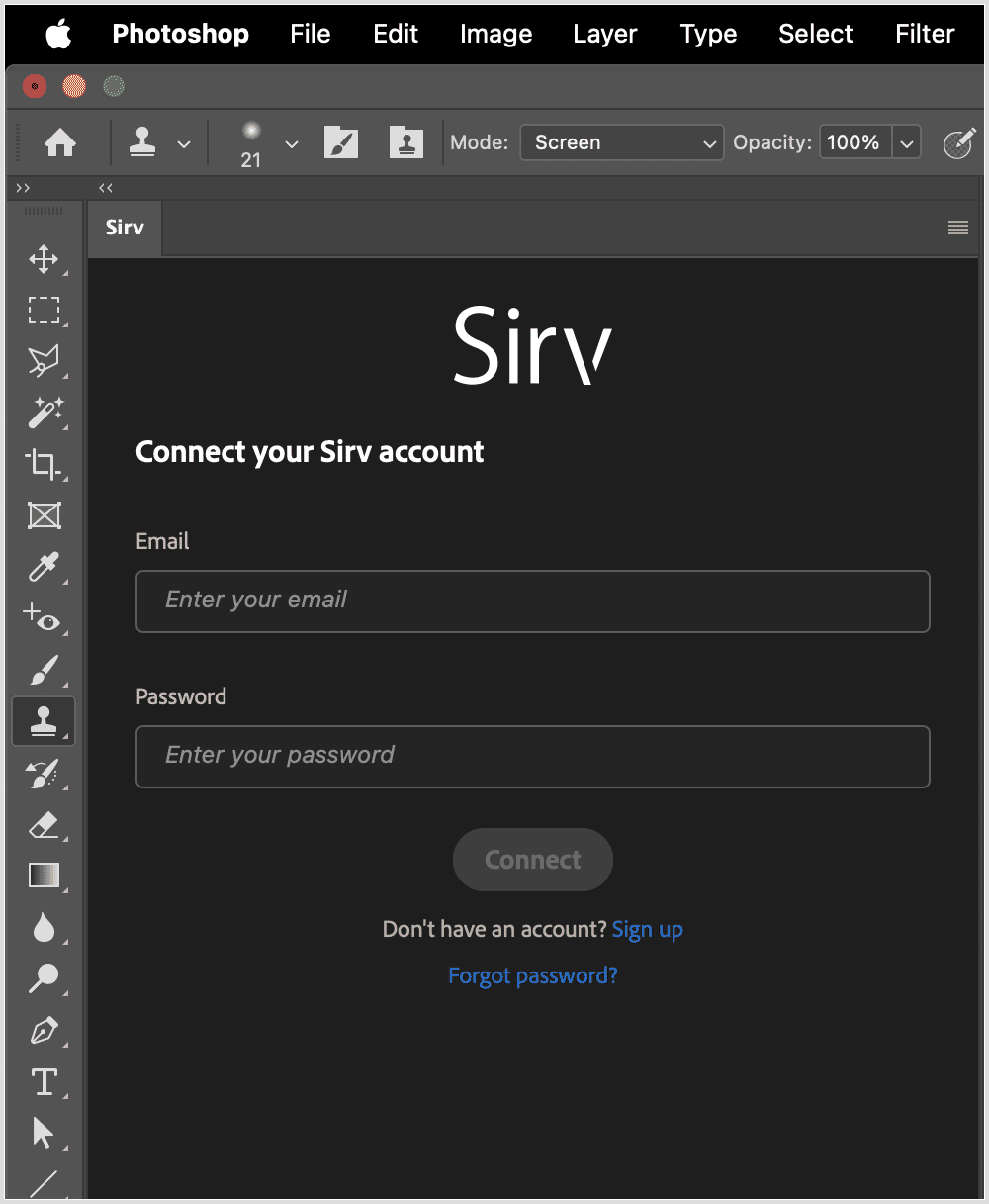
Your credentials will be stored in secure storage on your machine, so you only sign in once per app.
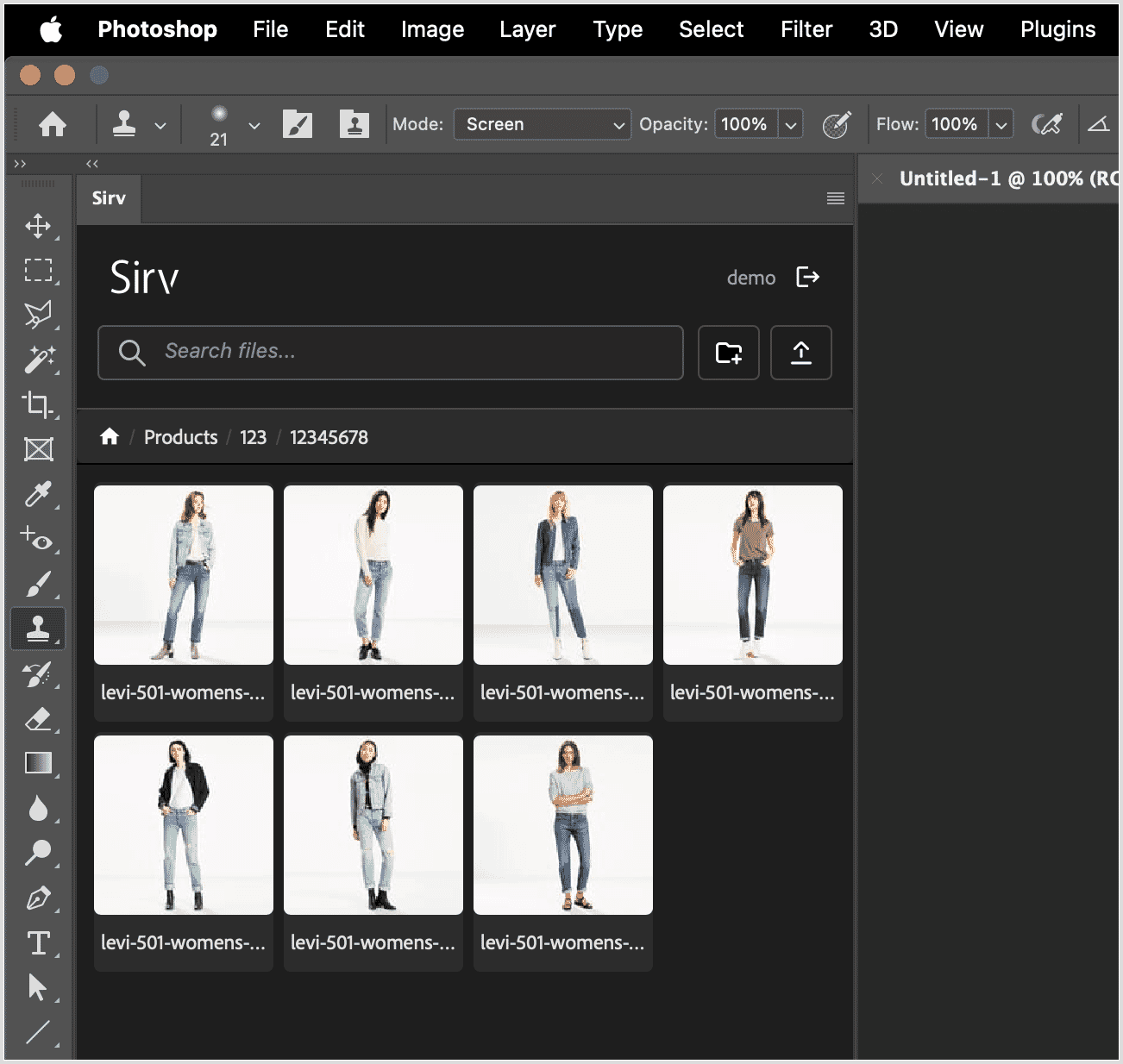
Once signed in, the Sirv panel shows the file browser for your account.
Navigate folders by double-clicking, jump back up the tree with the breadcrumb at the top, or use the search box to find a file by name across the whole account.
Thumbnails make it easy to spot the right asset, and the search results respect the folder you are currently viewing.
Place an asset into your document. Single-click a file to see its preview, dimensions, file size and full CDN URL in the details modal.
Click “Place” to drop it into the active Photoshop document, InDesign layout or Illustrator artboard.
The file is downloaded at its original resolution, so smart objects, linked images and embedded artwork all work as expected.
In InDesign and Illustrator, the asset will be placed at the cursor position; in Photoshop, it will appear as a new layer in the centre of the canvas.
Save artwork back to Sirv. With your document open, click “Upload to Sirv” at the top of the panel.
Pick a destination folder, give the file a name and choose whether to overwrite an existing file with the same name.
Photoshop and Illustrator export the current document as PNG by default; InDesign exports the active page as PNG.
After a successful upload, the result modal shows the CDN URL and a “View on my.sirv.com” link so you can share it immediately.
Tips and things to watch out for:
- Large files take a few seconds to upload over slower connections. Wait for the success modal before closing the panel.
- The “Delete” button in the context menu and details modal is only visible if your Sirv role is Owner, Primary owner or Admin. Guests and users can place and upload, but cannot remove files.
- If a thumbnail does not appear, it will probably be a CDN miss. Refresh the folder and it will load.
- To switch accounts, click “Logout” in the panel header and sign in with the other account. Your previous credentials will be cleared from secure storage.
- The Sirv panel can be docked, undocked and resized like any other Adobe panel. Drag the tab to a different position to lay out your workspace.
Manual installation
Section titled “Manual installation”Alternatively, you can manually download a plugin and install it with Adobe UXP Developer Tools:
- Download a plugin:
- Sirv for Photoshop (zip)
- Sirv for InDesign (zip)
- Sirv for Illustrator (zip)
- Go to Adobe UXP Developer Tools.
- Click “Add Plugin” and select the plugin’s manifest.json file (if Photoshop or InDesign) or the package.json file (if Illustrator).
Technical support
Section titled “Technical support”The Sirv success team is ready to help you with our Adobe extensions. Please send questions via the support form.
If you’re reporting a bug, include your Adobe app version, operating system and a short description of the steps to reproduce.
Screenshots and screen recordings will make it much faster to investigate.