Rotate Photos to Be Upright
 By Marc Bonne, Customer Success TeamUpdated
Short answer
A photo that looks upright on your computer but sideways after upload usually has an EXIF orientation tag: the pixels are sideways and the tag tells some apps to turn them. Check it by adding ?info to the Sirv image URL. To fix it, save the image upright in a photo editor, or add ?rotate=90 to its Sirv URL.
After reading this you will know
- What EXIF orientation is and why photos show sideways
- How to check an image's orientation in Sirv
- How to fix sideways images and stop it happening again
If a photo looks upright on your computer but sideways after upload, the problem is usually EXIF orientation.
The image pixels may still be sideways, while a hidden EXIF tag tells some apps to rotate the photo when they display it.
Sirv reads image metadata and can serve images upright, but the most reliable way is to save important originals with the pixels already turned the right way before you publish them.
Auto-rotation
Section titled “Auto-rotation”EXIF data is useful information about a JPEG image, hidden inside the file.
When images are photographed, digital cameras use orientation sensors to store an EXIF orientation value for how the camera is held.
There are 8 possible values (not just landscape and portrait!).
The EXIF orientation value is used by Photoshop and other photo editing software to automatically rotate photos, saving you a manual task.
EXIF orientation values
Section titled “EXIF orientation values”The 8 EXIF orientation values are numbered 1 to 8.
- = 0 degrees: the correct orientation, no adjustment is required.
- = 0 degrees, mirrored: image has been flipped back-to-front.
- = 180 degrees: image is upside down.
- = 180 degrees, mirrored: image has been flipped back-to-front and is upside down.
- = 90 degrees, mirrored: image has been flipped back-to-front and is on its side.
- = 90 degrees: image is on its side.
- = 270 degrees, mirrored: image has been flipped back-to-front and is on its far side.
- = 270 degrees: image is on its far side.
Here’s how the 8 possible EXIF values look for the letter F (credit to Dave Perrett for this image):
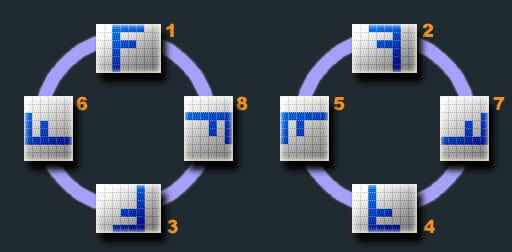
In scenarios 2, 3, 4, 5, 6, 7, 8, the image orientation should be automatically fixed by your image editing software.
The confusion starts because software handles this tag differently:
- Some apps rotate the preview but don’t change the actual pixels.
- Some apps rotate the pixels and reset the EXIF orientation to normal.
- Some browsers, CMS tools, email clients and older image libraries ignore or strip the EXIF orientation tag.
- Some optimization tools remove metadata to make files smaller, so a sideways original shows sideways again.
For web images, aim for EXIF orientation 1 with the pixels saved upright.
Check your image EXIF
Section titled “Check your image EXIF”It’s easy to check the EXIF of images in your Sirv account. All the meta data within your image - EXIF, XMP and IPTC meta - can be seen by appending ?info to the image URL.
You’ll see a JSON formatted text file, showing all the data.
Example:
https://demo.sirv.com/pucker.jpg?info
Look for the EXIF Orientation setting in the meta. It looks like this:
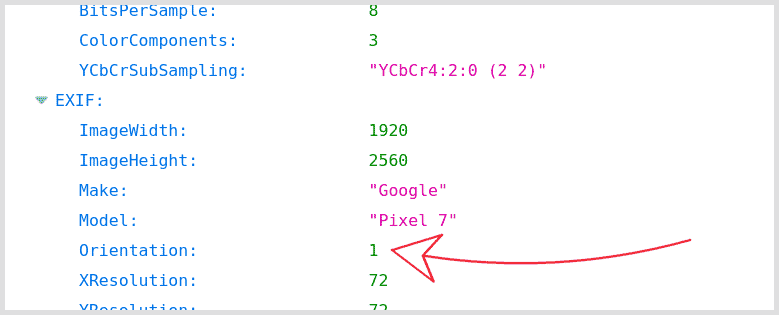
If your photos were not correctly oriented before upload, find out how to fix this…
Incorrect EXIF orientation
Section titled “Incorrect EXIF orientation”Popular photo editing programs can automatically fix the EXIF orientation when an image loads. They also update the meta if you rotate or flip an image manually.
Programs such as Photoshop, ACDSee, GIMP and macOS Preview usually handle orientation correctly. Some older or basic tools show the image upright without saving a corrected file.
That’s why the same photo can look fine in one place and wrong in another:
- The browser may use the EXIF tag, while the thumbnail maker on your server ignores it.
- A CMS may strip metadata during upload.
- A resized copy may lose the orientation tag.
Fixing image orientation
Section titled “Fixing image orientation”To correct the image orientation before uploading to Sirv:
- Open the image(s) in your preferred image editing program (e.g. Photoshop).
- Rotate the images to the correct orientation.
- Save the images in high quality (we recommend 92% JPEG quality).
- Upload the fixed images to Sirv.
To serve an image that is already in Sirv upright, add rotate to its URL.
In your Sirv account, click … on the image (or right-click it) and choose Edit.
Under Rotate, set Angle to 90, -90 or 180, then copy the Customized URL. It ends in ?rotate=90, and the file itself is not changed.
https://demo.sirv.com/pucker.jpg?rotate=90
Why does my image still show sideways?
Section titled “Why does my image still show sideways?”- Open the Sirv
?infoURL and check the EXIF Orientation value. - Download the original and open it in a photo editor.
- Rotate the image upright and save it as a new JPEG.
- Upload the corrected image and check the preview before you replace the old URL.
- If your site makes its own thumbnails, create those thumbnails again too.
If you process images with scripts, make sure they auto-orient before resizing.
Without that step, a resized image can keep sideways pixels and lose the EXIF tag that would have fixed the display.
How do I stop it happening again?
Section titled “How do I stop it happening again?”- Export final JPEGs from your editing software with the pixels upright.
- Keep camera originals separately, especially RAW files.
- Avoid running web-ready images through several optimization tools.
- Test a few portrait, landscape and mirrored files before a bulk upload.
- Use Sirv dynamic imaging for each size you need, instead of separate rotated copies.
View and edit EXIF orientation
Section titled “View and edit EXIF orientation”Below are some programs that you can use for viewing and editing EXIF meta data.
They’ll also let you edit other types of image meta data - IPTC and XMP data - which can help protect your images with copyright information.
Windows EXIF programs
Section titled “Windows EXIF programs”Zoner Photo Editor is a photo organizer and editor with an image information feature for viewing EXIF orientation:

Exiftool is a Perl library/command-line application allowing you to read and edit meta information in images. A standalone Windows executable is provided if you prefer not to use Perl:

Mac EXIF program
Section titled “Mac EXIF program”Mac OS lets you quickly check the EXIF orientation in Preview. Open an image and press CMD+I to view the images properties.

Linux EXIF program
Section titled “Linux EXIF program”On Linux, get EXIF info with Gimp or Image Magick (which is usually pre-installed). Get the orientation of an image on your computer with this command in the console (via ImageMagick):
identify -verbose enter/your/image/location-here.jpg | grep Orientation
It will output a result like this:

If the value is not 1, the photo is stored sideways or upside down, so save it upright in a photo editor, or add ?rotate= to its Sirv URL.