Password Protect Files and Folders
 By Jake Brumby, Customer Success DirectorUpdated
Short answer
Go to Settings > Domains in your Sirv account, open Protected URLs and add HTTP Basic Authentication to the folder you want to protect. Anyone who opens a file in that folder must then enter a username and password. Domain restriction, signed URLs and watermarks are other ways to protect files.
After reading this you will know
- How to password protect a folder in Sirv
- What visitors see when they open a protected file
- Which other ways you can protect files
You can protect the contents of a folder with HTTP authentication. To visit the URL of a file in the folder, a username and password will be required. (To control who can change the folder in your account instead, limit user access to folders or lock the folder.)
Example of a protected file
Section titled “Example of a protected file”The /Example-Folder/ folder of the demo.sirv.com account has been protected. Try to visit this image URL:
https://demo.sirv.com/Example-Folder/lv-M46197_PM2_Front.jpg

When you provide the following username/password, the file will load:
User: Example
Pass: StrongPassword%50
How to protect a folder
Section titled “How to protect a folder”Follow these steps to protect the contents of a folder with a password:
- Go to the Settings > Domains section of your account to find the Protected URLs settings:
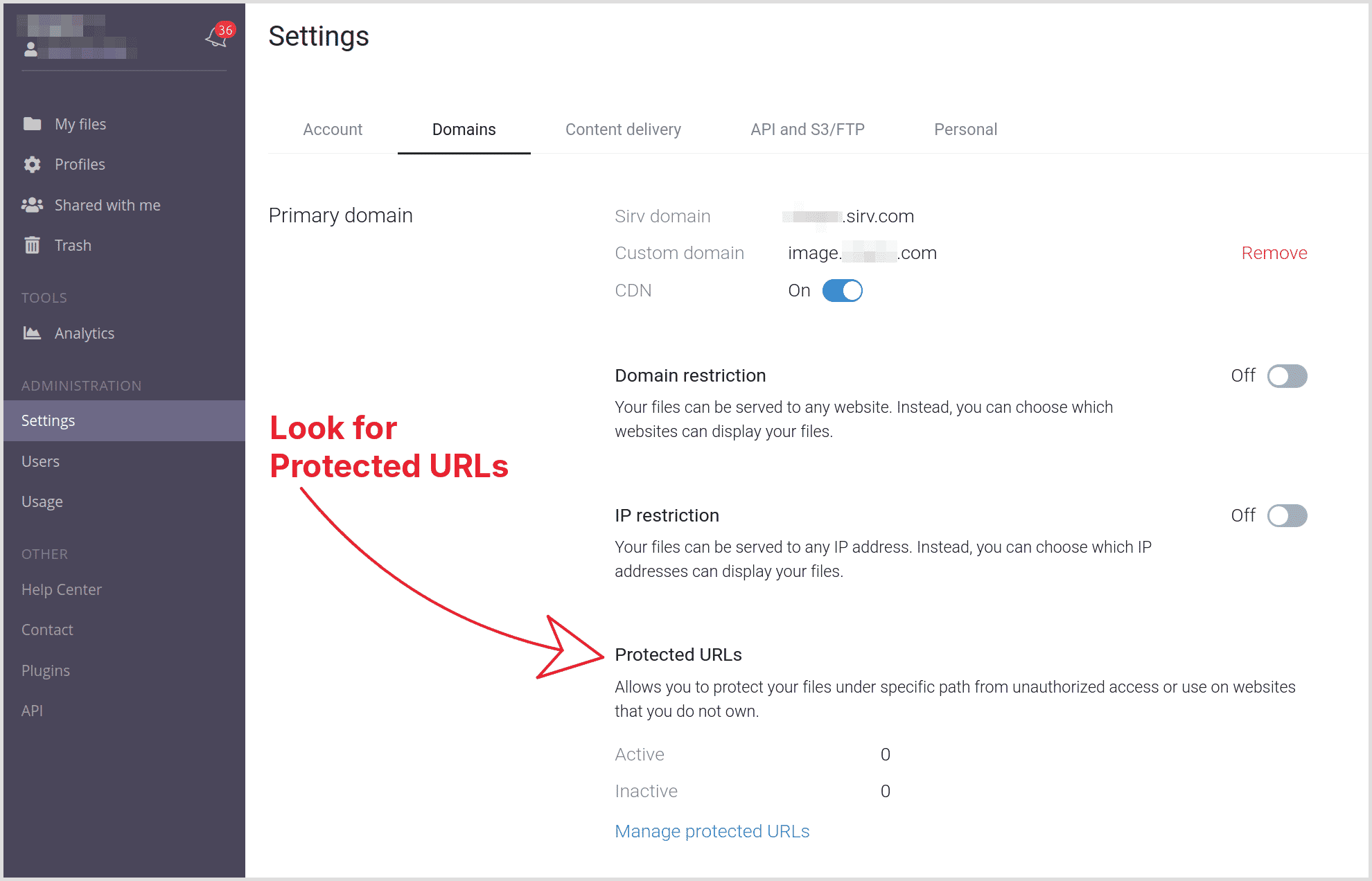
If you don’t see that section, ask the Sirv support team if they can enable protected file features on your account.
-
Click the link “Manage Protected URLs”.
-
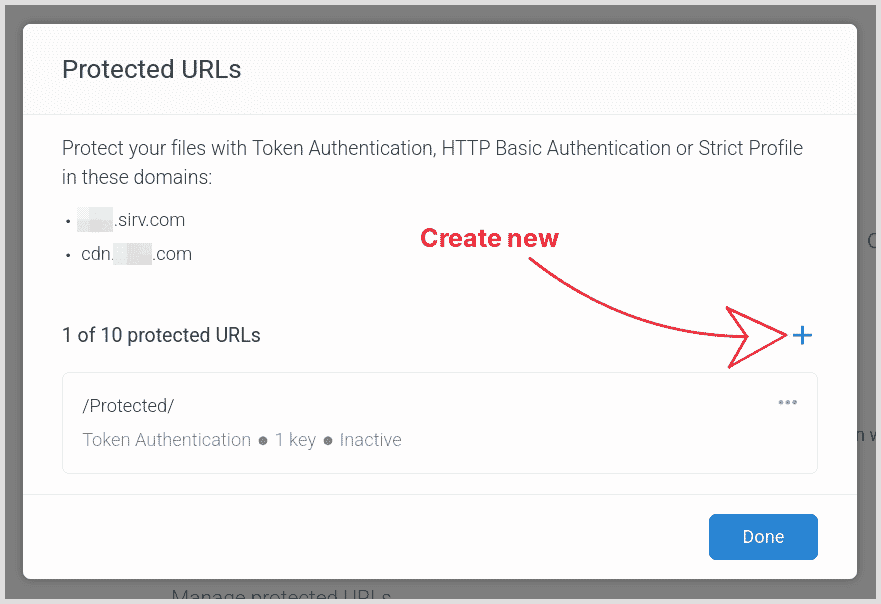
Click + to create a new protection:
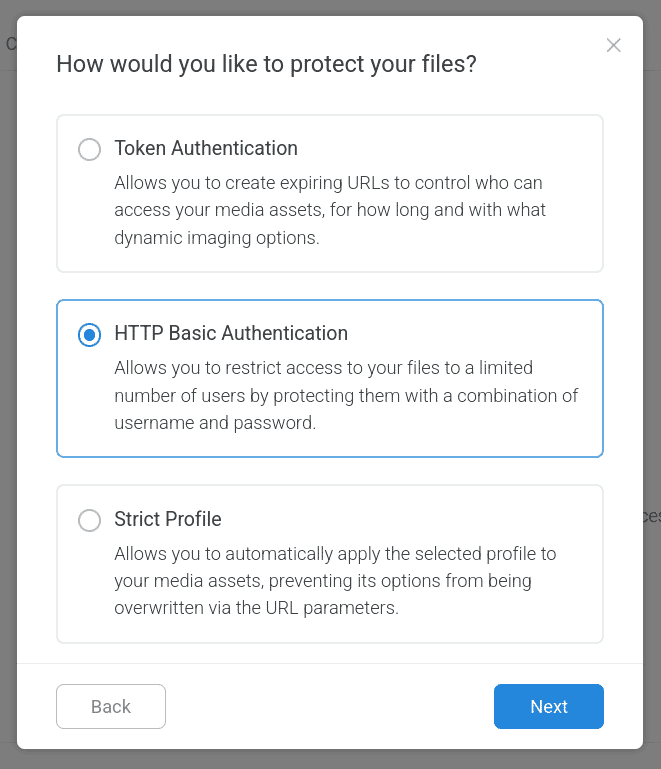
- Choose HTTP Basic Authentication and click Next:
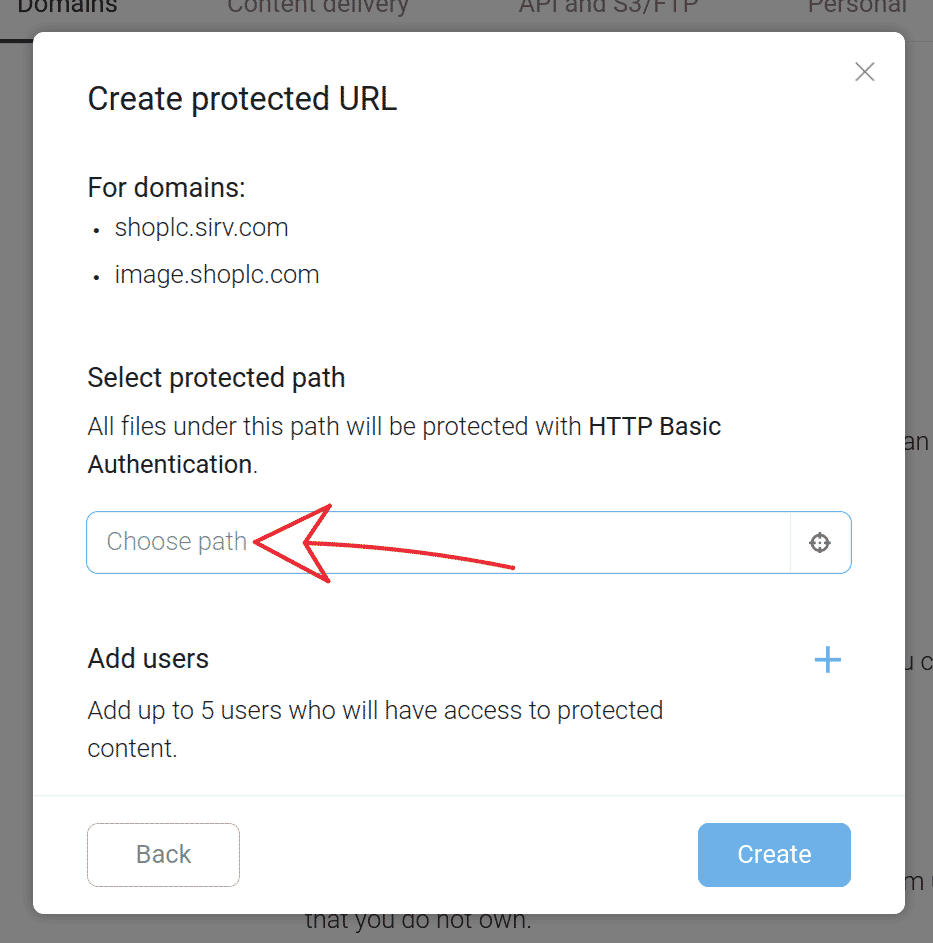
- Click to select the folder path you want to protect. You’ll then see a list of all your folders:
- Click + to create a new login (“user”):
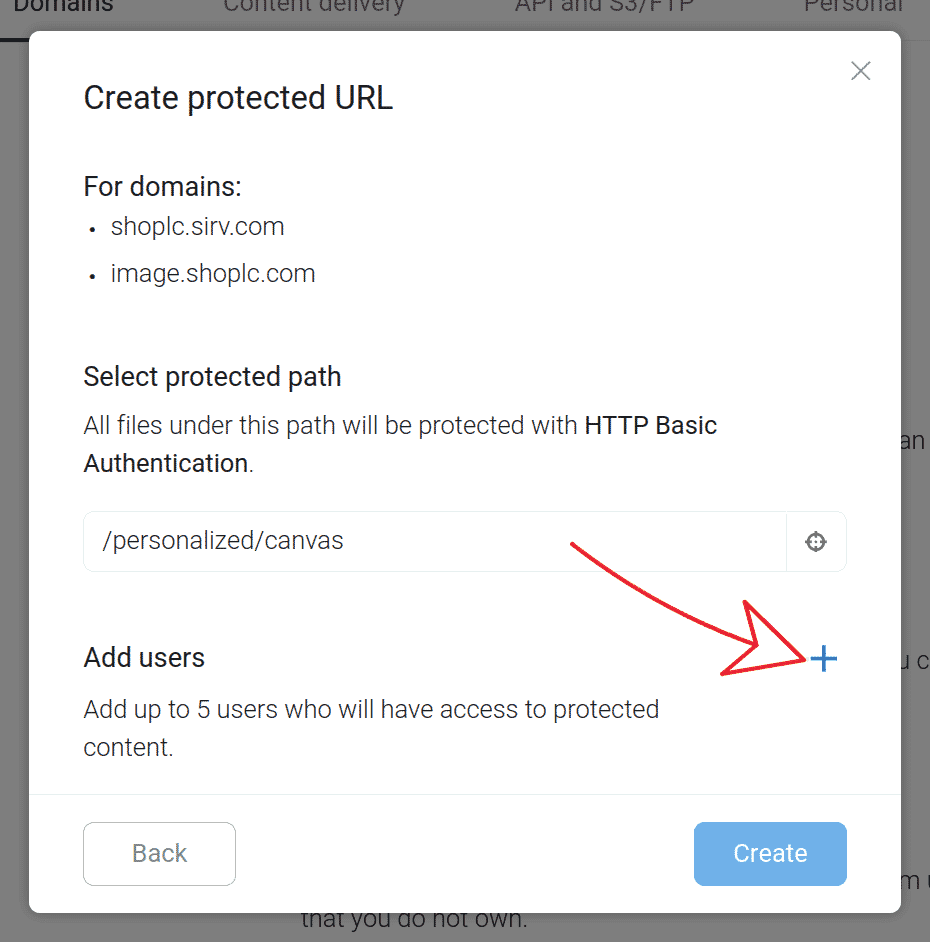
- Enter any username and password you desire. Optionally, you can enter a date when the login should stop working. Then click Add:
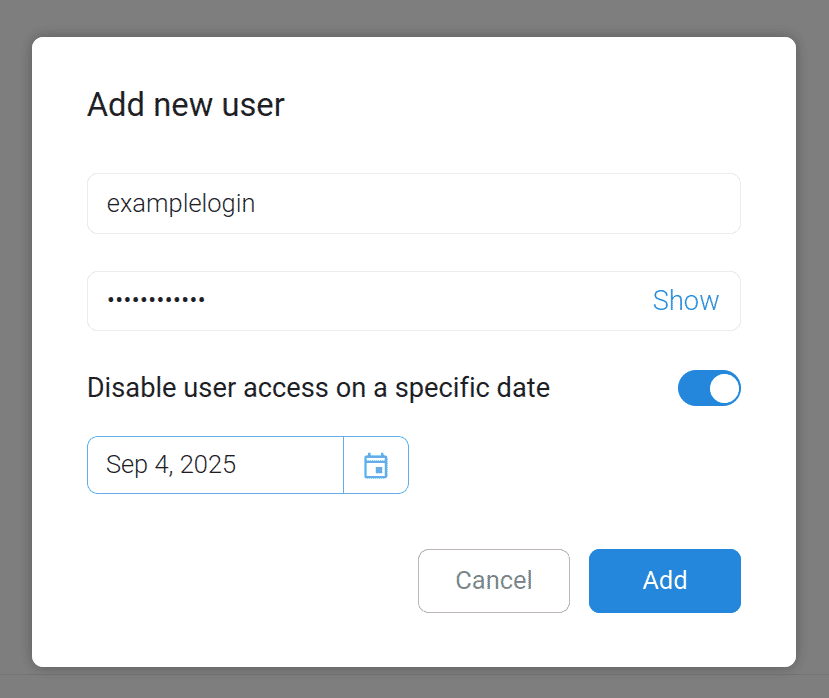
-
Click Create. Your login has been created. Now, all files in that folder (and it sub-folders) are protected.
They can only be seen by providing a valid username and password. It is called a “user” but anyone who knows the username and password will be able to view the files.
Up to 5 username/password configurations can be set for each HTTP folder protection.
Alternative protections
Section titled “Alternative protections”Sirv also provides other ways to protect files from being viewed:
- Domain protection - you can enable domain restriction to block direct requests and specify which domains may display your images (whitelisting).
- JWT protection - you can enable JWT signed URLs so that only URLs containing a valid token can be served.
- Watermarks - you can apply image or text watermarks to your images. They can be made irremovable with JWT protection.