Weebly Image Zoom and 360 spins
 By Anne-Marie Fletcher, Customer Success TeamUpdated
Short answer
In a Square Online or Weebly store, open the product, click "Add other media types", then "Embed 360 photos" and "Link 360-degree photos". Paste the URL of your spin from Sirv, ending in .spin, and click "Done". On a Weebly site or blog, paste Sirv's embed code for a spin or zoom instead.
After reading this you will know
- How to add a 360 spin to a Square Online or Weebly store
- How to add a spin or zoom to a Weebly site or blog
- How to change its size

The Square Online Store - powered by Weebly - is an easy way to create an online store that accepts card payments through Square.
Add your 360 spins or image zooms to Weebly with Sirv.

Gone are the days of uploading and configuring JavaScript and image files. Simply upload your images to Sirv, then copy and paste the code.
Add 360 spins to your Square / Weebly store
Section titled “Add 360 spins to your Square / Weebly store”Weebly works beautifully with Sirv - just follow these steps:
1. Login to your Weebly online store.
2. Go to the product you want to add a spin to.
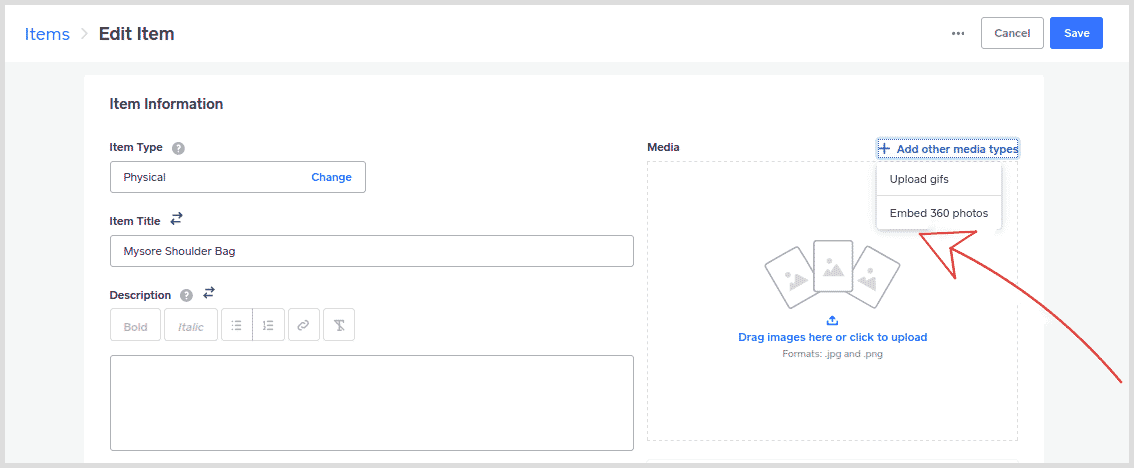
3. Click “Add other media types” then click “Embed 360 photos”:
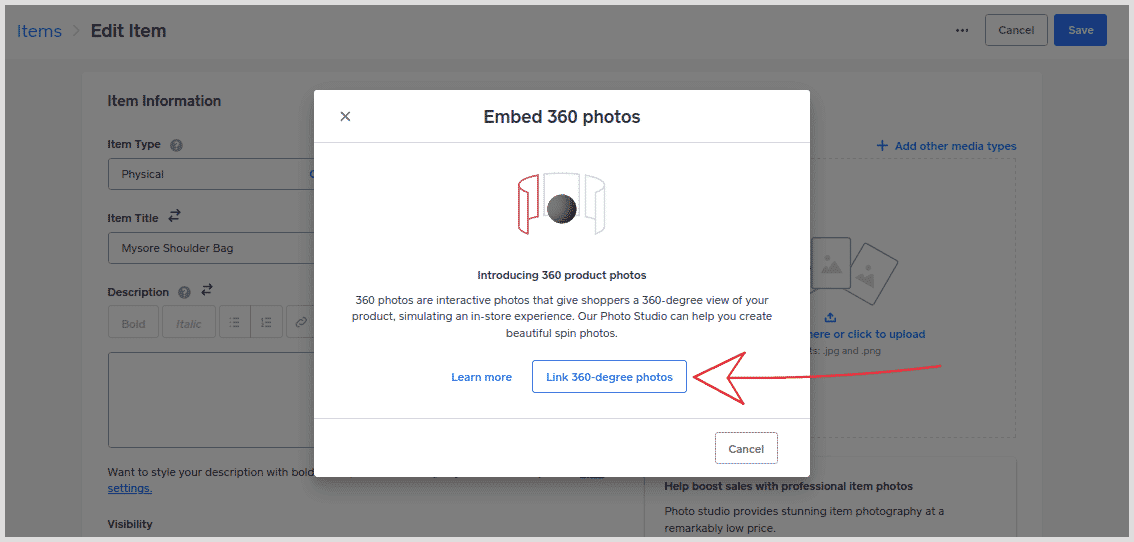
4. Click “Link 360-degree photos”:
5. Paste the URL of your 360 spin.
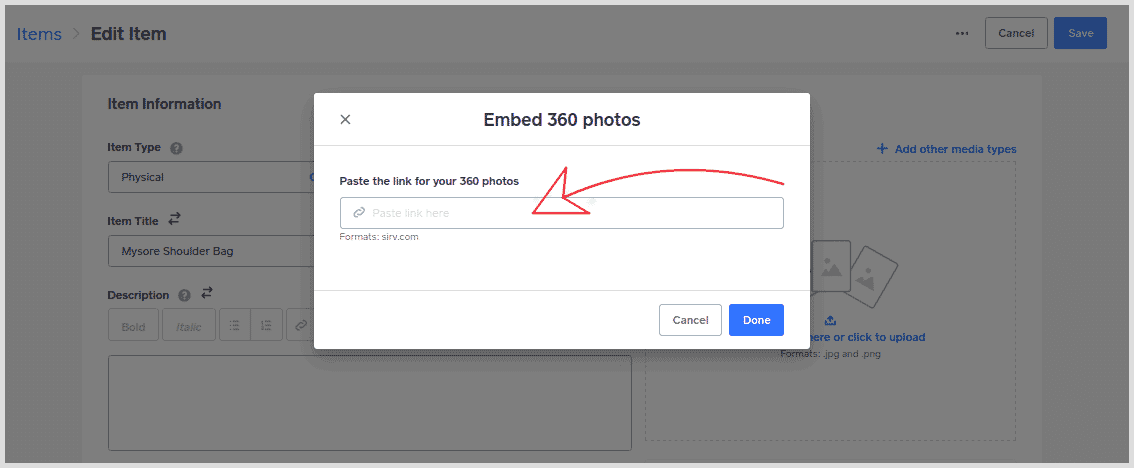
Here’s an example .spin URL:
https://demo.sirv.com/example.spin6. Click “Done”.
How do I create a .spin file?
Section titled “How do I create a .spin file?”You need a set of photos or a video. If you have them already, create a Sirv account and upload your photos/videos to your Sirv account.
How do I get photos?
Section titled “How do I get photos?”Spins are made from photos of a product rotating on a turntable. To get photos, choose an option below:
-
Order photos in USA from the official Square photo studio. It’s great value, only $29.95 USD per product, making it the easiest way to get super high-quality 360 spins on your Weebly store.
-
For the rest of the world, get a quotation for a professional 360 photo studio in your country.
-
Alternatively, photograph your own spins.
We recommend hiring a professional because its tough to create beautiful spins, but it’s possible with perseverance and the right equipment (turntable, lighting & white backgrounds).
Add image zoom or spin to your Weebly site/blog
Section titled “Add image zoom or spin to your Weebly site/blog”If you have a Weebly store, follow the steps above.
If you have a Weebly blog or website i.e. you’re not selling online, follow the steps below.
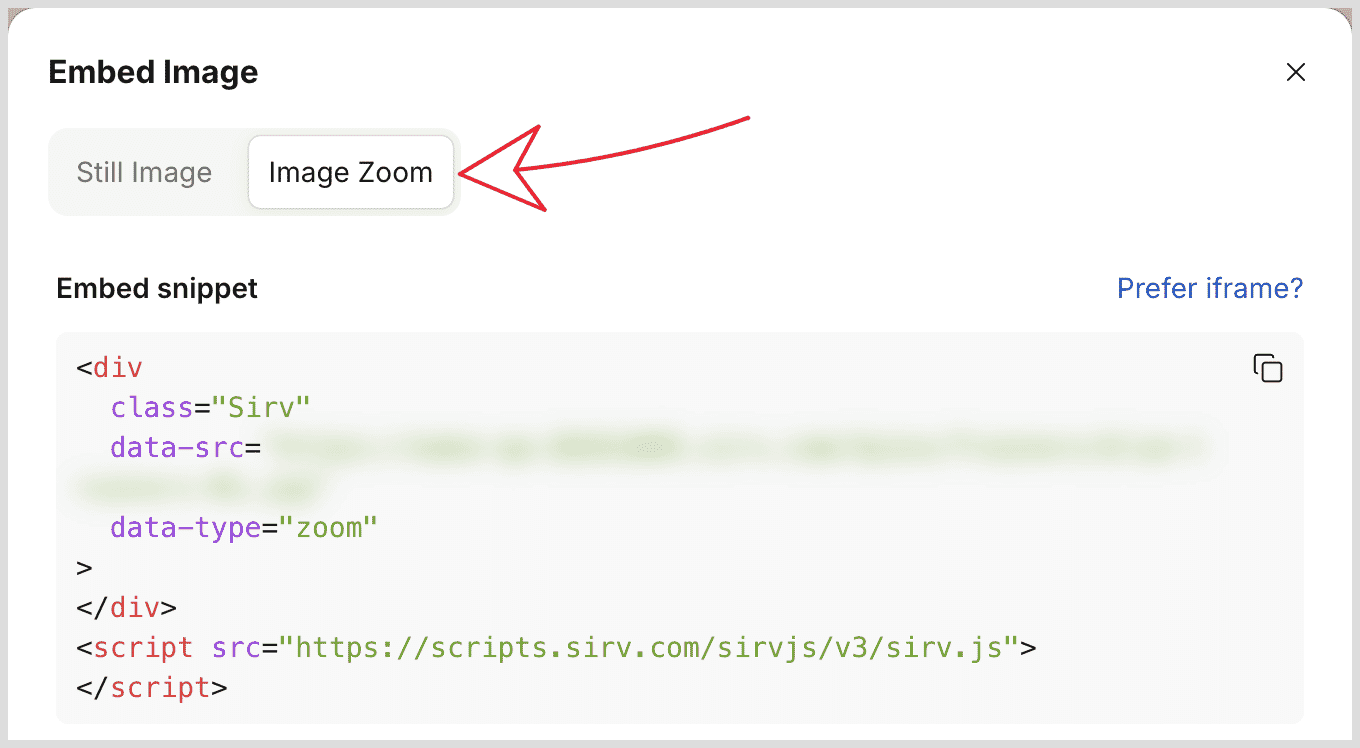
1. Log in to your Sirv account or create a free Sirv account. 2. Upload your images to Sirv. 3. Open the image or spin that you want to embed, click Embed and copy the code. For an image, the Image Zoom tab gives you zoom:
4. Go to the page in your Weebly admin and drag the “Embed code” widget onto your page:
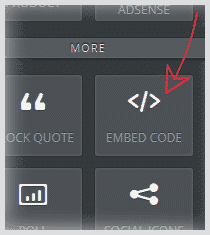
5. Paste the code you copied from Sirv. 6. Publish your Weebly site to see the image zoom or 360 spin. Live demos:
- Sirv Zoom on a Weebly Website
- Sirv Zoom on a Weebly Blog
- Sirv Spin on a Weebly Website
- Sirv Spin on a Weebly Blog
Change the size
Section titled “Change the size”Your image zoom or 360 spin will automatically fit the area where you paste it. To make it larger or smaller, add style to the div class. The example below sets the width to 400px:
<div class="Sirv" data-effect="zoom" style="width:400px"> <img data-src="https://sirv.sirv.com/Examples/test-air.jpg" /></div>Change the width value to make the image zoom or spin the size you need.