How to Set Up Sirv CDN on Magento
 By Jake Brumby, Customer Success DirectorUpdated
 Sirv for Magento1. In your Magento root folder, install the extension with Composer:
composer require sirv/magento2
bin/magento setup:upgrade
bin/magento setup:di:compile
bin/magento setup:static-content:deploy2. In Magento admin, go to System › Sirv CDN › Configuration and sign in with your Sirv account, or create a free one there.3. Set Enable Sirv to Yes, click Save Settings, then refresh the Magento page cache.Open on Adobe Commerce MarketplaceShort answer
Install the Sirv extension with composer require sirv/magento2, then open System, Sirv CDN, Configuration and log in to your Sirv account. Sirv copies your Magento images the first time they are requested and serves them optimized from its CDN. It can also replace your product gallery with Sirv Media Viewer, adding zoom, 360 spins and videos.
After reading this you will know
- How to install and set up the Sirv extension for Magento 2
- How Sirv copies and serves your Magento images
- How to add zoom, 360 spins and videos to product pages
The Sirv CDN extension for Magento (also called Adobe Commerce) is the best way to optimize and deliver your images rapidly.
It can also replace your default media gallery with Sirv Media Viewer, to conveniently showcase 360 spins, videos and zoomable images.
Use the Sirv CDN extension to:
- Optimize product images, WYSIWYG images, JS, CSS and static files.
- Deliver these files rapidly in next-gen formats (e.g. AVIF & WebP) from Sirv’s CDN.
- Resize images on-the-fly and lazy load them.
- Use Sirv Media Viewer for 360 spins, product video & image zoom.
Learn more about the Magento CDN extension key features.
Installation
Section titled “Installation”-
Install the extension using composer:
composer require sirv/magento2bin/magento setup:upgraderm -rf var/generationbin/magento setup:di:compilebin/magento setup:static-content:deploy -
Or download the Sirv Magento 2 extension as a zip, copy files to the server and install it from the command line:
bin/magento module:enable Sirv_Magento2 --clear-static-contentbin/magento setup:upgraderm -rf var/generationbin/magento setup:di:compilebin/magento setup:static-content:deploy -
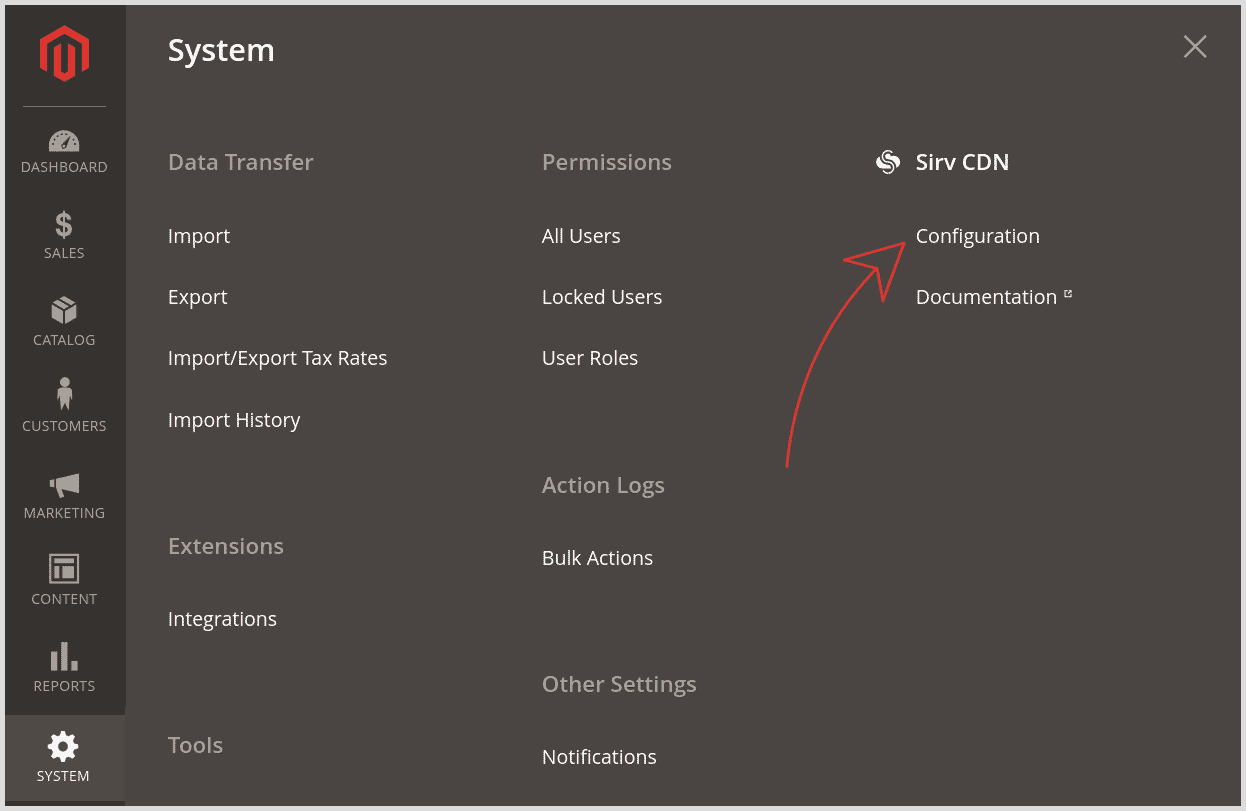
Go to the Sirv extension options, via System > Sirv CDN > Configuration:
![Sirv Settings navigation]()
-
Log in to an existing Sirv account or create a new one:
![Magento Sirv registration]()
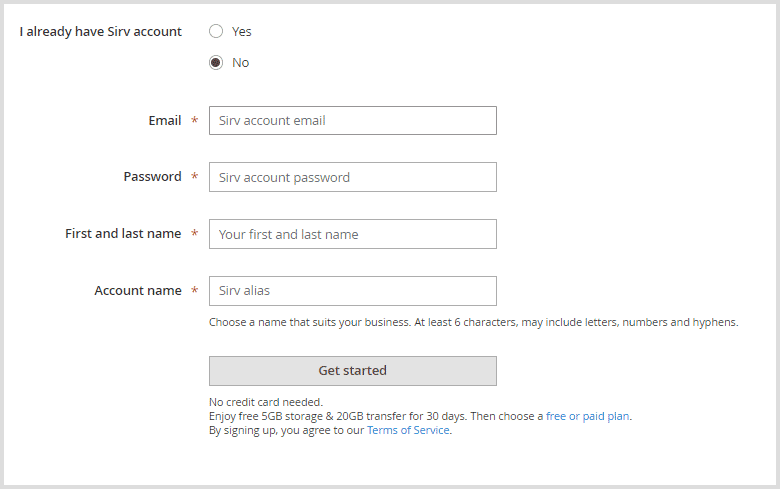
You’ll receive 5 GB storage and 20 GB bandwidth for 30 days.
After your free trial expires, you may choose either a paid plan or a free one (500 MB storage, 2 GB bandwidth and branding on Sirv Media Viewer).
Update
Section titled “Update”To update a module installed via composer, run these commands from the Magento root directory:
composer update sirv/magento2bin/magento setup:upgradebin/magento cache:flushHow to set up your CDN in Magento 2
Section titled “How to set up your CDN in Magento 2”-
Enable Sirv on the configuration page:
![Sirv settings in Magento 2]()
Click to view all the settings (screenshot).
-
Enter a folder name where images should be copied to, or keep the default name.
![Choose folder name for Magento image sync]()
-
Choose to serve JS, CSS and associated files. If Sirv serves your JS, CSS and static files too, they will be minified and delivered rapidly from Sirv’s CDN, benefitting from HTTP/2 and TLS 1.3.
![JS & CSS file CDN for Magento 2]()
-
Enable lazy loading, to load images only when they enter in the viewport and to scale images to the correct dimensions:
![Enable Magento lazy loading images]()
-
Choose a profile (optional):
![Profile options in Magento 2]()
Profiles are one of Sirv’s powerful features, to apply transformations to images.
You can tweak image quality, format, text overlays, watermarks and many other options, without altering your original images.
-
Click the “Save Settings” button:
![Sirv M2 extension save settings button]()
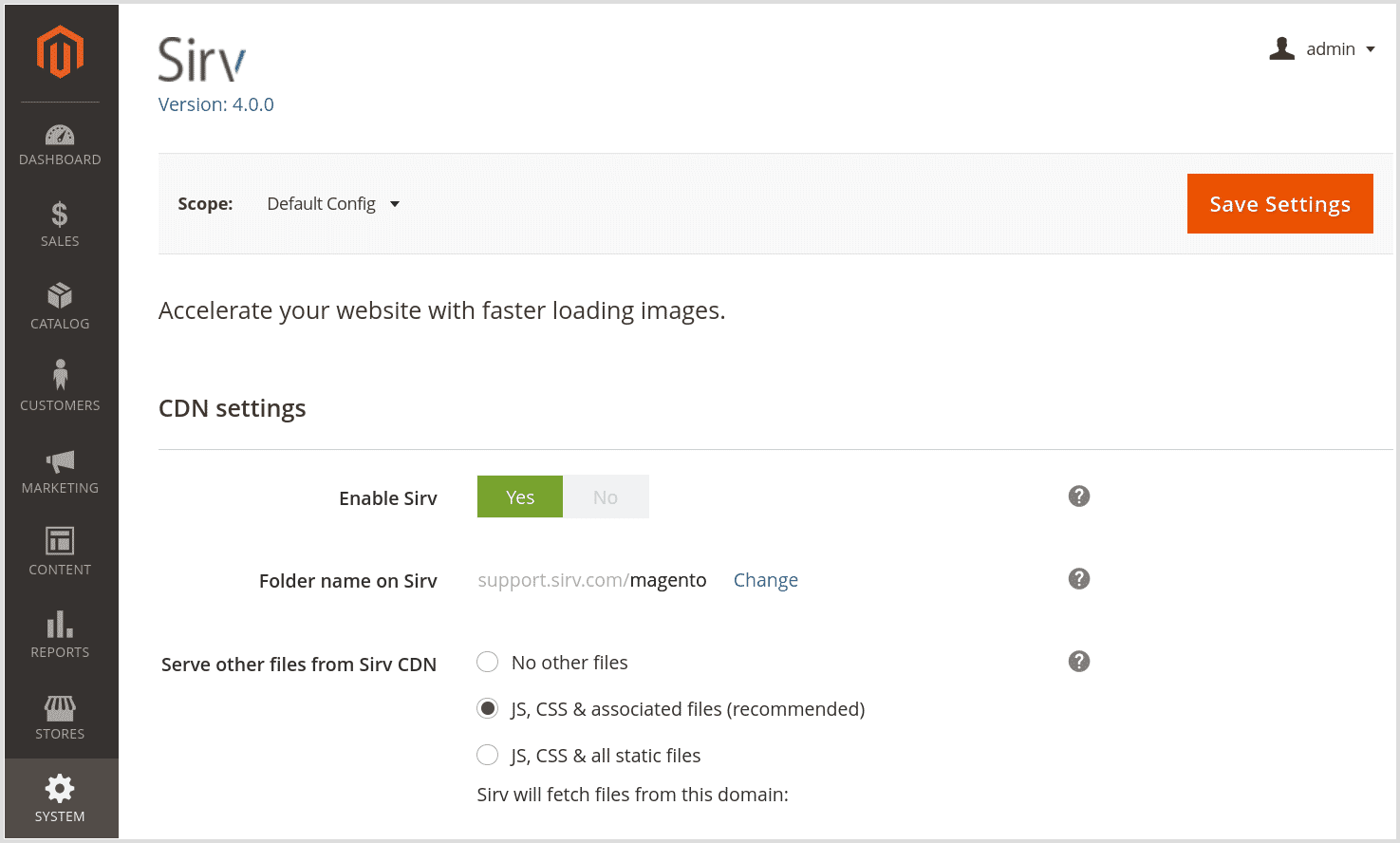





Congratulations, Sirv is now running on your Magento store! Enjoy the best possible image optimization, next-gen image formats and lightning-fast CDN page loading.
Image synchronization
Section titled “Image synchronization”Sirv will automatically copy your Magento images to Sirv, the first time they are requested.
Visitors will receive images from Magento until they have synced, then future requests will be returned by Sirv - resized, optimized, cached and rapidly delivered from our Magento CDN.
The image sync status is shown on your settings page:
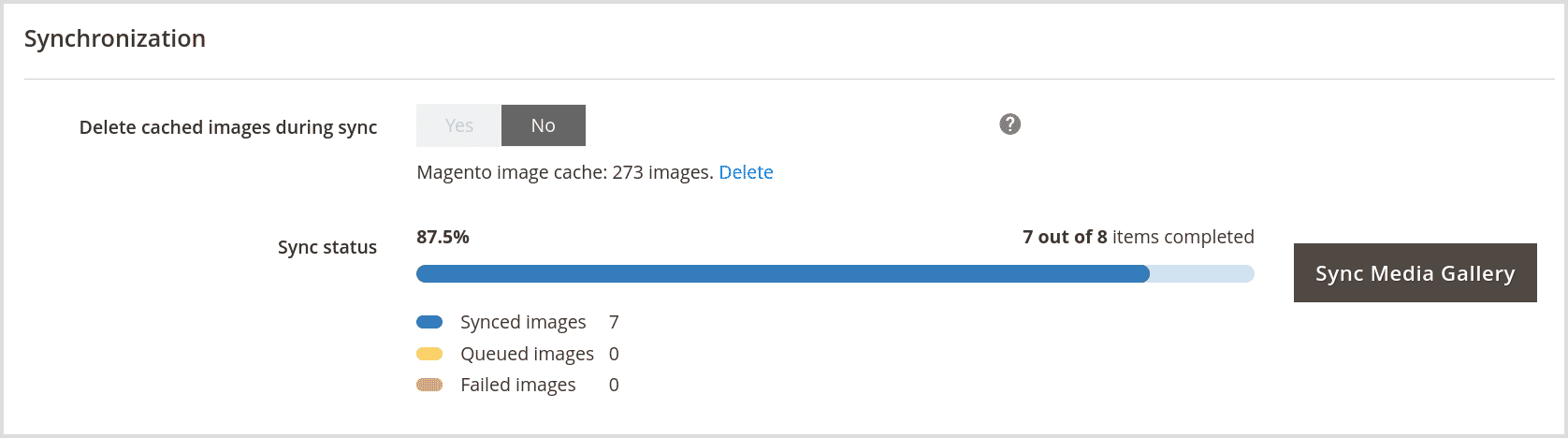
The Sirv CDN extension for Magento will automatically stay in sync by copying new images to your Sirv account upon first request. You can also pre-sync your entire media gallery.
It’s a heavy process, so not suitable when testing but great before going live, for fastest possible loading. Click the “Sync Media Gallery” button.
Sirv Media Viewer
Section titled “Sirv Media Viewer”You can replace your default Magento product gallery with the sophisticated Sirv Media Viewer, enabling you to add 360 spins, videos and additional images to your product gallery.
It’s highly customizable, optimized for speed and provides an outstanding mobile experience.
Here’s a live demo:
How to add zoom, 360 spins and videos to Magento 2
Section titled “How to add zoom, 360 spins and videos to Magento 2”-
Choose the Sirv Media Viewer option:
![Sirv Media Viewer in Magento 2]()
-
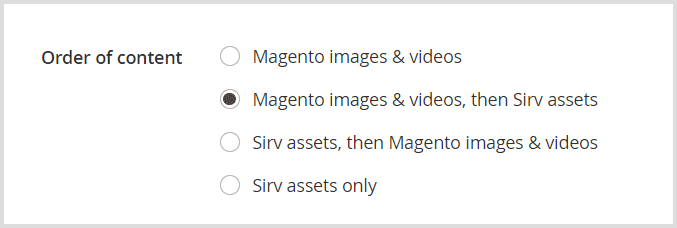
Select the source for the media to be included in your gallery - either Magento, Sirv or both:
![Sirv Media Viewer order of content in Magento 2]()
Uploading directly to Sirv is popular because it’s fast and easy. Unlike Magento, Sirv supports all types of media - 360 spins, streaming videos and 8 types of image zoom.
-
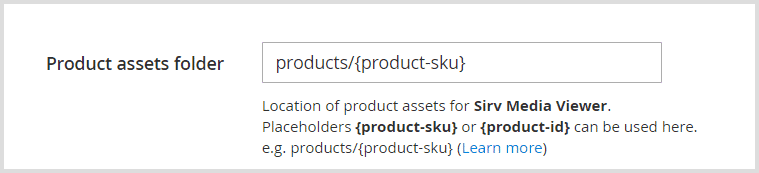
Select the folder naming convention that you will use to upload media directly to Sirv. Use either
{product-sku}or{product-id}convention:![Sirv Media Viewer assets folder setting in Magento 2]()
Create a master folder in your Sirv account, for example, a folder named ‘products’:
/products/Then create subfolders for each product, naming each one to match your SKUs or product IDs. A product with SKU
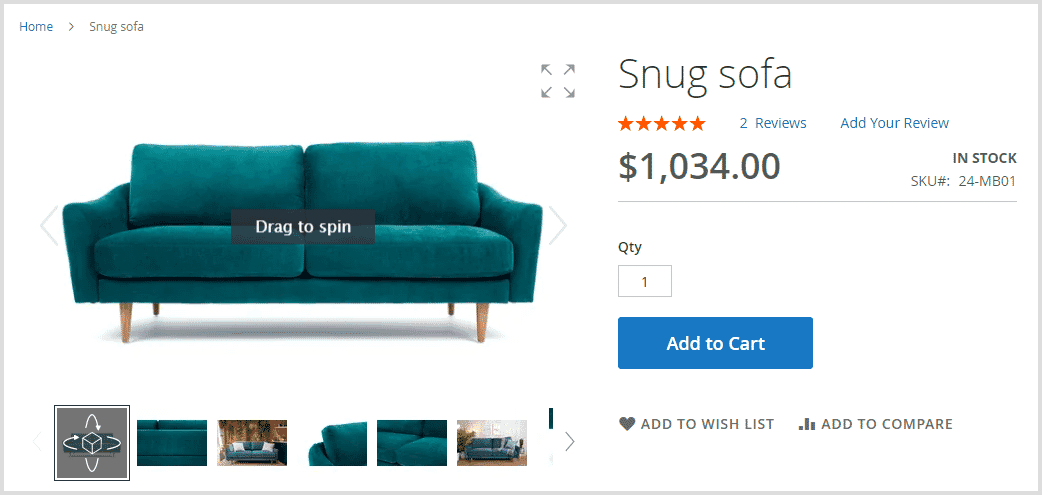
24-MB01would be:/products/24-MB01/Then upload the 360 spins, videos and images for that product, for example:
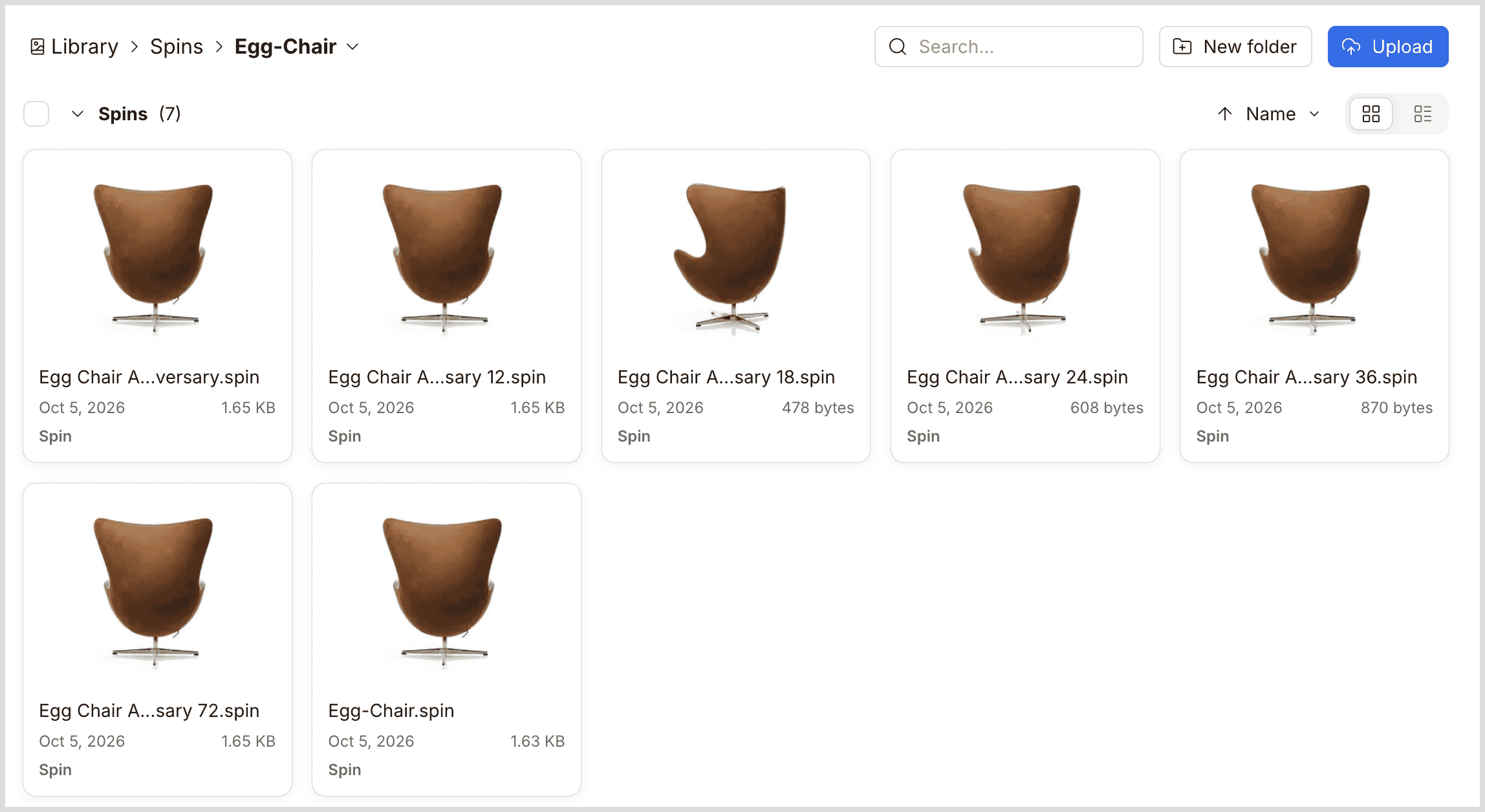
/products/24-MB01/an-image.jpg/products/24-MB01/another-image.jpg/products/24-MB01/a-video.mp4Here’s how the folder might look in Sirv:
![A product folder in Sirv with its spins and images]()
-
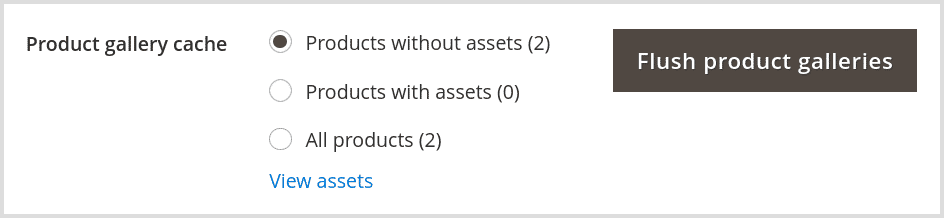
Flush the asset info cache in Sirv settings and remember to refresh Magento’s page cache too:
![Flush product asset cache]()

Job done!
Here’s how Sirv Media Viewer might look on the front-end:
Customization
Section titled “Customization”Sirv Media Viewer is very customizable. You can change plenty of zoom, 360 spin, video options, as well as viewer options.
For really easy configuration, we’ve created a live interactive demo, for you to tweak every single option and copy the configuration code.
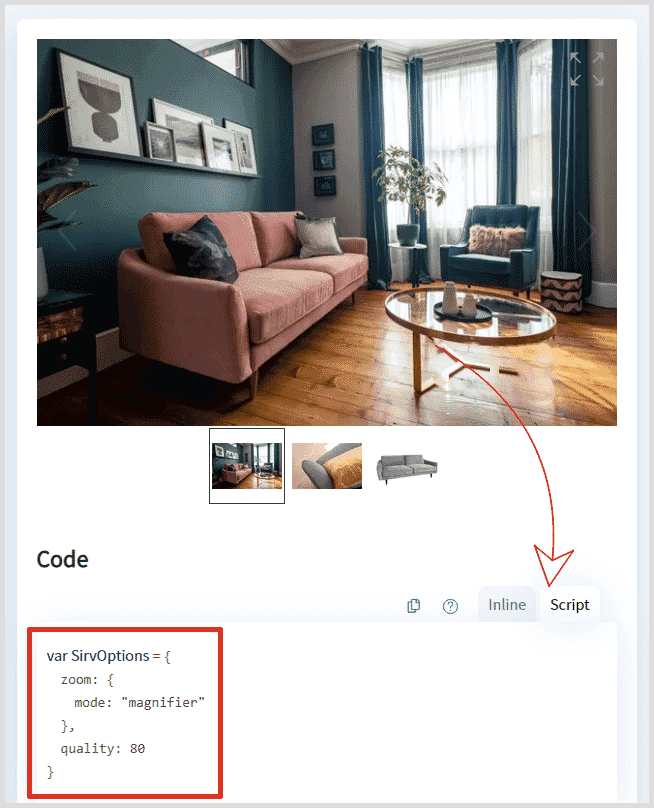
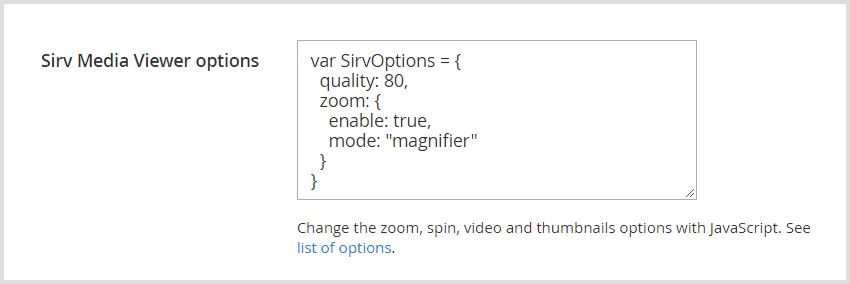
Paste the resulting code into the “Sirv Media Viewer” options text box:
Localization
Section titled “Localization”You can translate text into other languages by applying different settings per store view.
English language is used by default for hints and buttons.
To change the language, use the interactive demo to choose your text, then copy and paste the settings into the Sirv Media Viewer options box for that store view.
The options below would change “Click to zoom” and “Hover to zoom” to French:
SirvOptions = { viewer: { zoom: { hint: { text: { click: 'Cliquez pour zoomer', hover: 'Survolez pour zoomer' } } } }}Multi Site
Section titled “Multi Site”You can use the same Sirv extension on multiple websites when you’re using Magento Multi Store.
Some of the options can be configured per store, while other options will be shown on all stores. It depends how those assets are being added to the gallery.
Your product gallery can have assets from 3 sources:
-
Magento product images - images uploaded to your Magento library will be shown on all sites.
-
Sirv automatic product images - images uploaded to the SKU folder on Sirv can either show on all sites or differently per site.
To configure different rules per site, choose the folder path in the setting “Product folder names on Sirv”.
You can also use
{attribute:attribute_code}pattern to further customize each product, and that pattern can use the Magento store, e.g.{store_id:2}. -
Manually added Sirv assets - if you manually add more Sirv images/videos/spins/models to a product, they will be shown on any store that displays that product.
If you need to manually add different assets for different stores (for the same SKU), please request this feature from the Sirv team.
Usage stats
Section titled “Usage stats”A summary of your storage, transfer and API usage is shown on your Sirv settings page:
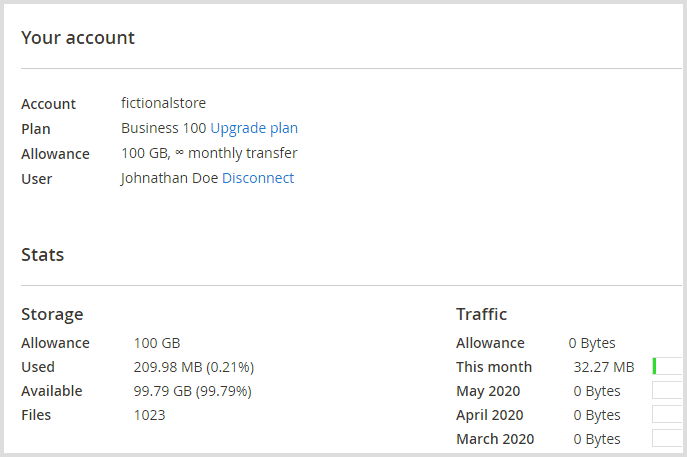
For detailed statistics, visit your Analytics page.
Common questions
Section titled “Common questions”Can this work on localhost?
Yes, the extension can be used on localhost, with some limitations. Images will be synced to Sirv using our S3 API (not our REST API) and the option to serve media files (JS/CSS/etc.) won't work.
Should I use the same folder and account for staging and live?
If you have multiple environments (development, staging, UAT, production etc), choose the configuration that suits your setup:
- If you have enabled the option to sync JS/CSS/static and media files, that option requires Auto-fetch, so you'll require a different Sirv account for each environment. We recommend connecting your production environment to your main Sirv account and creating a sub-account for each other environment.
- If you have not enabled the option to sync JS/CSS/static and media files, then one Sirv account is sufficient. You might need to specify different folders:
- If all your Magento environments use one main media library, then set the same folder name on Sirv.
- If each environment has its own Magento media library, then set a different folder name on Sirv for each environment.
How do I add a YouTube video to a product gallery?
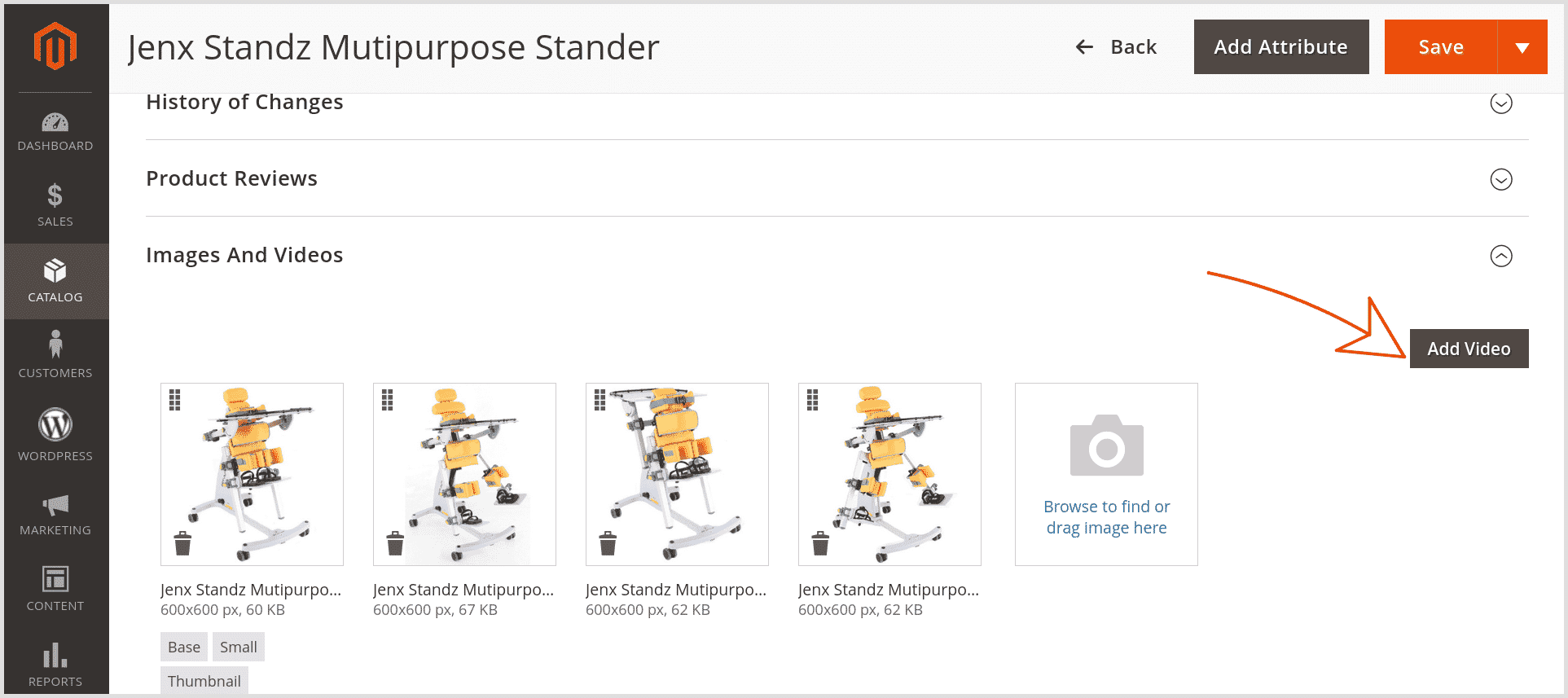
You can add YouTube URLs to your Magento products in the normal way, on the Products page in Magento admin. The video will automatically appear in Sirv Media Viewer on your product page. See the Magento docs for more about adding videos to products.
What if my product SKU contains a / slash?
Slashes are used to separate folders. If your SKU contains a slash, then that will be interpreted as a folder. If for example you want to upload assets to your Sirv account for a SKU named ABC/D123, you should create a folder named ABC and a subfolder named D123, like so: /ABC/D123/.
Support
Section titled “Support”The Sirv support team is ready to help you. As Magento experts, they can install the extension for you, assist you with customization, or configure Sirv on highly customized Magento sites.
Contact the team with your requirements.
Changelog
Section titled “Changelog”- v7.3.4 (September 2, 2026)
- Fixed downloading of primary images with spaces or special characters in the file path.
- v7.3.3 (August 24, 2026)
- Fixed CLI commands compatibility with Magento 2.4.9.
- v7.3.2 (September 9, 2025)
- Added improvements for the “Exclude pages” option.
- Small bugs fixed.
All versions
- v7.3.1 (August 5, 2025)
- Improved support for Magento v2.4.8.
- v7.3.0 (April 28, 2025)
- Added “Delete from Sirv” option to delete images if they’re deleted on Magento.
- Faster access to Sirv settings via left navigation bar.
- Added improvements for “Use Sirv Media Viewer as product gallery” option.
- Small bugs fixed.
- v7.2.0 (March 20, 2025)
- Added option for grid layout gallery.
- Added button for creating a new folder on Sirv.
- Added minor text and style improvements.
- Fixed an issue with copying primary image from Sirv for products with slash in SKU.
- v7.1.1 (May 31, 2024)
- Refinements to asset uploader.
- v7.1.0 (March 25, 2024)
- Improved ‘Sirv images, videos, spins & models’ section: added the ability to upload files to Sirv.
- Improved ‘Sirv images, videos, spins & models’ section: added the ability to search for files on Sirv.
- Small bugs fixed.
- v7.0.1 (February 19, 2024)
- Added “Custom CSS” option to fix any layout issues with your theme.
- Added improvements to module settings page.
- v7.0.0 (January 12, 2024)
- Added product admin page section to see Sirv assets.
- Added product admin option to add any Sirv asset to a product.
- Added improvements to module settings page.
- Small bugs fixed.
- v6.2.1 (November 20, 2023)
- Improved gallery items ordering.
- Small bugs fixed.
- v6.2.0 (October 16, 2023)
- Added option to copy image’s alt text to Sirv.
- Added improvements to module settings page.
- v6.1.5 (September 27, 2023)
- Added fix for handling new Sirv API responses when syncing images.
- Small bugs fixed.
- v6.1.4 (September 25, 2023)
- Added product attribute ‘Extra Sirv assets’ to add extra images, videos, 360 spins or GLB models to the product page gallery.
- Added support for ‘Catalog media URL format’ option.
- Added improvements to more accurately calculate the index of the first slide in the product page gallery.
- Added improvements to module settings page.
- Small bugs fixed.
- v6.1.3 (July 11, 2023)
- Added 3D model support (GLB).
- Added improvements to module settings page.
- Small bugs fixed.
- v6.1.2 (March 15, 2023)
- Added improvements for “Product folder names on Sirv” option.
- Added Two-factor authentication support.
- Small bugs fixed.
- v6.1.1 (January 31, 2023)
- Optimized media gallery size calculation process.
- Added improvements for “Product folder names on Sirv” option.
- Small bugs fixed.
- v6.1.0 (November 14, 2022)
- Added option to choose Sirv JS features.
- Added lazy loading exclusion based on IMG tag properties.
- Redesigned auto fetch configuration logic.
- Optimized REST API usage.
- Better PHP 8 compatibility.
- Improved module settings page.
- Small bugs fixed.
- v6.0.2 (October 11, 2022)
- Small bugs fixed.
- v6.0.1 (August 23, 2022)
- Improved support for Magento v2.3.
- v6.0.0 (August 19, 2022)
- Improved process of copying primary images.
- Added ‘Exclude images’ option.
- Optimization of asset caching.
- Added feature to display Sirv image in product list when product gallery has no image.
- Added ‘HTTP authentication’ option for image synchronization.
- Improved module settings page.
- Small bugs fixed.
- v5.2.2 (April 14, 2022)
- Added support for Magento_CatalogStaging module.
- Small bugs fixed.
- v5.2.1 (February 4, 2022)
- Choice of 3 options to scale images to fit their container.
- Minor improvements to text and admin layout.
- v5.2.0 (January 27, 2022)
- Added option to apply image placeholders.
- Added option to add width/height for <img> tags.
- Improved module settings page.
- Small bugs fixed.
- v5.1.2 (December 25, 2021)
- Added ability to copy primary spin image from Sirv to Magento.
- Improved module settings page.
- v5.1.1 (December 17, 2021)
- Small bugs fixed.
- v5.1.0 (November 29, 2021)
- Added option to copy primary images from Sirv to Magento.
- Improved module settings page.
- Code optimization.
- Small bugs fixed.
- v5.0.0 (September 3, 2021)
- Added option to choose which domain files are served from.
- Added option to easily change the order of gallery items.
- Added option to pin items in the gallery.
- Improved layout of module settings page.
- Small bugs fixed.
- v4.1.0 (June 30, 2021)
- Added ‘Sirv content cache TTL’ option.
- Improved module settings page.
- Small bug fixed.
- v4.0.0 (May 21, 2021)
- Module name changed.
- Added ‘Exclude page URLs’ option.
- Added ‘Exclude file URLs’ option.
- Added ‘Image zoom’ option.
- Improved module settings page.
- Improved synchronization process.
- v3.3.4 (April 19, 2021)
- Small bug fixed.
- v3.3.3 (January 21, 2021)
- Added ‘Custom CSS’ option.
- Improved module settings page.
- v3.3.2 (January 14, 2021)
- Improved CDN usage logic.
- Small bug fixed.
- v3.3.1 (December 28, 2020)
- Improved module settings page.
- Small bug fixed.
- v3.3.0 (December 16, 2020)
- Added per store view configuration.
- Added image lazy loading option.
- Added streamlined sirv.js component selection.
- Improved module settings page.
- Small bug fixed.
- v3.2.5 (December 2, 2020)
- Small bug fixed.
- v3.2.4 (November 12, 2020)
- Improved module settings page.
- Small bug fixed.
- v3.2.3 (October 8, 2020)
- Improved Auto-Fetch feature.
- Improved module settings page.
- Small bug fixed.
- v3.2.2 (August 5, 2020)
- Improved support for third-party modules.
- Improved Auto-Fetch feature.
- Small bug fixed.
- v3.2.1 (July 23, 2020)
- Added ‘Image quality’ option.
- Added ‘Max height’ option.
- Small bug fixed.
- Improved module settings page.
- Added small performance improvements.
- v3.2.0 (July 6, 2020)
- Added Auto-Fetch feature for JS, CSS & static file CDN serving.
- More elegant module settings page.
- Improved the module menu.
- Better upgrade notification.
- Small bug fixed.
- v3.1.2 (June 16, 2020)
- Improved support for third-party modules.
- Small bug fixed.
- Improved module settings page.
- v3.1.1 (June 9, 2020)
- Added field for configuring Sirv Media Viewer options.
- v3.1.0 (June 5, 2020)
- Improved support for third-party modules.
- Improved module settings page.
- Improved synchronization process.
- Minor bug fixes.
- v3.0.3 (May 26, 2020)
- Improved synchronization process.
- v3.0.2 (May 21, 2020)
- Improved support for Magento v2.2.
- v3.0.1 (May 13, 2020)
- Improved support for Sirv Media Viewer.
- Small bug fixed.
- v3.0.0 (May 1, 2020)
- Added support for CMS block images.
- Added support for Sirv Media Viewer.
- Improved module settings page.
- Improved synchronization process.
- Added account creation form.
- v2.1.0 (February 14, 2020)
- Improved support for Magento v2.3.
- Improved support for MagicToolbox modules.
- Improved synchronization process.
- Small bug fixed.
- v2.0.5 (November 29, 2019)
- Improved module settings page.
- Minor bug fixes.
- v2.0.4 (November 12, 2019)
- Improved synchronization process.
- v2.0.3 (November 8, 2019)
- Added warming the cache by prefetching DNS.
- Improved module settings page.
- Minor bug fixes.
- v2.0.2 (October 9, 2019)
- Improved module settings page.
- v2.0.1 (October 8, 2019)
- Improved support for Magento v2.1.
- v2.0.0 (October 7, 2019)
- Added REST API integration.
- Optimized S3 usage.
- Small bug fixed.
- Improved module settings page.
- v1.1.10 (August 13, 2019)
- Improved synchronization process.
- v1.1.9 (July 17, 2019)
- Optimized flushing cache process.
- v1.1.8 (July 16, 2019)
- Small bug fixed.
- v1.1.7 (July 15, 2019)
- Optimized CDN usage.
- v1.1.6 (April 18, 2019)
- Optimized S3 usage.
- v1.1.5 (February 13, 2019)
- Improved support for PHP 5.
- v1.1.4 (February 11, 2019)
- Improved support for Magento v2.0, v2.1, v2.2.
- v1.1.3 (February 5, 2019)
- Fixed an issue with Magento ‘Minify JavaScript Files’ option.
- Improved compatibility with Magento v2.3.
- Fixed an issue with spaces in ‘Folder name on Sirv’ option’s value.
- Fixed an issue with non-alphanumeric characters in watermark url.
- v1.1.2 (November 29, 2018)
- Optimization of S3 usage.
- v1.1.1 (November 6, 2018)
- Optimization of sync process.
- v1.1.0 (September 28, 2018)
- Improved caching.
- Improved module settings page.
- v1.0.9 (September 4, 2018)
- Optimized gallery synchronization.
- v1.0.8 (June 27, 2018)
- Improved media gallery synchronization.
- v1.0.7 (May 30, 2018)
- Added support for category images.
- v1.0.6 (May 18, 2018)
- Added support for Magento v2.2.4.
- Improved support for Magic360 module.
- v1.0.5 (May 10, 2018)
- Added button to synchronize media gallery.
- v1.0.4 (April 10, 2018)
- Fixed an issue with empty ‘Folder name on Sirv’ option.
- Fixed an issue with getting buckets list when user has multiple account names.
- Fixed an issue with caching image urls in some Magento version.
- v1.0.3 (December 12, 2017)
- Fixed an issue with uploading already cached images.
- v1.0.2 (October 31, 2017)
- Added support for Magento v2.2.0.
- v1.0.1 (October 18, 2017)
- Improved module settings page.
- v1.0.0 (June 6, 2017)
- Sirv module for Magento 2 created.
How to set up a CDN for Magento 1
Section titled “How to set up a CDN for Magento 1”-
Download the Sirv Magento 1 extension (zip).
-
Unpack the zip file to your computer, then upload it to your Magento server.
-
Refresh the Magento cache.
-
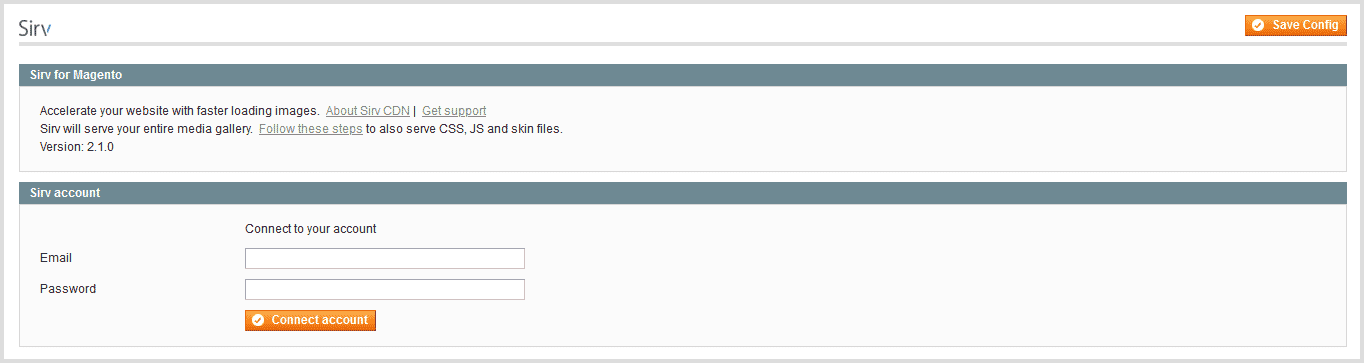
Go to System > Sirv CDN and connect your Sirv account.
![Sirv login in Magento 1]()
-
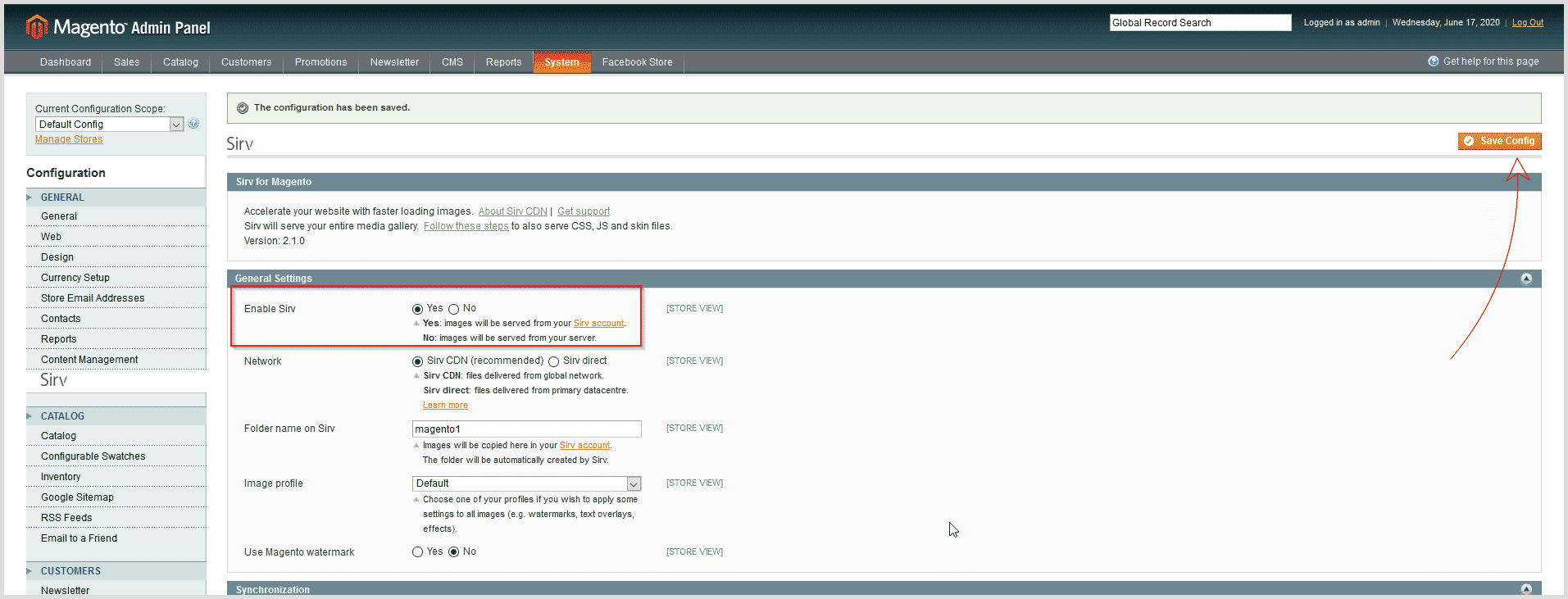
The extension will start working as soon as you have set “Enable Sirv” to “Yes” and saved your settings.
![Sirv settings in Magento 1]()

Your Magento images are now served from the Sirv CDN, so check a product page to see them load faster.