Image Personalization for Facebook Messenger
 By Igor Varyvoda, Head of Sirv StudioUpdated
Short answer
Personalize an image in Sirv by adding a text layer, for example with the customer's name, then connect ManyChat to Integromat so your Messenger bot sends that name to Sirv. Each person then sees an image made for them. It takes about 15 minutes and needs a paid ManyChat account.
After reading this you will know
- How to personalize an image with text in Sirv
- How to connect ManyChat and Integromat to Sirv
- How to send personalized images in a Messenger bot
ManyChat and Sirv, for personalized images
Section titled “ManyChat and Sirv, for personalized images”This article shows how to personalize images in Facebook Messenger bots in 15 minutes or less. You’ll need accounts with Sirv, Make (formerly Integromat) and ManyChat. Go and sign up for all three.
You’ll need a paid ManyChat account for this to work.
Personalize an image in Sirv
Section titled “Personalize an image in Sirv”1. Upload an image to Sirv. Either click the upload button or drag and drop the image into Sirv’s interface.
2. The easiest way to personalize an image is to use Sirv’s image customizer. Open your image in Sirv and follow the 5 numbers in the screenshot below:
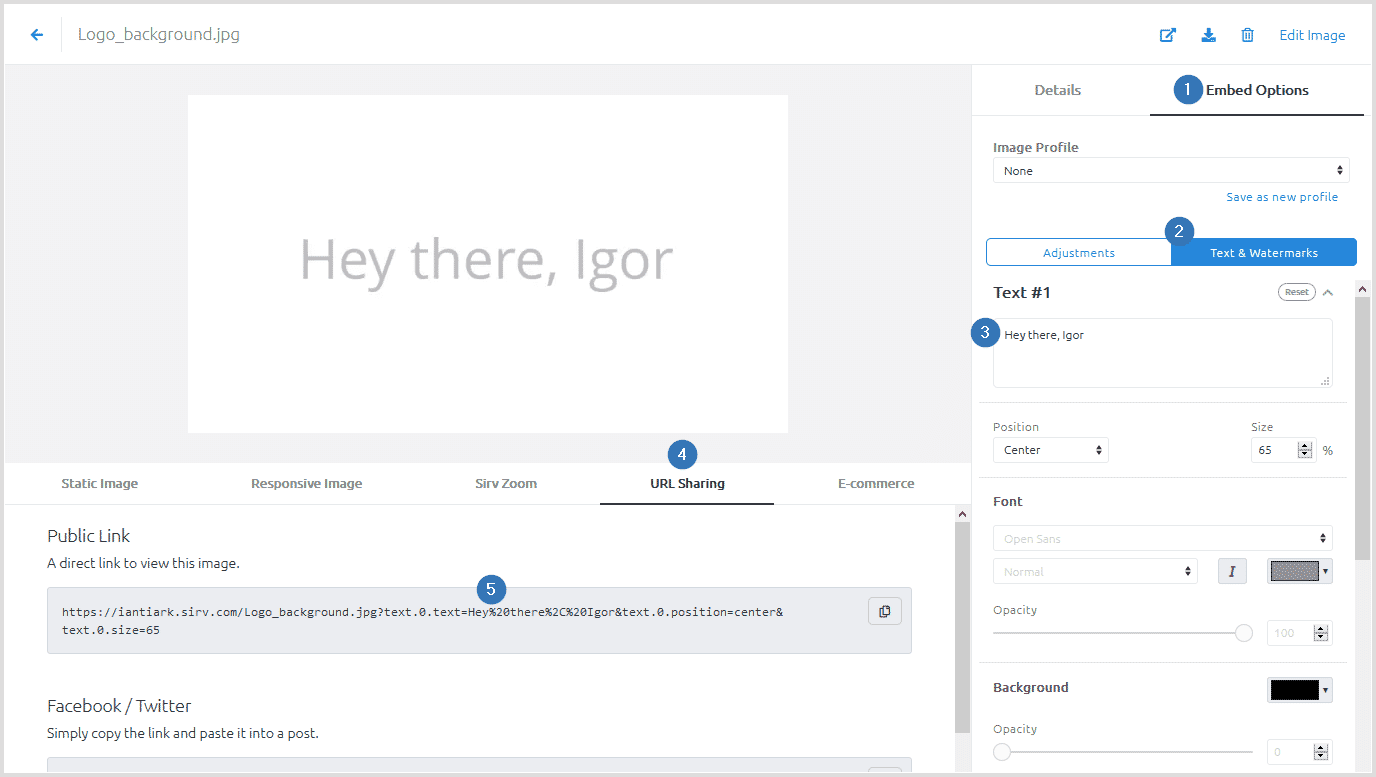
3. Copy and paste the image URL somewhere safe - you’ll need it later.
Connect ManyChat with Integromat
Section titled “Connect ManyChat with Integromat”4. Go to ManyChat and grab your API key from the Settings-API page. Once again, make a note of it.
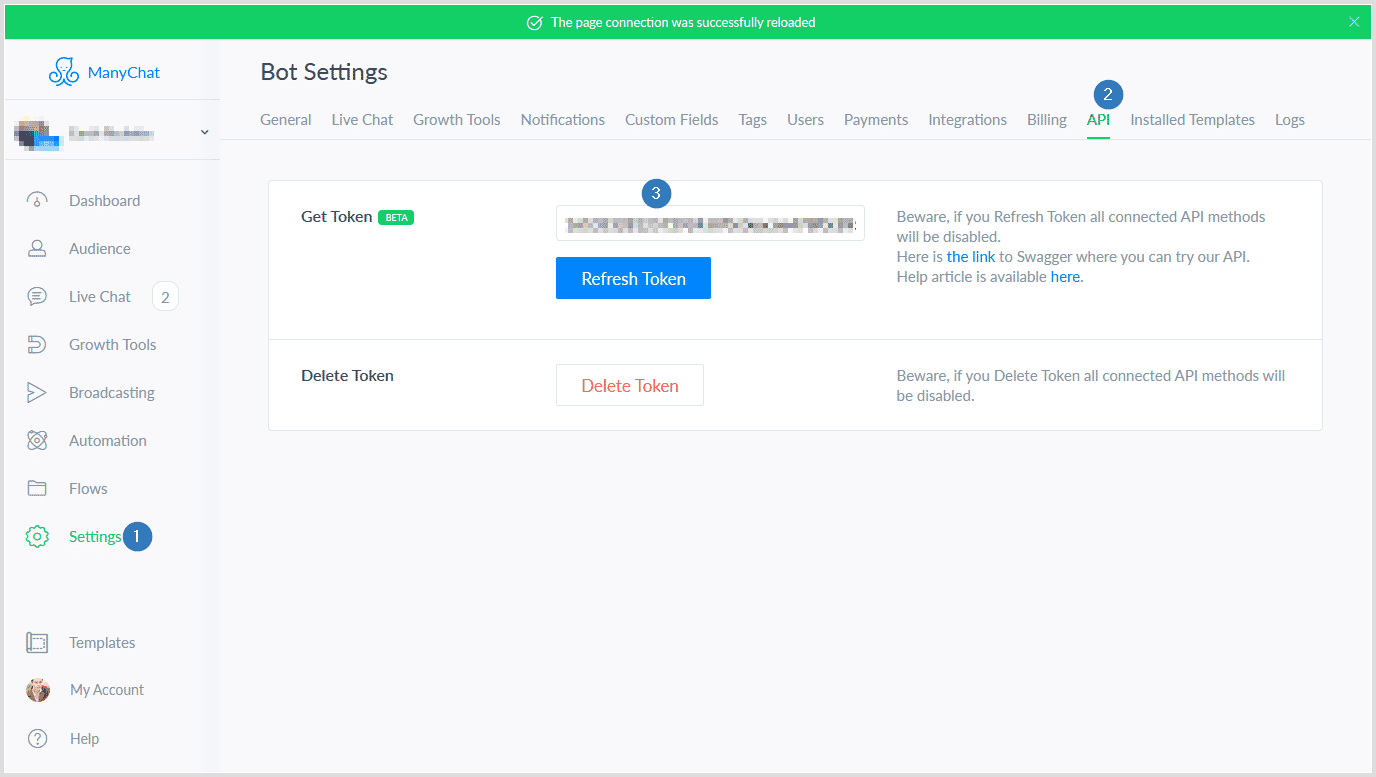
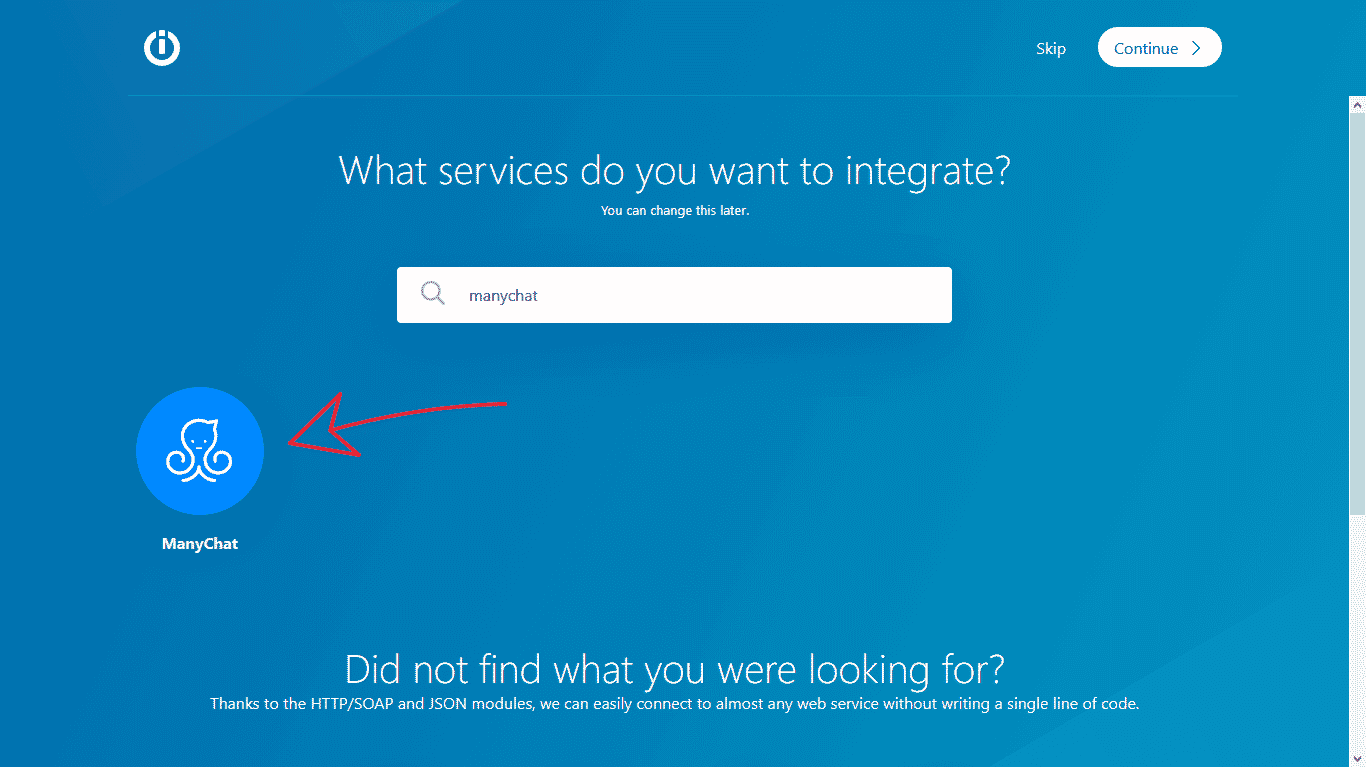
5. Sign up with Integromat. Click “new scenario button” and add ManyChat:
6. Choose “watch incoming data” as the trigger:
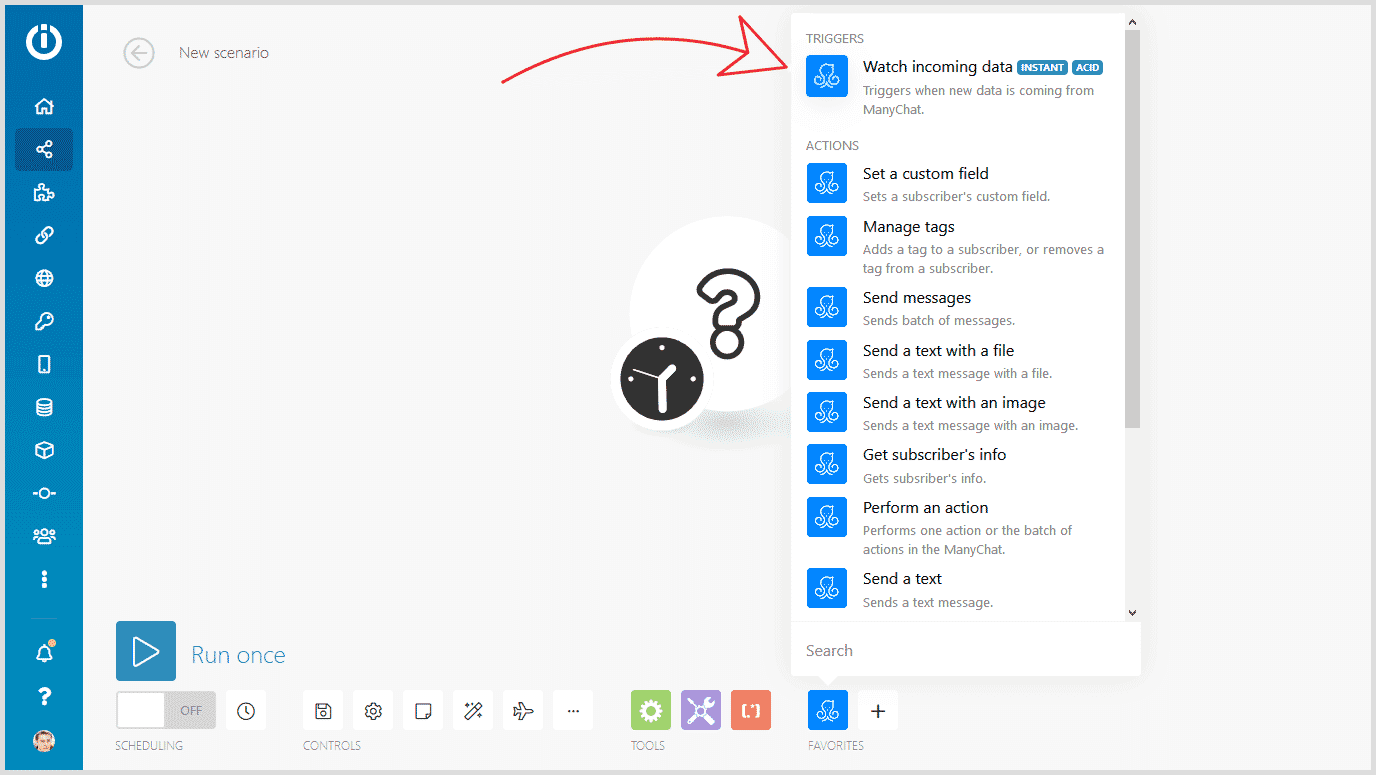
7. Set up a web hook by clicking “Add”:
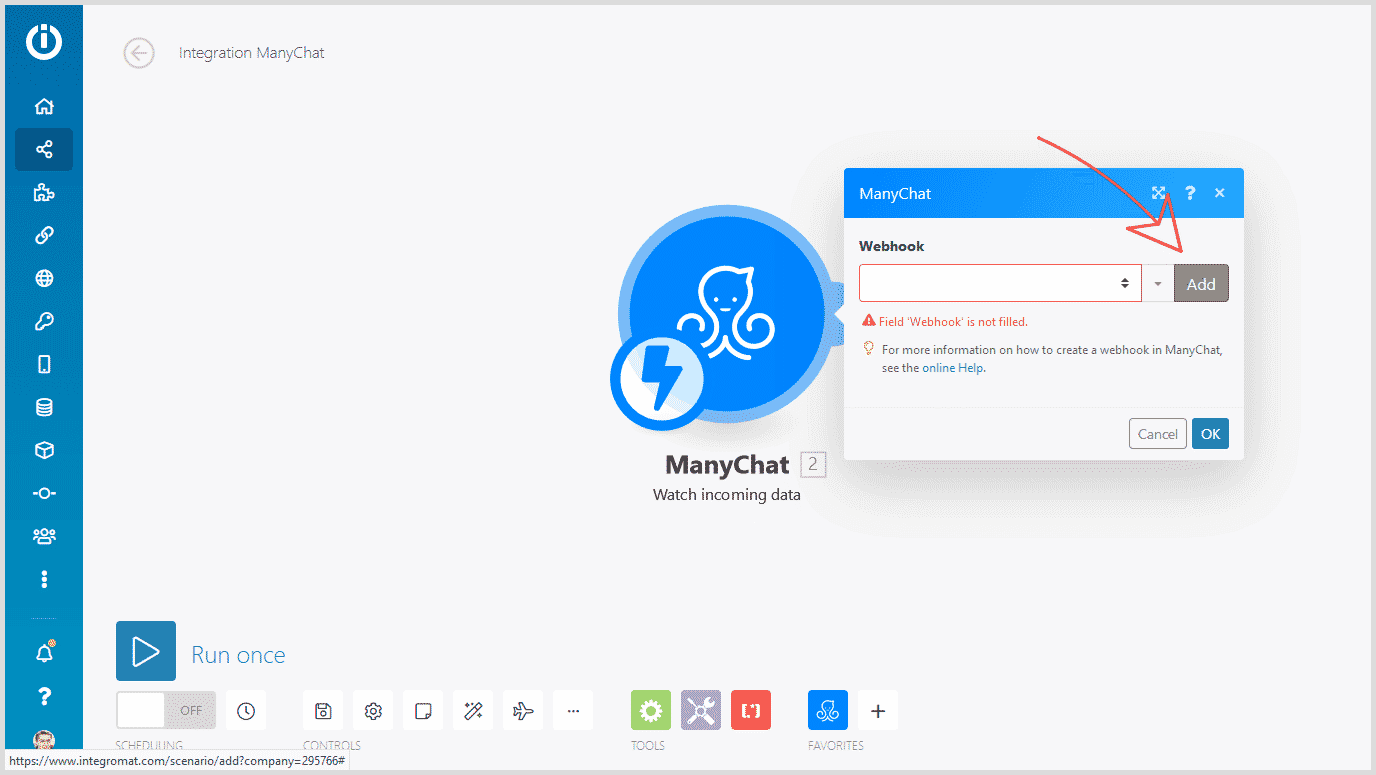
8. Integromat will ask to add a connection. Click “Add” again:
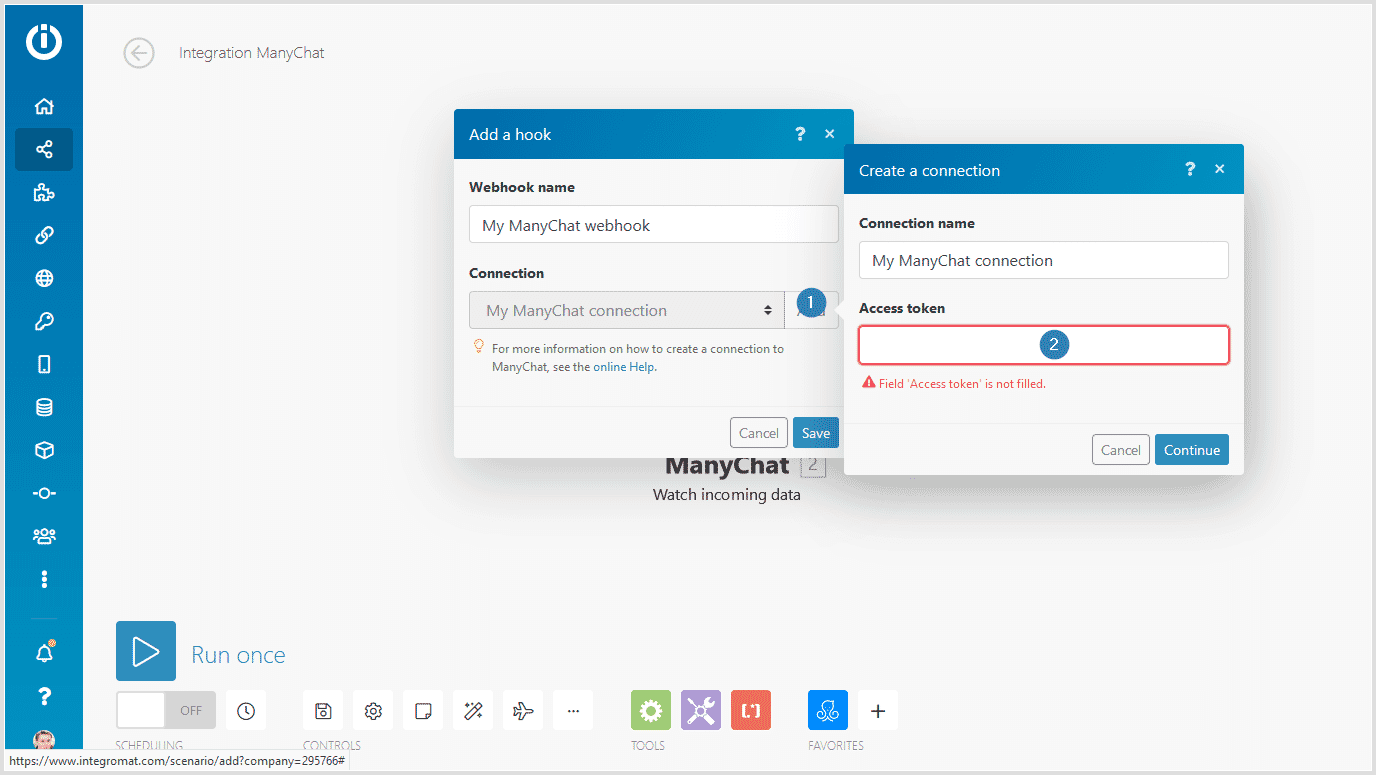
9. Enter your token, which you previously generated in ManyChat. You’ve successfully created a web hook for ManyChat in Integromat.
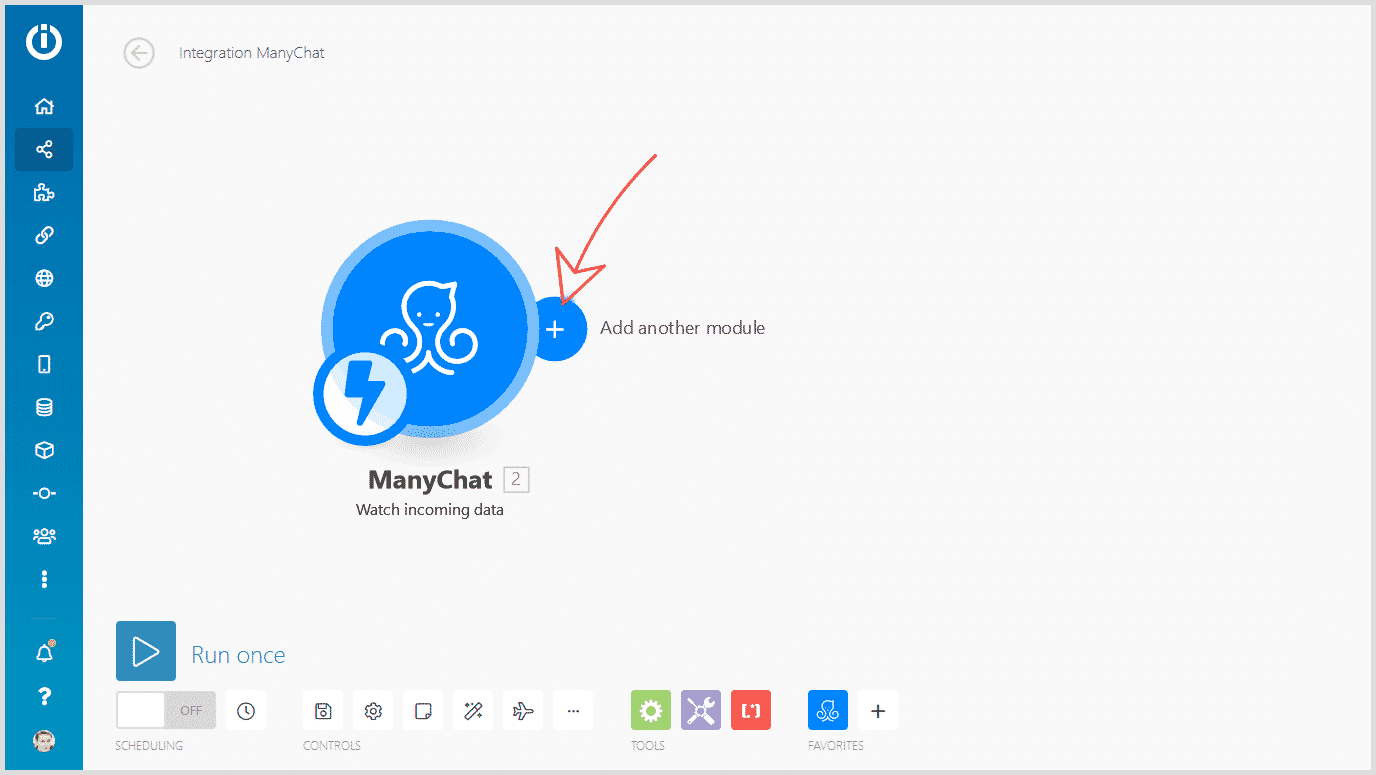
It is automatically added to ManyChat, which you’ll use soon… 10. Click “Add another module” button:
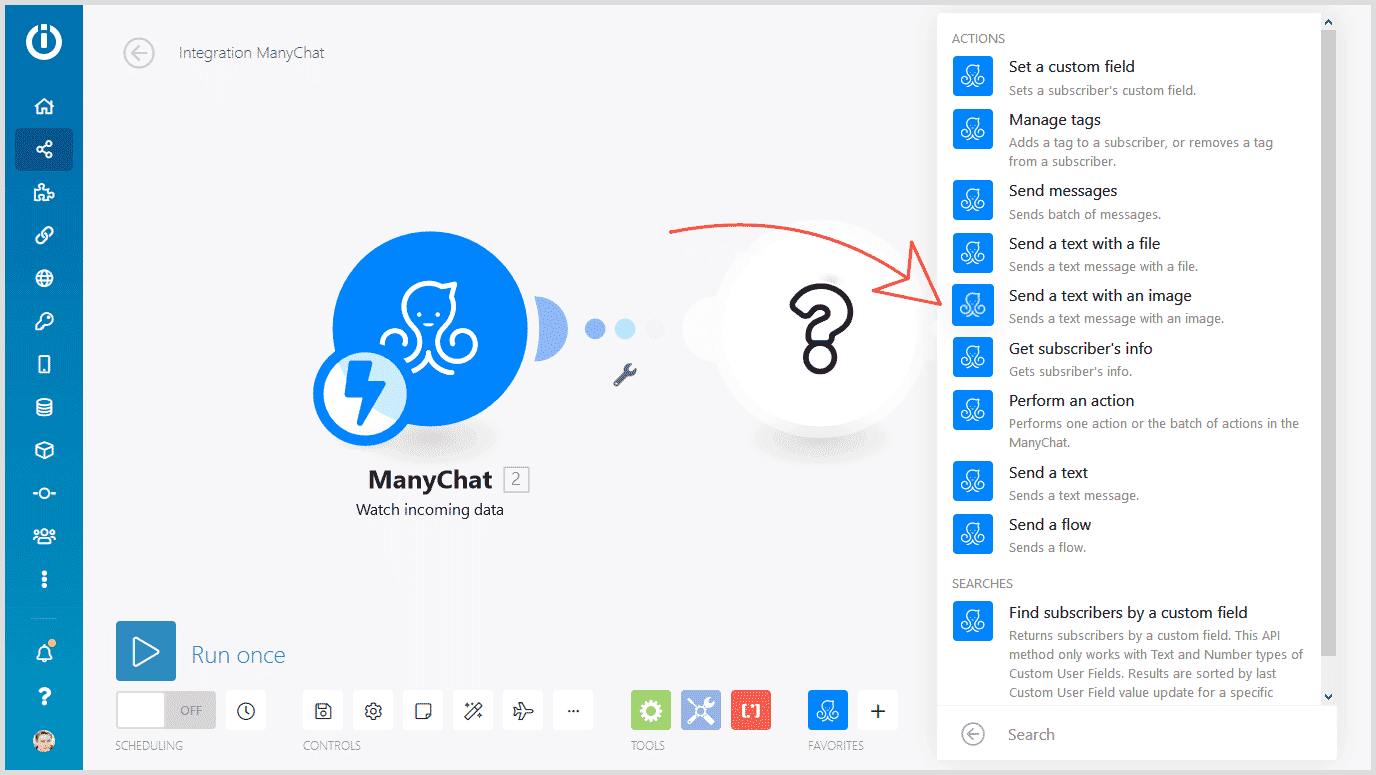
11. Choose “Send a text with an image”:
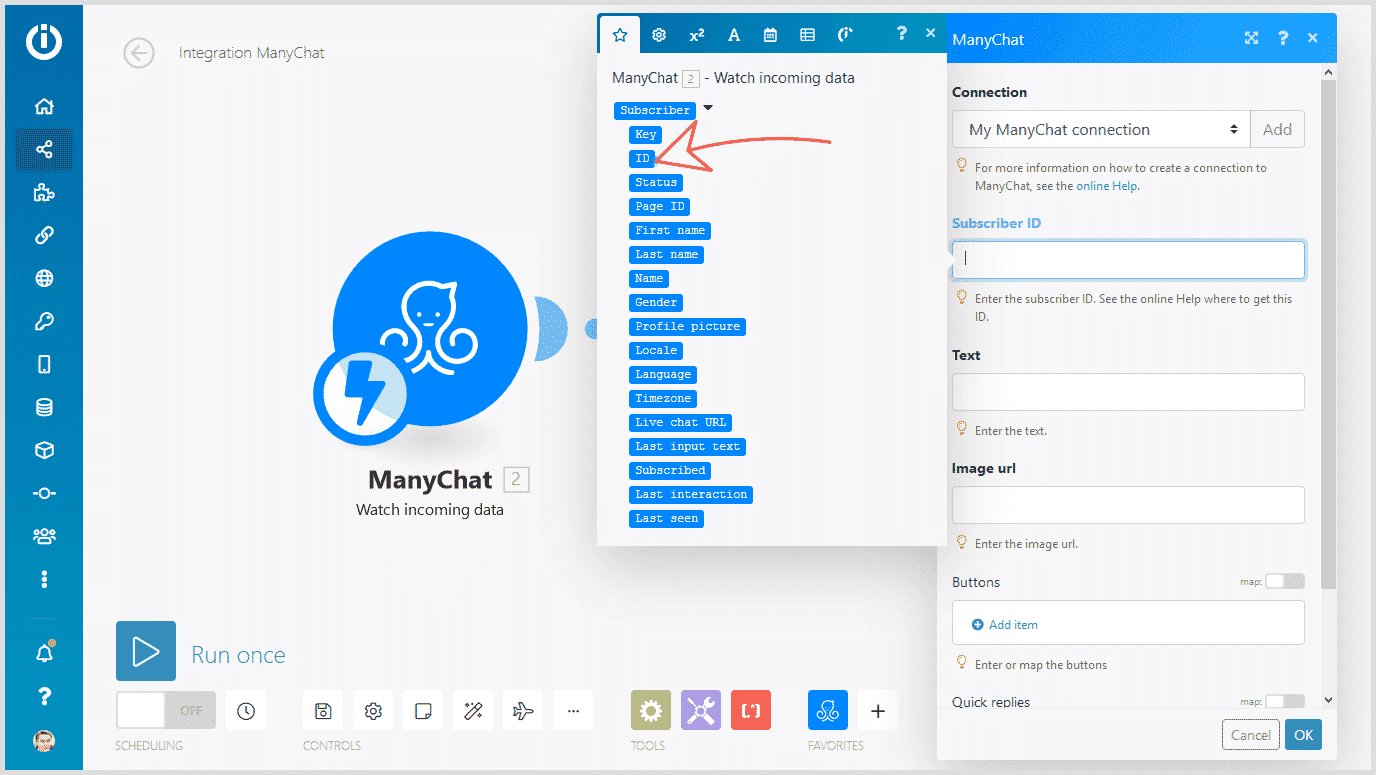
12. Enter the subscriber ID in the required field:
13. Copy the URL from Sirv and insert it in the Name field (or whatever you’d like to print on the image) after the ‘text.0.text’ parameter. Here’s how it will look:
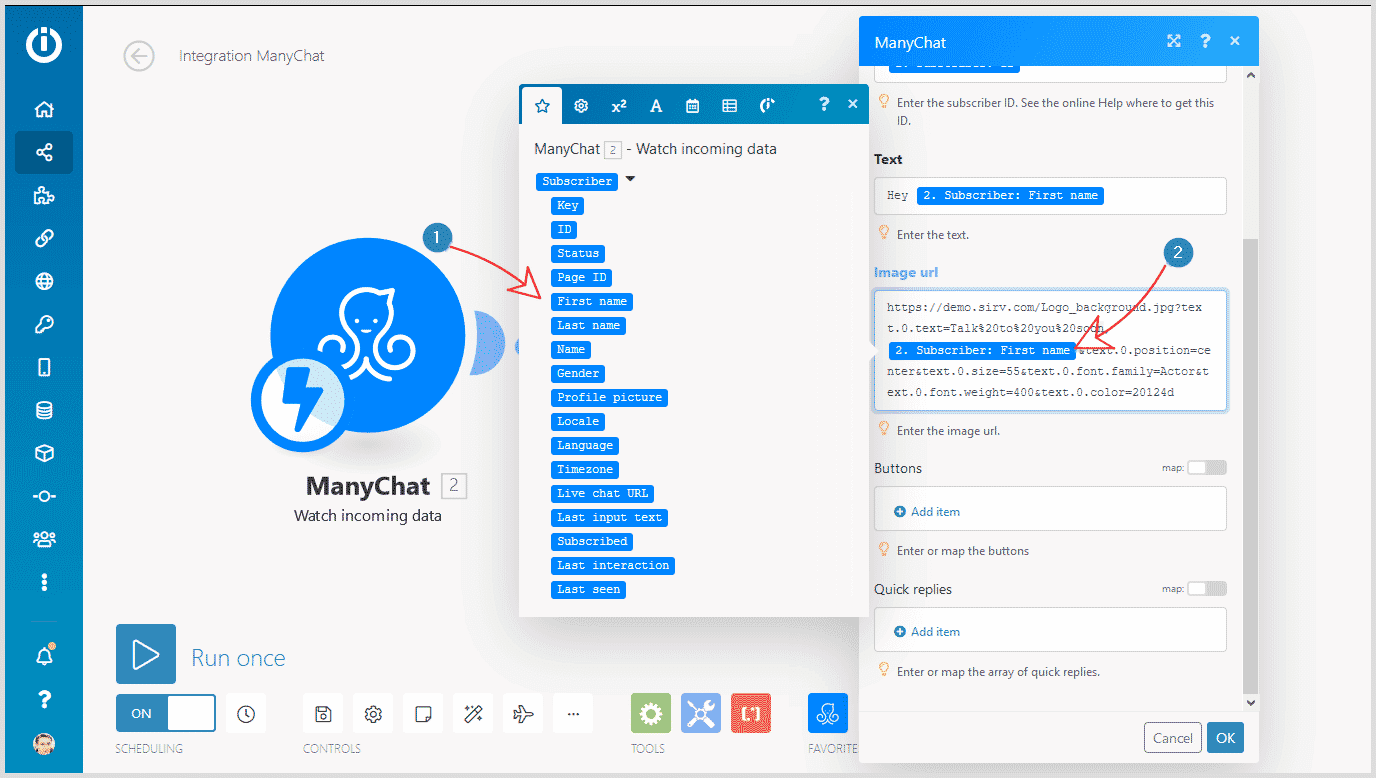
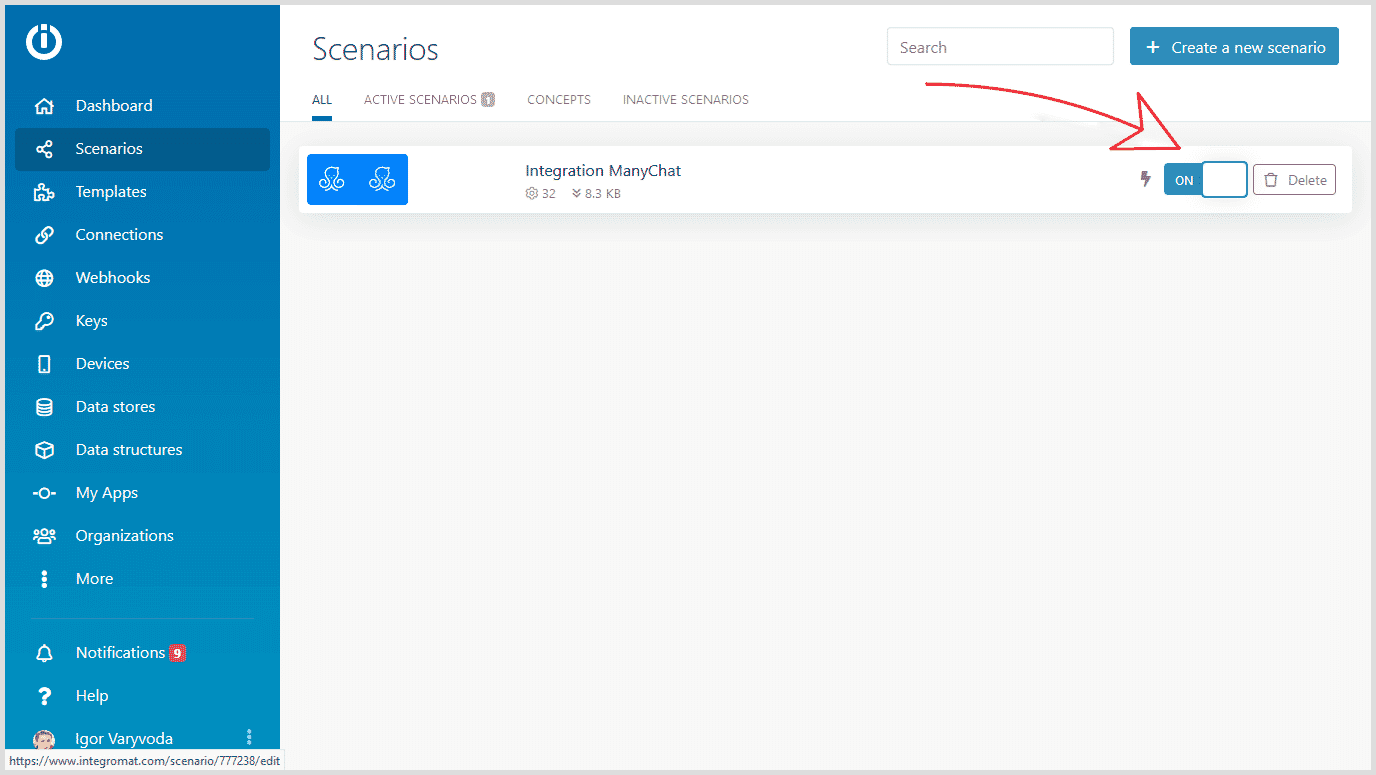
Learn more and see useful examples in our image personalization article. Click “Save” and don’t forget to turn on the scenario.
Trigger Integromat in ManyChat
Section titled “Trigger Integromat in ManyChat”14. Go to your flow where you’d like to show the personalized image. Edit the flow in the advanced builder. 15. Add a new step, select “Perform action” and select “Trigger Integromat”:
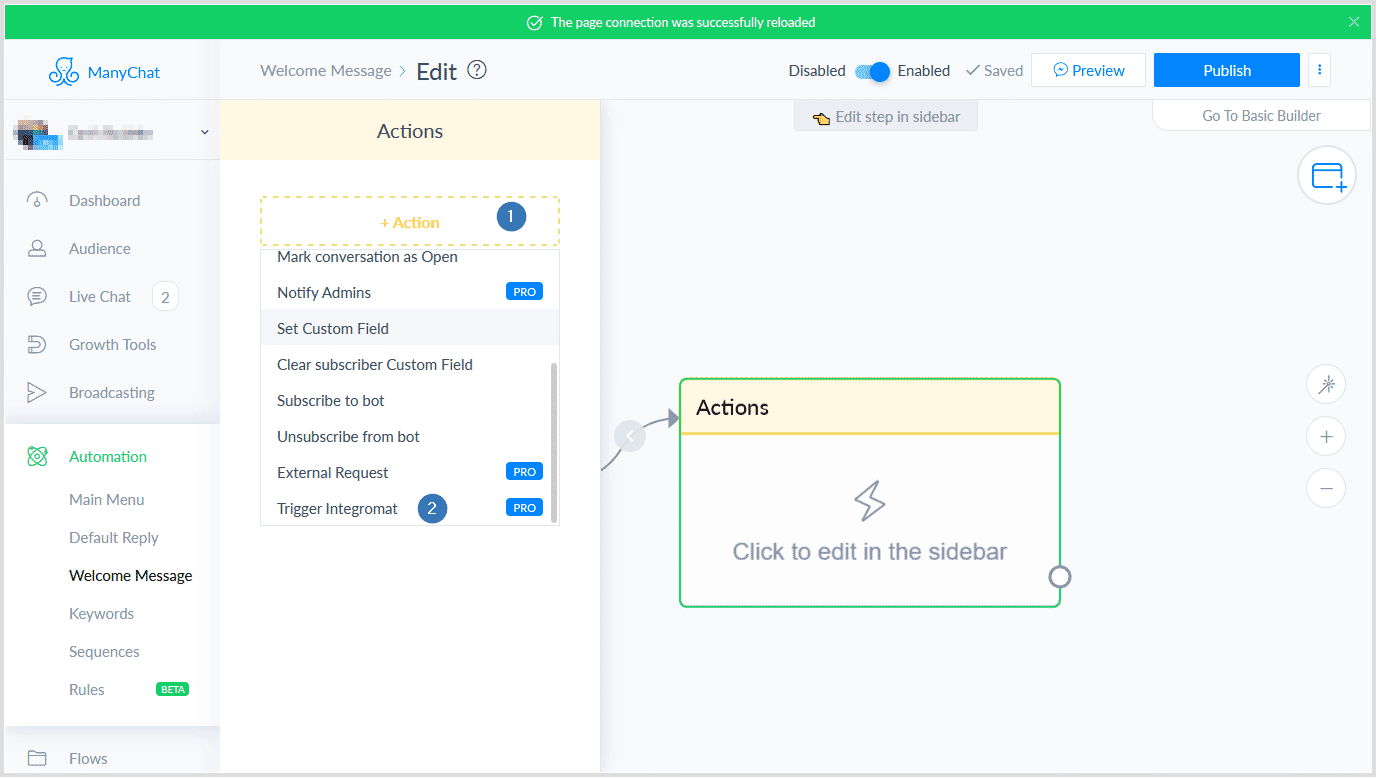
16. Select your WebHook, which you created in Integromat previously:
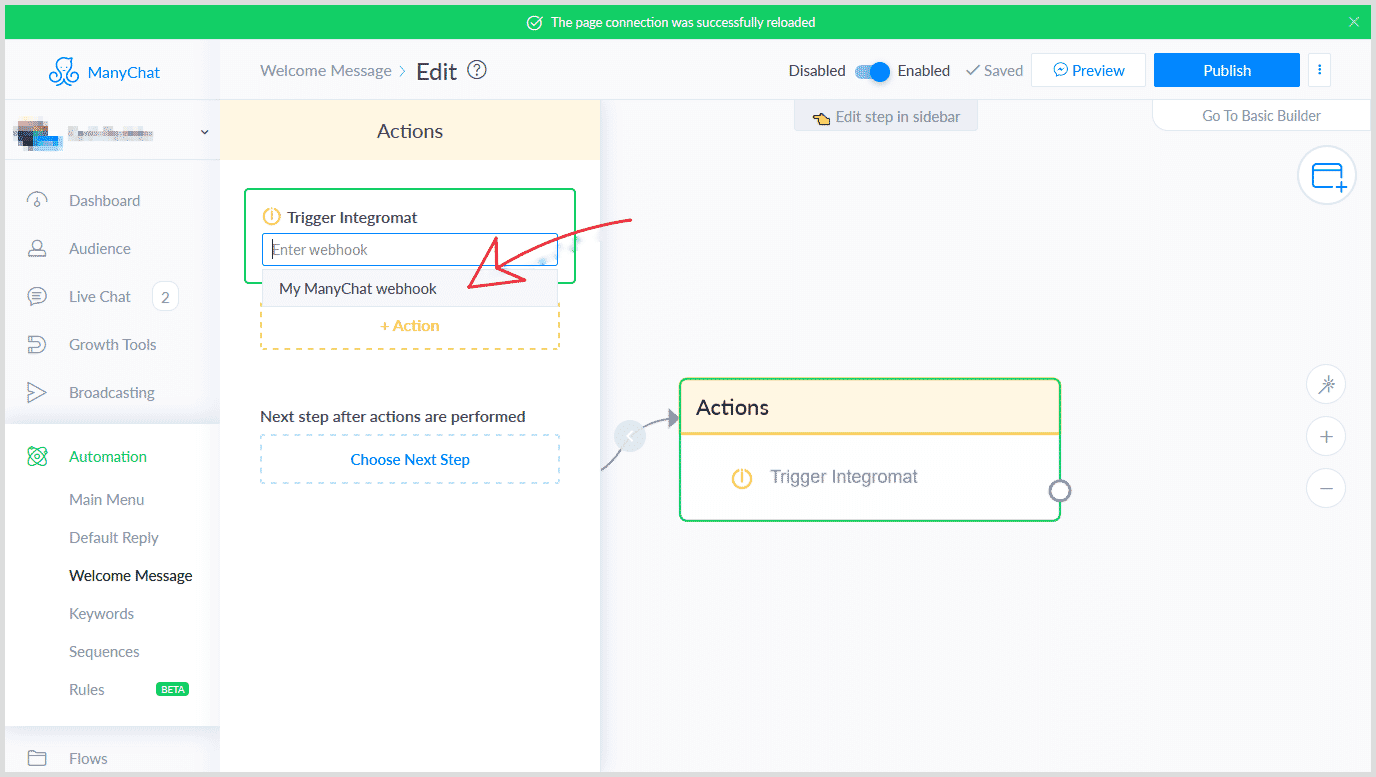
That’s it. Click “Save” and “Publish”. We set ManyChat to send a personalized image in the “Welcome message flow”. Here’s how it looks in Facebook Messenger:
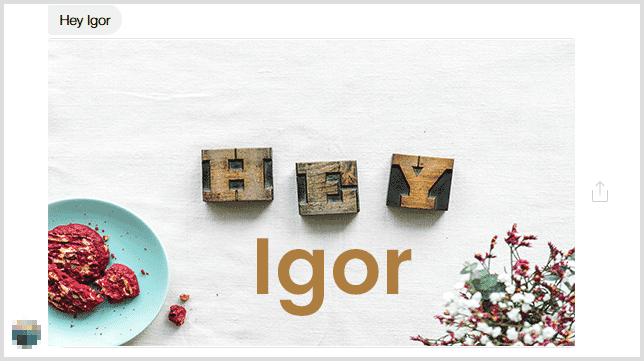
You can also pass custom fields to Integromat and use other Subscriber variables. You can also use logic in your personalization, such as showing different images to women and men.
This opens up virtually endless possibilities for your personalization. Good luck!