Hotspots on Images
 By Jake Brumby, Customer Success DirectorUpdated
Short answer
Open Sirv's hotspot setup wizard, paste the URL of an image in your Sirv account and click the image to place each hotspot. Give it a tooltip that shows on hover, a message that opens on click or a link, then copy the code to your page. The API can add, remove, show or hide hotspots, on zoomable images too.
After reading this you will know
- How to add hotspots to an image with the setup wizard
- How to control hotspots with the API
- How to show hotspots on zoomable images or only on hover
Hotspots are an effective way of drawing attention to particular features of an image. Sirv’s hotspot API let’s you add hotspots to images, zoomable images and also 360 spins.
Hotspots can have tooltips (on hover), messages (on click) and/or links to other pages:
Configure your hotspots
Section titled “Configure your hotspots”To add hotspots to your image:
1. Open the hotspot setup wizard.
2. Paste the URL of your image. It must be an image hosted in your Sirv account. New users can create a free account.
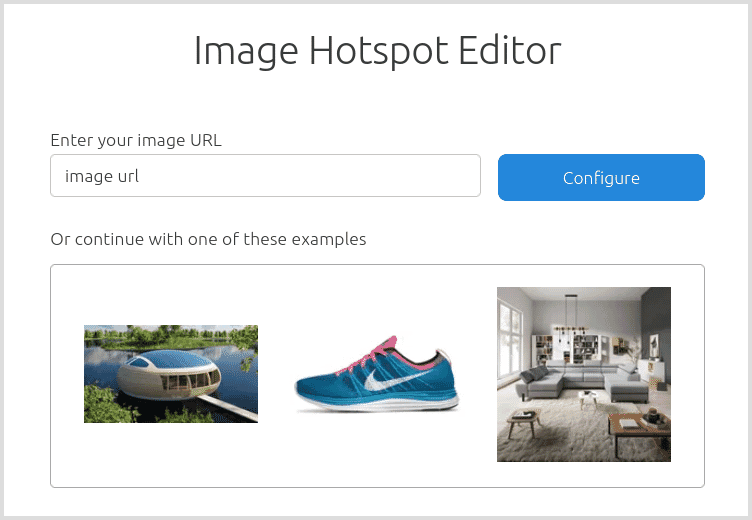
3. Click the image to add hotspots, write messages or add links.
4. Copy the code and paste it into your web page.
Configure hotspots in a div
Section titled “Configure hotspots in a div”Alternatively, the hotspots can be contained in a div.
In JSON, configure the spots like so:
<div class="Sirv"> <div data-src="image.jpg" data-hotspots='[{ }, { }, { },]' /></div></div>Or in JavaScript use a variable, like so:
<script>  var imageHotspots = [{
  }];</script>
<div class="Sirv">  <div    data-src="image.jpg"    data-hotspots='imageHotspots'  /></div></div>
How hotspots work
Section titled “How hotspots work”Image hotspots use HTML, JavaScript and CSS.
The HTML code references your image with two divs and a unique id:
<div id="abc123" class="Sirv"> <div data-src="https://demo.sirv.com/Bose-700-a.jpg"></div></div>The JavaScript code will reference the id of the image and wait for its ready event. The script should set the location of hotspots and their action on click or hover:
<script> Sirv.on('image:ready', (image) => { Sirv.getInstance("#abc123").child(0).image.hotspots.add([ { tooltip: { content: '<div><strong>Tooltip</strong><br>This is a tooltip which shows on hover.</div>' }, pointer: { x: '30%', y: '62%' } }, { box: { content: '<div><h3>Message box</h3><p>Messages show on click.</p><p>They can contain <a href="https://example.com" target="_blank">links</a>, images and other HTML.</p><p>Example:</p><img src="https://demo.sirv.com/Bose-700-b.jpg?w=250"></div>', x: 10, y: 10 }, pointer: { x: '62%', y: '15%' } }, { tooltip: { content: '<div>URL on click</div>' }, link: 'https://example.com/', pointer: { x: '70%', y: '69%' } }]);});</script>The Sirv JS script should also be referenced on your page:
<script src="https://scripts.sirv.com/sirvjs/v3/sirv.js"></script>Control image hotspots via the API
Section titled “Control image hotspots via the API”You can add, remove, show or hide hotspots using the following API methods:
Sirv.getInstance('#smv').child(0).image.hotspots.add();Sirv.getInstance('#smv').child(0).image.hotspots.removeAll();Sirv.getInstance('#smv').child(0).image.hotspots.remove();Sirv.getInstance('#smv').child(0).image.hotspots.enable();Sirv.getInstance('#smv').child(0).image.hotspots.disable();Try triggering API actions via these buttons:
The script below shows the API methods used by the example above:
/* API Methods */function addHotspots() {  Sirv.getInstance('#smv').child(0).image.hotspots.add(hotspots);}
function removeHotspot(hotspotIndex) {  Sirv.getInstance('#smv').child(0).image.hotspots.remove(hotspotIndex);}
function removeAllHotspots() {  Sirv.getInstance('#smv').child(0).image.hotspots.removeAll();}
function disableHotspot(hotspotIndex) {  Sirv.getInstance('#smv').child(0).image.hotspots.disable(hotspotIndex);}
function enableHotspot(hotspotIndex) {  Sirv.getInstance('#smv').child(0).image.hotspots.enable(hotspotIndex);}
Hotspots on zoomable image
Section titled “Hotspots on zoomable image”Hotspots can be shown on a zoomable image. They stay on their spots as the user zooms in and moves around:
You can set the zoom to trigger on click or doubleclick. This sets the zoom on click:
<div class="Sirv" data-options="zoom.mode:deep; zoom.trigger:click"> <div data-src="https://demo.sirv.com/demo/snug/pink-b-living.jpg" data-type="zoom"></div></div>Add this script to make the hotspots display on page load:
<script> Sirv.on('zoom:ready', (zoom) => { zoom.hotspots.add(hotspots); });</script>Show hotspots on hover
Section titled “Show hotspots on hover”Hotspots can be hidden from your image, so that it looks clean and unobstructed. Hotspots can appear when the user moves their cursor over the image.
Apply this CSS:
.smv-content:not(:hover) .smv-hotspot-pointer { opacity: 0;}The hotspots then show only when a visitor hovers over the image.