Face Detection Image Crop
 By Jake Brumby, Customer Success DirectorUpdated
Short answer
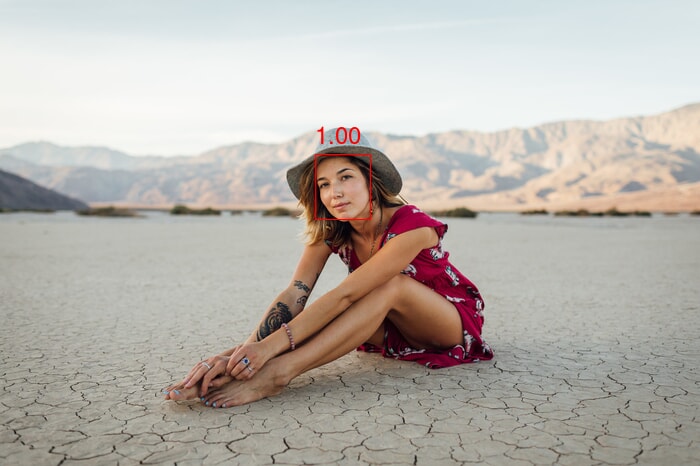
Add crop.type=face to the image URL, and Sirv finds the face and crops to it, often in about 200 milliseconds. Add crop.aspectratio=1:1 for square crops of the same shape. To check which face Sirv found, add crop.dev=1, and Sirv draws a red box around it.
After reading this you will know
- How to crop an image to a face automatically
- How to make face crops the same size and shape
- How Sirv picks a face when there are several
- How to get the face coordinates
Automatically detect faces in your image and crop them. Sirv uses deep learning neural networks, trained on millions of images to accurately detect faces in images.
Faces can be detected in as little as 200ms.
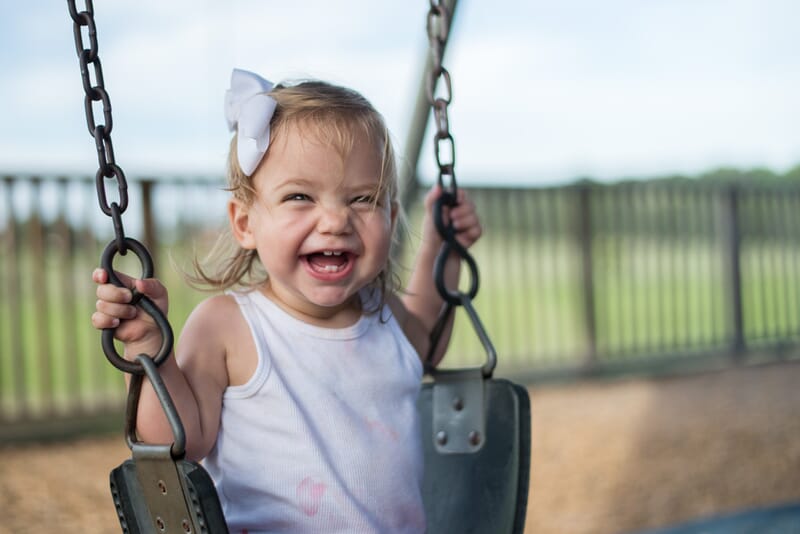
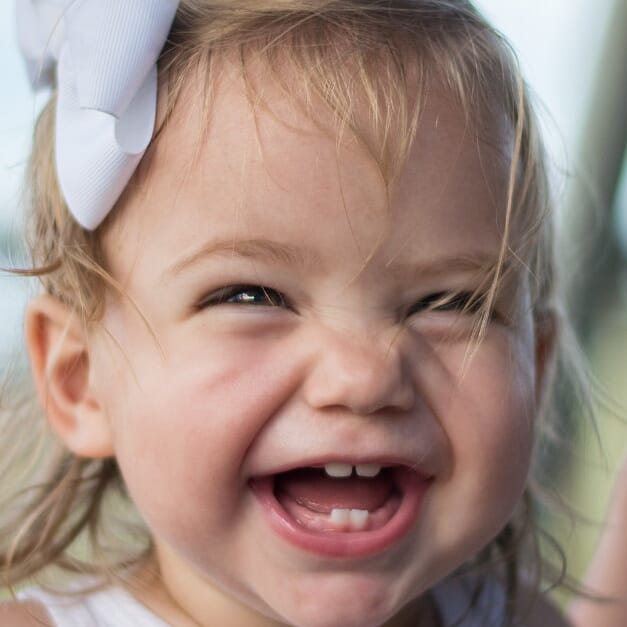
Padding and scale options4
How to use face detection
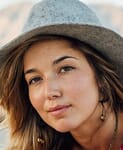
Section titled “How to use face detection”Use the crop.type parameter to initiate face detection on an image. Specify face as the type of crop you want to apply, like so:
https://demo.sirv.com/lady.jpg?crop.type=face
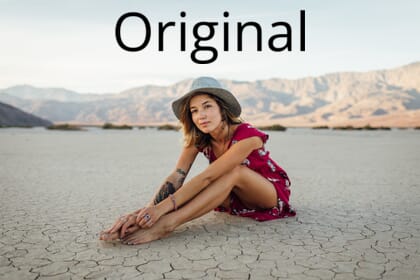
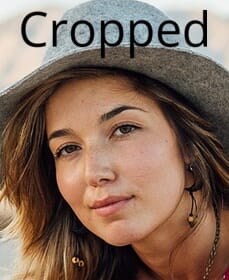
To scale down the size of the face, use ch and/or cw:
https://demo.sirv.com/lady.jpg
Crop to uniform size
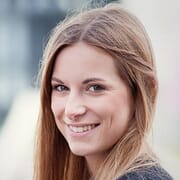
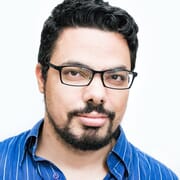
Section titled “Crop to uniform size”To create a particular aspect ratio for images, add crop.aspectratio=1:1. The ratio is width:height, so 1:1 will make a square image. Use any value to choose another e.g. 16:9.
https://demo.sirv.com/lady.jpg
To scale the image to a particular width or height, use crop.scale.width and/or crop.scale.height:
https://demo.sirv.com/lady.jpg
All these images have crop.aspectratio=1:1 and crop.scale.height=180:


Face identification
Section titled “Face identification”To see which faces Sirv detected, add crop.dev=1 to the URL. A red box will be drawn around the face:
https://demo.sirv.com/lady.jpg
Face confidence
Section titled “Face confidence”Sirv’s AI algorithm provides a level of confidence for each face detected. Values range from 0.00 to 1.00, where 1.00 is complete confidence.
By default, face crop will initiate if confidence is at least 0.50. This can be adjusted by setting crop.confidence.
To crop only faces that Sirv is very sure of, raise it, for example to 0.99:
https://demo.sirv.com/lady.jpg
If no face reaches the value you set, Sirv returns the whole image, uncropped.
Multiple faces
Section titled “Multiple faces”If an image contains more than one face, the face with the highest confidence level will be shown first i.e. the face which the AI algorithm deems most likely a human face.
This image has 2 faces with confidence of 1.00 and one incorrectly identified face with confidence of 0.82:
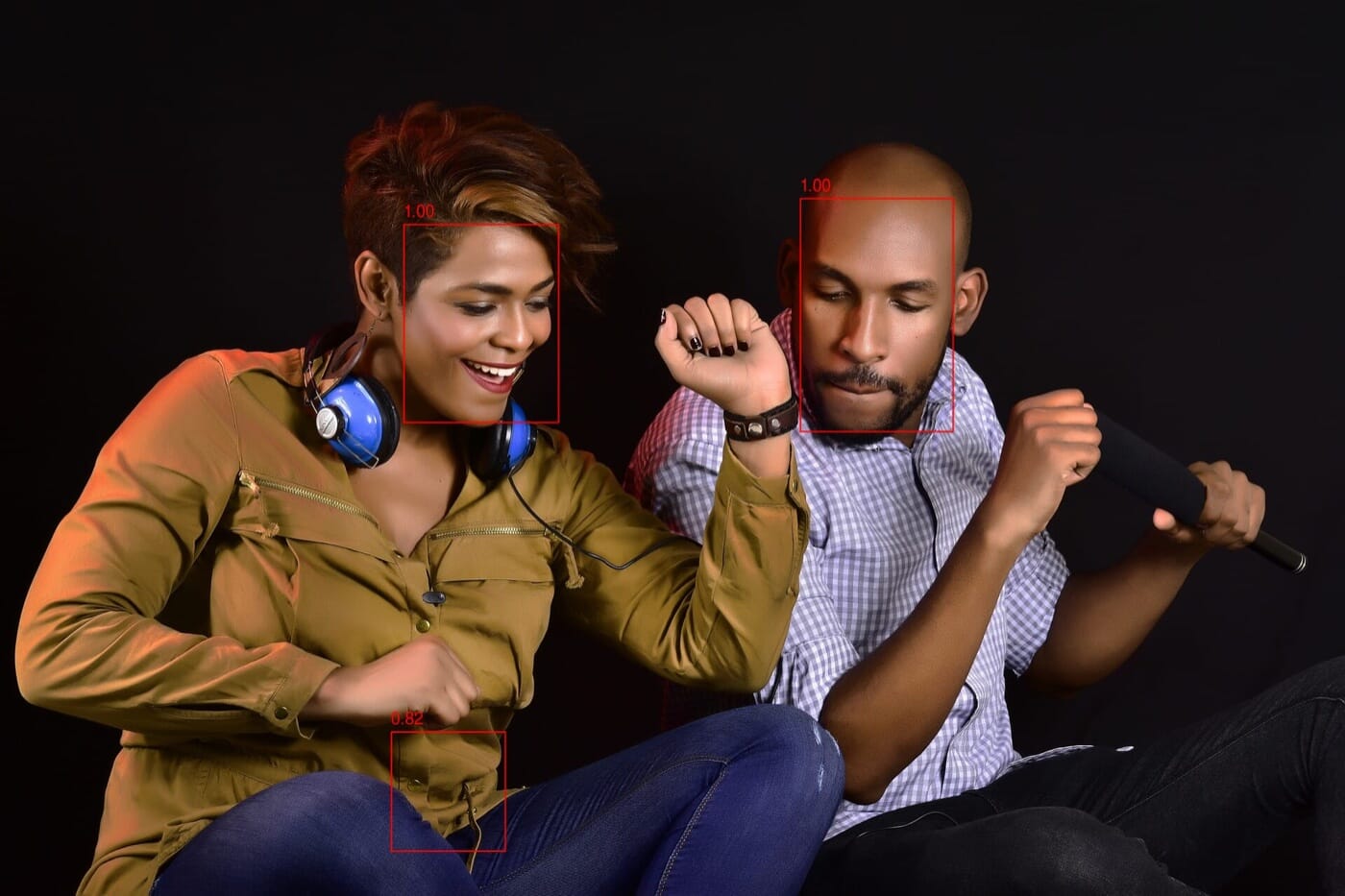
To specify a particular face to crop, use crop.face.
Face numbering starts from 0. When multiple faces have the same confidence level, the first face identified will be 0. The following URLs will show the first 2 faces:
https://demo.sirv.com/dance.jpg
https://demo.sirv.com/dance.jpg
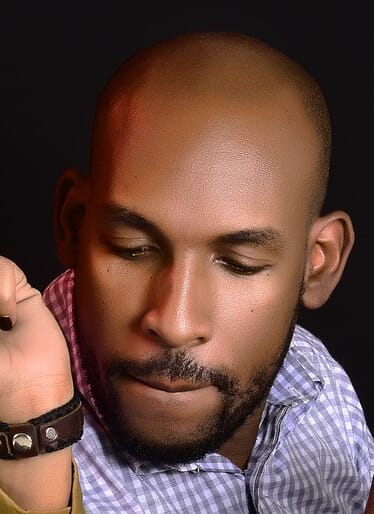
First face
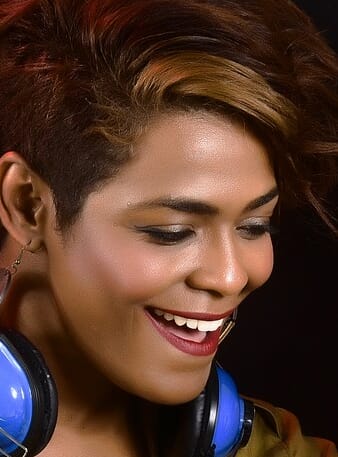
Second face
Face coordinates
Section titled “Face coordinates”You can check how many faces were detected and what their coordinates are.
Face detection is triggered the first time crop.type=face is used, so to ensure that you receive face meta data, make a request e.g.
https://demo.sirv.com/lady.jpg?crop.type=face
Then you can request JSON meta data by appending ?info in the image URL e.g.
https://demo.sirv.com/lady.jpg?info
Look for “faces” inside the “smartcrop” section of the JSON response:
{ "faces": { "_fileversion": 0, "_version": "mtcnn-1.0", "faces": [ [ 0.44916666666666666, 0.335, 0.5266666666666666, 0.47625, 0.9999679327011108 ], [ 0.4041666666666667, 0.5725, 0.4508333333333333, 0.6725, 0.9816775918006897 ] ] }}The example above shows that 2 faces were detected (the second is the tattoo on the arm).
Each face has 5 numbers - the first 4 are coordinates for the corners of the box around the face and the 5th is the confidence score, where 0.00 is zero confidence and 1.00 is total confidence.