Sirv plugin for Sanity Studio
 By Igor Varyvoda, Head of Sirv StudioUpdated
npm install @sirv/sanity-plugin2. Add it to sanity.config.tsimport {sirv} from '@sirv/sanity-plugin'
plugins: [sirv()],3. Start Studio, open the Sirv tool and paste your Client ID and Client secret from Sirv: Account › Settings › API. No account yet? Create one freeOpen on npmShort answer
Install @sirv/sanity-plugin from npm and add it to your sanity.config.ts, then connect your Sirv account with its REST API Client ID and Client secret. Editors can then browse Sirv and pick images, videos, 360 spins and 3D models into sirvMedia fields, and the @sirv/react components show them on your website. It works with Sanity Studio v3, v4 and v5.
After reading this you will know
- How to install the Sirv plugin in Sanity Studio
- Which Sirv fields to add to your schemas
- How to show the picked media on your website

Add Sirv as a first-class media source inside Sanity Studio (v3, v4 and v5).
Editors connect their Sirv account and browse the Sirv DAM (folders, search, thumbnails and live previews).
They pick images, videos, 360 spins, Sirv Media Viewers, 3D models or any file directly from a field. No more switching tabs to copy URLs.
Picked Sirv-native assets stay on Sirv.
Your content stores only the asset path, delivery domain and dimensions. Your frontend renders them with the companion package @sirv/react.
It gives you responsive srcset, lazy loading, sirv.js spins, viewers and 3D models, and combined galleries.
Images are delivered at the perfect dimensions in the optimal format (often WebP or AVIF), typically 40-70% smaller, from the nearest of Sirv’s global CDN servers.
- No backend required – the Studio talks to Sirv’s REST API directly.
- No credentials shipped in the plugin – each editor pastes their own per-account REST credentials, stored encrypted in the dataset’s secrets.
- Self-hosted friendly – designed for a locally-run or self-hosted Studio.
Installation
Section titled “Installation”-
Install the plugin (and the frontend renderer) from npm:
npm install @sirv/sanity-plugin# to display picked assets on your websitenpm install @sirv/react -
Add the plugin to your
sanity.config.ts. It registers everything automatically:import {defineConfig} from 'sanity'import {sirv} from '@sirv/sanity-plugin'export default defineConfig({// ...your configplugins: [sirv()],}) -
Start your Studio. A new Sirv tool appears in the top menu, and a Browse Sirv option appears on every image and file field.
Requirements
Section titled “Requirements”- Sanity Studio v3, v4 or v5.
- React 18 or 19.
- A Sirv account. Create one free if you don’t have one yet.
Connect your Sirv account
Section titled “Connect your Sirv account”The first time you use the plugin, connect your Sirv account from the Sirv tool (cog icon in the Studio’s top menu).
-
In Sirv, open Settings > API access and copy your REST API Client ID and Client secret.
-
Paste them into the Sirv tool and click Connect:
![Connect your Sirv account with a client ID and secret]()
-
Choose the delivery domain to serve assets from (your
account.sirv.comhost or a custom domain).That’s it. The connection is saved in the dataset and reused silently on future visits. Use Disconnect in the same tool to switch accounts.
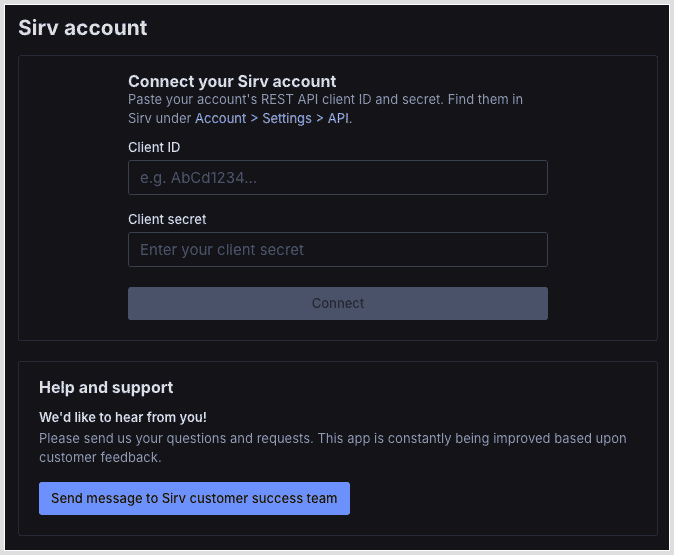
Use a private dataset. The connection (your REST credentials) is saved as an encrypted dataset document, so a private dataset keeps it from being publicly readable.
The credentials are never bundled into the Studio JavaScript, and the plugin ships none of its own.
There are two ways to use Sirv in your content model: the automatic Browse Sirv option on standard fields, and the dedicated Sirv field types you add to your schema.
Browse Sirv on image and file fields
Section titled “Browse Sirv on image and file fields”Every standard image and file field automatically gains a Browse Sirv option in its Select menu. Picking an asset imports it into Sanity (served afterwards from Sanity’s CDN).
Image fields show images only; file fields show every asset type, including generic files such as PDF and ZIP.
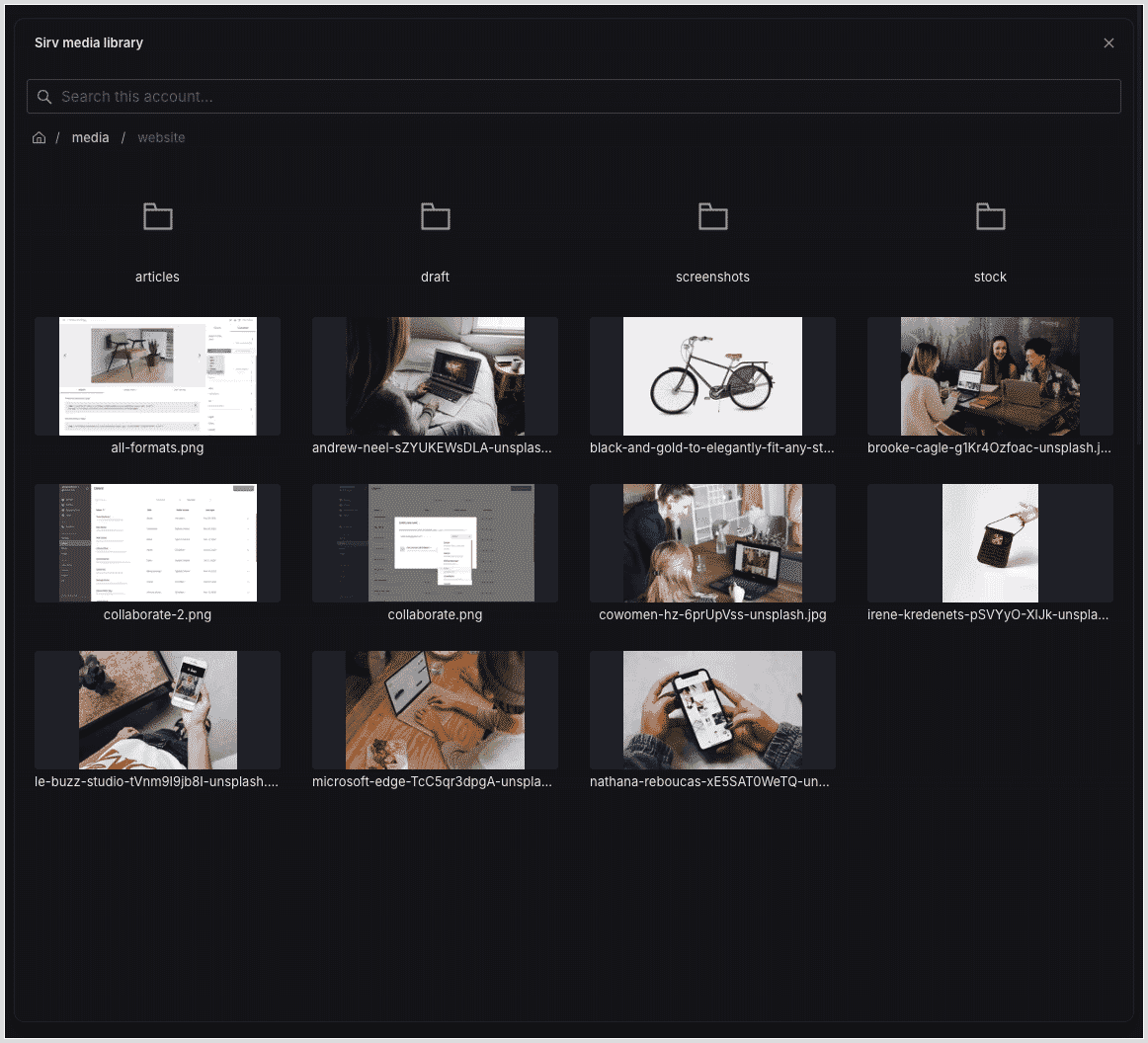
No configuration is needed – just having an image or file field is enough:
defineField({name: 'cover', type: 'image'}) // gains "Browse Sirv"defineField({name: 'brochure', type: 'file'}) // any Sirv file (PDF, zip, ...)sirvMedia field (recommended)
Section titled “sirvMedia field (recommended)”The sirvMedia field stores a single Sirv-native asset. The asset stays on Sirv; the field keeps its path, delivery domain, dimensions and optional transformations.
Restrict the pickable types with options.allowedTypes. Alt text and caption are auto-filled from the asset’s Sirv metadata.
defineField({ name: 'hero', type: 'sirvMedia', options: {allowedTypes: ['image', 'video']}, // image | video | spin | view | model})sirvMediaList (gallery) field
Section titled “sirvMediaList (gallery) field”An ordered gallery of Sirv-native assets, with a persistent add button and multi-select in the browser (tick several assets, add them together).
defineField({ name: 'gallery', type: 'sirvMediaList', options: {allowedTypes: ['image', 'video', 'spin', 'view', 'model']},})sirvAssetUrl field
Section titled “sirvAssetUrl field”A url field whose value is a picked Sirv asset’s delivery URL (any type, generic files included). Use it when you just need a plain string URL.
defineField({name: 'downloadUrl', type: 'sirvAssetUrl'})3D models (.glb)
Section titled “3D models (.glb)”Sirv treats GLB 3D models as a native media type, alongside images, videos, 360 spins and Sirv Media Viewers.
Pick a .glb file into a sirvMedia or sirvMediaList field, and the DAM browser shows a live, rotatable preview. Render it on your site with <SirvModel>. Drag to rotate, scroll to zoom:
To restrict a field to 3D models only, set allowedTypes to ['model']:
defineField({ name: 'model3d', type: 'sirvMedia', options: {allowedTypes: ['model']},})Render it on the frontend with the dedicated component, or let <SirvMedia> dispatch automatically from a stored value:
import {SirvModel, SirvMedia, fromSanityMedia} from '@sirv/react'
// directly, by path:<SirvModel path="/models/chair.glb" width={600} height={600} />
// or from a stored sirvMedia value:<SirvMedia value={fromSanityMedia(post.model3d)} />
Supported asset types
Section titled “Supported asset types”| Type | Extensions | Rendered by @sirv/react as |
|---|---|---|
| Image | jpg, png, webp, avif, gif, … | <SirvImage> (responsive srcset + lazy) |
| Video | mp4, mov, webm, … | <SirvVideo> (poster + controls) |
| 360 Spin | .spin | <SirvSpin> (sirv.js) |
| Sirv Media Viewer | .view | <SirvView> (sirv.js composite) |
| 3D Model | .glb | <SirvModel> (sirv.js) |
| File | pdf, zip, … | imported into Sanity / plain URL |
Display on your website
Section titled “Display on your website”Sirv-native values are plain JSON, so you fetch them with a normal GROQ query and render them with the companion package @sirv/react.
It handles responsive srcset, lazy loading, and auto-loads sirv.js for spins and viewers.
import {SirvProvider, SirvMedia, SirvGallery, fromSanityMedia} from '@sirv/react'
export function Post({post}) {  return (    <SirvProvider alias="your-account.sirv.com">      {/* single asset: image, video, spin, view or 3D model */}      <SirvMedia value={fromSanityMedia(post.hero)} width={800} />
      {/* gallery: separate items, or one combined Sirv Media Viewer */}      <SirvGallery items={post.gallery.map(fromSanityMedia)} layout="viewer" />    </SirvProvider>  )}
For Next.js, you can also plug Sirv into next/image as a custom loader – see the @sirv/react documentation for every component and the loader.
Stored value
Section titled “Stored value”A sirvMedia value (and each item of a sirvMediaList) is a flat object:
{ "_type": "sirvMedia", "mediaType": "image", // image | video | spin | view | model "sirvPath": "/products/shoe.jpg", "sirvAlias": "your-account.sirv.com", // chosen delivery domain "originalUrl": "https://your-account.sirv.com/products/shoe.jpg", "width": 2000, "height": 1500, "alt": "...", "caption": "...", "transformations": {"quality": 82}}A sirvAssetUrl field stores a plain URL string. Standard image and file fields store regular Sanity asset references.
Common questions
Section titled “Common questions”Do I need a server or backend?
No. The Studio calls the Sirv REST API directly. Nothing else to host.
Where are my Sirv credentials stored?
Encrypted in your Sanity dataset's secrets, per project. They are never bundled into the Studio JavaScript and the plugin ships none of its own. Use a private dataset.
Do assets get copied into Sanity?
Only when you use the Browse Sirv option on a standard image/file field. The recommended sirvMedia / sirvMediaList / sirvAssetUrl fields keep assets on Sirv and store just a reference.
Which frameworks can render the assets?
Any React 18/19 frontend (Next.js, Remix, Vite, and so on) via @sirv/react. The stored value is plain JSON, so non-React frontends can build Sirv URLs from it directly.
Can I restrict which asset types a field accepts?
Yes, with options.allowedTypes on sirvMedia and sirvMediaList (any of image, video, spin, view, model).