Convert Video to Spin
 By Olha Kersting, Head of MarketingUpdated
Short answer
Upload the video to your Sirv account, right-click it and choose Convert to spin. Pick how many seconds to use, JPEG or PNG and a frame count from 18 to 360, then click Convert. Sirv saves the spin in a new folder, ready to embed. Videos up to 512MB can be converted.
After reading this you will know
- How to convert a video to a spin in 3 steps
- How many frames and which format to choose
- How to convert videos automatically or with the REST API
Sirv makes it easy to convert videos into an interactive 360 degree product view.
Example
Section titled “Example”See how this 4K video was converted to a spin, giving the user total control over its movement, zoom and fullscreen:
Original video
Converted to spin
You can convert any video to a spin, not just those from 360 turntables. Try dragging these two:
Why a spin beats a spinning video
Section titled “Why a spin beats a spinning video”A video plays the same way for every shopper. A spin is a set of real frames, so each shopper drags to the angle they care about, zooms into the detail and opens it fullscreen.
AI tools can fake a rotation from a single photo. That is handy for social clips, but the shopper still watches rather than inspects.
If you already have turntable footage, converting it gives you the real product from every angle in a few clicks, ready for your website or Facebook.
What is the largest video I can convert?
Section titled “What is the largest video I can convert?”The largest video you can convert is 512 MB.
The web app uploads files up to 1,000 MB, so you can upload a large video as it is. Uploads through the REST API take files up to 300 MB.
Automatic conversion
Section titled “Automatic conversion”Automatically convert videos to spins when they are uploaded to a particular folder (or sub-folder). This is the fastest and simplest way to create spins.
Videos can be either kept or deleted after upload. Ask the Sirv support team to enable automatic video conversion on a folder in your account.
Manual conversion
Section titled “Manual conversion”Converting in your account needs a Business 5 plan or higher. On other plans the window shows “Upgrade to Business 5” instead of a Convert button.
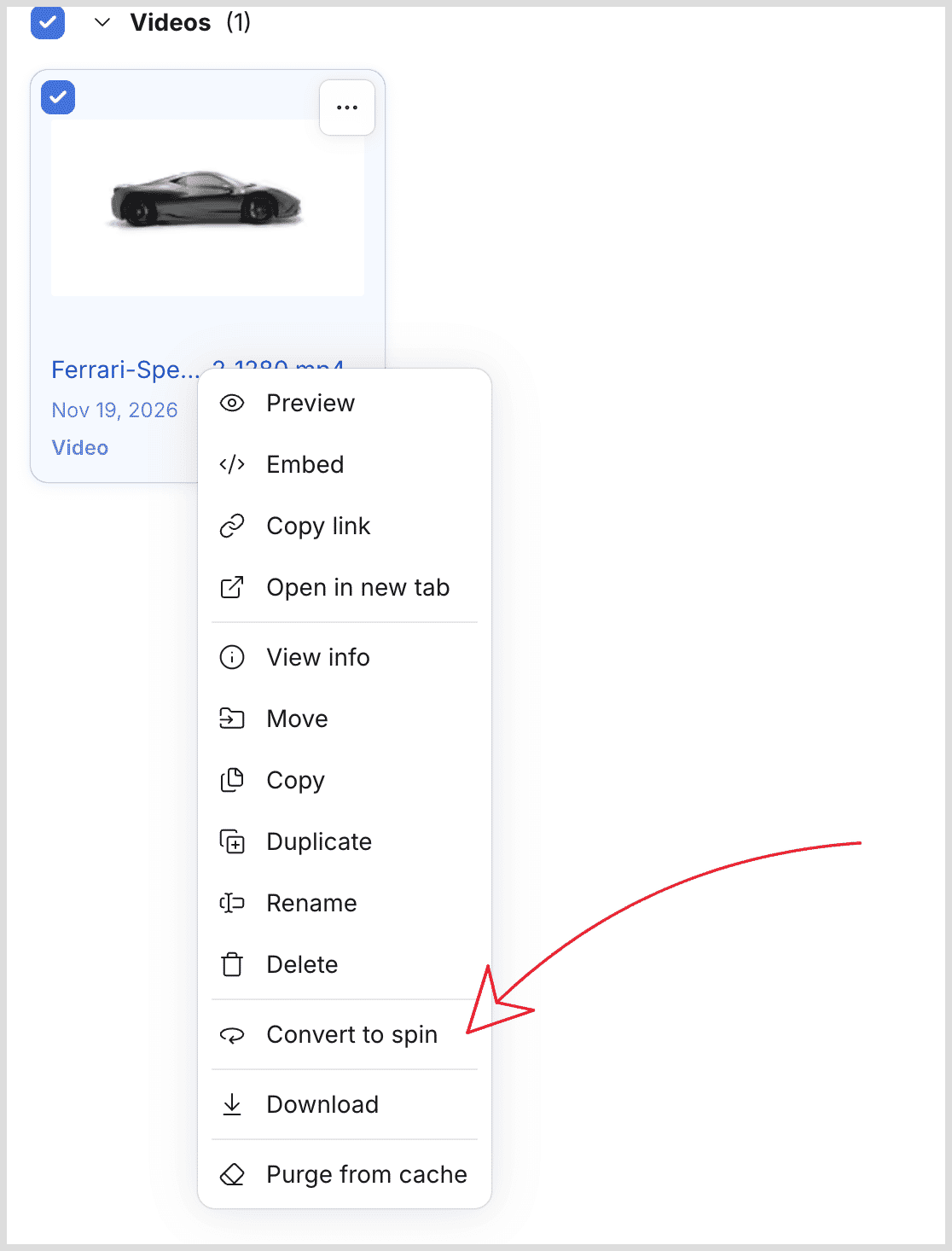
1. Upload a video to your Sirv account. Right-click it and choose “Convert to spin”:
2. Specify how many seconds should be converted, the format (JPEG or PNG) and the number of frames (18, 24, 36, 72, 120, 180 or 360):
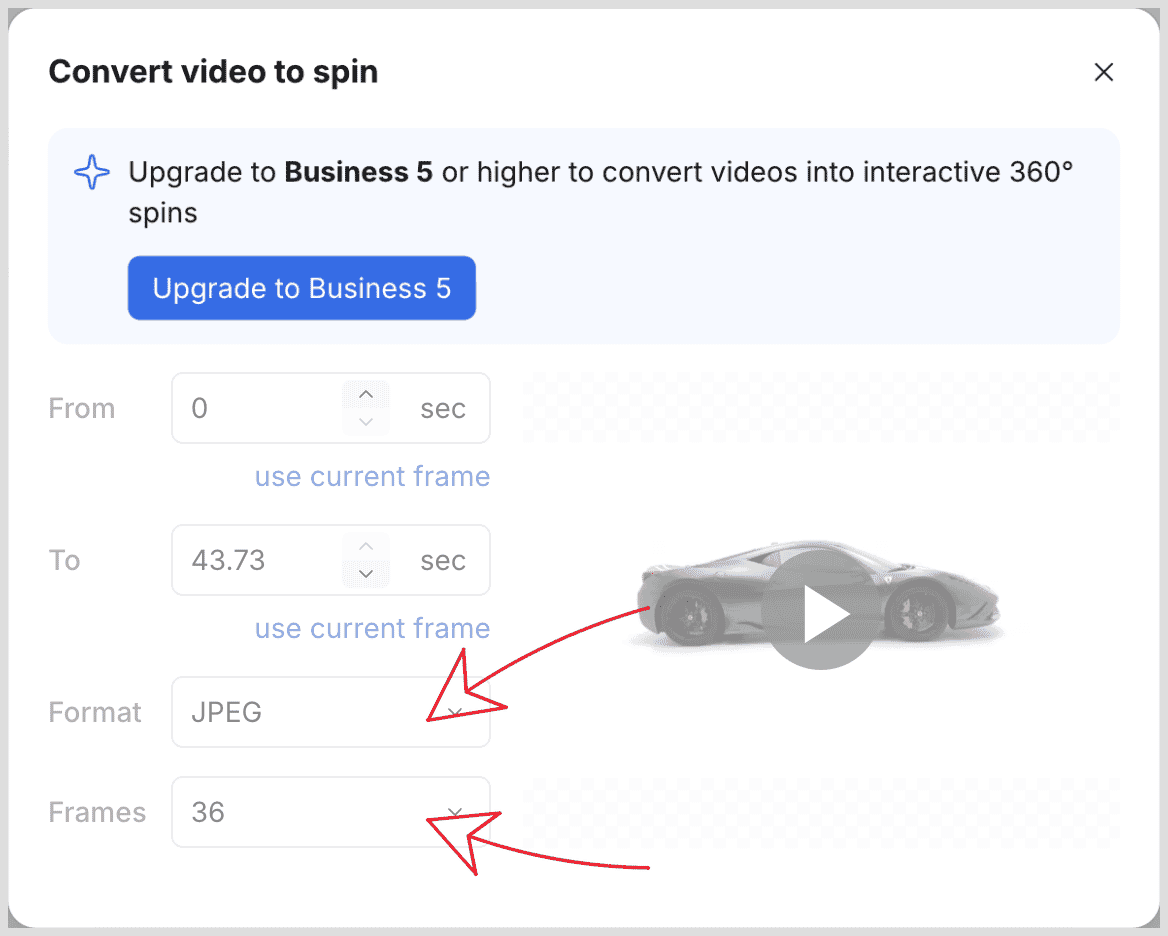
JPEG format is recommended for fast loading, while PNG can look slightly sharper.
36 frames balances smooth rotation with low data usage, while 72 or more frames will glide effortlessly (compare the best number of images for a 360 spin).
3. Click “Convert” and Sirv will create a new folder containing your spin and its frames.
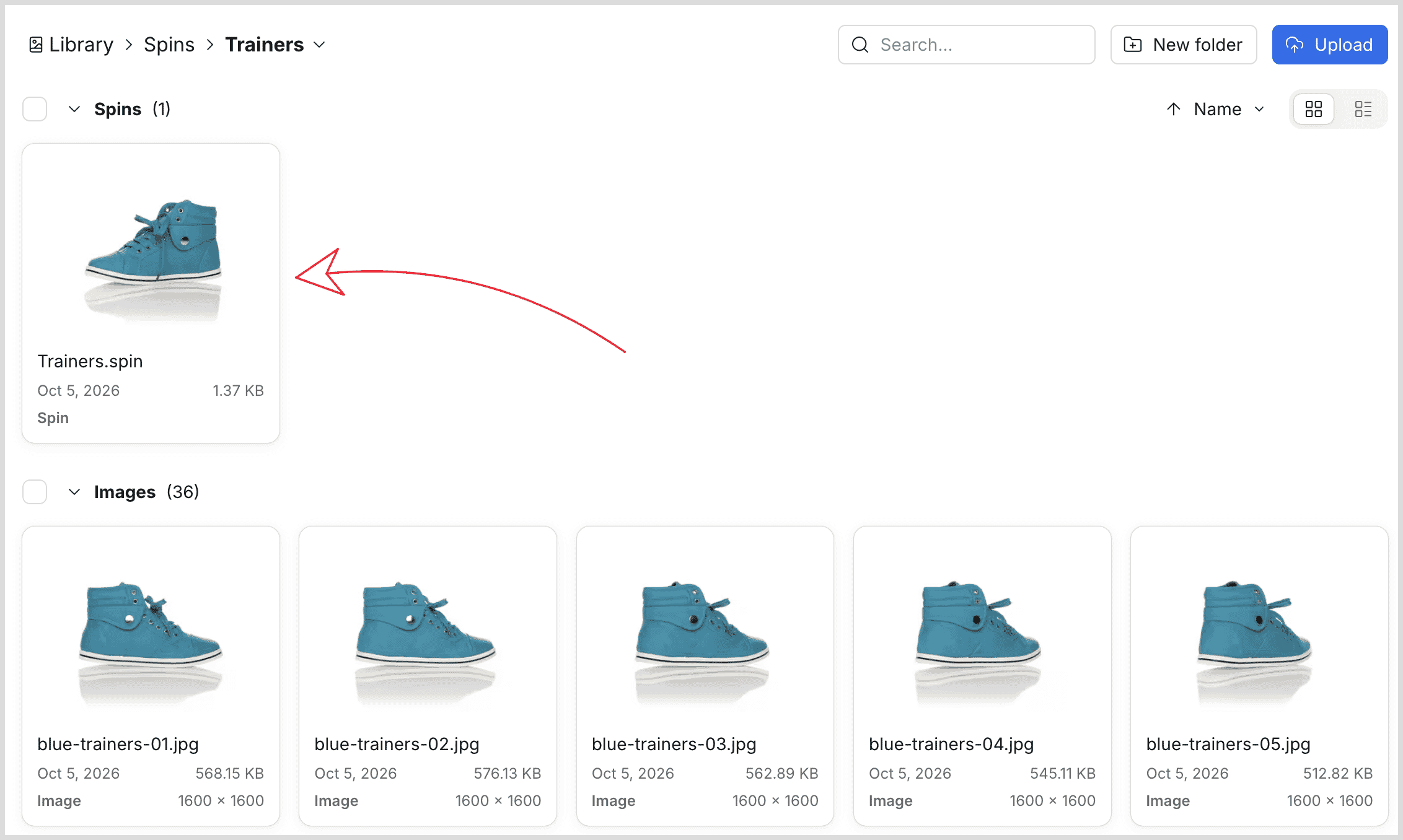
Delete frames
Section titled “Delete frames”If your video over-loops because it was longer than needed, delete the unnecessary frames and your spin will automatically regenerate.
Conversion via API
Section titled “Conversion via API”You can also convert videos to spins via the Sirv REST API.
This lets you fully automate video uploading and spin creation, ideal if you’re building an app or integrating Sirv into your workflow. REST API method: /v2/files/video2spin
Call it with the path of a video already in your account:
curl --request POST \ --url https://api.sirv.com/v2/files/video2spin \ --header 'authorization: Bearer BEARER_TOKEN_HERE' \ --header 'content-type: application/json' \ --data '{"filename":"/REST API Examples/video.mp4","options":{"frames":32}}'API conversion limit
Section titled “API conversion limit”There’s an API limit on the number of video to spin conversions per hour:
- Enterprise accounts: 400 per hour
- Business accounts: 200 per hour
- Free accounts: 20 per hour
If you need a higher limit, ask us about Sirv’s pre-processing API with higher limits and other benefits.
Video stabilization
Section titled “Video stabilization”If your videos are shaky, ask our customer success team about video stabilization. It runs on upload, through the API or a folder automation rule, not from a menu in your account.
Video to GIF
Section titled “Video to GIF”Once you have converted your video to a spin, you can convert it to a GIF or back to a video - perfect for use in email, social media such as LinkedIn or elsewhere.
Simply append ?image to the spin URL, to serve it as an optimized GIF:
https://demo.sirv.com/spins/paulolataes/BenGoji/BenGoji.spin?image
For a smaller file, Sirv automatically serves it as animated WebP to browsers that support it.
GIFs can be resized, cropped, styled or have text and image overlays. Visit the animated GIF documentation to learn more about customizing GIFs.
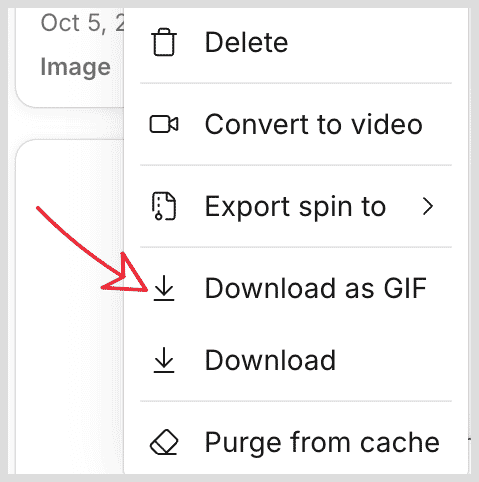
To download a GIF, click … on the spin in your Sirv account (or right-click it) and choose Download as GIF:
If you don’t have a Sirv account yet, register now to get 5GB free for a 30-day trial.