Image Hue
 By Jake Brumby, Customer Success DirectorUpdated
Short answer
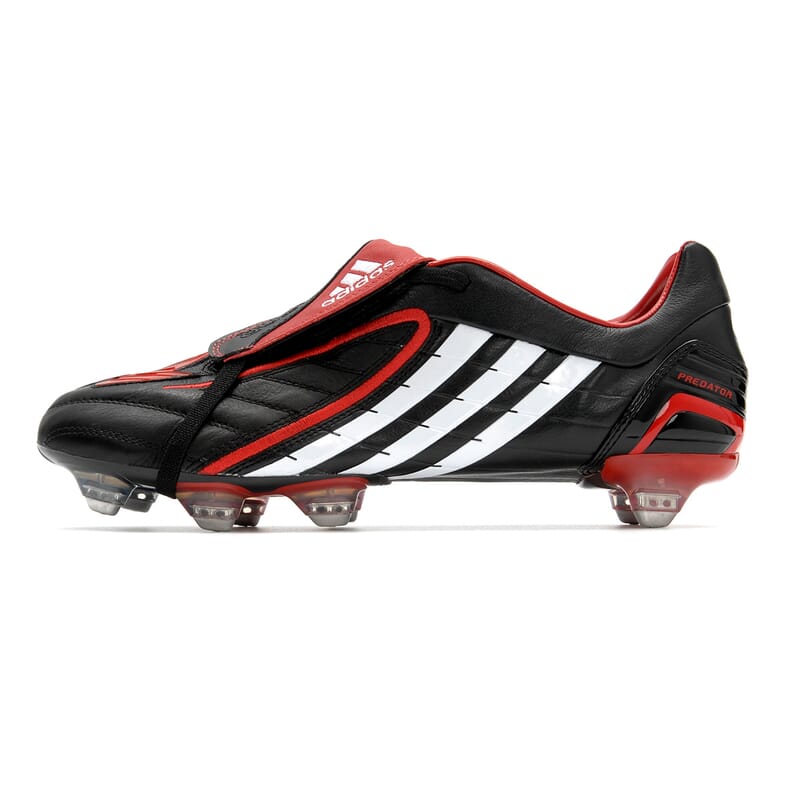
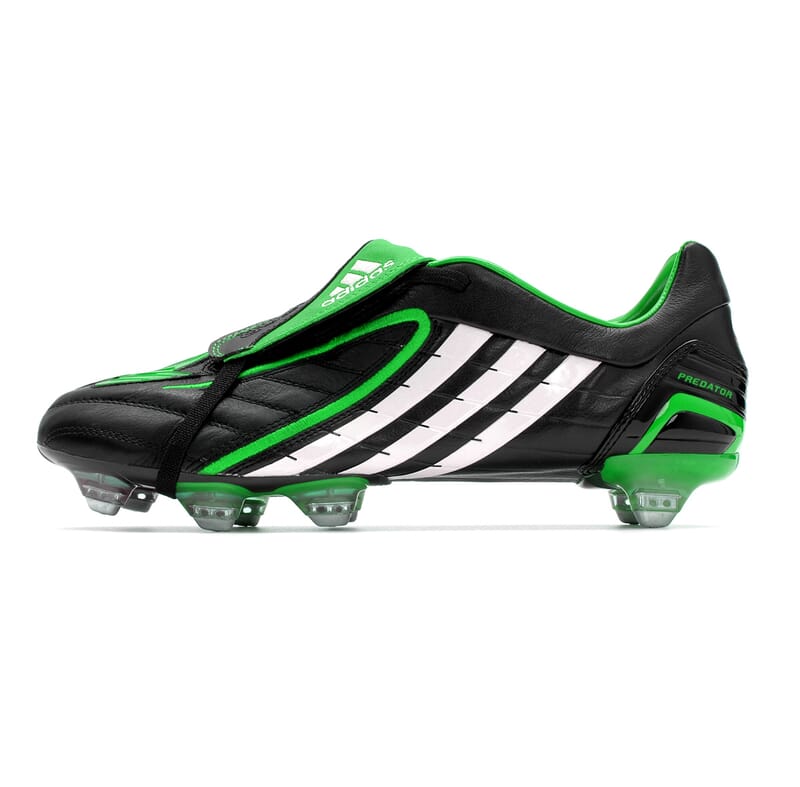
Add hue to the image URL to shift the colors of an image, for example ?hue=20 or ?hue=-20. The scale runs from -100 to 100. With hue and saturation together, you can show one product photo in several colors, such as a shoe in six shades, without a new photo shoot.
After reading this you will know
- How to shift the hue of an image from its URL
- How to show one product in several colors
Shift every color in an image by adding hue to its URL, for example to show one product in several colors. Try it in the demo below.
hue is set on a scale from -100 to 100. The hue refers to the color or shade.
https://demo.sirv.com/kitesurf.jpg?hue=20

https://demo.sirv.com/kitesurf.jpg?hue=-20

You could use hue (and saturation) to adjust the color of a product, for example:
https://sirv.sirv.com/website/demos/adidas/adidas-01-01.jpg?hue=-83

https://sirv.sirv.com/website/demos/adidas/adidas-01-01.jpg?hue=-50

https://sirv.sirv.com/website/demos/adidas/adidas-01-01.jpg?hue=-17

https://sirv.sirv.com/website/demos/adidas/adidas-01-01.jpg?hue=17

https://sirv.sirv.com/website/demos/adidas/adidas-01-01.jpg?hue=50

https://sirv.sirv.com/website/demos/adidas/adidas-01-01.jpg?hue=83

Hue -83
Hue -50
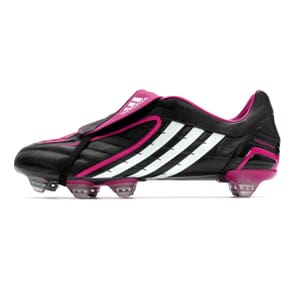
Hue -17
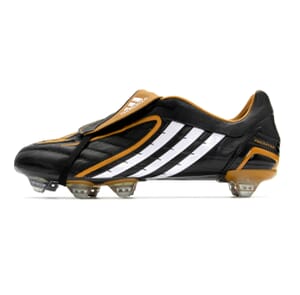
Hue 17
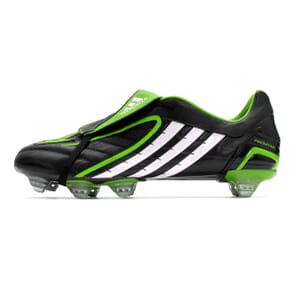
Hue 50
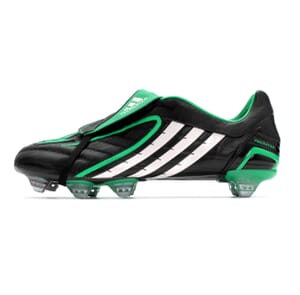
Hue 83
Change the hue value to show the same product in a different color without taking a new photo.