Add Sirv as a Shopify Collaborator
 By Jake Brumby, Customer Success DirectorUpdated
Short answer
Shopify's recommended way to give Sirv access to your store is as a collaborator, and Sirv starts the request. Send the Sirv team your store URL, such as your-store-name.myshopify.com, plus your 4-digit collaborator code if you use one. Then open Shopify's email and review the request Sirv sent.
After reading this you will know
- Why Sirv is added to your store as a Shopify collaborator
- What to send Sirv and how to review the request
The recommended way to give Shopify store access to a Shopify Partner like Sirv (for example, so we can set up your 360 spins or image zoom) is as a Collaborator.
Sirv must initiate the process of adding a Collaborator. It also requires some important steps from the store owner, described below.
Guide for store owners
Section titled “Guide for store owners”1. Send the Sirv team your Shopify store URL, by email or through our support form. Your URL will look something like your-store-name.myshopify.com.
If you have enabled Collaborator Code security on your Shopify store, then also send us your 4-digit number - we need that to submit a request.
To obtain your collaborator code:
- Go to your Shopify Admin.
- Click Settings (bottom left).
- Click Security (in the Users or Users and permissions section).
- Scroll to the Collaborators section.
- If collaborator code is enabled, you will see your 4-digit code.
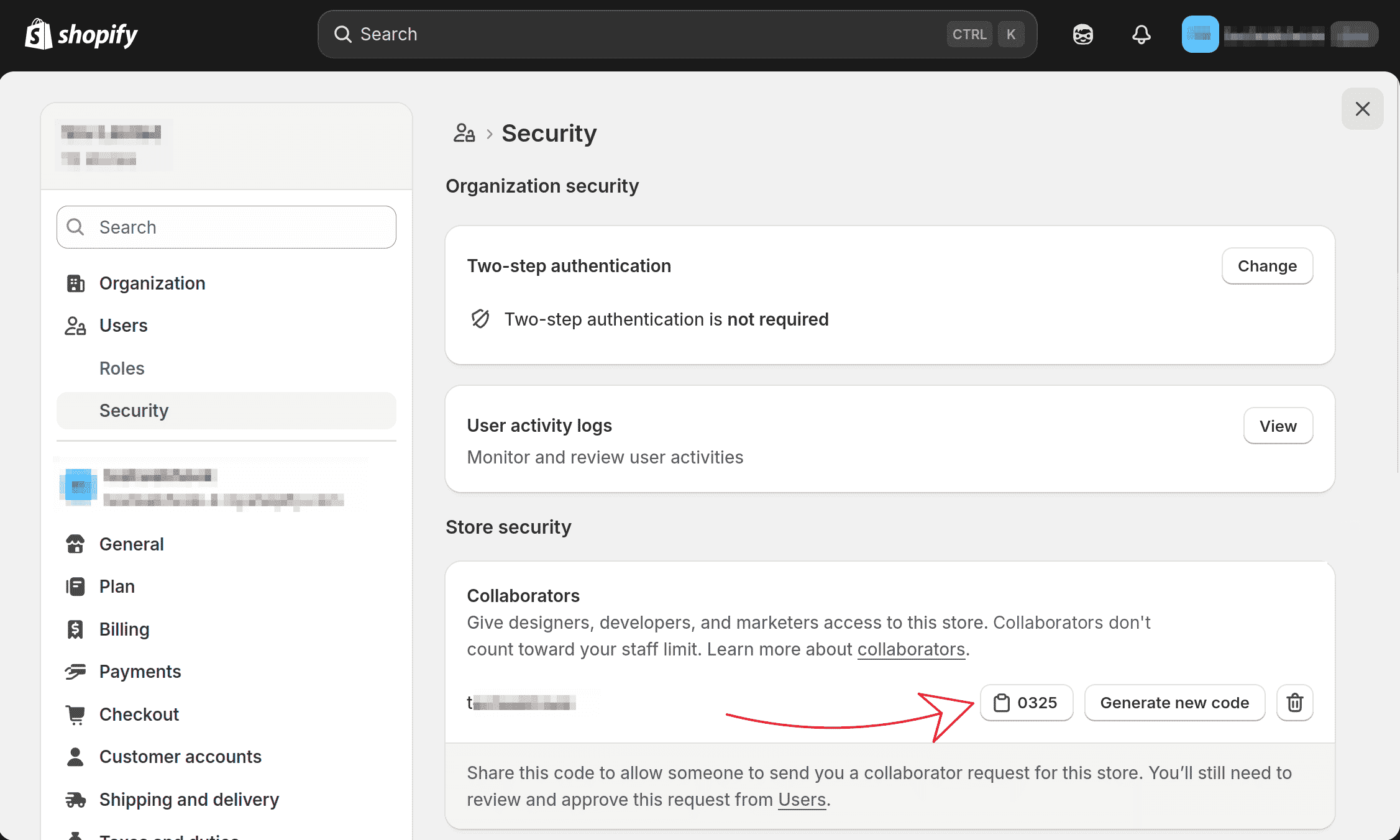
The UI might also look like this.
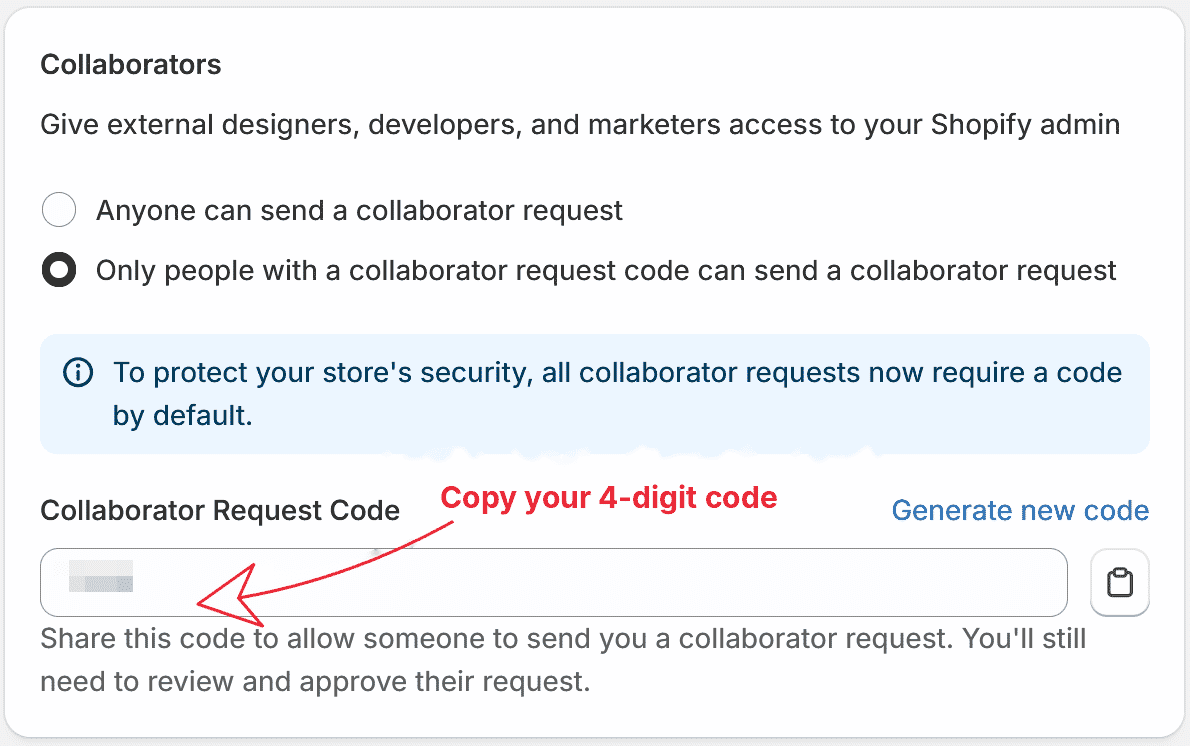
2. Once we receive your Shopify store URL and collaborator code, we will send a request to access these sections of your store:
- Apps and channels
- Online store
- Products
3. After we have sent a collaborator request, you will receive an email from Shopify. Click the link in the email to review the request.
Alternatively, follow these steps:
- Go to your Shopify Admin.
- Click Settings.
- Click Users and permissions (or Users).
- Find the Collaborator requests section (it may be in the Security section). Or check your notifications on the Home page.
- Find the pending request from Sirv and click “Review request”.
- Click to accept the request.
An email will be automatically sent to Sirv that the request has been approved.