Integrate Sirv Spin with Google Tag Manager
 By Igor Varyvoda, Head of Sirv StudioUpdated
Short answer
Sirv JS can push 360 spin events, such as ready, rotated and zoomed, to Google Tag Manager's dataLayer. Paste Sirv's event code on your page, create a Custom event trigger in GTM for each event name, such as sirvSpinReady, then use those triggers to fire tags for Google Analytics, Facebook or any other platform.
After reading this you will know
- Which spin events Sirv JS can track
- How to push them to the GTM dataLayer
- How to set up triggers and tags in GTM
In this article, you’ll learn how to track spin events with Google Tag Manager (GTM).
You could then pull those stats into your preferred analytics service or use them to create retargeting campaigns for your ad networks.
Sirv JS tracks the following events, to give you deeper understanding of how users are actually engaging with your 360 spins:
- Ready - spin has fully loaded
- Rotated - user has dragged spin
- Zoom in - user has zoomed into spin
- Zoom out - user has zoomed out of spin
- Fullscreen - user has expanded spin fullscreen
Pushing events to the dataLayer
Section titled “Pushing events to the dataLayer”First, you’ll need to push custom events to GTM’s datalayer. If you’re not familiar with GTM’s datalayer, please read this guide.
Sirv provides two versions of sirv.js, so check which one you’re using - either Sirv JS v3 (Sirv Media Viewer) or Sirv JS v2 (Sirv Spin).
In the example code below, Sirv JS v3 pushes four events and Sirv JS v2 pushes two events to Google Tag Manager’s datalayer (sirvSpinLoaded and sirvSpinInteraction):
<script>window.dataLayer = window.dataLayer || [];// Spin ready event pushed to datalayerSirv.on('spin:ready', (spin) => { window.dataLayer.push({ 'event': 'sirvSpinReady' });});// Spin rotated event pushed to datalayerSirv.on('spin:rotate', (spin) => { window.dataLayer.push({ 'event': 'sirvSpinRotated' });});// Spin zoom inSirv.on('spin:zoomIn', (spin) => { window.dataLayer.push({ 'event': 'sirvSpinZoomIn' });});// Viewer - fullscreenSirv.on('viewer:fullscreenIn', (viewer) => { window.dataLayer.push({ 'event': 'sirvFullScreen' });});</script><script>window.dataLayer = window.dataLayer || [];var SirvOptions = { spin: { /* Triggers when the spin is loaded. */ onready: function (spin) { /* This pushes the sirvSpinLoaded event to GTM's datalayer. You can name the event however you please */ window.dataLayer.push({ 'event': 'sirvSpinLoaded' }); }, /* Triggers when user interacts with spin. */ onspin: function (spin) { /* This pushes the sirvSpinInteraction event to GTM's datalayer */ window.dataLayer.push({ 'event': 'sirvSpinInteraction' }); } }};</script>Paste that code on your website after your Google Tag Manager and Sirv JS scripts.
You can rename the events however you please.
Each event has one callback. There are more callbacks available - refer to the list of Sirv JS event callbacks.
Setting up triggers in GTM
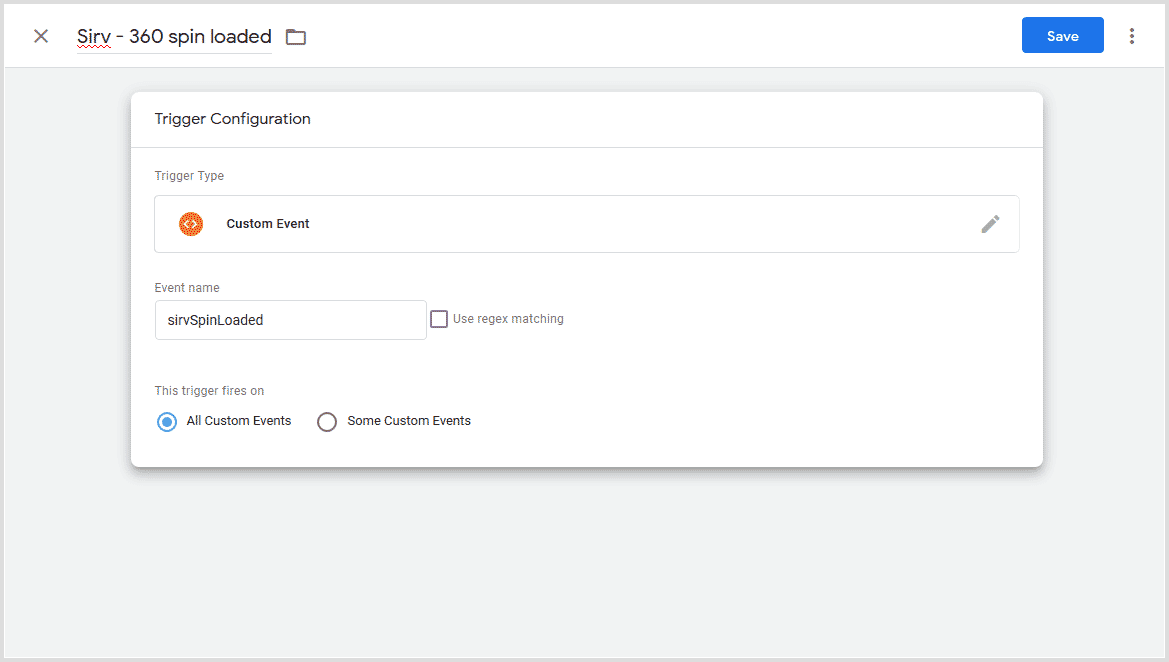
Section titled “Setting up triggers in GTM”Next you should setup triggers based on these events. In order to do so, create a new trigger with a meaningful name e.g. ‘Sirv - 360 spin ready’.
Then select ‘Custom event’. Type in the event’s name e.g ‘sirvSpinReady’. Click Save.
Repeat with ‘sirvSpinRotated’, ‘sirvSpinZoomIn’, ‘sirvFullScreen’ or any other events you might want to add.
Setting up tags in GTM
Section titled “Setting up tags in GTM”Now you’ll be able to use these triggers to fire tags for any analytics or advertising platform.
Let’s consider a Facebook custom event
1. In GTM, go to Tags -> New -> Custom HTML and add this code:
<script> fbq('trackCustom', 'SirvSpinReady');</script>2. Under ‘Triggers’, choose your ‘Sirv - 360 spin ready’ trigger.
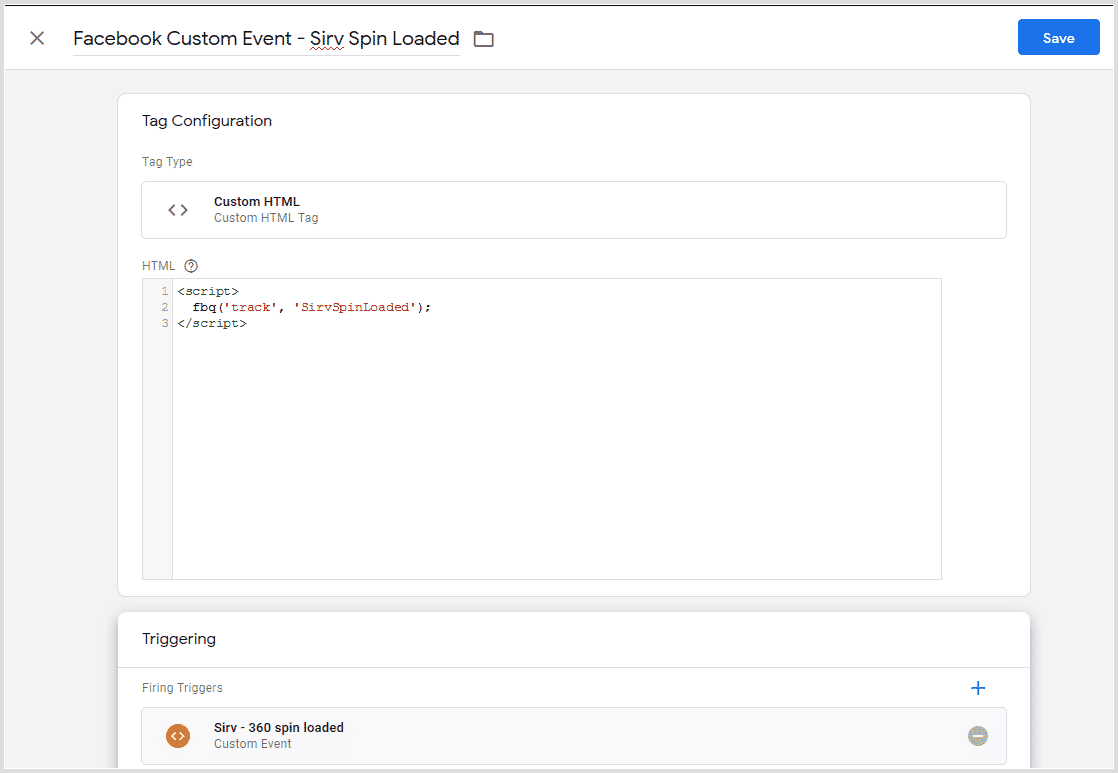
3. To ensure the tag fires after the Facebook pixel has loaded, go to Advanced Settings. Under the tag firing options, choose ‘Once per event’.
Under tag sequencing, choose ‘Fire a tag before’ and choose your Facebook pixel tag.
By following the steps above you can integrate any analytics or ad service to track your user interactions with Sirv spins.