Upload Files to Sirv
 By Jake Brumby, Customer Success DirectorUpdated
Short answer
Drag files or folders into your Sirv account in the browser for everyday uploads. Use the REST API for automated uploads and file management, S3 when your tool already supports S3, FTP for bulk uploads from a desktop FTP program, and a CSV upload to fetch many images from URLs. Zip a folder first if your browser can't upload folders.
After reading this you will know
- Which upload method suits which job
- How to upload by browser, REST API, FTP and S3
- What to do when an upload fails or is limited
You can upload files to Sirv from your browser, an upload tool, an API script or a CSV file. The best method depends on how many files you have and whether the upload needs to be automated.
- Browser - drag and drop files or folders into your Sirv account.
- REST API - the recommended method for programmatic uploads, file management and metadata.
- S3 - use it when your upload tool or automation already supports S3.
- FTP - a popular method for bulk uploads from desktop FTP programs. It uses plain FTP.
- CSV upload - fetch many images from URLs, rename files and add metadata from a spreadsheet.
Sirv supports all types of file including images, video, PDF, CSS, JavaScript and other static file types. Images can be resized and edited by URL once uploaded, and a numbered set of images becomes a 360 spin automatically. See the full list of supported file formats.
Browser upload
Section titled “Browser upload”All browsers support file uploads to your account and most also support folder uploads.
| Browser | File upload | Folder upload | Zip upload |
|---|---|---|---|
| Chrome | |||
| Firefox | |||
| Opera | |||
| Safari | |||
| Edge |
To upload a file, either drag and drop your images into your account or click the “Upload” button near the top right of your account.
For large folder uploads, Chrome or Edge are usually the simplest choice because they support folder drag and drop.
If your browser can’t upload folders, zip the folder first or use S3, FTP or the REST API.
REST API upload
Section titled “REST API upload”The Sirv REST API is a fast, secure and reliable way to upload files to your Sirv account. Documentation:
Use the REST API for all kinds of file management tasks (move, copy, rename, delete, add meta, convert etc) and account management tasks (search files, check usage, list users etc.).
FTP upload
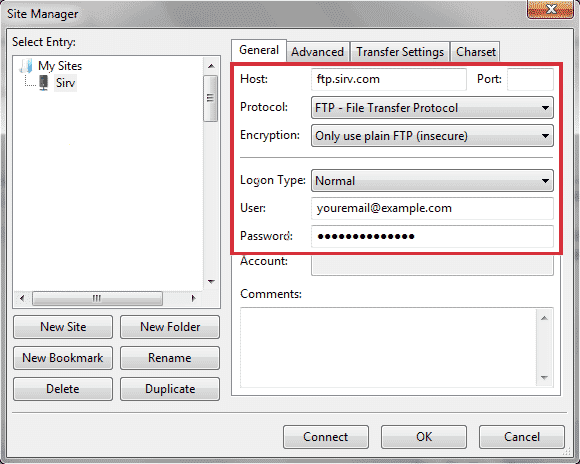
Section titled “FTP upload”To upload by FTP, enter the settings below into your FTP program. Popular programs include FileZilla (Windows/Mac/Linux), Transmit (Mac) or Free FTP (Windows).
FTP is available to Owner and Admin roles - see list of roles.
- FTP server: ftp.sirv.com
- Your username: Your email address
- Your password: same as your Sirv password
- Encryption: plain FTP (not SFTP/TLS)
If using FileZilla, open Site Manager and setup your account like the screenshot below, then click “Connect”:
Multiple FTP accounts
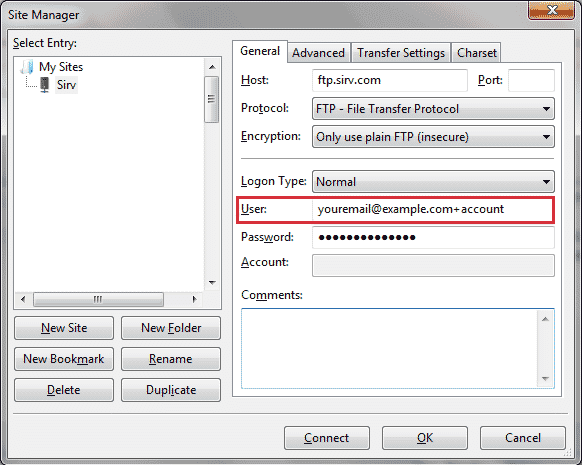
Section titled “Multiple FTP accounts”If you manage multiple Sirv accounts, you can FTP into another account by using your Sirv email and password and appending the account name to your email address. For example:
yourname@example.com+otheraccount
This is how the configuration looks in FileZilla:
FTP append
Section titled “FTP append”Sirv supports the APPE command (append), which can be useful when uploading very large files or if your network connection is unstable.
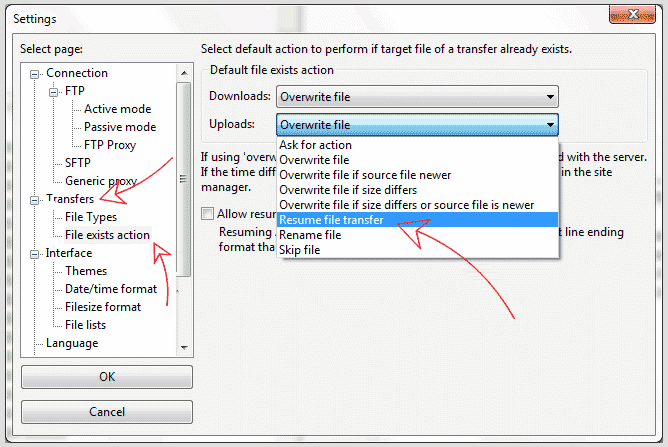
If a connection breaks during an upload, APPE makes the file continue uploading where it left off. Most FTP programs support APPE. To use APPE in FileZilla, go to Edit > Settings…
and set the “File exists action” for Uploads to Resume file. Screenshot:
If you have a slow or unstable internet connection, images may not fully upload to Sirv. If Sirv receives only part of an image, the missing part will show as dark grey.
You’ll see an alert in your Sirv account that the image is corrupt, recommending that you upload the image again.
If you have difficulty with FTP, try uploading via your browser at app.sirv.com or try zipping your images or try an S3 upload program.
FTP throttling
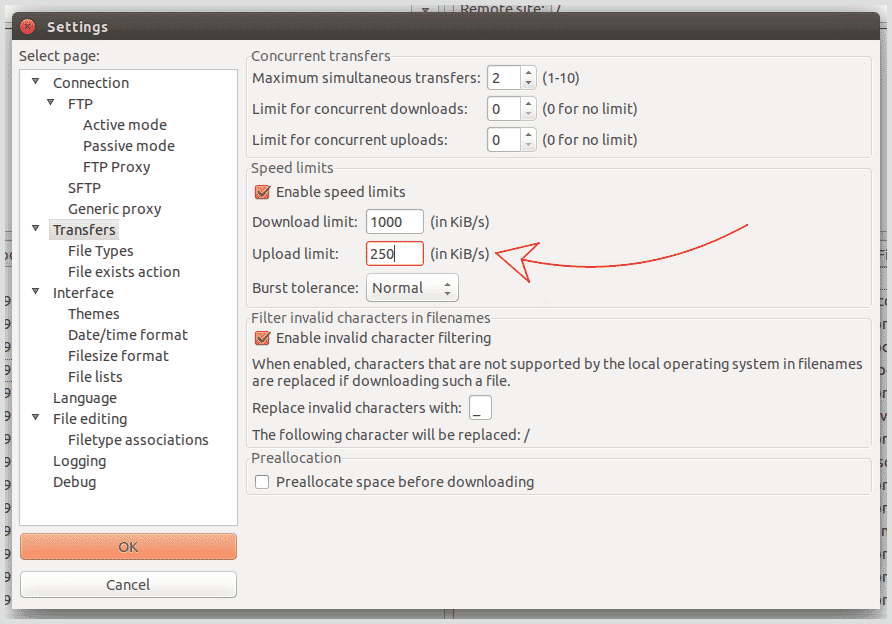
Section titled “FTP throttling”There’s an hourly limit (see below) on the number of files that can be uploaded. If you’re hitting your limit, consider throttling FileZilla to upload files slower.
Assuming your images are 500 KB each and your FTP limit is 2,000 files per hour, an upload limit of 250 KiB/s will transfer 1,800 files per hour. Adjust the rate as you need.
FTP rate limit
Section titled “FTP rate limit”There’s an upload rate limit of 300 to 4,000 files per hour, depending on which Sirv plan you use. Other FTP operations are also limited - see the FTP rate limits.
There are more than 60 FTP commands and each counts towards one of your FTP limits. The most common commands are:
- LIST - Return information about a file or directory
- RETR - Retrieve a file (download)
- STOR - Store a file (upload)
- SIZE - Return the size of a file
- MDTM - Return the last-modified time of a file
If you’re reaching your global FTP limit without completing many uploads / downloads, it means that your FTP client is making too many other commands.
Reduce the number of additional commands or upload via the REST API or S3 instead.
Disable FTP
Section titled “Disable FTP”FTP can be convenient but it is unsecure. Your username and password are transferred unencrypted, making it vulnerable to sniffing, spoofing or brute force attack.
Therefore, we recommend disabling FTP if you do not intend to use it. Instead, use one of the other upload methods described on this page.
To disable FTP for all users of your account, go to your Uploads settings. Users with the role of Owner or Admin can enable/disable FTP.
S3 upload
Section titled “S3 upload”Sirv supports the S3 interface, permitting you to upload, download and manage your files with a program that supports S3. Uploads over S3 are secure (HTTPS), using port 443.
S3 uploads benefit from integrity checks, allowing interrupted uploads to be resumed (by automatically returning the file MD5 in the ETag header).
Multipart uploads are supported, allowing large files to be broken into smaller chunks and then building them together. These benefits make S3 an attractive alternative to FTP.
To configure S3 uploading, use your S3 credentials on the Uploads settings of your Sirv account. A popular program that supports S3 file transfers is Cyberduck (Windows/Mac/Linux).
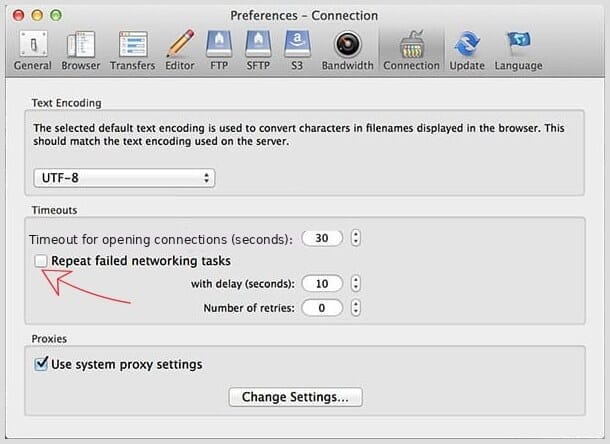
Follow our step-by-step instructions to configure Cyberduck. Once configured, set Cyberduck to repeat failed uploads, by ticking the “Repeat failed networking tasks” box:
CSV upload
Section titled “CSV upload”Sirv can automatically upload a list of image URLs from a CSV or XLS file.
Sirv’s batch file upload tool can also rename your files and save them in specific folder locations, using data from other columns in the CSV/XLS.
It can also add meta data to your images (great for alt tags) and it can be scheduled for regular uploading of new images. Please use the CSV bulk image upload documentation.
Upload file size limit
Section titled “Upload file size limit”Files such as videos and zips should be smaller than a certain file size or the upload will fail. The maximum file size differs depending on the upload method:
- FTP: no limit
- S3: 512 MB per file
- app.sirv.com: 1000 MB per file
- REST API: 80 MB per file
Image file size limit
Section titled “Image file size limit”Your images should be no larger than 128 MB. Images exceeding that will not be processed, so cannot be served.
Upload rate limit
Section titled “Upload rate limit”Your account can upload a large volume of files. There is an hourly limit, so if you reach that, pause your uploads until the limit refreshes.
Your hourly file upload limits and current usage is shown on the Usage page of your Sirv account. Hourly upload limit per account type:
| Upload method | Enterprise | Business | Trial | Free |
|---|---|---|---|---|
| app.sirv.com | Dynamic limit, typically above 5,000 and throttled | |||
| REST API | 4,000 | 2,000 | 2,000 | 300 |
| S3 | 4,000 | 2,000 | 2,000 | 300 |
| FTP | 2,000 | 2,000 | 2,000 | 300 |
Overwriting files
Section titled “Overwriting files”If you overwrite an old file with a new one, the old file will no longer exist. The CDN will instantly invalidate all old versions from its cache, so the new file will be served in future.
You can overwrite a file up to 1000 times. Beyond that, the file cannot be overwritten.
Try to avoid overwriting a file with an identical one - it uses extra upload resources and it will clear all the optimized cached versions of the image, reducing your CDN HIT ratio.
Overwrites count double towards your hourly upload limit, exhausting your allowance faster.
Zip files
Section titled “Zip files”When you upload a zip file, it will automatically unzip. This can be disabled. When a zip is unpacked, its folder structure will be maintained:
- If the zip file has no folder, the contents will be extracted into the current folder or a new folder named after the zip file.
- If the zip file has one top level folder, the contents will be extracted into that folder.
- If the zip file has more than one top level folder, the contents will be extracted into the current folder or a new folder named after the zip file.
If a folder with the same name already exists, the contents will be added to the existing folder. If a file with the same name already exists, it will be overwritten.
Zip size limit
Section titled “Zip size limit”Zip files larger than a certain size will not unpack. If your zip exceeds the limit, break it into smaller zips. Maximum zip file size to unpack:
- 1 GB: Enterprise & Business 20+ accounts
- 512 MB: Business 5-12 accounts
- 128 MB: Trial accounts
- 64 MB: Free accounts
Limits for zip contents:
- Maximum number of files inside: 5,000
- Maximum depth of folder levels: 10
If you have a slow or unstable internet connection, zip uploads may fail.
Consider enabling your upload program to resume where it left off, so that partially uploads files can continue without starting again. Archives must be in ZIP format (.zip).
Sirv cannot extract files in proprietary formats such as RAR (.rar).
Disable zip unpacking
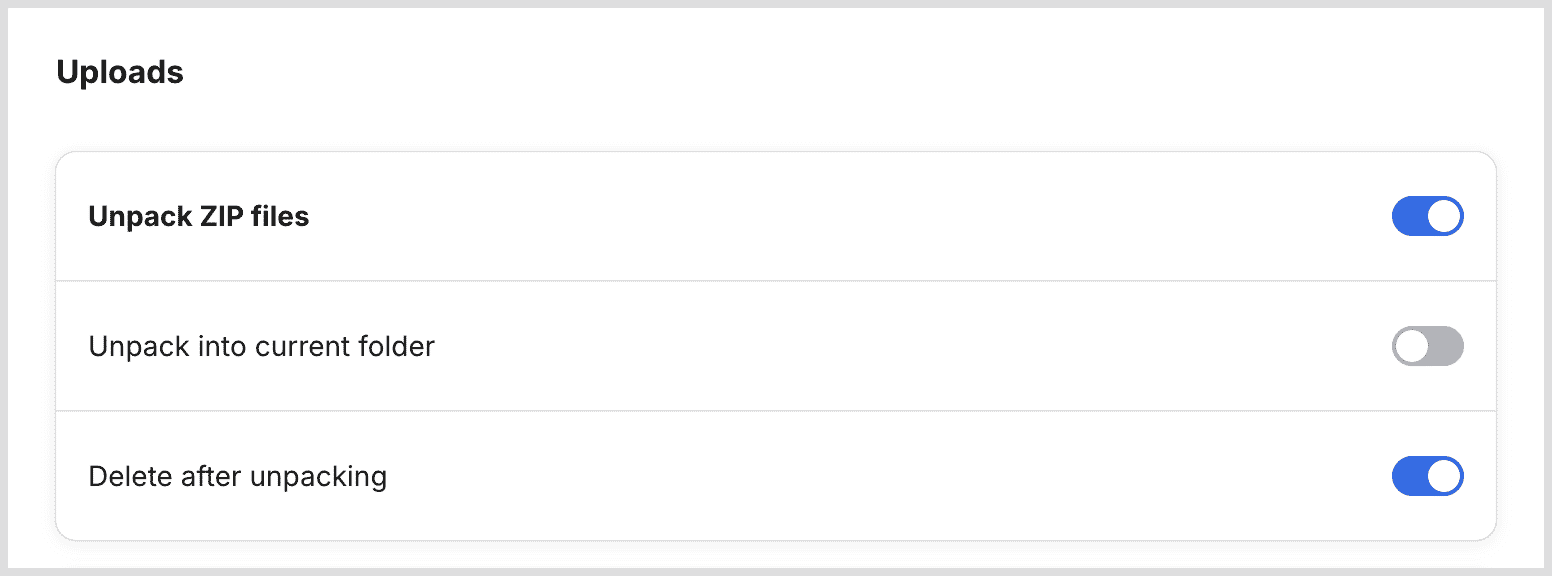
Section titled “Disable zip unpacking”If you don’t want zips to be automatically unpacked and deleted, change your Uploads settings to turn off “Unpack ZIP files” or “Delete after unpacking”:
Corrupt image notifications
Section titled “Corrupt image notifications”If an image fails to upload correctly, perhaps due to an unreliable internet connection, the file may be corrupt.
Sirv will return a response that the upload failed, so your upload program will know if this occurred. If you are using FTP, your FTP program may or may not inform you of a failure.
Consider using an alternative to FTP - either S3, app.sirv.com or the API. If Sirv detects a corrupt image, it will display a message on the Notifications page of your account.
Notifications are kept for 3 months. If you mark them as read, they will be kept for a further 2 weeks. After this period, they will be deleted.
Another notification will be generated if corruption is detected again. Detection is triggered in various scenarios, such as during image processing.