View 360 Spins Offline
 By Marc Bonne, Customer Success TeamUpdated
Short answer
Sirv serves spins online, so to show one offline, save it in your phone or tablet's browser first. On iPad or iPhone, open the .spin URL in Safari and add it to your Reading List. On Android, open it in Chrome and add it to your bookmarks. Both browsers then keep a copy you can open offline.
After reading this you will know
- How to save a 360 spin for offline viewing on iPad and iPhone
- How to do the same on Android
Display 360-degree spins even when you’re offline. Safari and Chrome on iOS or Android are capable of saving and viewing web pages without an internet connection.
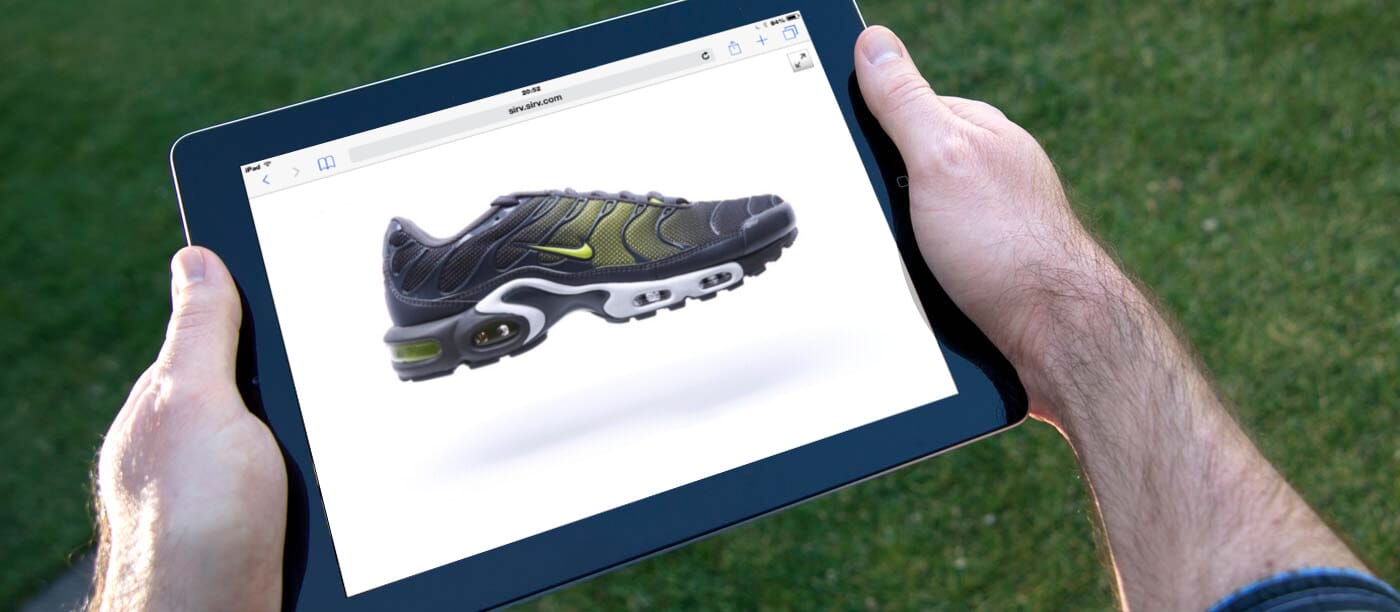
Sirv serves 360 spins from its servers, so if you’re offline, you won’t have access to them unless they’ve been saved locally on your iPad, iPhone or other tablet/phone.
You can generate animated GIFs with Sirv and view these offline, but for an interactive 3D or 360 rotating spin, you’ll need a bit of trickery…
360 spins offline on iPad
Section titled “360 spins offline on iPad”This 4-step tutorial shows you how to cache images in your browser to view 360 spins offline on iPad or iPhone in Safari.
1. Open your .spin file in Safari, e.g. https://sirv.sirv.com/Examples/nike/nike.spin:

2. Add the page to your Reading List:
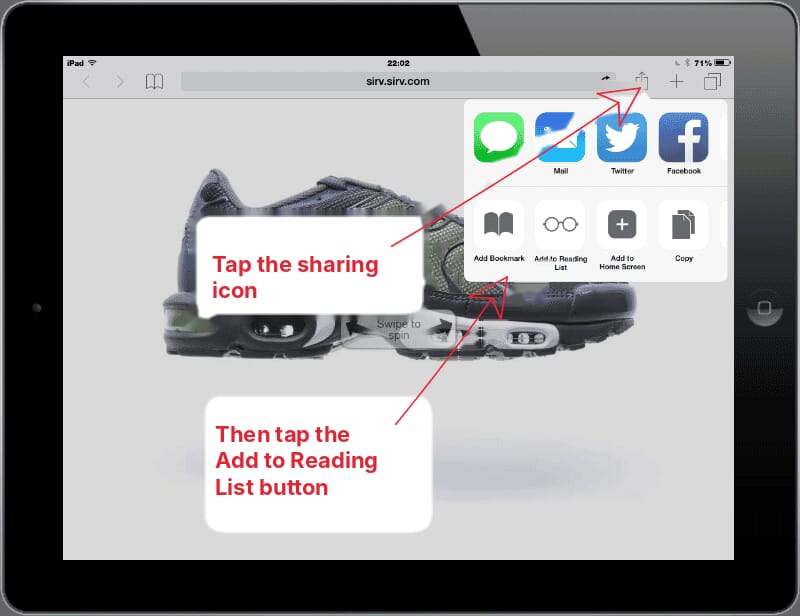
When you add a page to your Reading List, Safari caches its content for offline reading. 3. To access your 360 spin offline, select the bookmarks button, then tap the reading list button:
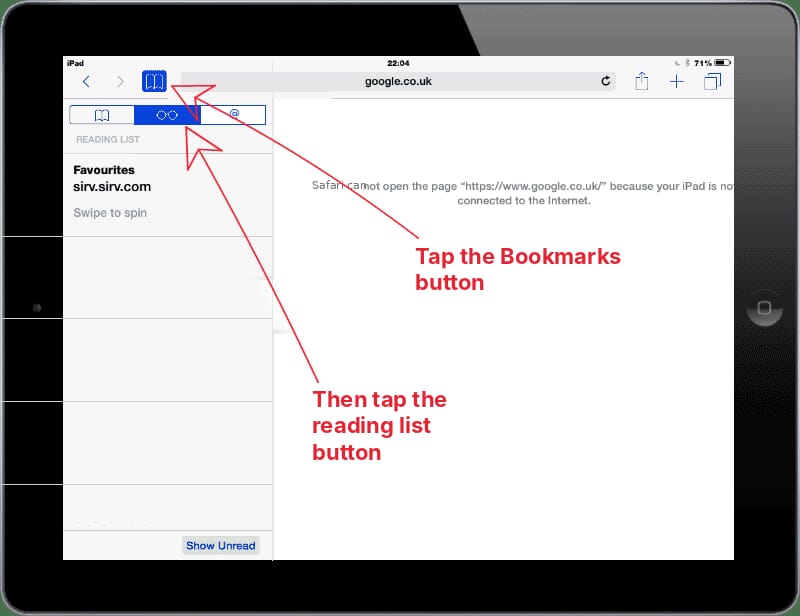
4. With the reading list open, select your spin to view it:
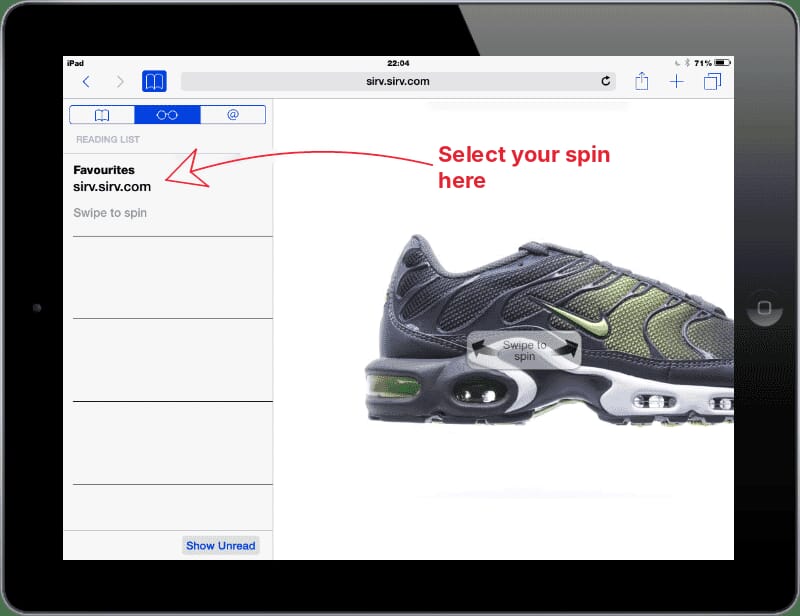
360 spins offline on Android
Section titled “360 spins offline on Android”These screenshots show how to cache images in your Chrome browser to view 360 spins offline on Android.
1. Open your .spin file in Google Chrome, e.g. http://your-account.sirv.com/spins/your-spin-file.spin. On Android devices, you should be able to make the .spin full-screen.

2. Select the favorites icon:
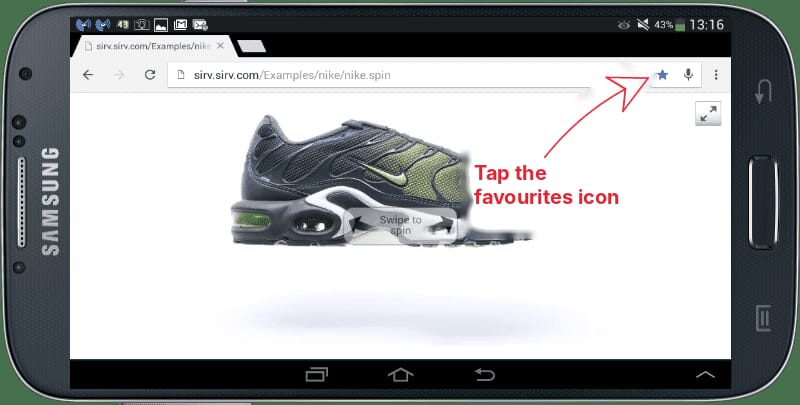
3. Add the page to your bookmarks:
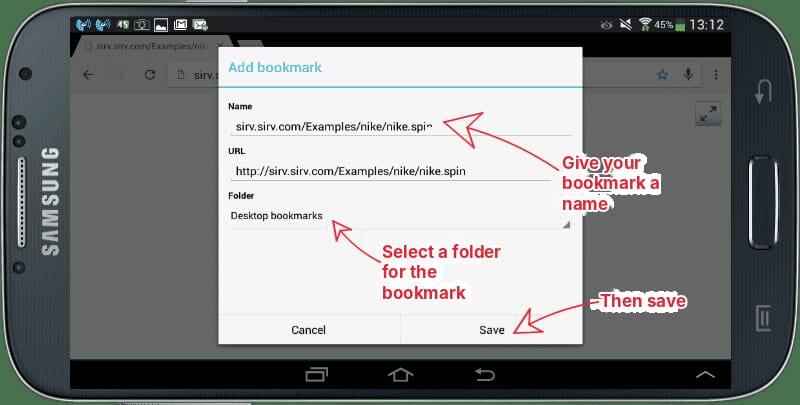
When you add a page to your bookmarks, Chrome caches its content for offline reading. 4. To access your 360 spin offline, with Chrome open, select the bookmarks button:
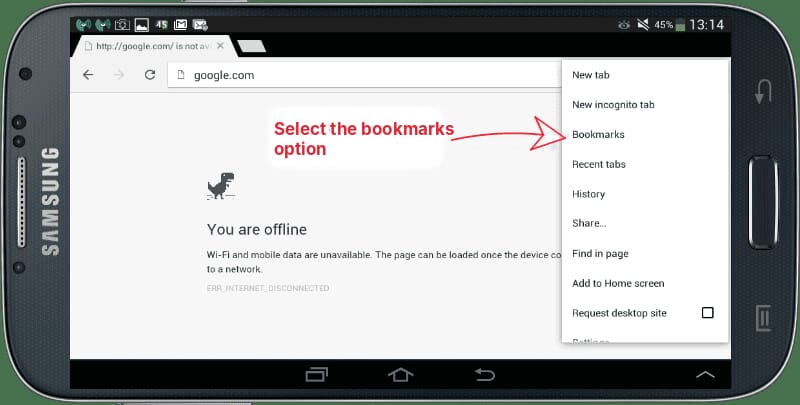
5. Select the folder containing your bookmarks:
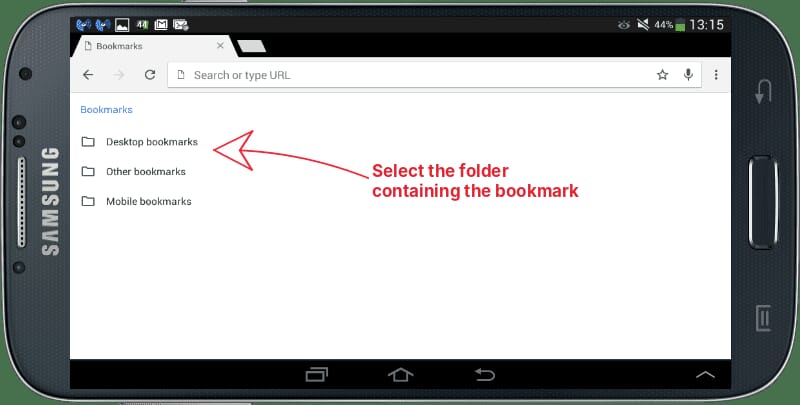
6. Select your spin:
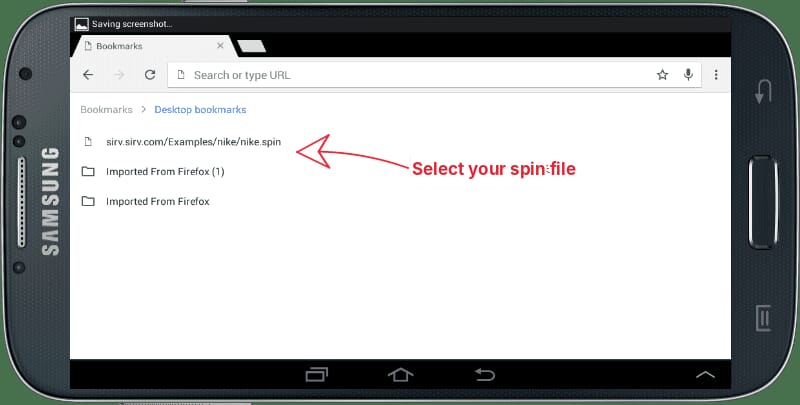
7. Now you can view your spin offline:

Start now
Section titled “Start now”Create a free trial Sirv account or go to your account.